> For the complete documentation index, see [llms.txt](https://docs.screendesk.io/llms.txt). Markdown versions of documentation pages are available by appending `.md` to page URLs; this page is available as [Markdown](https://docs.screendesk.io/changelog/readme.md).
# Changelog
New updates and improvements
{% updates format="full" %}
{% update date="2026-07-12" %}
## July 2026
Customer-reported issues can now move directly from Screendesk into your coding workflow, with the full debugging context available to AI assistants, terminals, scripts, and CI.
***
#### Screendesk MCP and CLI
**Debug customer issues where you write code**
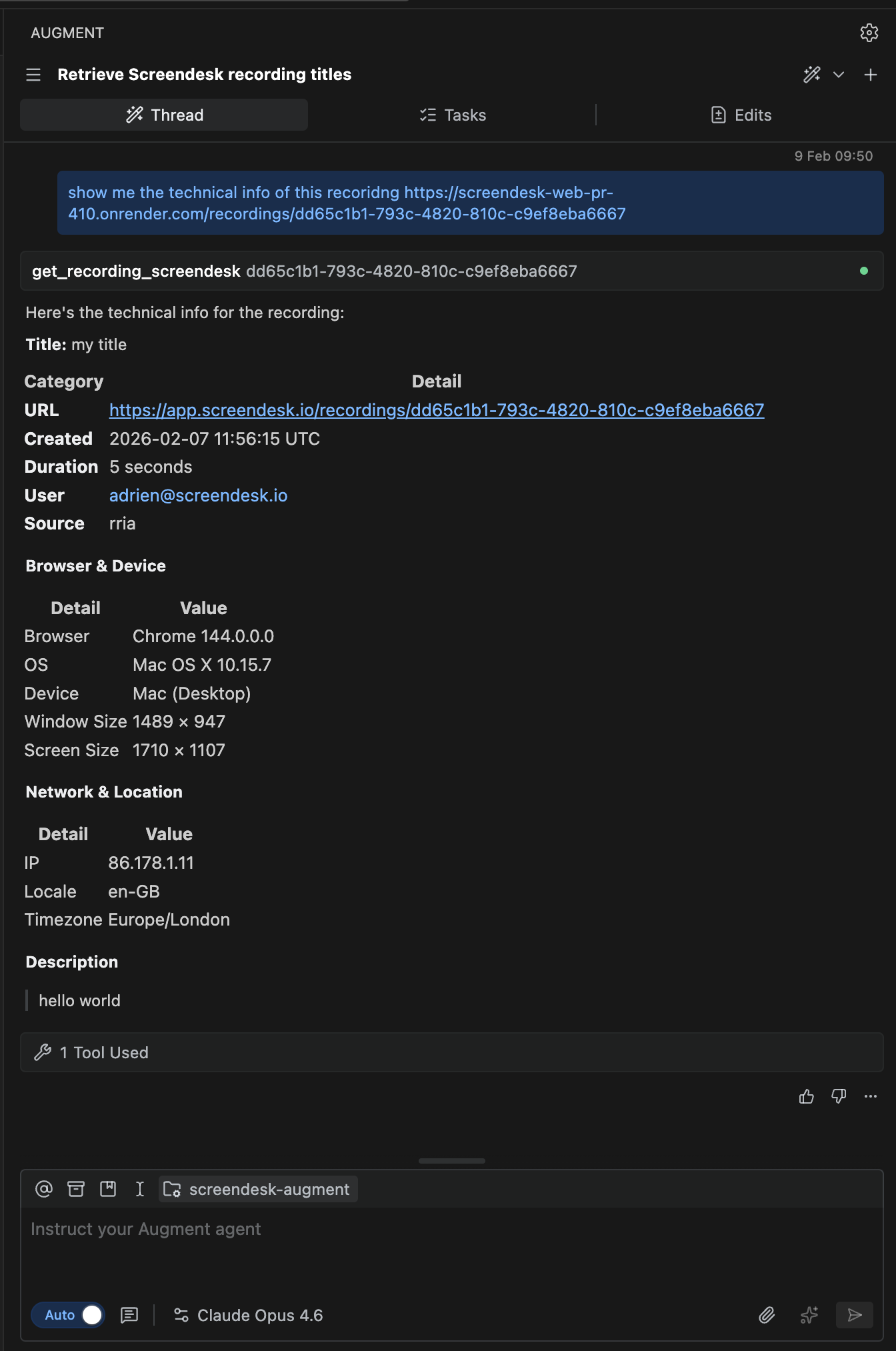
Screendesk now connects recordings and bug reports directly to Claude Code, Codex, Cursor, VS Code, and other MCP-compatible AI assistants. Give your assistant a Screendesk URL and it can inspect the report, reconstruct what the user did, identify console and network failures, review screenshots and video frames, and correlate the evidence with your codebase.
The new native `sdesk` CLI brings the same debugging capabilities to the terminal. Engineers and coding agents can retrieve structured JSON, filter large evidence collections, download authenticated media, and repeat the same investigation from scripts or CI. A bundled Codex skill teaches coding agents how to resolve reports, load only the relevant evidence, and handle updates safely.
Investigations can go beyond a single report. Search recordings and bug reports across the workspace, find related sessions with matching error signatures or environments, summarize recurring console and network failures, and compare successful and failing reports to isolate meaningful differences.
With read-write access, assistants and CLI workflows can also prepare and add comments or update a report's title, description, folder, labels, and assignees. Every write requires explicit confirmation and is protected against accidental duplicate retries. These tools cannot delete reports, change sharing settings, or administer the workspace.
Access is scoped to one workspace and mirrors the connected user's existing permissions, including private-folder restrictions. Sensitive credentials, cookies, authorization headers, tokens, session identifiers, and signed URL parameters are redacted before evidence is returned.
Connect with browser OAuth for interactive use or create a personal access token for headless clients, scripts, WSL, and CI.
> Available on **Pro** and **Enterprise** plans.
> {% endupdate %}
{% update date="2026-07-09" %}
## July 2026
Collaboration on recordings and bug reports is now easier to follow, share, and triage from the activity timeline.
***
**Comments, mentions, links, and reactions**
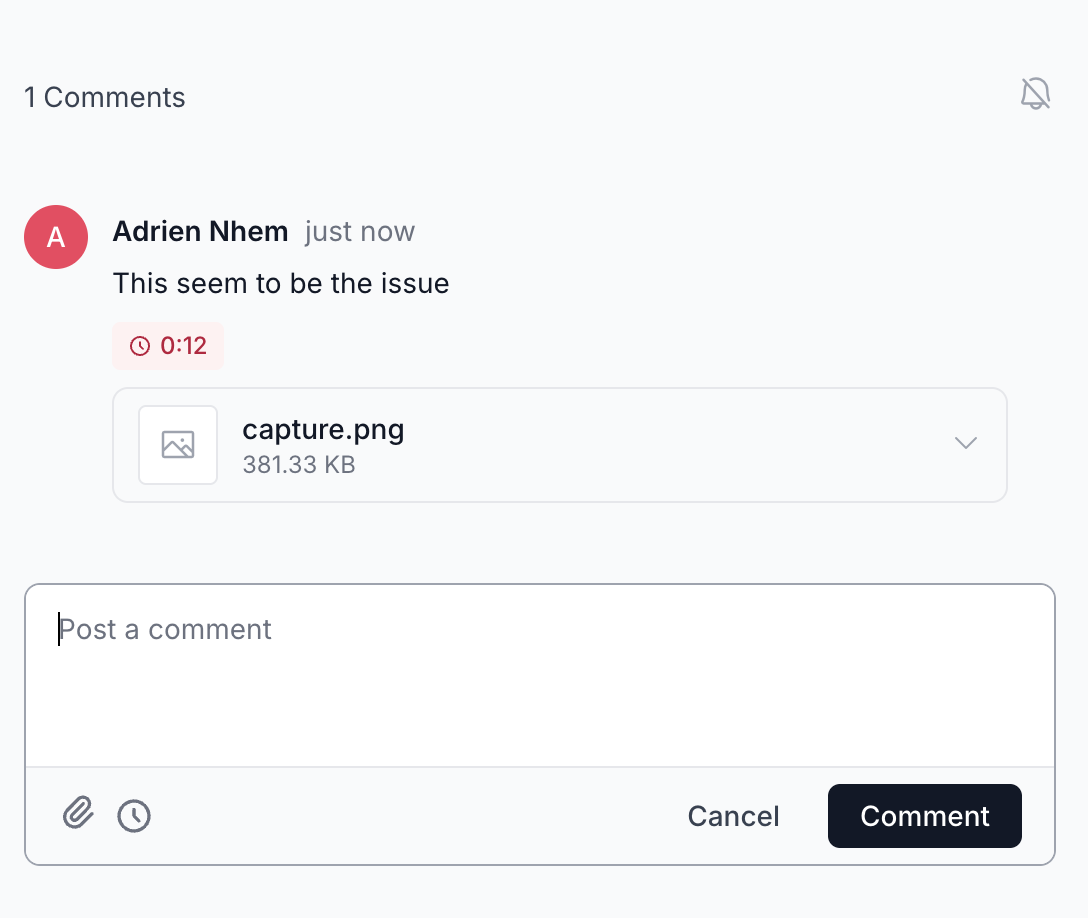
Teams can comment directly from the activity timeline on recordings and bug reports, mention teammates with `@`, copy a direct link to a specific comment, and react to comments for lightweight acknowledgement or triage.
Opening a copied comment link loads the recording or bug report and highlights the exact comment in the timeline, so teammates land on the right discussion without scrolling.
Reactions are grouped under each comment, making it easier to see acknowledgement, agreement, or follow-up signals without adding another reply.
Watch-only users can still read comments and activity, but they cannot add comments, edit or delete comments, mention teammates, or react.
> Available on recordings and bug reports for workspace members with access.
***
{% endupdate %}
{% update date="2026-07-08" %}
## July 2026
Send to apps lets teams create issues in Linear, GitHub, or Jira directly from a Screendesk recording or bug report.
***
**Send to apps**
Open a recording or bug report, click **Send to app**, choose Linear, GitHub, or Jira, then review the issue before creating it. Screendesk adds the source link, browser and device details, timestamp, and developer information so the created issue has the debugging context attached.
Each teammate connects their own app account from **Profile > Integrations**, so issues are created with their permissions in the destination app. Existing issue links stay visible on the Screendesk item after the issue is created.
> Supports **Linear**, **GitHub**, and **Jira**.
***
{% endupdate %}
{% update date="2026-03-29" %}
## March 2026
New video call controls give you more control before guests join and while the call is live.
***
**Video call settings**
You can now control how guests join and what they see during a call. All video call options now live in **Settings → Video Call**, grouped into clear tabs.
Under **Guest Defaults**, choose whether guests join muted or with their camera off. You can also enable a **pre-call review** screen so guests can check their camera, microphone, and speaker before joining. For a deeper check, turn on **connectivity & device test** to verify both hardware and connection quality. If browser permissions are blocked, you can show a help link with troubleshooting steps.
Under **In-call UI**, you can hide elements that are not useful for support calls. This includes the participant list, participant count, picture-in-picture button, settings menu, and in-call chat. Each option can be toggled independently.
Under **Clarity & Guidance**, you can enable active speaker highlighting and participant name labels in the subgrid for multi-person calls.
> Available on **Pro** and **Enterprise** plans.
***
**Recording consent for video calls**
You can now require guests to review a recording notice before entering a live video call. When enabled, the join page shows your logo, a notice that the call may be recorded, your custom consent text, and a link to your privacy policy, along with **Accept** and **Decline** buttons.
Guests who decline can still join the call. The host sees an in-call banner, and auto-recording stops if it was running. Per-locale translations are supported for both the consent message and the link text.
Configure this in **Settings → Video Call → Recordings**.
> Available on **Pro** plans.
***
**Improved**
Participant insights redesign
The Insights tab on live call recordings now shows each guest as a card with their display name, join and leave times, OS, browser, device, screen size, timezone, locale, IP, ISP, and location. Data is collected automatically after the call ends. Host and recorder participants are excluded so the view stays focused on guests.
{% endupdate %}
{% update date="2026-03-20" %}
## March 2026
Three new features give you more control over what happens before a recording starts, how you handle your customers' consent, and how long data lives in your workspace.
***
**Recorder flow**
You can now show a guided multi-step flow to customers before the screen recorder opens. Walk users through setup instructions, tips for capturing useful recordings, or anything else they need to see first.
Translations are supported out of the box.
> Available on **Plus** plans and above.
***
**Privacy opt-in**
You can now require customers to explicitly accept a privacy notice before they can start a recording. Once a customer accepts, the consent is remembered for future visits.
If you serve customers in multiple languages, you can add per-locale translations for both the consent message and the link text directly from the settings preview.
> Available on all plans.
***
**Deletion policies**
The legacy auto-deletion toggle has been replaced by a full deletion policy system. Instead of a single retention period per recording type, you can now create multiple named policies — each with its own rules for what to delete and when.
Deletion is permanent. Recordings and bug reports deleted by a policy — along with all associated comments, labels, and attachments — cannot be recovered.
> Available on **Pro** and **Enterprise** plans.
***
{% endupdate %}
{% update date="2026-02-15" %}
## February 2026
We've spent the last six months rebuilding how teams capture, organize, and act on bugs and recordings. Screendesk now does a lot more than record screens — it routes, triages, and automates your entire support workflow. Here's everything that's new.
***
**Bug reports**
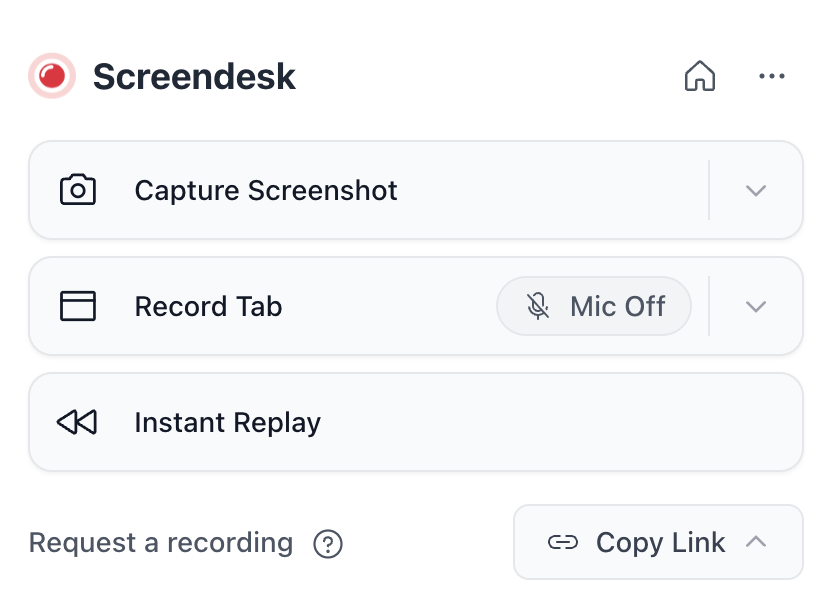
**Chrome extension**
A new Chrome extension lets anyone on your team file bug reports directly from the browser. Click the icon, pick your capture mode, and submit — the report lands in Screendesk with full technical context attached. No copy-pasting URLs, no describing what happened in words. Just show the bug.
Three capture modes are available from the extension popup.
* **Video recording** captures your active tab or entire desktop.
* **Screenshot** supports area selection, visible viewport capture — with an optional 3 or 6-second delay so you can set up the state you need.
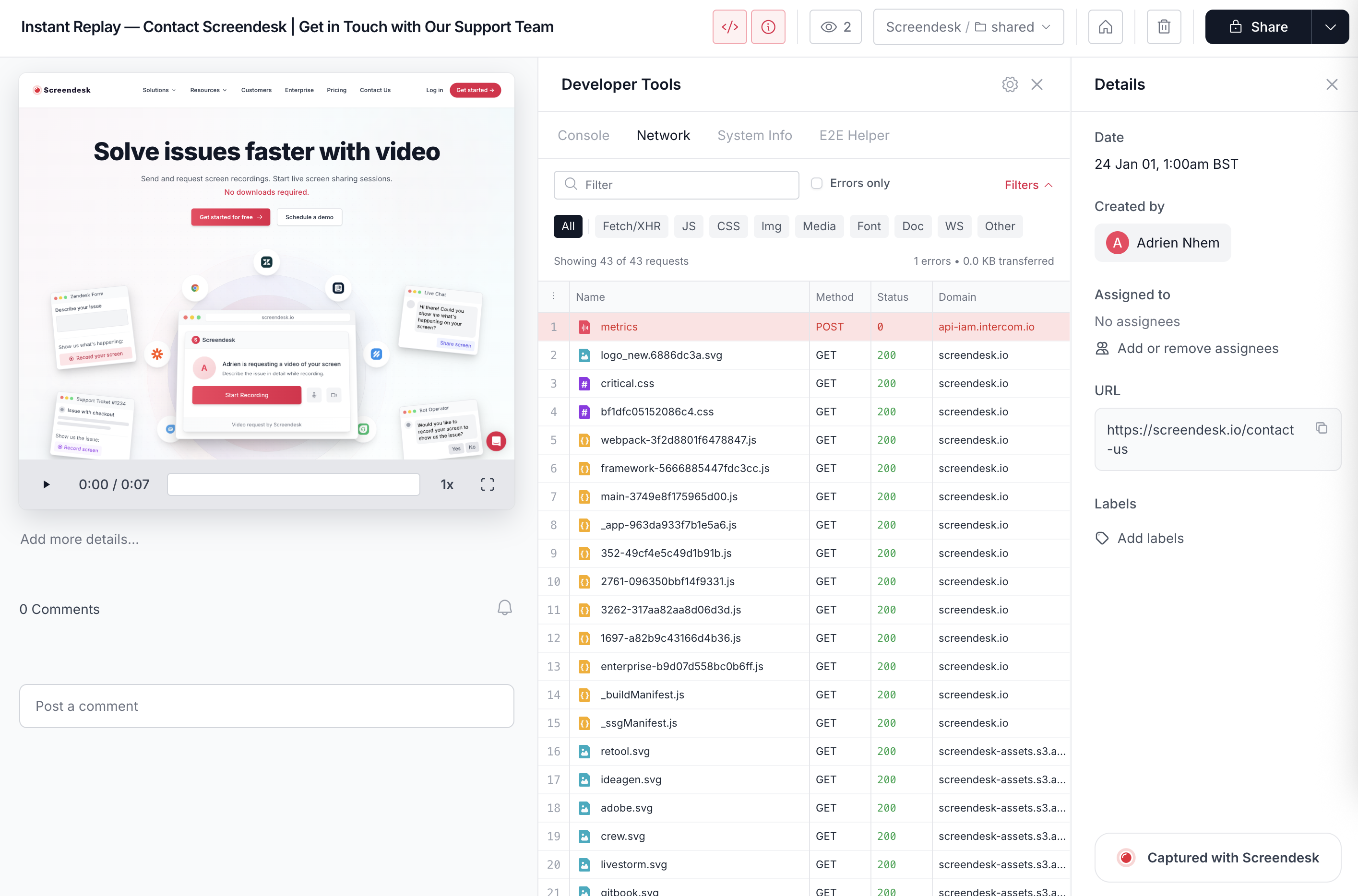
* **Instant replay** reconstructs the last few seconds from DOM snapshots, giving your engineers a deterministic playback they can step through.
Before submitting, pick a folder, assign a team member, and apply labels — all from the extension. Automation badges on each folder tell you what will fire when the report lands.
**Rich bug context**
Every bug report ships with the technical context your engineers actually need. Screendesk automatically collects browser name, version, and engine. OS name and version. Screen resolution, window size, and device type. Timezone and locale. Network download speed, latency, IP address, ISP, and VPN detection status.
On top of that, each report captures JavaScript console logs with full stack traces, a complete network request log with headers, payloads, and response bodies, all click events with element selectors and coordinates, page navigation history, Core Web Vitals, and — for instant replays — full DOM snapshots.
Assign reports to team members, tag them with custom labels, organize them into folders, and control sharing with workspace-only or public link access. It's everything your engineering team needs to reproduce a bug without a single back-and-forth message.
***
**Powerful workflows**
A recording lands in Screendesk. Triage rules route it to the right folder. The folder triggers an automation. Your AI assistant picks it up through MCP. This is the pipeline we built.
**Recording triage**
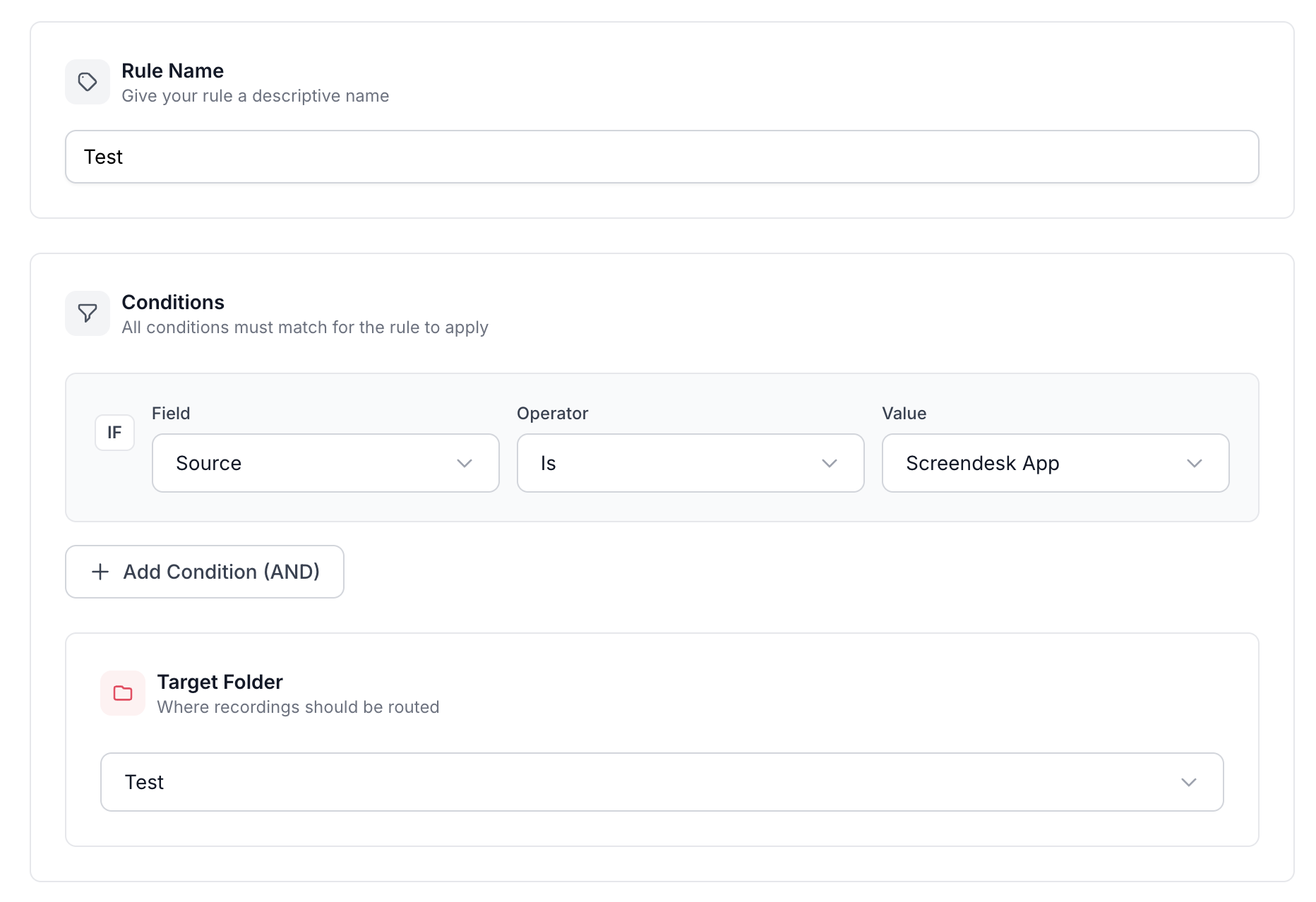
Incoming recordings now route themselves. Define triage rules based on source integration (Zendesk, Intercom, Freshdesk, HubSpot, and 15+ others), customer email, country, recording type, team member, or whether the recording has audio.
Rules evaluate in priority order — first match wins. All conditions in a rule must match, and non-matching recordings stay unfoldered until you decide. Enable or disable rules without deleting them, reorder with drag-and-drop, or start from quick templates for common setups like routing by source or geography.
**Folders**
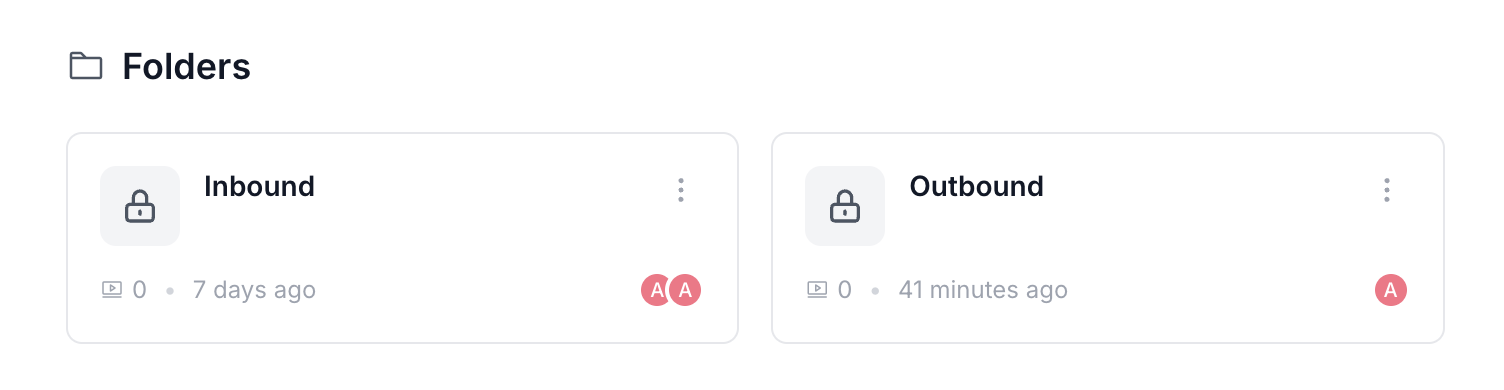
Recordings and bug reports now live in folders. Create **Bug Report Folders** and **Recording Folders** for received recordings, sent recordings, live sessions, and your video library — each with its own content type.
Folders can be public or private. Private folders have explicit member lists so only the right people see sensitive reports. Pin folders to your sidebar for quick access, archive them when a project wraps up. Every folder can also trigger automations when new content arrives.
**Automations**
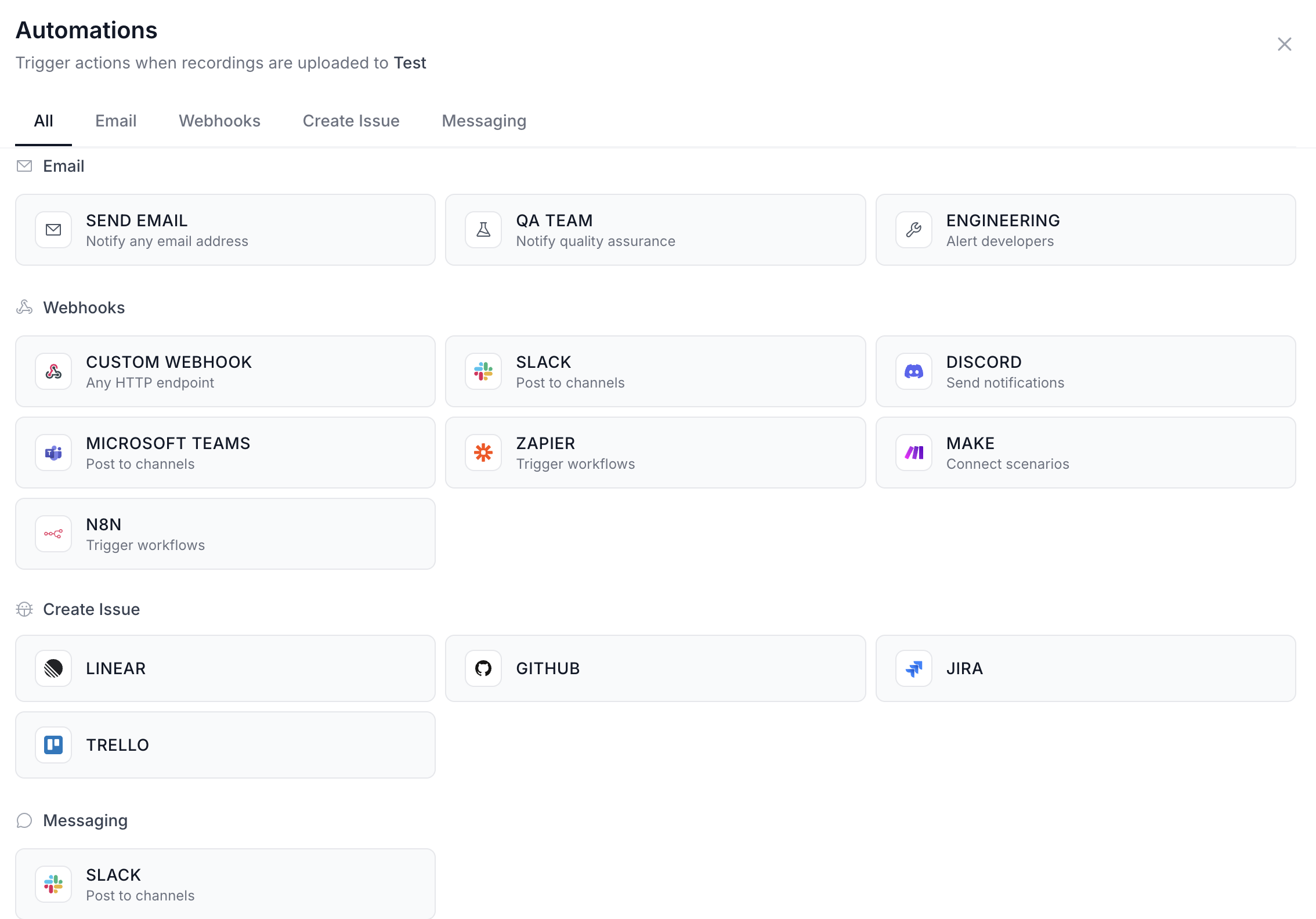
Folders now power automations. When a new bug report or recording lands in a folder, Screendesk can automatically send an email notification, post a message to a Slack channel with Block Kit formatting, fire a webhook to any HTTP endpoint, or create a ticket in Linear, Jira, GitHub, or Trello.
Each automation supports template variables like `{{bug_report.title}}`, `{{bug_report.user.name}}`, and `{{folder.name}}` so notifications carry the right context without manual work. Toggle automations on or off, track execution logs with success rates, and chain multiple automations on a single folder.
**MCP**
Screendesk now speaks the Model Context Protocol. Connect your AI assistant — Claude, Cursor, or any MCP-compatible client — and give it direct access to your recordings and bug reports.
Your AI assistant can list recordings, read transcripts, pull console logs and network requests from any bug report, and update titles and descriptions. It cannot delete anything or change permissions.
***
**Collaboration**
**Comments**
Recordings and bug reports now have threaded comments. Leave feedback directly on a recording, @mention a teammate to pull them in, or attach up to five images per comment to add visual context. Mentions use inline autocomplete — start typing a name and Screendesk suggests matching workspace members.
For video recordings and instant replays, comments can be pinned to a specific timestamp. Click a timestamp badge and the player seeks to that exact moment. It's the fastest way to point at a problem without describing where it happens.
Subscribe or unsubscribe from any thread with one click.
**Assignments**
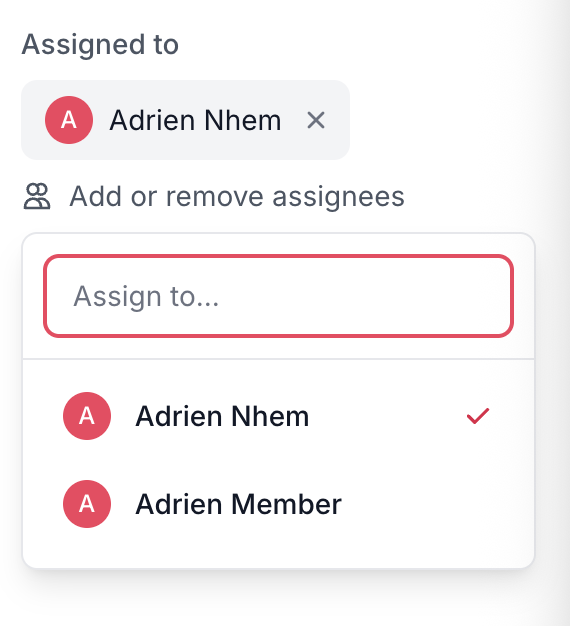
Assign any recording or bug report to one or more team members. Assignees receive an email and an in-app notification the moment they're added.
***
**Enterprise**
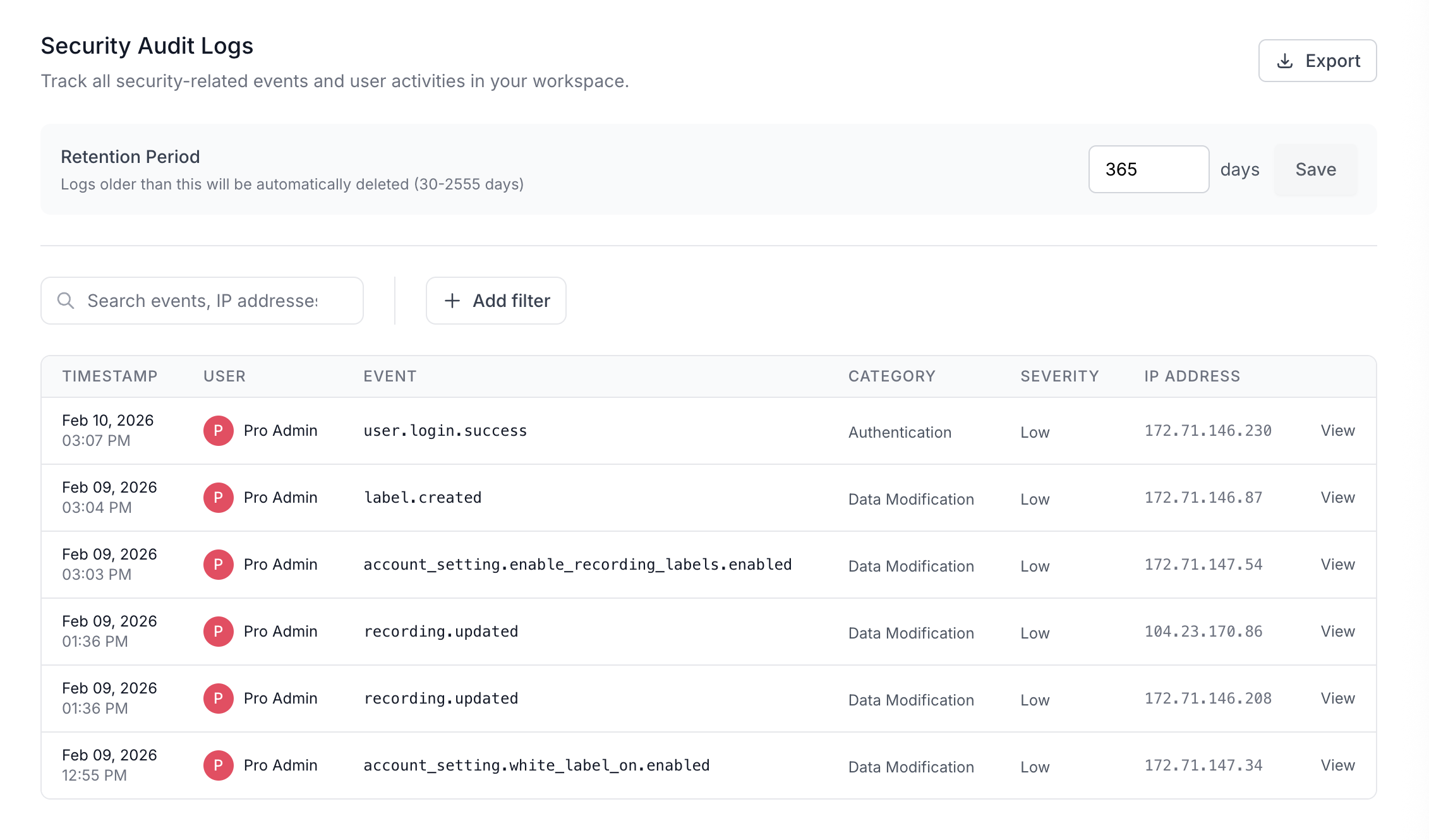
**Audit logs**
Every meaningful action in Screendesk is now logged with a tamper-proof audit trail. Logins, recording views, bug report deletions, folder changes, integration connections, SSO updates — 30 event types across six categories: authentication, authorization, data access, data modification, admin actions, and security.
Export logs as CSV or JSON, configure retention from 30 days to 7 years, and stream events in real time to your SIEM via webhooks with HMAC-SHA256 signature verification and automatic retry with exponential backoff.
***
**Improved**
Recording UI
The recording interface got a complete redesign.
Cleaner layout
The entire dashboard has been reorganized. The sidebar now groups Bug Reports, Recordings, pinnable Folders, and Settings into clear, collapsible sections. Settings are split into logical pages
We rebuilt the filter system with both a quick linear filter bar and an advanced filter popover for power users.
Video calls from the dashboard
You can now start a live video call directly from the Screendesk dashboard.
{% endupdate %}
{% endupdates %}
---
# Agent Instructions
This documentation is published with GitBook. GitBook is the documentation platform designed so that both humans and AI agents can read, navigate, and reason over technical content effectively. Learn more at gitbook.com.
## Querying This Documentation
If you need additional information that is not directly available in this page, you can query the documentation by asking a question.
Perform an HTTP GET request on the following URL with the `ask` and `goal` query parameters:
```
GET https://docs.screendesk.io/changelog/readme.md?ask=&goal=
```
`ask` is the immediate question: it should be specific, self-contained, and written in natural language.
`goal` is what the user is ultimately trying to achieve, the reason they need the answer. Sharing it helps GitBook give you a better, more relevant answer. A goal is most helpful when it describes the outcome the user wants rather than restating the question. For example, with `ask=how do I create an API token`, a goal like `automate deployments from our CI pipeline` lets GitBook tailor the answer to that use case.
The response will contain a direct answer to the question and relevant excerpts and sources from the documentation.
Use this mechanism when the answer is not explicitly present in the current page, you need clarification or additional context, or you want to retrieve related documentation sections.