> For the complete documentation index, see [llms.txt](https://docs.screendesk.io/llms.txt). Markdown versions of documentation pages are available by appending `.md` to page URLs; this page is available as [Markdown](https://docs.screendesk.io/helpdesk-integrations/freshdesk/freshdesk-portal.md).
# Freshdesk Portal
How to add a Screendesk button to Your Freshdesk Portal to receive screen recordings.
{% hint style="warning" %}
You must be an admin for both Freshdesk and Screendesk to complete this setup.
{% endhint %}
Adding a Screendesk button to your Freshdesk portal enables customers to share screen recordings directly through the help center form when they reach out. This setup eliminates the need to request recordings separately, saving time and reducing back-and-forth communication, which streamlines the support process and improves response efficiency.
### Step-by-Step Guide to Adding a Screendesk Button
1. **Access the Freshdesk Portals Settings**
* Go to the [Portals section in Freshdesk settings](https://screendesk-helpdesk.freshdesk.com/a/admin/portals): Admin > search for "Portals"
2. **Edit Your Portal Appearance**
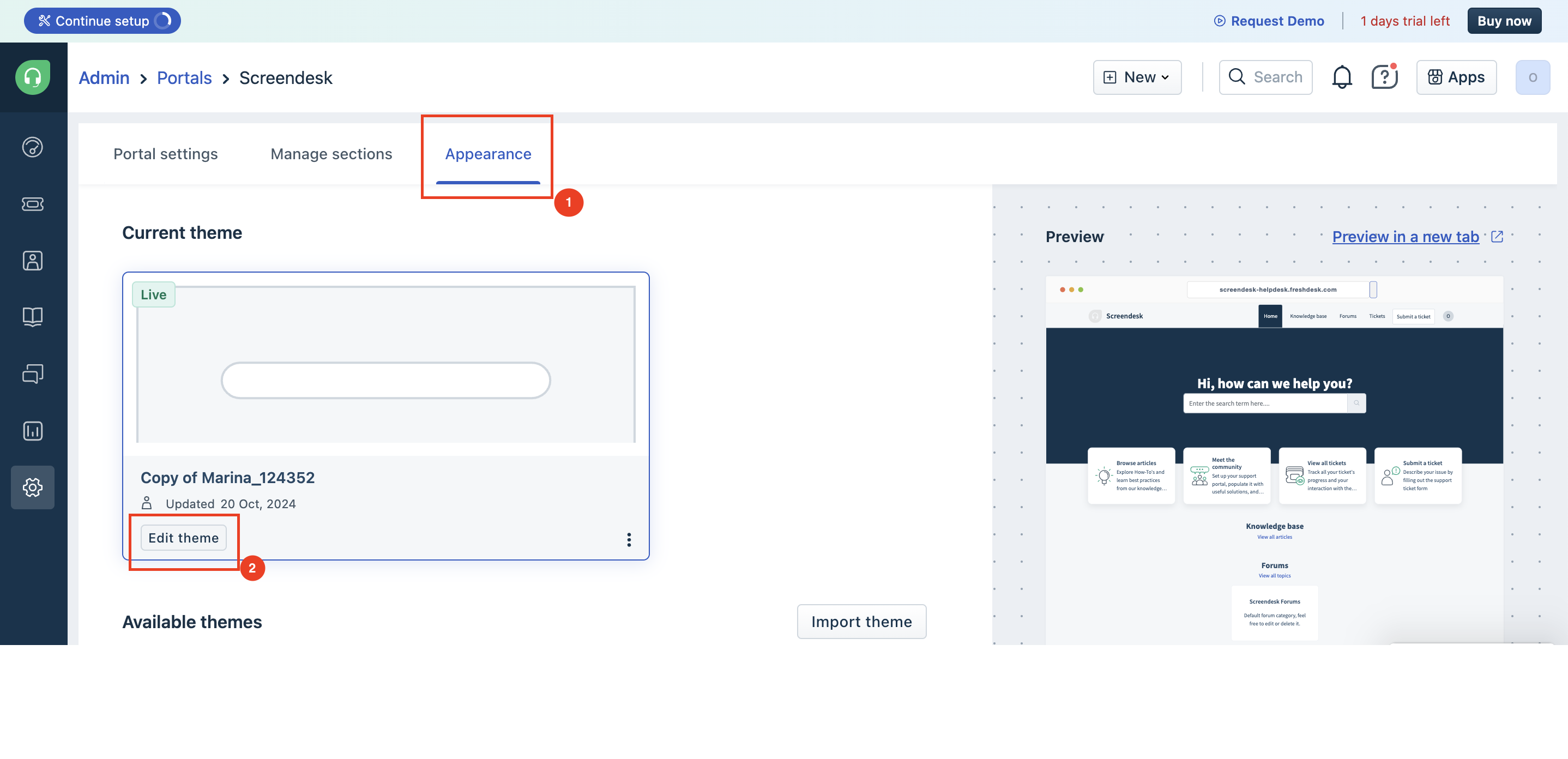
* Click on **Edit** next to your desired portal.
* Navigate to the **Appearance** section.
* Click on **Edit Theme** to modify the portal’s layout and settings.
3. **Open the Pages Tab**
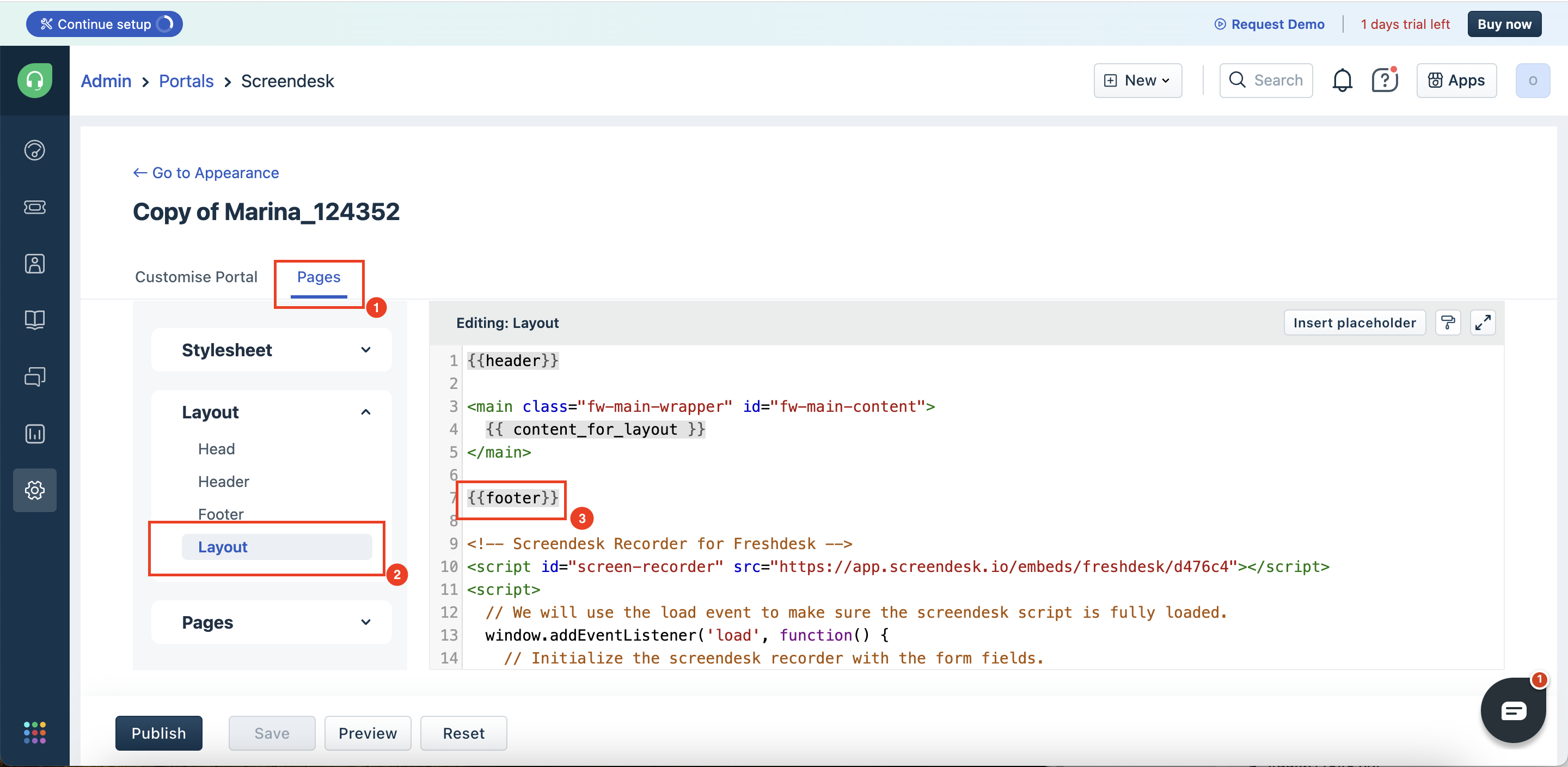
* Select the **Pages** tab within the theme editor.
4. **Edit the Layout Page**
* In the **Layout** section, click on the **Layout** page to access the HTML editor.
5. **Get the Screendesk Code Snippet**
* Open Screendesk in a new tab and go to **Account settings > Integrations > Freshdesk > Configure** via [this link](https://app.screendesk.io/integrations).
* Copy the code snippet provided.
6. **Paste the Code Snippet into the Layout Page**
* Return to the **Layout** page in Freshdesk.
* Paste the Screendesk code snippet just below `{{footer}}` in the HTML editor.
* Make sure to update the[ query selectors](#how-to-find-the-query-selectors) in the code snippet.
```markup
// Initialize the screendesk recorder with the form fields.
// The first parameter is the query selector of the field on which we will pass url of the recording.
// The second parameter is the query selector of the field on which we will check for the email.
window.initializeScreendesk("#description", "#email");
```
7. **Publish the Changes**
* Click on **Publish** to save your changes.
* Your Screendesk button is now live on the Freshdesk portal.
### How to find the query selectors
To find the ID of the email and description input fields on the Freshdesk portal, follow these steps:
1. Open your Freshdesk portal in a web browser.
2. Right-click on the email input field and select "Inspect" or "Inspect Element" from the context menu.
3. In the developer tools that appear, look for the HTML code of the input field. The ID will be listed as an attribute, typically something like id="email\_address".
4. Repeat the process for the description field, right-clicking and inspecting it to find its ID in the HTML.
5. Make sure to append # to the email and description ids when updating the code snippet. E.g: **email\_field becomes #email\_field**.
### Preview Your Portal
After publishing, preview your Freshdesk portal to ensure that the Screendesk button appears as expected and is functioning properly.
---
# Agent Instructions
This documentation is published with GitBook. GitBook is the documentation platform designed so that both humans and AI agents can read, navigate, and reason over technical content effectively. Learn more at gitbook.com.
## Querying This Documentation
If you need additional information that is not directly available in this page, you can query the documentation by asking a question.
Perform an HTTP GET request on the following URL with the `ask` and `goal` query parameters:
```
GET https://docs.screendesk.io/helpdesk-integrations/freshdesk/freshdesk-portal.md?ask=&goal=
```
`ask` is the immediate question: it should be specific, self-contained, and written in natural language.
`goal` is what the user is ultimately trying to achieve, the reason they need the answer. Sharing it helps GitBook give you a better, more relevant answer. A goal is most helpful when it describes the outcome the user wants rather than restating the question. For example, with `ask=how do I create an API token`, a goal like `automate deployments from our CI pipeline` lets GitBook tailor the answer to that use case.
The response will contain a direct answer to the question and relevant excerpts and sources from the documentation.
Use this mechanism when the answer is not explicitly present in the current page, you need clarification or additional context, or you want to retrieve related documentation sections.