> For the complete documentation index, see [llms.txt](https://docs.screendesk.io/llms.txt). Markdown versions of documentation pages are available by appending `.md` to page URLs; this page is available as [Markdown](https://docs.screendesk.io/helpdesk-integrations/zendesk/zendesk-auto-reply.md).
# Zendesk auto-reply
Add a Screendesk recording link to Zendesk auto-replies, tied to ticket IDs.
Enhancing your Zendesk auto-replies with Screendesk links enables customers to easily submit screen recordings tied to their tickets, streamlining issue resolution for your support team. This guide walks you through the setup process.
{% hint style="warning" %}
Ensure you’ve configured Zendesk automations or triggers for email auto-replies. If you need guidance, follow [Zendesk's guide on configuring auto-replies](https://support.zendesk.com/hc/en-us/articles/4408825385242-Configuring-email-autoreplies-to-deflect-requests#topic_x2y_sjs_r1b).
{% endhint %}
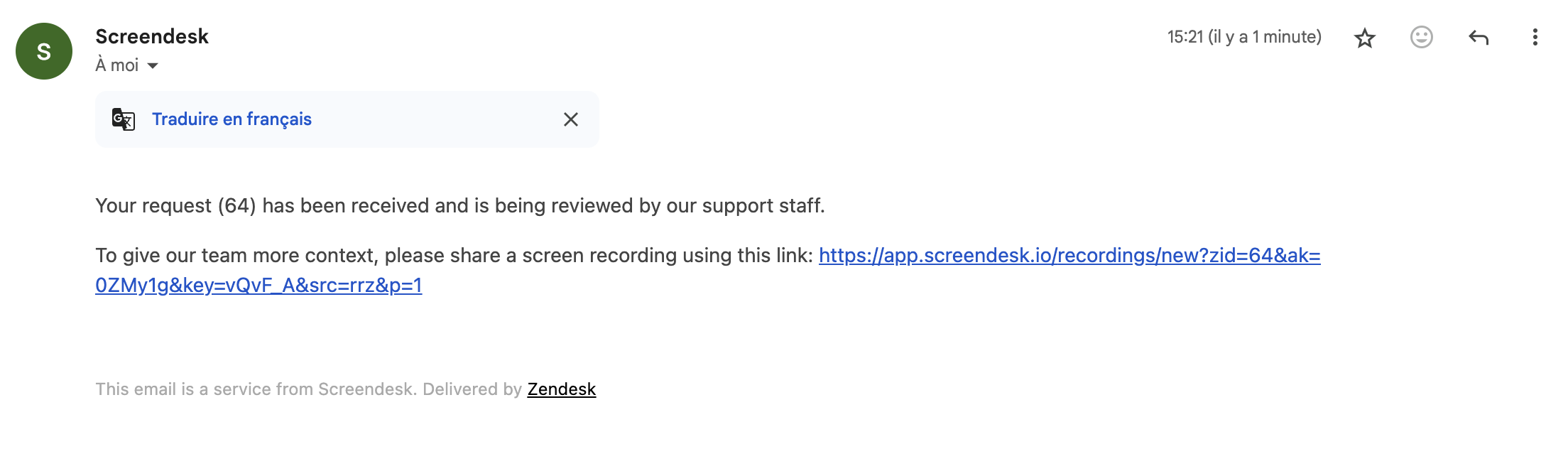
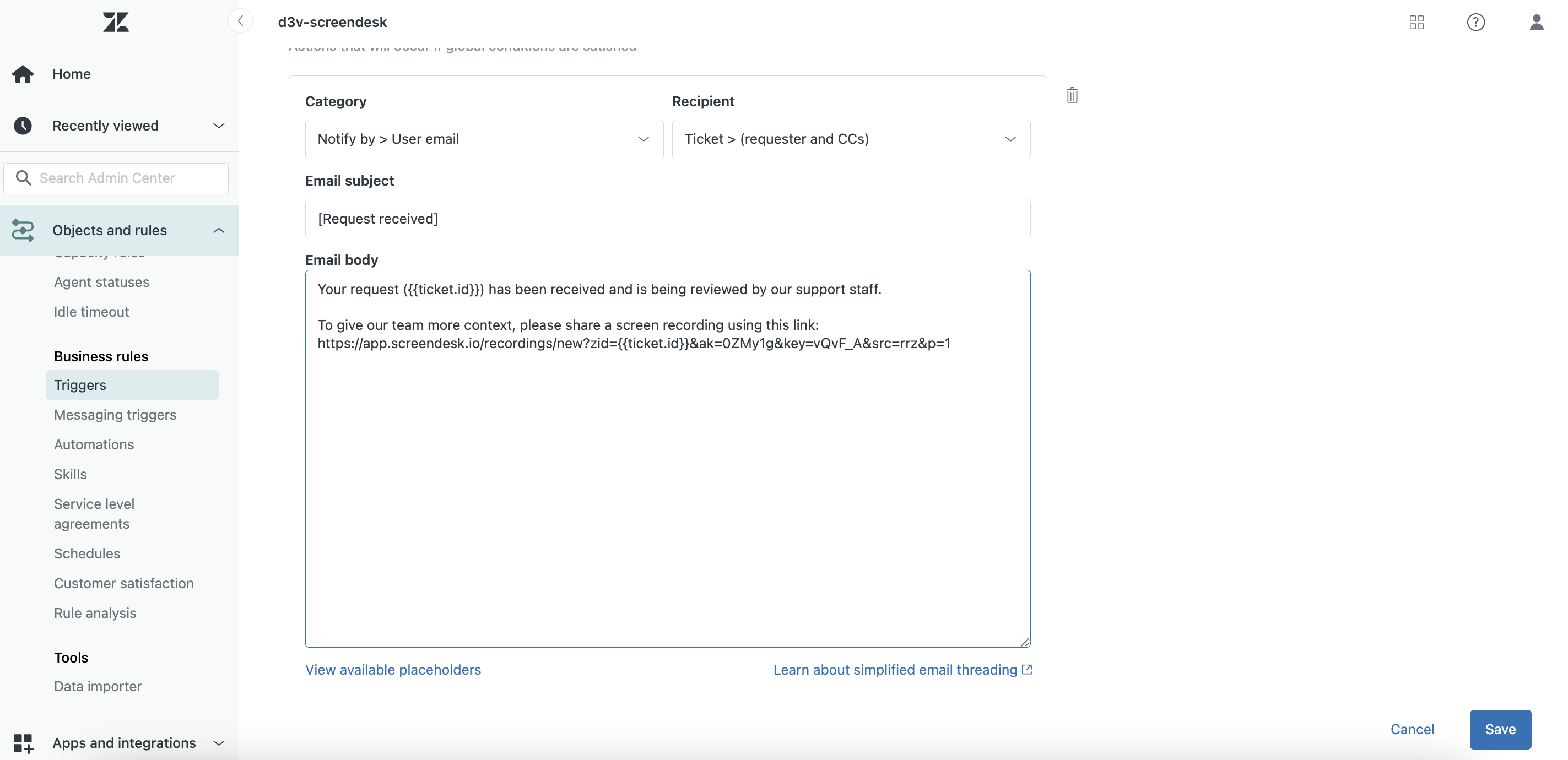
Here's how it looks like:
## Steps to Set Up the Zendesk Auto-Reply with Screendesk Integration
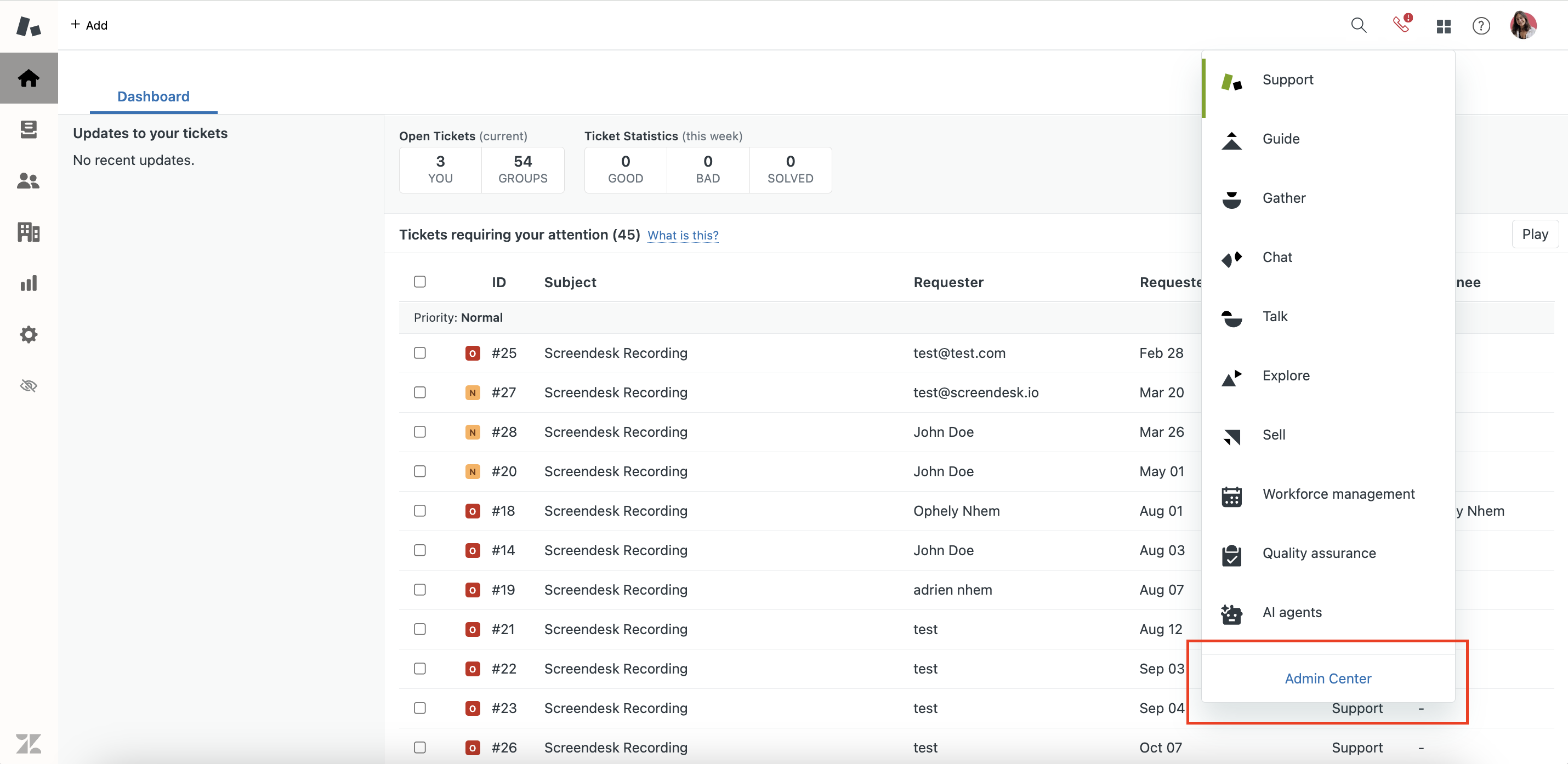
1. **Access Zendesk Admin Center**\
Log in to Zendesk and navigate to the **Admin Center**.
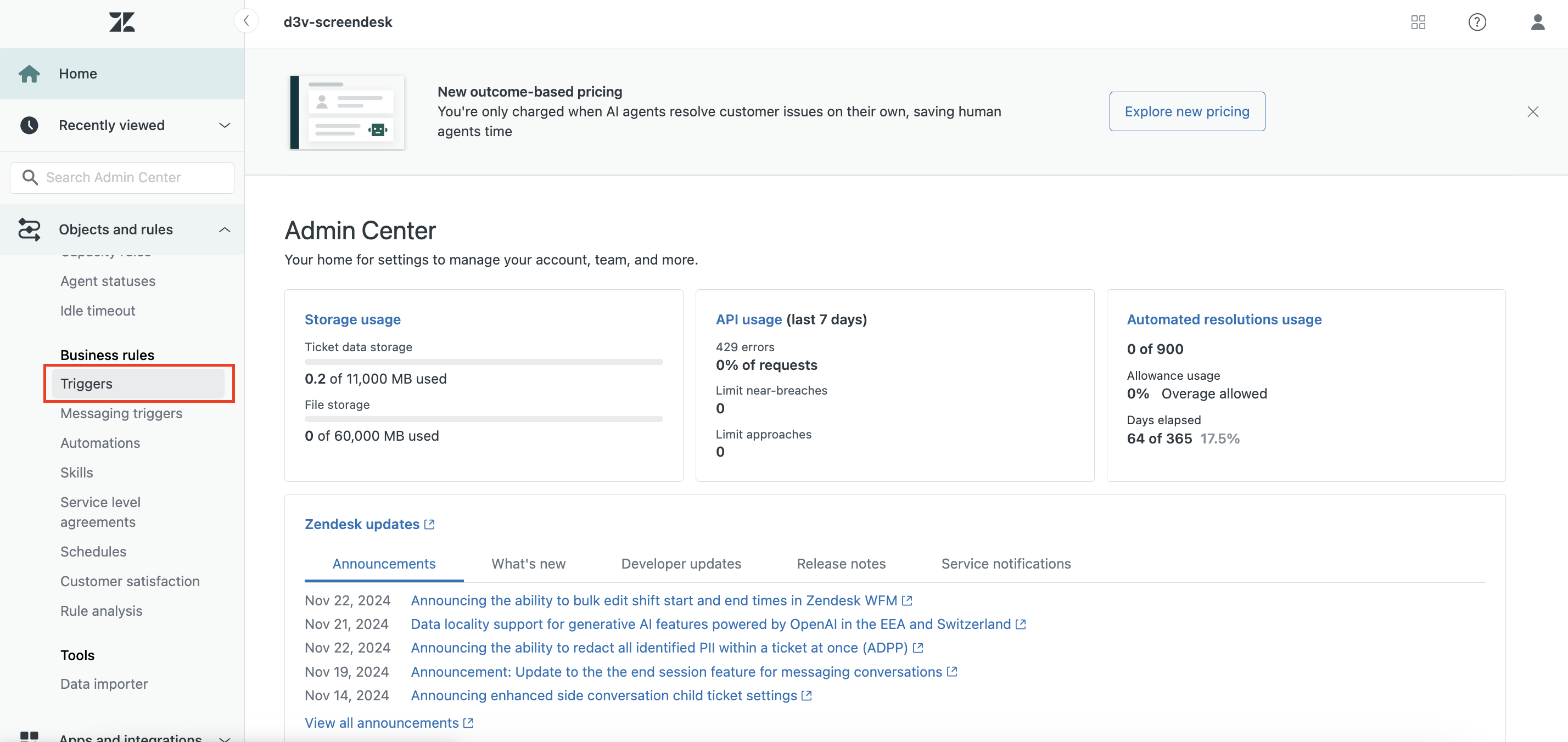
2. **Go to Objects and Rules**\
In the Admin Center, select **Objects and rules** from the navigation menu.
3. **Locate Triggers or Automations**\
Depending on your existing setup, locate your **triggers** or **automations**.\
For this guide, we’ll use **triggers**, as they natively support email auto-replies in Zendesk.
4. **Edit the Trigger’s Email Body**\
Open the trigger that manages auto-replies. In the email body, add a new sentence prompting the customer to use Screendesk for submitting recordings. For example:
> If you’d like to share a screen recording to help us understand your issue better, click the link below:
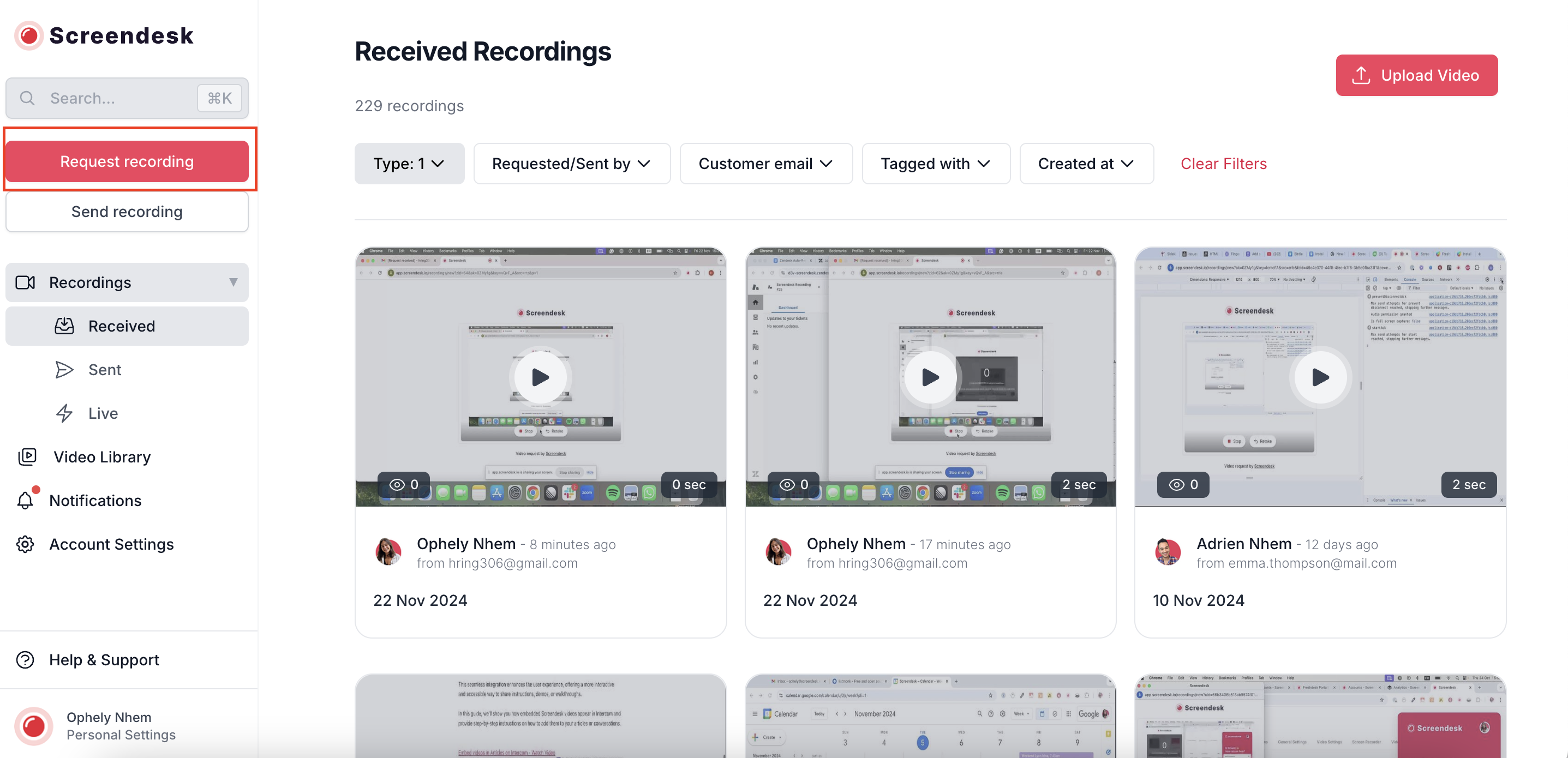
5. **Retrieve the Screendesk Generic Recording Link**
* Go to [Screendesk](https://app.screendesk.io) and log in.
* Click on **Request recording** to generate a generic recording link.\
Example link:\
`https://app.screendesk.io/recordings/new?ak=0ZMy1g&key=vQvF_A&src=rria`
6. **Customize the Screendesk Link**\
Update the generic link to ensure the recording ties back to the Zendesk ticket. Make the following changes:
* Add `zid={{ticket.id}}&` after `new?` to associate the recording with the ticket ID.
* Replace `src=rria` with `src=rrz&p=1` for proper integration.
**Final Link Example:**\
`https://app.screendesk.io/recordings/new?zid={{ticket.id}}&ak=0ZMy1g&key=vQvF_A&src=rrz&p=1`
7. **Test and Activate the Trigger**
* Save your changes and test the trigger to ensure the email auto-reply includes the personalized Screendesk link.
* Once confirmed, activate the trigger.
---
# Agent Instructions
This documentation is published with GitBook. GitBook is the documentation platform designed so that both humans and AI agents can read, navigate, and reason over technical content effectively. Learn more at gitbook.com.
## Querying This Documentation
If you need additional information that is not directly available in this page, you can query the documentation by asking a question.
Perform an HTTP GET request on the following URL with the `ask` and `goal` query parameters:
```
GET https://docs.screendesk.io/helpdesk-integrations/zendesk/zendesk-auto-reply.md?ask=&goal=
```
`ask` is the immediate question: it should be specific, self-contained, and written in natural language.
`goal` is what the user is ultimately trying to achieve, the reason they need the answer. Sharing it helps GitBook give you a better, more relevant answer. A goal is most helpful when it describes the outcome the user wants rather than restating the question. For example, with `ask=how do I create an API token`, a goal like `automate deployments from our CI pipeline` lets GitBook tailor the answer to that use case.
The response will contain a direct answer to the question and relevant excerpts and sources from the documentation.
Use this mechanism when the answer is not explicitly present in the current page, you need clarification or additional context, or you want to retrieve related documentation sections.