> For the complete documentation index, see [llms.txt](https://docs.screendesk.io/llms.txt). Markdown versions of documentation pages are available by appending `.md` to page URLs; this page is available as [Markdown](https://docs.screendesk.io/organization-and-workflows/assignments.md).
# Assignments
Assign owners to recordings and bug reports, manage notifications, and filter by assignee.
Assignments let you indicate who is responsible for a recording or bug report. You can assign one or more team members to any item, and they will be notified automatically.
### How to assign someone
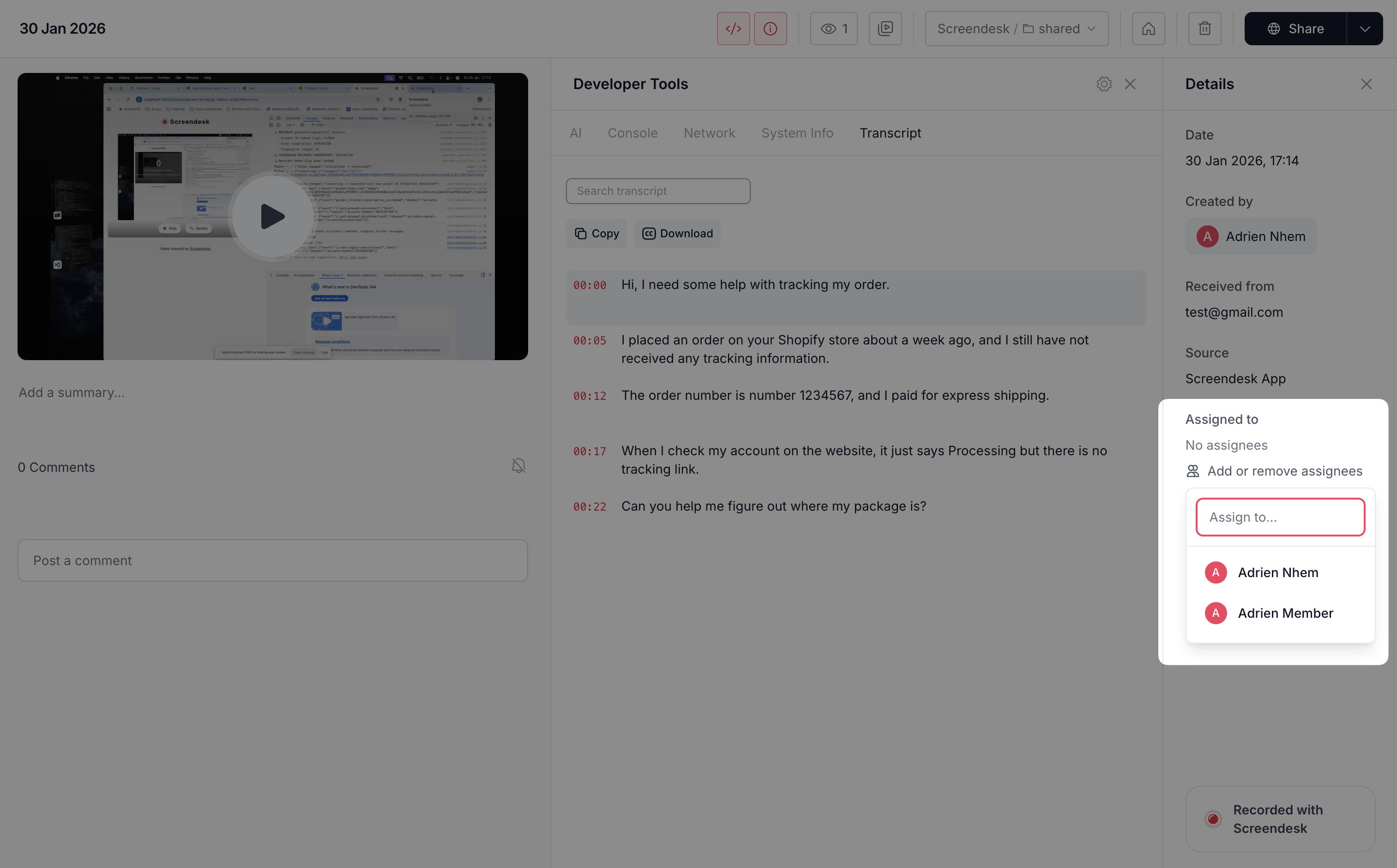
Open a recording or bug report and look at the details panel on the right. Under the assignees section you will see any current assignees (or "No assignees" if none have been added).
{% stepper %}
{% step %}
#### Open the assignee dropdown
Click **Add or remove assignees**. A dropdown appears with a searchable list of everyone in your workspace.
{% endstep %}
{% step %}
#### Select team members
Check the box next to one or more names. Each person you select is assigned immediately — there is no save button.
{% endstep %}
{% step %}
#### Close the dropdown
Click anywhere outside the dropdown to close it. The assigned users now appear as pills with their avatar and name.
{% endstep %}
{% endstepper %}
To **remove** an assignee, either uncheck them in the dropdown or click the **X** on their pill.
{% hint style="info" %}
You can assign multiple people to the same recording or bug report. Each assignee receives their own notification.
{% endhint %}
### Who can assign
Any workspace member with the Admin, Editor, or Member role can add and remove assignees. Watch-Only users cannot assign.
Users can only be assigned within the same workspace — you cannot assign someone from a different workspace.
### Notifications
When you assign someone, they receive two notifications:
* **In-app** — a real-time notification appears in the bell icon menu.
* **Email** — a message with the item title, description, creator, and a direct link to view it.
Assignees can turn off the email by going to **Profile → Notifications** and unchecking **Bug Report Assignments**. In-app notifications cannot be turned off.
{% hint style="warning" %}
The email preference toggle applies to both recording and bug report assignment emails.
{% endhint %}
### Filtering by assignee
Both the Recordings and Bug Reports pages offer two ways to filter by assignment.
#### Assigned to Me
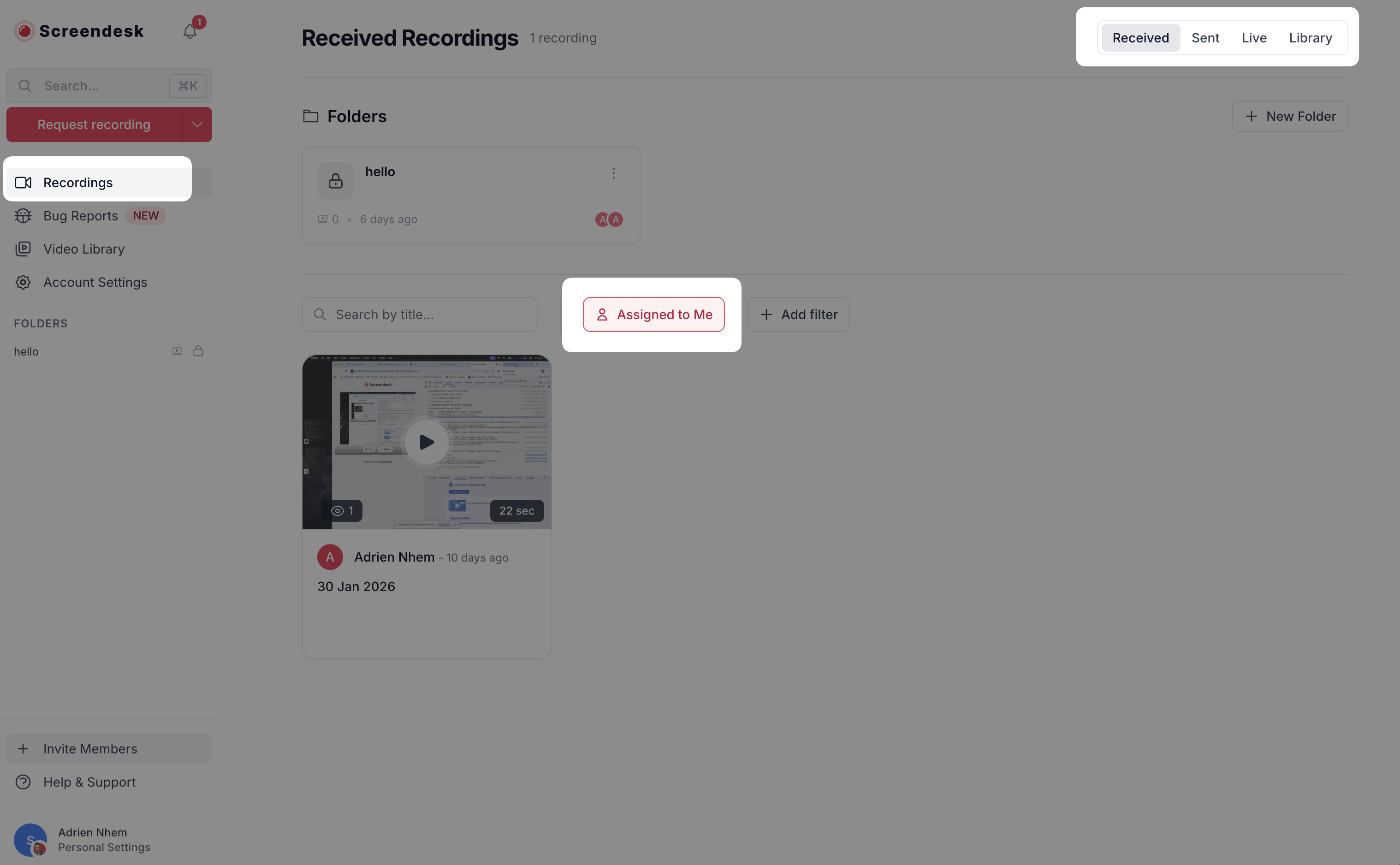
Click the **Assigned to Me** button in the filter bar to show only items assigned to you. Click it again to remove the filter.
On the Recordings page this button appears when viewing **Received** or **Live** recordings. It is not shown on Sent or Library tabs.
#### Filter by specific users
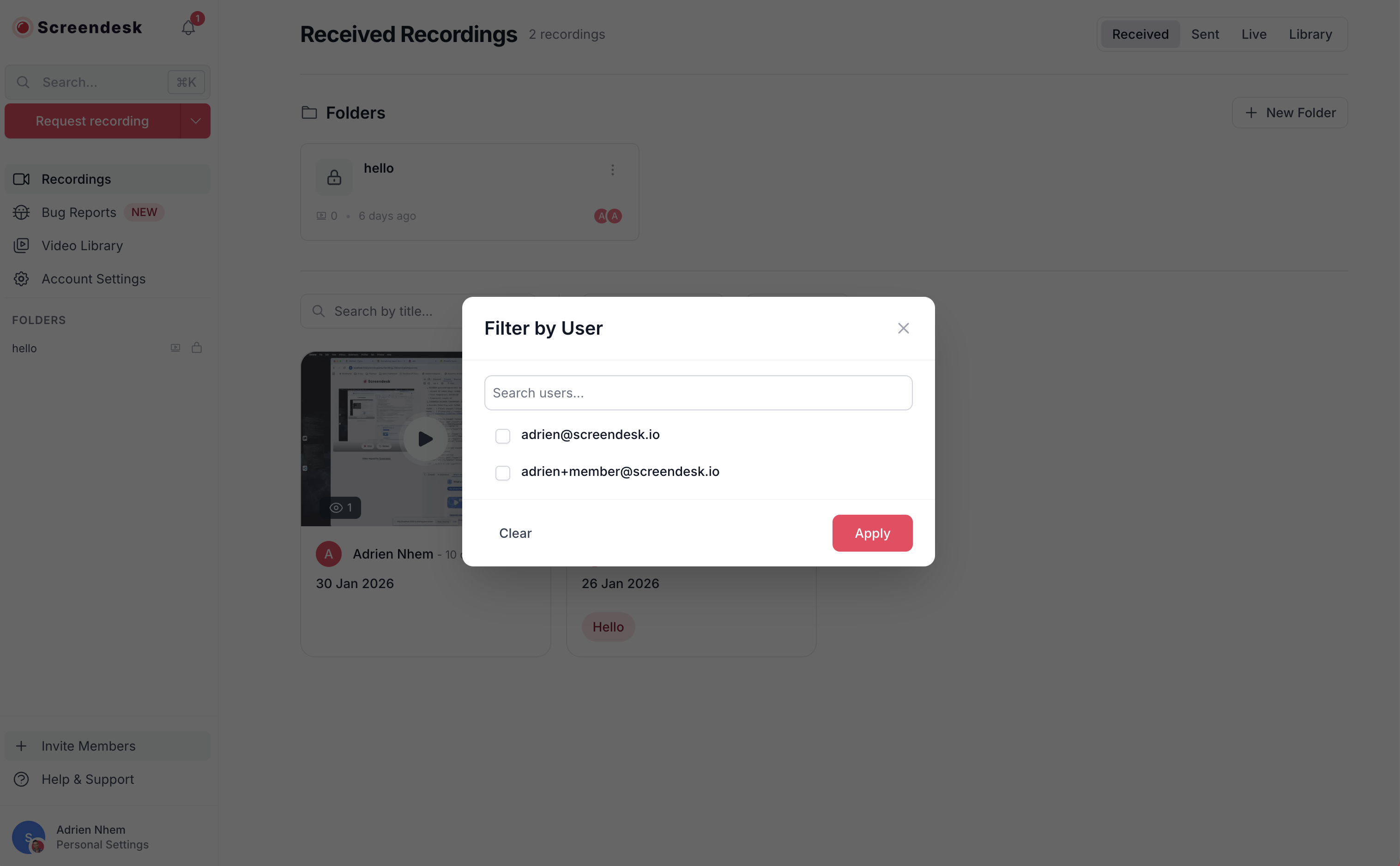
Click **Add filter → Users** to open the user filter. Search for and select one or more team members, then click **Apply**. A chip showing the number of selected users appears in the filter bar. Click the **X** on the chip to clear it.
{% hint style="info" %}
**Assigned to Me** and the **Users** filter are mutually exclusive. Activating one clears the other.
{% endhint %}
---
# Agent Instructions
This documentation is published with GitBook. GitBook is the documentation platform designed so that both humans and AI agents can read, navigate, and reason over technical content effectively. Learn more at gitbook.com.
## Querying This Documentation
If you need additional information that is not directly available in this page, you can query the documentation by asking a question.
Perform an HTTP GET request on the following URL with the `ask` and `goal` query parameters:
```
GET https://docs.screendesk.io/organization-and-workflows/assignments.md?ask=&goal=
```
`ask` is the immediate question: it should be specific, self-contained, and written in natural language.
`goal` is what the user is ultimately trying to achieve, the reason they need the answer. Sharing it helps GitBook give you a better, more relevant answer. A goal is most helpful when it describes the outcome the user wants rather than restating the question. For example, with `ask=how do I create an API token`, a goal like `automate deployments from our CI pipeline` lets GitBook tailor the answer to that use case.
The response will contain a direct answer to the question and relevant excerpts and sources from the documentation.
Use this mechanism when the answer is not explicitly present in the current page, you need clarification or additional context, or you want to retrieve related documentation sections.