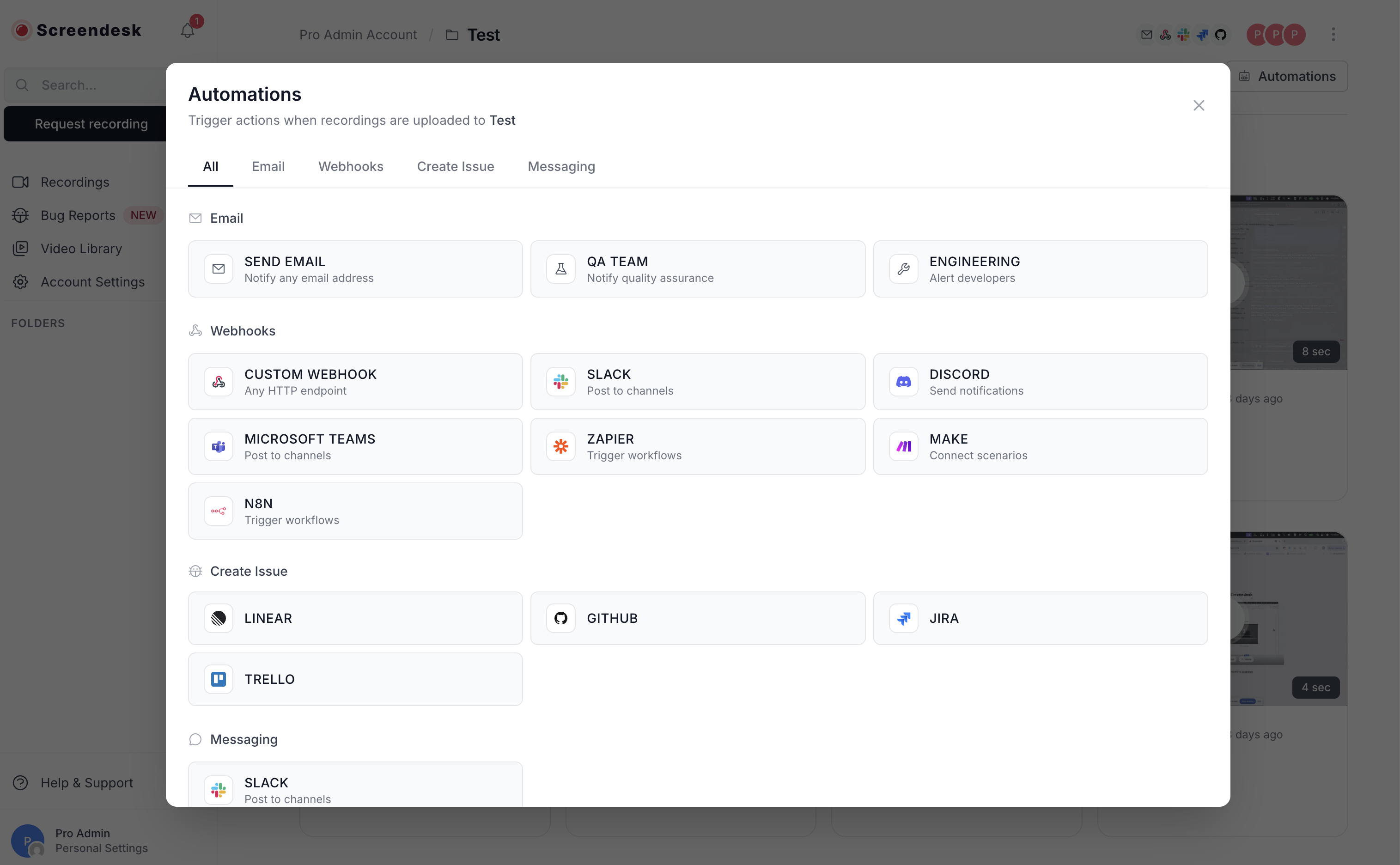
Automations
Trigger notifications and ticket creation when items land in a folder.
Folder automations let you automatically trigger actions when recordings or bug reports are added to specific folders. Streamline your workflow by automatically notifying teams, creating tickets, and integrating with your existing tools—all without manual intervention.
What Are Folder Automations?
Folder automations are rules that execute automatically when content is added to a folder. Think of them as "if-this-then-that" rules for your Screendesk workspace:
The trigger: A recording or capture lands in a specific folder The action: Screendesk automatically notifies your team, creates a ticket, or sends data to another system
This happens instantly, every time, without anyone lifting a finger.

How Automations Work
The automation flow is simple:
Available Automations
Screendesk supports seven types of automations, from simple email notifications to full issue tracker integrations:
Common Use Cases
Automations solve real workflow problems. Here are the most common scenarios:
Bug Triage Workflow
Scenario: Engineering team needs immediate visibility into customer-reported bugs
Solution:
When a bug report lands in the folder, engineers get a Slack notification, a Linear issue is created automatically, and leadership receives an email summary.
VIP Customer Support
Scenario: Enterprise customers need white-glove support with immediate response
Solution:
VIP customers get instant attention across multiple channels.
Feature Request Pipeline
Scenario: Product team wants to track customer feature requests without manual data entry
Solution:
Every feature request automatically becomes a trackable issue in your product backlog.
Critical Incident Response
Scenario: On-call team needs immediate alerts for system-impacting issues
Solution:
Critical issues trigger immediate alerts across all your incident response channels.
Key Features
Multiple Automations Per Folder
A single folder can have multiple automations. All enabled automations execute when content is added to the folder.
Template Variables
Customize messages and payloads using dynamic variables that pull data from recordings:
{{recording.title}}— Recording title{{recording.customer_email}}— Customer email address{{recording.url}}— Direct link to the recording{{folder.name}}— Folder nameAnd many more...
View complete variable reference →
Execution Logs
Every automation execution is logged with full details:
Timestamp and status (success/failure)
Request payload sent
Response received
Error messages if failed
Retry attempts
Review logs to troubleshoot issues or verify delivery.
Test Before You Deploy
All automations include a test function:
Send a test email before activating
Trigger a test webhook to verify your endpoint
Post a test message to Slack
Create a test issue in your tracker
Test automations before they go live to ensure everything works correctly.
Plan Requirements
Pro and Enterprise Plans Only
Folder automations are available on Pro and Enterprise plans. Starter plan users can view automation settings but cannot create or enable automations.
Getting Started
Ready to set up your first automation?
The fastest way to get started:
Open any folder in your workspace
Click the Settings (gear) icon
Navigate to the Automations tab
Click Add Automation
Choose Email for your first automation
Enter your email address
Click Save and Send Test
You'll receive a test email within seconds. Once verified, the automation is live.
Before creating automations, plan your folder structure:
Identify key workflows — Where do you need notifications?
Map folders to teams — Which folders need which alerts?
Choose integration types — Email, Slack, tickets, or webhooks?
Define message templates — What information needs to be included?
Test thoroughly — Verify each automation before activating
Next Steps
Last updated
Was this helpful?