Email

Configure email automations to notify recipients when new recordings or captures land in a folder.

Email automations send instant notifications to team members when recordings or captures are added to a folder. This is the simplest automation type and requires no third-party integrations or OAuth connections.


When to Use Email Automations

Email automations work well for:

  • Team notifications — Alert team leads about new submissions

  • On-call alerts — Notify engineers about critical bug reports

  • Stakeholder updates — Keep management informed on specific folders

  • Distribution lists — Send to group emails or mailing lists

  • Cross-team visibility — CC multiple departments on important recordings

circle-info

Email vs. Slack

Use email when:

  • Recipients don't use Slack regularly

  • You need a permanent record in email

  • Routing to ticketing systems via email

  • Reaching external stakeholders

Use Slack when:

  • Your team lives in Slack

  • You want immediate visibility

  • You need threaded discussions

  • Interactive buttons would be useful


Setup

1

Open folder automations

Navigate to the folder you want to automate:

  1. Click on the folder from your folders list

  2. Click the Settings (gear) icon in the top right

  3. Select the Automations tab

  4. Click Add Automation

  5. Select Email

2

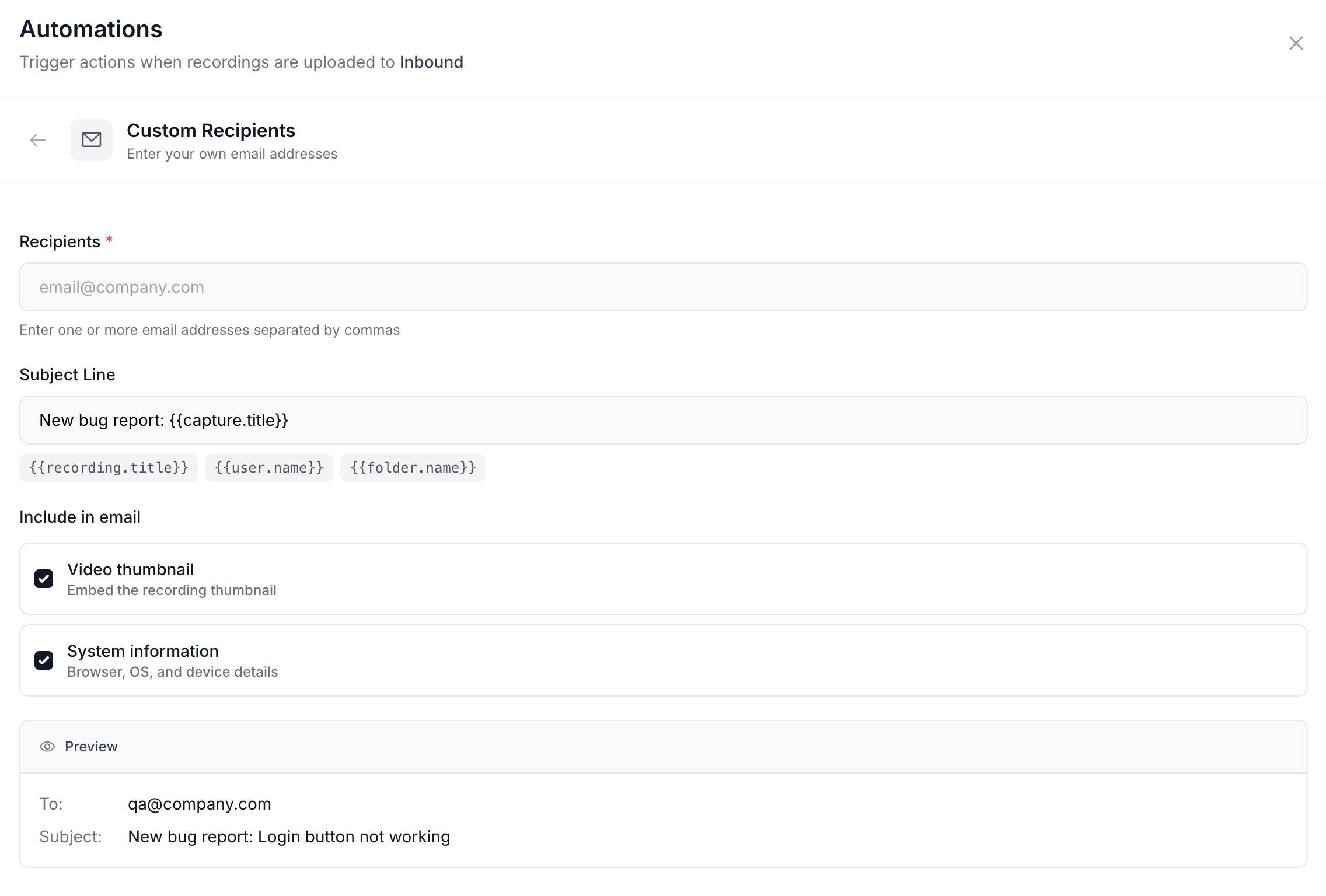
Configure recipients

To (required): Enter one or more email addresses separated by commas:

CC (optional): Add carbon copy recipients:

BCC (optional): Add blind carbon copy recipients who receive emails without other recipients knowing:

circle-check
3

Customize subject line

The subject line supports template variables for dynamic content.

Default subject:

Example output:

Other subject examples:

For urgent folders:

For customer-specific folders:

For simple notifications:

View all available variables →

4

Configure email content

Choose what to include in the email body:

Option
Description
Recommended

Include video preview

Thumbnail image of the recording

✅ Yes

Include recording link

Direct link button to view recording

✅ Yes (required)

Include metadata

Browser, OS, screen resolution

For technical teams

Include console errors

JavaScript errors from the recording

For bug reports

Include system info

Full environment details

For debugging

The default email body includes:

  • Recording title

  • Customer email who submitted it

  • Recording duration

  • Submission timestamp

  • Direct link to view the recording

5

Optional: Customize email body

For advanced users, enable Custom Email Body to write your own HTML template.

Example custom template:

circle-exclamation
6

Test the automation

Before saving, test the email:

  1. Click Send Test Email at the bottom of the form

  2. Check your inbox within 30 seconds

  3. Verify the formatting and content

  4. Check that all template variables populated correctly

  5. Click the recording link to ensure it works

Test checklist:

  • ☐ Email arrived in inbox (not spam)

  • ☐ Subject line formatted correctly

  • ☐ All template variables populated (no {{}} showing)

  • ☐ Video preview displays (if enabled)

  • ☐ Recording link works

  • ☐ Layout looks good on desktop and mobile

If something looks wrong, edit the settings and test again.

7

Save and activate

Once testing is complete:

  1. Click Save to create the automation

  2. The automation is enabled by default

  3. You'll see it listed in the folder's Automations tab

The automation is now live. Every recording or capture added to this folder will trigger an email to the recipients you specified.


Template Variables

Customize subject lines and email bodies with these variables:

Recording Information

Variable
Description
Example Output

{{recording.title}}

Recording title

"Checkout not working"

{{recording.url}}

Link to recording

"https://app.screendesk.io/r/abc..."

{{recording.customer_email}}

Customer email

{{recording.duration}}

Length in seconds

"45"

{{recording.created_at}}

Submission time

"Feb 6, 2026 at 2:30 PM"

Technical Details

Variable
Description
Example Output

{{recording.browser}}

Browser name/version

"Chrome 121.0.6167"

{{recording.os}}

Operating system

"macOS 14.3"

{{recording.resolution}}

Screen resolution

"2560x1440"

{{recording.country}}

Geographic location

"United States"

Error Information

Variable
Description

{{recording.console_errors}}

JavaScript console errors (formatted)

{{recording.network_errors}}

Failed HTTP requests (formatted)

Folder & Account

Variable
Description
Example Output

{{folder.name}}

Folder name

"Bug Reports"

{{account.name}}

Workspace name

"Acme Corp"

View complete variable reference →


Configuration Examples

Here are real-world email automation configurations:

Example 1: Simple Team Notification

Use case: Alert support team about new customer recordings

Configuration:

  • Recipients: [email protected]

  • Subject: New customer recording: {{recording.title}}

  • Options: Video preview ✓, Recording link ✓

This sends a clean, simple notification with everything the support team needs.


Example 2: Engineering Bug Alert

Use case: Notify engineers about technical issues with full debugging context

Configuration:

  • Recipients: [email protected]

  • Subject: 🐛 Bug Report: {{recording.title}}

  • Options: Video preview ✓, Recording link ✓, Console errors ✓, System info ✓

Engineers get immediate visibility with all technical details included.


Example 3: VIP Customer Escalation

Use case: Alert leadership when VIP customers submit recordings

Configuration:

Multiple stakeholders stay informed about high-value customer issues.


Example 4: Daily Digest

Use case: Send summary emails instead of individual notifications

circle-info

Digest Approach

Screendesk sends individual emails for each recording. To create digest-style notifications:

  1. Use a distribution list with digest settings enabled in your email system

  2. Or use a webhook automation to a service that batches emails

  3. Or configure your email client to create digest rules

Native digest support is on the roadmap.


Email Delivery

Sender Information

All emails are sent from:

Recipients cannot reply directly to automation emails.

Delivery Timing

  • Emails send immediately when recordings are added

  • Typical delivery time: 10-30 seconds

  • Maximum delivery time: 2 minutes

If emails take longer, check the Screendesk status pagearrow-up-right.

Email Allowlisting

If emails go to spam, add these to your allowlist:

Sender domain:

SPF record:

DKIM domain:

Contact your IT team to add these to your email security configuration.


Troubleshooting

Emails not arriving

1

Check spam folder

Screendesk emails sometimes land in spam on first send. Check:

  • Spam/Junk folder

  • Quarantine (for corporate email)

  • "Clutter" or "Other" folders (Outlook)

Mark as "Not Spam" to train your email filter.

2

Verify email addresses

Double-check recipient addresses:

  • No typos in email addresses

  • Domain names spelled correctly

  • No extra spaces or commas

  • Valid email format (has @ and domain)

Test with a single known-good email first.

3

Check automation status

Ensure the automation is enabled:

  1. Open folder Settings → Automations

  2. Verify toggle is on (green)

  3. Check execution logs for errors

Disabled automations won't send emails.

4

Review execution logs

Check if emails were sent:

  1. Open folder Settings → Automations

  2. Click on the email automation

  3. View Execution Log tab

  4. Look for recent executions

Logs show:

  • ✅ Success — Email sent

  • ⚠️ Warning — Delivered but flagged

  • ❌ Failed — Error message explains why


Missing template variables

If variables show as {{recording.title}} instead of actual values:

  • Check variable spelling (must match exactly)

  • Ensure variables are inside double braces {{ }}

  • Verify the data exists (not all recordings have console errors)

  • Test with a new recording that has the data you're referencing


Broken formatting

If custom HTML doesn't look right:

  • Use inline CSS styles only (no <style> tags or external CSS)

  • Test with simple HTML first

  • Preview in multiple email clients

  • Avoid complex layouts (tables work best)

  • Include fallback plain text


Too many emails

If you're getting too many notifications:

  1. Reduce recipient count — Remove unnecessary people from the list

  2. Use distribution lists — Let people opt in/out themselves

  3. Create folder hierarchy — Use more specific folders with targeted automations

  4. Add triage rules — Filter out low-priority recordings before they reach folders

  5. Disable temporarily — Toggle off during high-volume periods


Best Practices

Use distribution lists

Instead of individual emails:

❌ Don't do this:

✅ Do this:

Distribution lists are easier to manage and let people opt in/out without editing automations.


Keep subjects short and front-loaded

Put key information at the start:

❌ Less effective:

✅ More effective:

Mobile email clients truncate long subjects.


Test before activating

Always send a test email before enabling:

  • Verify formatting looks good

  • Check that links work

  • Confirm variables populate

  • Test on both desktop and mobile

  • Send to yourself first, then add team


Don't over-notify

Reserve email automations for:

  • Important folders only

  • Escalations and urgent issues

  • Stakeholders who don't use Slack

  • Folders with low volume (< 10/day)

Too many emails leads to notification fatigue and ignored messages.


Make it easy for recipients to take action:

  • Always include the recording link

  • Use a button or bold link

  • Put it near the top of the email

  • Don't bury it in small text


Use folder-specific templates

Different folders need different messaging:

  • Bug reports: Include console errors and system info

  • Feature requests: Focus on customer email and description

  • VIP customers: Emphasize urgency and customer name

  • General support: Keep it simple with just the basics

Tailor each automation to its purpose.

Last updated

Was this helpful?