> For the complete documentation index, see [llms.txt](https://docs.screendesk.io/llms.txt). Markdown versions of documentation pages are available by appending `.md` to page URLs; this page is available as [Markdown](https://docs.screendesk.io/organization-and-workflows/automations/jira.md).
# Jira
Automatically create Jira issues from folder submissions using templates, labels, priorities, and custom fields.
Jira automations automatically create issues in your Jira workspace when recordings or captures are added to a folder. Convert customer bug reports, support tickets, and feature requests into trackable Jira issues with full technical context and attachments.
***
### When to Use Jira Automations
Jira automations are ideal for:
* **Bug Report Tracking** — Convert customer-reported bugs into Jira tickets with video evidence
* **Feature Request Management** — Automatically create stories from customer feedback
* **Support Ticket Creation** — Turn customer recordings into support issues
* **Cross-Team Collaboration** — Link customer recordings to development and support workflows
* **Multi-Project Workflows** — Route issues to specific projects and issue types
* **Custom Field Mapping** — Populate Jira custom fields with recording data
* **Epic and Sprint Planning** — Organize issues with epics and sprints
{% hint style="info" %}
**Jira vs. Linear/GitHub/Email**
Use Jira when:
* Your organization uses Jira for project management
* You want automatic issue creation with full context
* You need to organize issues by project and issue type
* You want to use custom fields for tracking metadata
* You need complex workflows and approvals
* You're using Jira Service Management (JSM) for support
Use Linear when:
* You prefer a faster, simpler issue tracker
* You want cleaner UI and better performance
Use GitHub when:
* Your team works in GitHub repositories
* You want tight integration with code
Use Email when:
* Recipients don't use Jira
* You just need notifications
{% endhint %}
***
### Prerequisites
Before setting up Jira automations:
1. **Jira Account** — Jira Cloud or Server instance with project access
2. **Project Access** — Admin or issue creation permissions in target projects
3. **Screendesk Plan** — Pro or Enterprise plan to enable automations
4. **Folder** — Created in Screendesk to trigger the automation
***
### Authentication Methods
Screendesk supports two Jira authentication methods:
| Method | Best For | Setup Complexity | Security |
| ------------- | ----------------- | ------------------ | -------- |
| **OAuth 2.0** | Jira Cloud | Easy (recommended) | Higher |
| **API Token** | Jira Cloud/Server | Moderate | Good |
***
### Setup with OAuth (Recommended)
OAuth is the easiest and most secure method for Jira Cloud.
{% stepper %}
{% step %}
#### Connect Jira to Screendesk (First-time only)
Navigate to your integrations:
1. Click your avatar in the top right corner
2. Select **Account Settings**
3. Go to **Integrations & Automations → Integrations**
4. Find **Jira** in the list
5. Click **Connect Jira**
You'll be redirected to Atlassian to authorize access. You'll see the permissions Screendesk requires:
* Create and read issues
* Read projects and issue types
* Manage attachments
* Read users and assignees
* Read workflows
Click **Accept** to proceed.
{% hint style="warning" %}
**Atlassian Account Required**
You must be logged into your Atlassian account with access to the Jira instance. If you don't see your instance, verify your account has the necessary permissions.
{% endhint %}
{% endstep %}
{% step %}
#### Review Jira connection status
After authorization completes, you'll return to **Account Settings → Integrations**.
You should see:
* ✅ **Jira Connected** with your Jira workspace URL
* Your Jira instance name
* **Disconnect** button (if you need to remove the integration)
{% hint style="success" %}
**Connection Verified**
If you see your Jira instance URL, Jira is successfully connected. You can now create automations in any folder.
{% endhint %}
{% endstep %}
{% step %}
#### Open folder automations
Create an automation in any folder:
1. Navigate to the folder you want to automate
2. Click **Settings** (gear icon) in the top right
3. Select the **Automations** tab
4. Click **+ Add Automation**
5. Select **Jira** from the integration list
{% endstep %}
{% step %}
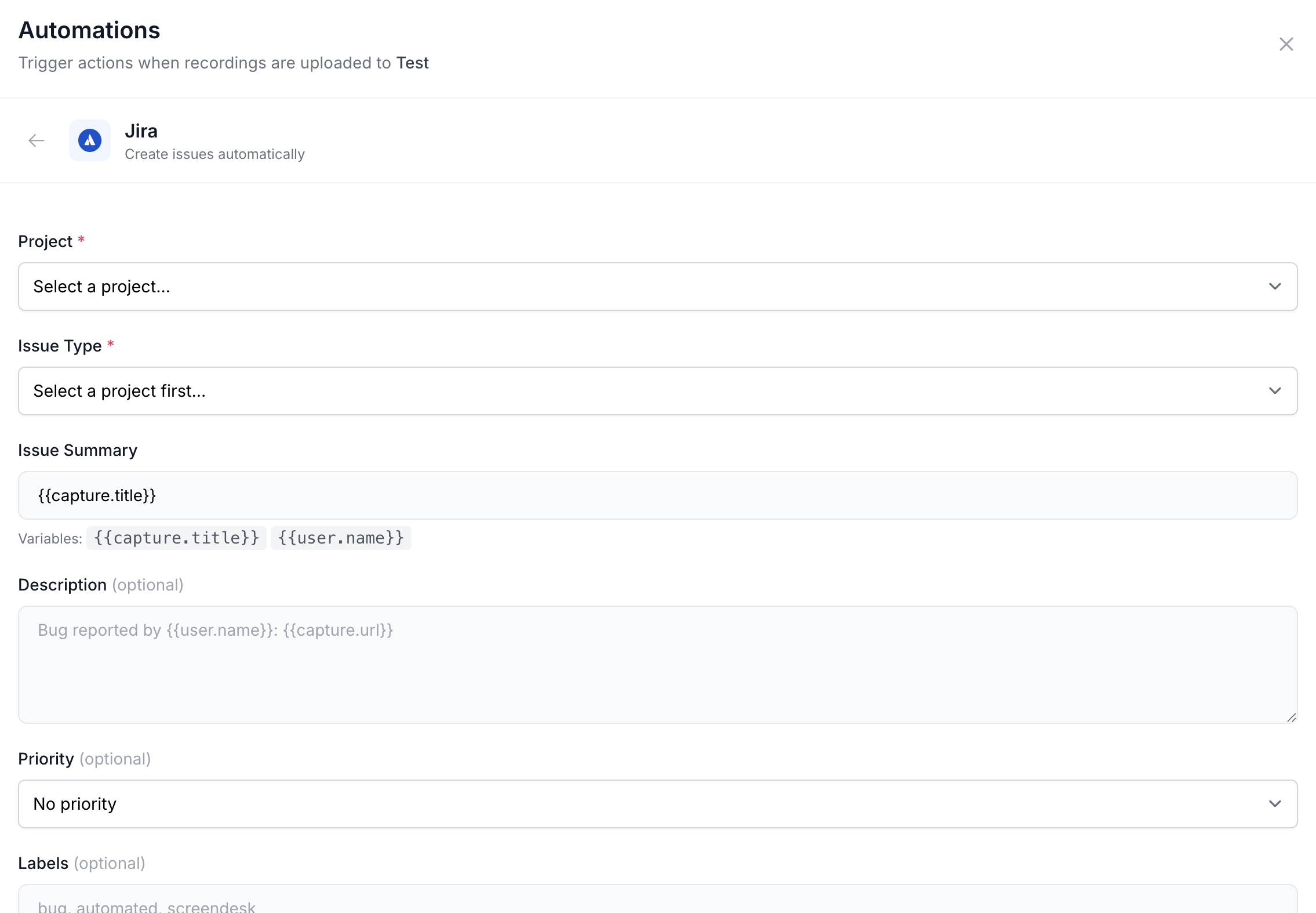
#### Select target project
Configure where issues will be created:
**Project (required):**
* Select the Jira project where issues will be created
* Only projects with issue creation access appear in the dropdown
* If you can't find your project, verify you have access to it in Jira
* Click **Refresh** to reload the project list
**Note:** Each automation targets one project. Create multiple automations for multiple projects.
{% hint style="info" %}
**Project Selection**
If you don't see expected projects:
1. Ensure you have access to the project in Jira
2. Verify the project is active (not archived)
3. Click **Refresh** in the Jira integration settings
4. Re-save your automation
{% endhint %}
{% endstep %}
{% step %}
#### Select issue type
Configure what type of issue will be created:
**Issue Type (required):**
* Select the issue type for new tickets: Bug, Task, Story, Support, or custom types
* Available issue types depend on your selected project
* Each issue type can have different required fields
**Common issue types:**
| Issue Type | Typical Use |
| ---------- | ------------------------------ |
| Bug | Technical issues and defects |
| Task | General work items |
| Story | Feature-related submissions |
| Support | Customer support tickets (JSM) |
| Subtask | Child issues under a parent |
| Custom | Your configured issue types |
For support tickets, select **Support** if using Jira Service Management.
{% hint style="info" %}
**Issue Type Fields**
Different issue types may require different fields to be filled. The automation will automatically request all required fields for your chosen issue type.
{% endhint %}
{% endstep %}
{% step %}
#### Configure issue summary (title)
Customize how issue summaries appear in Jira:
**Default title template:**
```
{{item.title}}
```
**Example outputs:**
```
Checkout page crashes on iOS
User can't reset password
Feature request: Dark mode toggle
```
**Other title examples:**
For bug reports:
```
🐛 {{item.title}}
```
For feature requests:
```
💡 Feature: {{item.title}}
```
Including customer context:
```
[{{creator.email}}] {{item.title}}
```
For support tickets:
```
[Support] {{item.title}} - {{creator.email}}
```
{% hint style="warning" %}
**Title Length**
Keep titles under 150 characters for clarity. Jira will truncate very long titles in list views.
{% endhint %}
View all available template variables →
{% endstep %}
{% step %}
#### Configure issue description
Create a rich issue description with recording context:
Jira uses wiki-style markup for formatting (not standard Markdown).
**Default description template:**
```
h2. Recording from Screendesk
*Title:* {{item.title}}
*From:* {{creator.name}} ({{creator.email}})
*Folder:* {{folder.name}}
*View recording:* {{item.url}}
----
This issue was automatically created from a recording uploaded to Screendesk.
```
**Example: Detailed bug report description**
```
h2. Customer Bug Report
A customer submitted a recording describing this issue.
*Reported by:* {{creator.email}} ({{creator.name}})
*Folder:* {{folder.name}}
h3. Description
{{item.title}}
h3. Watch Recording
[View on Screendesk|{{item.url}}]
----
h3. Recording Details
||Property||Value||
|Duration|{{item.duration}} seconds|
|Browser|{{recording.browser}}|
|OS|{{recording.os}}|
|Resolution|{{recording.resolution}}|
|Location|{{recording.country}}|
|Recorded|{{item.created_at}}|
h3. Technical Information
*Console Errors:*
{code}
{{item.console_errors}}
{code}
*Network Errors:*
{code}
{{item.network_errors}}
{code}
----
This issue was automatically created from a customer recording on Screendesk.
```
**Example: Feature request description**
```
h2. Customer Feature Request
A customer requested the following feature.
*Suggested by:* {{creator.email}} ({{creator.name}})
h3. Feature Description
{{item.title}}
h3. Customer Recording
[View request on Screendesk|{{item.url}}]
*Recording Duration:* {{item.duration}} seconds
----
This feature request was automatically created from a customer recording.
```
{% hint style="info" %}
**Jira Text Formatting**
Jira uses wiki-style markup:
* *Bold* — `*text*`
* *Italic* — `_text_`
* Heading — `h2. Title`
* Link — `[text|url]`
* Code — `{code}...{code}`
* Table — `||header||`
* List — `* item`
Use wiki notation to format important information.
{% endhint %}
View all available variables →
{% endstep %}
{% step %}
#### Set priority level
Assign automatic priority to new issues:
| Priority | Jira Value | Use For |
| ----------- | ---------- | ------------------------------- |
| No Priority | None | General items, low urgency |
| Lowest | Lowest | Minor improvements |
| Low | Low | Nice-to-have features |
| Medium | Medium | Standard bugs, regular features |
| High | High | Important bugs, urgent features |
| Highest | Highest | Critical bugs, blocking issues |
**Recommendations:**
* **Bug Reports folder** — Set to Medium or High
* **Feature Requests folder** — Set to No Priority (triage later)
* **Critical Issues folder** — Set to Highest
* **Support Tickets folder** — Set to Medium
Issues can be re-prioritized in Jira after creation.
{% hint style="info" %}
**Avoid Over-Prioritization**
Set automations to Medium or No Priority by default. Let your team manually adjust based on actual impact and customer tier.
{% endhint %}
{% endstep %}
{% step %}
#### Apply labels automatically
Organize issues with Jira labels:
**To add labels:**
1. Click **+ Add Label**
2. Enter label text (create labels as needed)
3. Add multiple labels as needed
**Suggested labels:**
* `from-screendesk` — Track all automated issues
* `customer-reported` — Mark customer submissions
* `needs-triage` — Flag for manual review
* `bug` or `feature-request` — Categorize issue type
* `critical` — For urgent folders
* `customer-feedback` — Specific to feature requests
**Example configurations:**
For bug reports folder:
```
from-screendesk customer-reported bug needs-triage
```
For feature requests folder:
```
from-screendesk feature-request customer-feedback
```
For critical issues folder:
```
from-screendesk critical urgent customer-impacting
```
{% hint style="info" %}
**Label Creation**
Jira automatically creates labels when you add them. You don't need to create them in advance.
{% endhint %}
{% endstep %}
{% step %}
#### Configure components (optional)
Assign issues to Jira components:
**Components:**
* Click **+ Add Component**
* Select from your project's components
* Multiple components supported
* Helps organize issues by team or area
**Example uses:**
* Assign to "Frontend" component
* Assign to "Backend" component
* Assign to "Mobile" component
{% endstep %}
{% step %}
#### Assign team members (optional)
Auto-assign issues to team members:
**Assignee dropdown:**
* Select specific team member
* Or leave unassigned for manual assignment
* Only active project members appear in the list
**Assignee options:**
* Specific user
* Unassigned (for triage)
* Project lead
* Component lead (if applicable)
**Recommended approach:**
* Leave unassigned for most automations
* Use assignee for on-call or urgent issues
* Let team leads manually assign based on expertise
**Example uses:**
* Assign critical bugs to on-call engineer
* Assign feature requests to product manager
* Leave general issues unassigned for triage
{% hint style="info" %}
**Rotating Assignees**
Create multiple automations to rotate assignments:
* Automation 1: Assigns to Engineer A
* Automation 2: Assigns to Engineer B
* Assign recordings to different automations manually
{% endhint %}
{% endstep %}
{% step %}
#### Configure custom fields (optional)
Map Screendesk data to Jira custom fields:
**To add custom fields:**
1. Click **+ Add Custom Field**
2. Select the Jira custom field
3. Enter value or template variable
4. Repeat for additional fields
**Example custom fields:**
| Jira Field | Value |
| -------------- | ----------------------- |
| Customer Email | `{{creator.email}}` |
| Browser | `{{recording.browser}}` |
| Recording URL | `{{item.url}}` |
| OS | `{{recording.os}}` |
| Country | `{{recording.country}}` |
Custom field mapping captures important metadata automatically.
{% hint style="info" %}
**Field Types**
Different custom field types require different values:
* Text fields: Plain text or template variables
* Select fields: Must match one of the configured options
* Date fields: Dates or relative dates
* Number fields: Numbers only
Verify your custom field types before mapping.
{% endhint %}
{% endstep %}
{% step %}
#### Test the automation
Before activating, create a test issue:
1. Click **Create Test Issue** button
2. Check your Jira project for the new issue
3. Verify all fields populated correctly:
* [ ] Summary matches template
* [ ] Description includes all variables
* [ ] Project and issue type are correct
* [ ] Labels are applied
* [ ] Assignee is set (if configured)
* [ ] Priority is correct
* [ ] Components are assigned (if configured)
* [ ] Custom fields are populated
* [ ] Recording link works
**If something looks wrong:**
1. Click **Back**
2. Update the settings
3. Click **Create Test Issue** again
**Delete test issues in Jira:** After verifying, you can delete test issues directly in Jira (they won't affect the automation).
{% hint style="success" %}
**Ready to Activate**
Once testing passes, proceed to save.
{% endhint %}
{% endstep %}
{% step %}
#### Save and activate
Finalize the automation:
1. Click **Save Automation**
2. The automation is **enabled by default**
3. You'll see it listed in the folder's **Automations** tab
**Status indicators:**
* ✅ Green toggle — Automation is active
* ⚫ Gray toggle — Automation is disabled
You can disable/enable the automation anytime without deleting it.
From now on, every recording or capture added to this folder will automatically create an issue in Jira.
{% hint style="info" %}
**Automation Activity**
View execution history:
1. Go to **Account Settings → Automations → Execution Log**
2. Filter by folder or automation type
3. See success/failure details for each execution
{% endhint %}
{% endstep %}
{% endstepper %}
***
### Setup with API Token
For Jira Server or if OAuth isn't available:
{% stepper %}
{% step %}
#### Generate API Token in Jira
**Jira Cloud:**
1. Go to [Atlassian Account Settings](https://id.atlassian.com/manage-profile/security/api-tokens)
2. Click **Create API token**
3. Name it "Screendesk"
4. Copy the token to clipboard
5. Keep this token secure
**Jira Server:**
1. Go to your Jira profile settings
2. Navigate to **Personal Access Tokens**
3. Create a new token named "Screendesk"
4. Copy the token to clipboard
{% hint style="warning" %}
**Token Security**
Never share or commit API tokens to version control. Keep them secure like passwords.
{% endhint %}
{% endstep %}
{% step %}
#### Configure in Screendesk
1. Go to **Account Settings → Integrations & Automations**
2. Find **Jira** in the list
3. Click **Connect Jira**
4. Select **Use API Token** option
5. Enter:
* **Jira URL:** `https://your-domain.atlassian.net` (Jira Cloud) or your server URL
* **Email:** Your Jira email address
* **API Token:** The token you created
6. Click **Connect**
{% hint style="info" %}
**Finding Your Jira URL**
Jira Cloud: Jira Server: Your organization's Jira server address
{% endhint %}
{% endstep %}
{% step %}
#### Continue with Setup
After connecting with API Token, follow the same setup steps as OAuth:
1. Select target project
2. Choose issue type
3. Configure summary and description
4. Set priority, labels, assignees
5. Add custom fields if needed
6. Test and save
All features work the same whether you use OAuth or API Token.
{% endstep %}
{% endstepper %}
***
### Template Variables
Use these variables in summary and description templates:
#### Item Information
| Variable | Description | Example |
| --------------------- | -------------------------- | ------------------------ |
| `{{item.title}}` | Recording or capture title | "Checkout crashes" |
| `{{item.url}}` | Link to recording/capture | Full HTTPS URL |
| `{{item.type}}` | Item type | "recording" or "capture" |
| `{{item.duration}}` | Length in seconds | "45" |
| `{{item.created_at}}` | Submission timestamp | "Feb 6, 2026 at 2:30 PM" |
#### Creator Information
| Variable | Description | Example |
| ------------------- | -------------------- | ---------------------- |
| `{{creator.name}}` | Person who submitted | "Alice Johnson" |
| `{{creator.email}}` | Creator's email | "" |
#### Recording-Specific (if applicable)
| Variable | Description | Example |
| ------------------------------ | -------------------- | --------------------- |
| `{{recording.title}}` | Recording title | "Checkout page error" |
| `{{recording.url}}` | Recording link | Full HTTPS URL |
| `{{recording.browser}}` | Browser info | "Chrome 121.0.6167" |
| `{{recording.os}}` | Operating system | "macOS 14.3" |
| `{{recording.resolution}}` | Screen resolution | "2560x1440" |
| `{{recording.country}}` | Geographic location | "United States" |
| `{{recording.console_errors}}` | JavaScript errors | Formatted list |
| `{{recording.network_errors}}` | Failed HTTP requests | Formatted list |
#### Capture-Specific (if applicable)
| Variable | Description | Example |
| ------------------- | ------------- | --------------------------- |
| `{{capture.title}}` | Capture title | "Bug description" |
| `{{capture.url}}` | Capture link | Full HTTPS URL |
| `{{capture.type}}` | Capture type | Screenshot or document type |
#### Folder & Account
| Variable | Description | Example |
| ------------------ | -------------- | ------------- |
| `{{folder.name}}` | Folder name | "Bug Reports" |
| `{{account.name}}` | Workspace name | "Acme Corp" |
View complete variable reference →
***
### Example Configurations
#### Example 1: Bug Tracking
**Folder:** Bug Reports **Target:** Report customer bugs to engineering team
**Configuration:**
| Setting | Value |
| ---------- | --------------------------------------------- |
| Project | ENGINEERING |
| Issue Type | Bug |
| Priority | Medium |
| Labels | `from-screendesk`, `bug`, `customer-reported` |
| Components | Frontend |
| Assignees | (Unassigned) |
**Summary Template:**
```
🐛 {{item.title}}
```
**Description Template:**
```
h2. Customer Bug Report
A customer submitted a recording describing this issue.
*Reported by:* {{creator.email}} ({{creator.name}})
*Folder:* {{folder.name}}
h3. Description
{{item.title}}
h3. Watch Recording
[View on Screendesk|{{item.url}}]
----
h3. System Information
||Property||Value||
|Browser|{{recording.browser}}|
|OS|{{recording.os}}|
|Resolution|{{recording.resolution}}|
|Location|{{recording.country}}|
|Duration|{{recording.duration}} seconds|
|Submitted|{{item.created_at}}|
h3. Technical Details
*Console Errors:*
{code}
{{recording.console_errors}}
{code}
*Network Errors:*
{code}
{{recording.network_errors}}
{code}
----
This issue was automatically created from a customer recording on Screendesk.
```
**Result:** Issues created with full bug context, ready for engineer triage and investigation.
***
#### Example 2: Support Tickets
**Folder:** Customer Support **Target:** Track customer-reported issues for support team
**Configuration:**
| Setting | Value |
| ---------- | -------------------------------------- |
| Project | SUPPORT |
| Issue Type | Support |
| Priority | Medium |
| Labels | `from-screendesk`, `customer-reported` |
| Assignees | Support Lead |
**Summary Template:**
```
[Customer] {{item.title}} - {{creator.email}}
```
**Description Template:**
```
h2. Customer Support Request
A customer submitted a recording requesting support.
*Customer:* {{creator.name}} ({{creator.email}})
*Submitted:* {{item.created_at}}
h3. Issue Description
{{item.title}}
h3. Watch Recording
[View on Screendesk|{{item.url}}]
h3. System Information
||Browser||{{recording.browser}}||
||OS||{{recording.os}}||
----
This support request was automatically created from a customer recording.
```
**Result:** Support tickets created with customer context, ready for support team triage.
***
#### Example 3: Critical Issues
**Folder:** Critical Bugs **Target:** Escalate urgent problems to on-call engineer immediately
**Configuration:**
| Setting | Value |
| ---------- | --------------------------------------- |
| Project | ENGINEERING |
| Issue Type | Bug |
| Priority | Highest |
| Labels | `from-screendesk`, `critical`, `urgent` |
| Assignees | On-Call Engineer |
**Summary Template:**
```
🚨 CRITICAL: {{item.title}}
```
**Description Template:**
```
h2. CRITICAL ISSUE ALERT
A critical production issue has been reported.
*Reported by:* {{creator.email}} ({{creator.name}})
*Severity:* CRITICAL
h3. Issue Details
{{item.title}}
h3. Watch Recording
[View on Screendesk|{{item.url}}]
----
*IMMEDIATE ACTION REQUIRED*
This issue requires investigation as soon as possible.
h3. Timeline
* Submitted: {{item.created_at}}
* Severity: CRITICAL
h3. Environment
* Browser: {{recording.browser}}
* OS: {{recording.os}}
* Location: {{recording.country}}
----
Assigned to: On-Call Engineer
```
**Result:** Critical issues immediately become high-visibility tickets assigned to on-call engineers.
***
#### Example 4: Feature Requests
**Folder:** Feature Requests **Target:** Track customer feature suggestions for product team
**Configuration:**
| Setting | Value |
| ---------- | --------------------------------------------------------- |
| Project | PRODUCT |
| Issue Type | Story |
| Priority | No Priority |
| Labels | `from-screendesk`, `feature-request`, `customer-feedback` |
| Assignees | Product Manager |
**Summary Template:**
```
💡 Feature Request: {{item.title}}
```
**Description Template:**
```
h2. Customer Feature Request
A customer has requested the following feature.
*Suggested by:* {{creator.name}} ({{creator.email}})
h3. Feature Description
{{item.title}}
h3. Customer Recording
[View request on Screendesk|{{item.url}}]
*Recording Duration:* {{item.duration}} seconds
----
This feature request was automatically created from a customer recording.
```
**Result:** Feature requests flow directly to product team for evaluation and roadmap planning.
***
### Attachments
#### Auto-attach Recording Link
Enable automatic attachment:
1. Edit the automation
2. Enable **Attach Recording Link**
3. Recording URL added as web link attachment
#### Attach Thumbnail
Attach recording preview image:
1. Enable **Attach Thumbnail**
2. Video preview image attached to issue
#### Attach Console Logs
Attach full console output:
1. Enable **Attach Console Logs**
2. Full console log attached as .txt file
These attachments help engineers debug issues more effectively.
***
### Managing the Integration
#### View Integration Status
Check Jira connection status:
1. Go to **Account Settings**
2. Select **Integrations & Automations**
3. Find **Jira** in the integrations list
4. See connection status and instance information
**Displayed information:**
* Connection status (Connected/Disconnected)
* Jira instance URL
* Authentication method (OAuth or API Token)
#### Disconnect Jira
Remove the Jira integration:
1. Go to **Account Settings → Integrations & Automations**
2. Find **Jira**
3. Click **Disconnect**
4. Confirm disconnection
**What happens:**
* All Jira automations are **disabled** (not deleted)
* Existing issues in Jira **remain unchanged**
* Automations can be re-enabled by reconnecting
#### Update API Token
If using API Token authentication:
1. Go to **Account Settings → Integrations & Automations**
2. Find **Jira**
3. Click **Update Token**
4. Enter new token
5. Save
**When to update:**
* Token expiration approaching
* Token was revoked
* Security best practices (rotate tokens periodically)
#### Refresh Projects
If Jira resources aren't loading:
1. Go to **Account Settings → Integrations & Automations**
2. Find **Jira**
3. Click **Refresh**
4. Projects and fields update immediately
**When to refresh:**
* New projects created in Jira
* Project access changed
* Custom fields added
* Issue types modified
***
### Troubleshooting
#### Issues Not Creating
**Symptom:** Automations enabled but no issues appear in Jira
**Solutions:**
{% stepper %}
{% step %}
#### Verify Jira is connected
1. Go to **Account Settings → Integrations & Automations**
2. Check Jira status shows "Connected"
3. If disconnected, click **Connect Jira** to re-authorize
{% endstep %}
{% step %}
#### Check project permissions
1. In Jira, verify your user has issue creation permissions
2. Verify you have access to the selected project
3. Try selecting a different project to test
{% endstep %}
{% step %}
#### Verify automation is enabled
1. Open folder **Settings → Automations**
2. Find the Jira automation
3. Toggle should be **green** (on)
4. If disabled, click to enable
{% endstep %}
{% step %}
#### Check execution logs
1. Go to **Account Settings → Automations → Execution Log**
2. Filter by the folder or automation
3. Look for error messages explaining why issue creation failed
4. Recent failures show detailed error information
{% endstep %}
{% step %}
#### Test with a test issue
1. Open the automation
2. Click **Create Test Issue**
3. If test fails, error message explains why
4. Fix the issue and test again
{% hint style="info" %}
Test issues show specific error messages that help diagnose problems.
{% endhint %}
{% endstep %}
{% endstepper %}
#### Missing or Incorrect Fields
**Symptom:** Jira issue created but fields are empty or wrong
**Solutions:**
{% stepper %}
{% step %}
#### Verify template syntax
Check summary and description templates:
* Variables must be enclosed in double braces: `{{variable}}`
* Variable names must be spelled exactly
* No extra spaces or special characters
* Use wiki markup for Jira formatting, not Markdown
**Correct:** `{{item.title}}` **Incorrect:** `{{ item.title }}` or `{{item.Title}}`
{% endstep %}
{% step %}
#### Check required fields
1. Open the automation
2. Verify all required fields for your issue type are filled
3. Jira marks required fields during issue creation
4. Some issue types have more required fields than others
{% endstep %}
{% step %}
#### Test with sample data
Create a test recording/capture with the data you're referencing:
1. Add test item to folder
2. Create test issue
3. View the result
4. Adjust templates based on what's missing
{% endstep %}
{% endstepper %}
#### Wrong Project or Issue Type
**Symptom:** Issue created in wrong project or with wrong type
**Solutions:**
1. Open the automation settings
2. Verify **Project** dropdown shows correct project
3. Verify **Issue Type** shows correct type
4. Click **Save** to update
5. Create a test issue to verify
**Note:** Changes only affect new issues, not previously created ones.
#### Labels Not Applied
**Symptom:** Issue created but labels are missing
**Solutions:**
1. Verify labels are entered in the automation
2. Labels are created automatically in Jira
3. Check the issue in Jira to see if they were applied
4. Re-save the automation and test again
#### Custom Fields Not Populated
**Symptom:** Custom fields are empty in created issues
**Solutions:**
{% stepper %}
{% step %}
#### Verify custom field mapping
1. Open the automation
2. Check that custom fields are configured
3. Verify field values or template variables
4. Ensure syntax is correct
{% endstep %}
{% step %}
#### Check field type compatibility
1. Verify custom field type matches the value
2. Select fields need exact option match
3. Date fields need proper date format
4. Number fields need numeric values
{% endstep %}
{% step %}
#### Verify field is in issue type
1. Go to Jira project settings
2. Check the selected issue type configuration
3. Verify custom field is included in that issue type
4. Some fields are not available for all issue types
{% endstep %}
{% endstepper %}
#### Assignee Not Applied
**Symptom:** Issue not assigned to selected team member
**Solutions:**
1. Verify the selected person is **active** in the Jira project
2. Inactive users can't be assigned to
3. Go to Jira project settings → Team members
4. Check if the person is still active
5. If inactive, select a different assignee
#### Unauthorized Error
**Symptom:** "401 Unauthorized" error when creating issues
**Solutions:**
1. **For OAuth:** Re-authorize Jira connection
* Go to **Account Settings → Integrations → Jira**
* Click **Disconnect**, then **Connect Jira**
* Follow OAuth flow again
2. **For API Token:** Update or regenerate token
* Generate new token in Jira
* Go to **Account Settings → Integrations → Jira**
* Click **Update Token**
* Enter new token
#### Rate Limiting
**Symptom:** "Rate limit exceeded" error
**Solutions:**
1. **Wait before retrying** — Jira enforces rate limits; wait a few minutes
2. **Space out automations** — Don't trigger many automations simultaneously
3. **Check Jira status** — Verify Jira isn't experiencing issues
4. **Contact Jira support** — If limits are too restrictive for your use case
***
### Best Practices
#### Use Consistent Summary Format
Keep naming conventions consistent:
{% columns %}
{% column %}
**❌ Inconsistent:**
```
bug: checkout error
BUG - login failing
Customer says: password reset broken
[SEV-1] database timeout
```
{% endcolumn %}
{% column %}
**✅ Consistent:**
```
🐛 Checkout page error
🐛 Login failing
🐛 Password reset broken
🐛 Database timeout
```
{% endcolumn %}
{% endcolumns %}
Consistent naming makes issues easier to scan and search in Jira.
***
#### Set Appropriate Priority Levels
Match folder urgency to issue priority:
| Folder | Recommended Priority |
| ------------------- | -------------------- |
| General Feedback | No Priority |
| Bug Reports | Medium |
| Feature Requests | No Priority |
| Critical Issues | Highest |
| Support Escalations | High |
Don't over-prioritize. Let your team adjust based on actual impact.
***
#### Use Meaningful Labels
Create labels for quick filtering:
**Organizational labels:**
* `from-screendesk` — Track all automated issues
* `customer-reported` — Issues from customers
* `internal-report` — Issues from your team
**Type labels:**
* `bug`, `feature-request`, `enhancement`, `documentation`
* `performance`, `security`, `ui`, `backend`
**Status labels:**
* `needs-triage`, `blocked`, `duplicate`
* `critical`, `high-priority`, `low-priority`
Apply 2-4 labels per issue for effective organization.
***
#### Include Recording Links Prominently
Make accessing customer evidence easy:
{% columns %}
{% column %}
**❌ Buried:**
```
This is a bug report.
See details below.
...lots of text...
Link: {{item.url}}
```
{% endcolumn %}
{% column %}
**✅ Prominent:**
```
h3. Watch Recording
[View on Screendesk|{{item.url}}]
h3. Description
{{item.title}}
```
{% endcolumn %}
{% endcolumns %}
Put the recording link near the top where engineers will see it first.
***
#### Map Important Custom Fields
Capture metadata automatically:
```
Customer Email → Custom field "Customer Email"
Recording URL → Custom field "Recording Link"
Browser → Custom field "Browser"
OS → Custom field "Operating System"
```
This helps with reporting and filtering.
***
#### Use OAuth When Possible
OAuth is more secure and easier to maintain than API tokens:
* Automatic token refresh
* Better security (no token storage)
* Easier to disconnect
* No token rotation needed
Only use API tokens if OAuth isn't available.
***
#### Test Before Large Deployment
Before creating many automations:
1. Create one automation
2. Add a test recording
3. Verify in Jira
4. Check all fields are populated
5. Adjust templates as needed
6. Then create additional automations
Testing first saves time fixing issues later.
***
#### Monitor Automation Success Rate
Regularly check execution logs:
1. Go to **Account Settings → Automations → Execution Log**
2. Filter by Jira automations
3. Look for patterns in failures
4. Address common issues
**Target success rate:** 99%+
---
# Agent Instructions
This documentation is published with GitBook. GitBook is the documentation platform designed so that both humans and AI agents can read, navigate, and reason over technical content effectively. Learn more at gitbook.com.
## Querying This Documentation
If you need additional information that is not directly available in this page, you can query the documentation by asking a question.
Perform an HTTP GET request on the following URL with the `ask` and `goal` query parameters:
```
GET https://docs.screendesk.io/organization-and-workflows/automations/jira.md?ask=&goal=
```
`ask` is the immediate question: it should be specific, self-contained, and written in natural language.
`goal` is what the user is ultimately trying to achieve, the reason they need the answer. Sharing it helps GitBook give you a better, more relevant answer. A goal is most helpful when it describes the outcome the user wants rather than restating the question. For example, with `ask=how do I create an API token`, a goal like `automate deployments from our CI pipeline` lets GitBook tailor the answer to that use case.
The response will contain a direct answer to the question and relevant excerpts and sources from the documentation.
Use this mechanism when the answer is not explicitly present in the current page, you need clarification or additional context, or you want to retrieve related documentation sections.