> For the complete documentation index, see [llms.txt](https://docs.screendesk.io/llms.txt). Markdown versions of documentation pages are available by appending `.md` to page URLs; this page is available as [Markdown](https://docs.screendesk.io/organization-and-workflows/automations/trello.md).
# Trello
Automatically create Trello cards from folder submissions, with templates, labels, assignees, and due dates.
Trello automations automatically create cards on your Trello boards when recordings or captures are added to a folder. Convert customer feedback, bug reports, and support tickets into visual, trackable cards with video evidence and full context.
***
### When to Use Trello Automations
Trello automations are ideal for:
* **Bug Tracking** — Create cards for customer-reported bugs with drag-and-drop workflow
* **Feature Request Management** — Track customer suggestions visually on a roadmap board
* **Support Queue Management** — Create support tickets as cards for easy triage
* **Team Collaboration** — Share customer feedback across teams with visual context
* **Sprint Planning** — Organize recorded issues into sprints and iterations
* **Lightweight Project Management** — Simpler alternative to complex issue trackers
{% hint style="info" %}
**Trello vs. Linear/GitHub/Jira**
Use Trello when:
* Your team prefers visual, Kanban-style workflows
* You want simple drag-and-drop card management
* You need lightweight project management (not complex enterprise workflows)
* Team members are already using Trello
* You want to share customer feedback visually with non-technical teams
Use Linear/GitHub/Jira when:
* You need advanced workflow management
* You want detailed issue tracking and reporting
* You require custom fields and complex integrations
* Your team needs code-level issue linking
{% endhint %}
***
### Prerequisites
Before setting up Trello automations:
1. **Trello Account** — With board access
2. **Trello Board** — Where cards will be created
3. **Screendesk Plan** — Pro or Enterprise plan to enable automations
4. **Folder** — Created in Screendesk to trigger the automation
***
### Setup
#### Connect Trello to Screendesk (First-time only)
Navigate to your integrations:
1. Click your avatar in the top right corner
2. Select **Account Settings**
3. Go to **Integrations & Automations → Integrations**
4. Find **Trello** in the list
5. Click **Connect Trello**
You'll be redirected to Trello to authorize access. You'll see the permissions Screendesk requires:
* Create and read cards
* Read boards and lists
* Read organization members
* Attach files to cards
Click **Allow** to proceed.
{% hint style="warning" %}
**Trello Account Required**
You must be logged into your Trello account. If you don't see your boards, verify your Trello account is the one you want to use.
{% endhint %}
#### Review Trello connection status
After authorization completes, you'll return to **Account Settings → Integrations**.
You should see:
* ✅ **Trello Connected** with your account name
* List of accessible boards
* **Disconnect** button (if you need to remove the integration)
{% hint style="success" %}
**Connection Verified**
If you see your username and board list, Trello is successfully connected. You can now create automations in any folder.
{% endhint %}
#### Open folder automations
Create an automation in any folder:
1. Navigate to the folder you want to automate
2. Click **Settings** (gear icon) in the top right
3. Select the **Automations** tab
4. Click **+ Add Automation**
5. Select **Trello** from the integration list
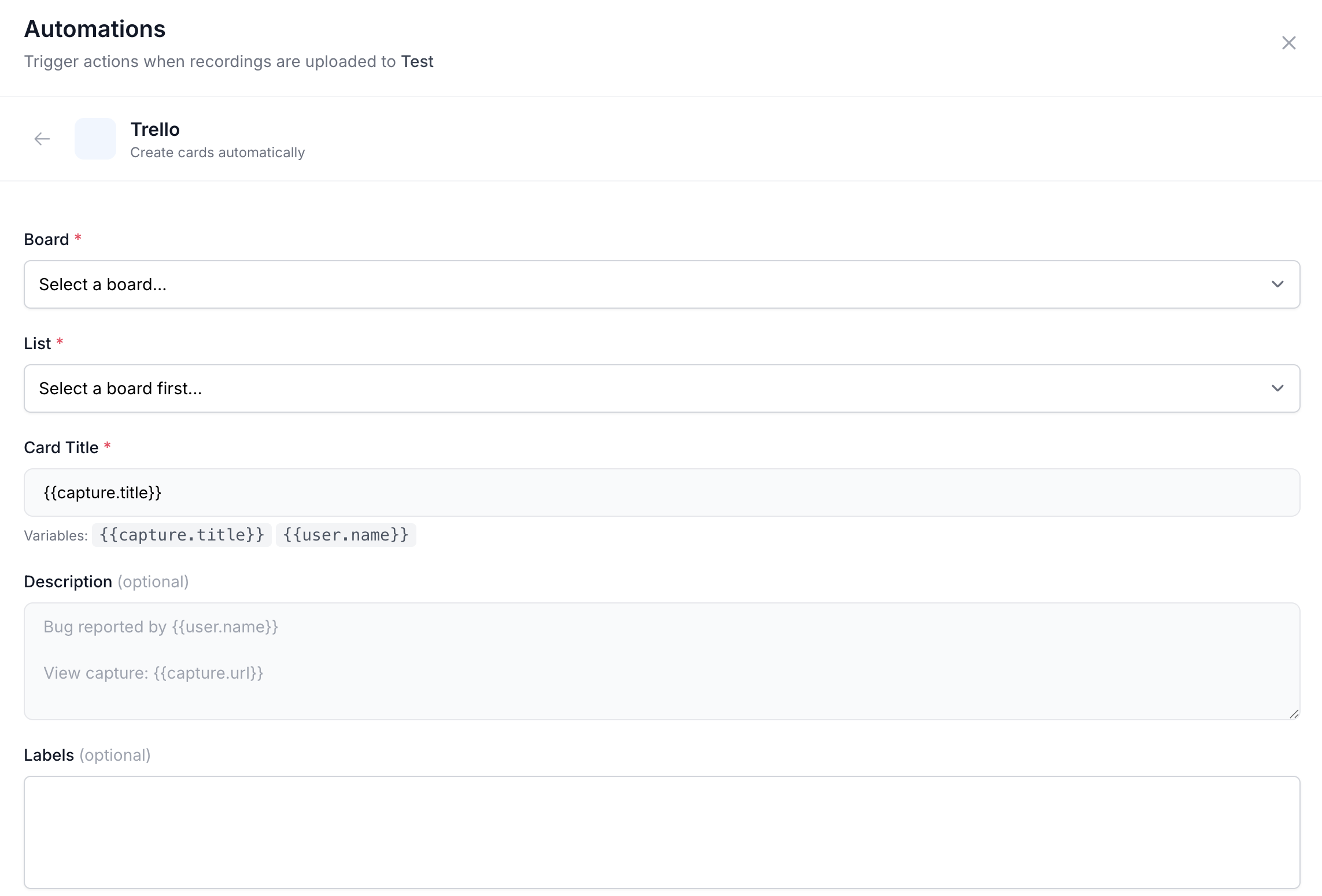
#### Select target board
Configure where cards will be created:
**Board (required):**
* Select the Trello board where cards will be created
* Only boards you have access to appear in the dropdown
* Supports personal, team, and organization boards
* Click **Refresh** to reload the board list
**Board Types:**
* **Personal boards** — Private to your account
* **Team boards** — Shared with team members
* **Organization boards** — Shared across organization
{% hint style="info" %}
**Board Selection**
If you don't see expected boards:
1. Verify you're a member of the board in Trello
2. Check board isn't archived
3. Click **Refresh** in the Trello integration settings
4. Re-save your automation
{% endhint %}
#### Select target list
Configure where cards will be created in the board:
**List (required):**
* Select the list where new cards will appear
* Only lists in your selected board appear in the dropdown
* Different lists can represent workflow stages
**Common Lists:**
| List | Use Case |
| ----------- | ------------------------- |
| Inbox | New items for triage |
| To Do | Ready for work |
| Backlog | Prioritized for later |
| Bugs | Bug-specific list |
| In Progress | Currently being worked on |
| Done | Completed items |
**Example workflows:**
* Bug board: Inbox → Investigating → In Progress → Testing → Done
* Support board: New Tickets → In Review → Waiting on Customer → With Engineering → Done
* Feature board: Ideas → Under Review → Planned → In Development → Shipped
#### Configure card title
Customize how card titles appear on Trello:
**Default title template:**
```
{{item.title}}
```
**Example outputs:**
```
Checkout page crashes on iOS
User can't reset password
Feature request: Dark mode toggle
```
**Other title examples:**
For bug reports:
```
🐛 {{item.title}}
```
For feature requests:
```
💡 {{item.title}}
```
Including customer context:
```
[{{creator.email}}] {{item.title}}
```
For folder-specific routing:
```
{{folder.name}}: {{item.title}}
```
{% hint style="warning" %}
**Title Length**
Keep titles under 100 characters for clarity. Trello displays full titles but very long titles may wrap.
{% endhint %}
View all available template variables →
#### Configure card description
Create a rich card description with recording context:
**Default description template:**
```markdown
## Customer Recording
**Submitted by:** {{creator.email}}
**Duration:** {{recording.duration}} seconds
**Date:** {{recording.created_at}}
---
### Watch Recording
{{item.url}}
---
### Console Errors
{{recording.console_errors}}
---
### Environment
- Browser: {{recording.browser}}
- OS: {{recording.os}}
- Resolution: {{recording.resolution}}
- Country: {{recording.country}}
```
**Example: Detailed bug report description**
```markdown
## Bug Report
A customer submitted a recording describing this issue.
**Reported by:** {{creator.email}} ({{creator.name}})
**Folder:** {{folder.name}}
### Description
{{item.title}}
### Watch Recording
[View on Screendesk]({{item.url}})
---
### Recording Details
- **Duration:** {{recording.duration}} seconds
- **Browser:** {{recording.browser}}
- **OS:** {{recording.os}}
- **Resolution:** {{recording.resolution}}
- **Location:** {{recording.country}}
- **Recorded:** {{recording.created_at}}
### Technical Information
**Console Errors:**
{{recording.console_errors}}
**Network Errors:**
{{recording.network_errors}}
---
This card was automatically created from a customer recording on Screendesk.
```
**Example: Feature request description**
```markdown
## Feature Request
A customer has requested the following feature.
**Suggested by:** {{creator.email}} ({{creator.name}})
### Feature Description
{{item.title}}
### Customer Recording
[View request on Screendesk]({{item.url}})
**Recording Duration:** {{recording.duration}} seconds
---
This feature request was automatically created from a customer recording.
```
**Markdown Support**
Trello card descriptions support Markdown formatting:
* **Bold** — `**text**`
* *Italic* — `*text*`
* Links — `[text](url)`
* Headers — `## Heading`
* Lists — `* item` or `- item`
* Code blocks — ` ``` `
Use markdown to format important information effectively. {% endhint %}
View all available variables → {% endstep %}
{% step %}
#### Apply labels automatically
Organize cards with Trello labels:
**To add labels:**
1. Click **+ Add Label**
2. Select from board labels
3. Add multiple labels as needed
**Suggested labels:**
* `from-screendesk` — Track all automated cards
* `customer-reported` — Mark customer submissions
* `needs-triage` — Flag for manual review
* `bug` or `enhancement` — Categorize card type
* `critical` — For urgent items
* `customer-feedback` — Specific to feature requests
**Example configurations:**
For bug reports list:
```
from-screendesk, customer-reported, bug, needs-triage
```
For feature requests list:
```
from-screendesk, enhancement, customer-feedback
```
For critical issues list:
```
from-screendesk, critical, urgent, customer-impacting
```
{% hint style="warning" %} **Label Availability**
Only labels that exist on your board appear in the dropdown. If you don't see a label you want:
1. Create it on the Trello board first
2. Return to Screendesk
3. Click **Refresh** in the Trello integration settings
4. The new label will appear in the dropdown {% endhint %} {% endstep %}
{% step %}
#### Assign team members (optional)
Auto-assign cards to board members:
**Members dropdown:**
* Select specific team member(s)
* Multiple members supported
* Or leave unassigned for manual assignment
* Only board members appear in the list
**Recommended approach:**
* Leave unassigned for most automations
* Use assignees for urgent or specialized items
* Let team leads manually assign based on expertise
**Example uses:**
* Assign critical bugs to on-call engineer
* Assign feature requests to product manager
* Leave general issues unassigned for triage
{% hint style="info" %} **Multiple Assignees**
Trello supports multiple assignees per card. Add team members to distribute work:
* Bug triage: Assign QA and developer
* Feature requests: Assign product and design
* Critical issues: Assign on-call engineer and team lead {% endhint %} {% endstep %}
{% step %}
#### Configure card position
Control where new cards appear in the list:
**Position options:**
* **Top** — New cards appear at top of list (newest first)
* **Bottom** — New cards appear at bottom (oldest first)
**Recommendation:** Choose **Top** so new items are immediately visible at the top of your list.
{% endstep %}
{% step %}
#### Configure due date (optional)
Set automatic due dates on cards:
**Due date options:**
| Option | Result |
| -------- | -------------- |
| None | No due date |
| +1 day | Due tomorrow |
| +3 days | Due in 3 days |
| +1 week | Due next week |
| +2 weeks | Due in 2 weeks |
**When to use:**
* Set for support cards (due in 2 days)
* Set for urgent bugs (due tomorrow)
* Leave empty for backlog items
{% hint style="info" %} **Due Date Reminders**
Trello sends due date reminders to assignees. This keeps team members aware of approaching deadlines. {% endhint %} {% endstep %}
{% step %}
#### Test the automation
Before activating, create a test card:
1. Click **Create Test Card** button
2. Check your Trello board for the new card
3. Verify all fields populated correctly:
* [ ] Title matches template
* [ ] Description includes all variables
* [ ] Card is in correct list
* [ ] Labels are applied
* [ ] Members are assigned (if configured)
* [ ] Position is correct
* [ ] Due date is set (if configured)
* [ ] Recording link works
**If something looks wrong:**
1. Click **Back**
2. Update the settings
3. Click **Create Test Card** again
**Delete test cards in Trello:** After verifying, you can archive or delete test cards directly in Trello (they won't affect the automation).
{% hint style="success" %} **Ready to Activate**
Once testing passes, proceed to save. {% endhint %} {% endstep %}
{% step %}
#### Save and activate
Finalize the automation:
1. Click **Save Automation**
2. The automation is **enabled by default**
3. You'll see it listed in the folder's **Automations** tab
**Status indicators:**
* ✅ Green toggle — Automation is active
* ⚫ Gray toggle — Automation is disabled
You can disable/enable the automation anytime without deleting it.
From now on, every recording or capture added to this folder will automatically create a card on your Trello board.
{% hint style="info" %} **Automation Activity**
View execution history:
1. Go to **Account Settings → Automations → Execution Log**
2. Filter by folder or automation type
3. See success/failure details for each execution {% endhint %} {% endstep %} {% endstepper %}
***
### Template Variables
Use these variables in card title and description templates:
#### Item Information
| Variable | Description | Example |
| --------------------- | -------------------------- | ------------------------ |
| `{{item.title}}` | Recording or capture title | "Checkout crashes" |
| `{{item.url}}` | Link to recording/capture | Full HTTPS URL |
| `{{item.type}}` | Item type | "recording" or "capture" |
| `{{item.duration}}` | Length in seconds | "45" |
| `{{item.created_at}}` | Submission timestamp | "Feb 6, 2026 at 2:30 PM" |
#### Creator Information
| Variable | Description | Example |
| ------------------- | -------------------- | ---------------------- |
| `{{creator.name}}` | Person who submitted | "Alice Johnson" |
| `{{creator.email}}` | Creator's email | "" |
#### Recording-Specific (if applicable)
| Variable | Description | Example |
| ------------------------------ | -------------------- | --------------------- |
| `{{recording.title}}` | Recording title | "Checkout page error" |
| `{{recording.url}}` | Recording link | Full HTTPS URL |
| `{{recording.browser}}` | Browser info | "Chrome 121.0.6167" |
| `{{recording.os}}` | Operating system | "macOS 14.3" |
| `{{recording.resolution}}` | Screen resolution | "2560x1440" |
| `{{recording.country}}` | Geographic location | "United States" |
| `{{recording.console_errors}}` | JavaScript errors | Formatted list |
| `{{recording.network_errors}}` | Failed HTTP requests | Formatted list |
#### Capture-Specific (if applicable)
| Variable | Description | Example |
| ------------------- | ------------- | --------------------------- |
| `{{capture.title}}` | Capture title | "Bug description" |
| `{{capture.url}}` | Capture link | Full HTTPS URL |
| `{{capture.type}}` | Capture type | Screenshot or document type |
#### Folder & Account
| Variable | Description | Example |
| ------------------ | -------------- | ------------- |
| `{{folder.name}}` | Folder name | "Bug Reports" |
| `{{account.name}}` | Workspace name | "Acme Corp" |
View complete variable reference →
***
### Example Configurations
#### Example 1: Bug Tracking Board
**Folder:** Bug Reports **Target:** Create bug cards in development workflow
**Configuration:**
| Setting | Value |
| -------- | ------------------------------------------------------ |
| Board | Development |
| List | Bugs |
| Labels | `from-screendesk`, `customer-reported`, `needs-triage` |
| Members | (Unassigned) |
| Position | Top |
**Card Title Template:**
```
🐛 {{item.title}}
```
**Card Description Template:**
```markdown
## Bug Report
A customer submitted a recording describing this issue.
**Reported by:** {{creator.email}} ({{creator.name}})
**Folder:** {{folder.name}}
### Description
{{item.title}}
### Watch Recording
[View on Screendesk]({{item.url}})
---
### System Information
- **Browser:** {{recording.browser}}
- **OS:** {{recording.os}}
- **Resolution:** {{recording.resolution}}
- **Location:** {{recording.country}}
- **Duration:** {{recording.duration}} seconds
### Technical Details
**Console Errors:**
{{recording.console_errors}}
**Network Errors:**
{{recording.network_errors}}
---
This card was automatically created from a customer recording on Screendesk.
```
**Result:** Bug cards created in Bugs list, ready to be investigated and moved through your development workflow.
***
#### Example 2: Support Queue
**Folder:** Customer Support **Target:** Track customer support requests visually
**Configuration:**
| Setting | Value |
| -------- | ------------------------------------- |
| Board | Customer Support |
| List | New Tickets |
| Labels | `from-screendesk`, `customer-request` |
| Members | Support Lead |
| Due Date | +2 days |
| Position | Top |
**Card Title Template:**
```
[Support] {{item.title}} - {{creator.email}}
```
**Card Description Template:**
```markdown
## Customer Support Request
**Customer:** {{creator.name}} ({{creator.email}})
**Submitted:** {{item.created_at}}
### Issue
{{item.title}}
### Recording
[View on Screendesk]({{item.url}})
**Duration:** {{recording.duration}} seconds
---
**Environment:**
- Browser: {{recording.browser}}
- OS: {{recording.os}}
```
**Result:** Support tickets created at top of New Tickets list with 2-day due date, ready for triage and assignment.
***
#### Example 3: Feature Request Board
**Folder:** Feature Requests **Target:** Track customer feature suggestions for product team
**Configuration:**
| Setting | Value |
| -------- | ----------------------------------------------------- |
| Board | Product Roadmap |
| List | Ideas |
| Labels | `from-screendesk`, `enhancement`, `customer-feedback` |
| Members | Product Manager |
| Position | Top |
**Card Title Template:**
```
💡 Feature Request: {{item.title}}
```
**Card Description Template:**
```markdown
## Customer Feature Request
A customer has requested the following feature.
**Suggested by:** {{creator.name}} ({{creator.email}})
### Feature Description
{{item.title}}
### Customer Recording
[View request on Screendesk]({{item.url}})
**Recording Duration:** {{recording.duration}} seconds
---
This feature request was automatically created from a customer recording.
```
**Result:** Feature requests flow into Ideas list for product manager to review and prioritize.
***
#### Example 4: Critical Issues
**Folder:** Critical Incidents **Target:** Escalate urgent problems immediately
**Configuration:**
| Setting | Value |
| -------- | --------------------------------- |
| Board | Production Incidents |
| List | Critical |
| Labels | `from-screendesk`, `urgent`, `p0` |
| Members | On-Call Engineer |
| Due Date | +1 day |
| Position | Top |
**Card Title Template:**
```
🚨 CRITICAL: {{item.title}}
```
**Card Description Template:**
```markdown
## CRITICAL INCIDENT ALERT
A critical production issue has been reported.
**Reported by:** {{creator.email}}
**Severity:** CRITICAL (P0)
### Issue Details
{{item.title}}
### Watch Recording
[View on Screendesk]({{item.url}})
---
**IMMEDIATE ACTION REQUIRED**
**Timeline:**
- Submitted: {{item.created_at}}
- Due: Tomorrow
**Environment:**
- Browser: {{recording.browser}}
- OS: {{recording.os}}
- Location: {{recording.country}}
---
Assigned to: On-Call Engineer
```
**Result:** Critical cards created at top of Critical list with immediate due date and on-call engineer assignment.
***
### Card Features
#### Checklists
Add a default checklist to every card:
1. Edit the automation
2. Enable **Add Checklist**
3. Name the checklist (e.g., "Resolution Steps")
4. Add checklist items:
* Watch recording
* Reproduce issue
* Identify root cause
* Implement fix
* Test solution
* Follow up with customer
Team members can check off items as they work through the card.
#### Cover Images
Use recording thumbnail as card cover:
1. Edit the automation
2. Enable **Set Cover Image**
3. Recording thumbnail becomes the card cover
4. Makes cards visually identifiable in the board
#### Attachments
Automatically attach to cards:
| Attachment | Description |
| -------------- | -------------------------------------- |
| Recording Link | Clickable link to Screendesk recording |
| Thumbnail | Preview image of recording |
| Console Logs | Text file with full console output |
***
### Board Workflow Examples
#### Bug Tracking Board
```
Development Board
├── 📥 New (automation target)
│ └── New bug cards created here
├── 🔍 Investigating
│ └── Team reviewing and reproducing
├── 🛠️ In Progress
│ └── Developer actively working
├── 🧪 Testing
│ └── QA verifying fix
└── ✅ Done
└── Completed bugs
```
#### Support Board
```
Customer Support Board
├── 📨 Incoming (automation target)
│ └── New support requests created here
├── 👀 In Review
│ └── Support team reading and categorizing
├── 💬 Waiting on Customer
│ └── Awaiting customer response
├── 🔧 With Engineering
│ └── Escalated to engineering team
└── ✅ Resolved
└── Completed support tickets
```
#### Feature Request Board
```
Product Roadmap Board
├── 💡 Ideas (automation target)
│ └── New feature requests created here
├── 📊 Under Review
│ └── Product team evaluating
├── 🎯 Planned
│ └── Approved for future development
├── 🚧 In Development
│ └── Engineering working on feature
└── ✅ Shipped
└── Released to customers
```
***
### Butler Automation Integration
Combine Screendesk automations with Trello's Butler for advanced workflows:
#### Auto-move on Label
When card is labeled "Urgent":
```
Move card to list "Priority Queue"
```
#### Due Date Reminders
When due date approaches:
```
Add comment "@team This needs attention soon!"
```
#### Archive Completed
When moved to "Done":
```
Archive card after 7 days
```
#### Escalation
When card has specific label:
```
Add @team-lead as member
Add comment with urgent context
```
***
### Managing the Integration
#### View Integration Status
Check Trello connection status:
1. Go to **Account Settings**
2. Select **Integrations & Automations**
3. Find **Trello** in the integrations list
4. See connection status and account information
#### Disconnect Trello
Remove the Trello integration:
1. Go to **Account Settings → Integrations & Automations**
2. Find **Trello**
3. Click **Disconnect**
4. Confirm disconnection
**What happens:**
* All Trello automations are **disabled** (not deleted)
* Existing cards on Trello **remain unchanged**
* Automations can be re-enabled by reconnecting
#### Refresh Boards
If Trello boards aren't loading:
1. Go to **Account Settings → Integrations & Automations**
2. Find **Trello**
3. Click **Refresh**
4. Boards update immediately
**When to refresh:**
* New boards created in Trello
* Board access changed
* New lists added to board
* Labels added to board
#### Change Board or List
To update an existing automation:
1. Edit the automation
2. Select new board
3. Select new list (will reset to the new board's lists)
4. Reconfigure labels (they're board-specific)
5. Verify members are available on new board
6. Save
***
### Troubleshooting
#### Cards Not Creating
**Symptom:** Automations enabled but no cards appear on Trello board
**Solutions:**
{% stepper %} {% step %}
#### Verify Trello is connected
1. Go to **Account Settings → Integrations & Automations**
2. Check Trello status shows "Connected"
3. If disconnected, click **Connect Trello** to re-authorize {% endstep %}
{% step %}
#### Check board and list access
1. In Trello, verify you're a member of the selected board
2. Verify the list exists and isn't archived
3. Try selecting a different list to test {% endstep %}
{% step %}
#### Verify automation is enabled
1. Open folder **Settings → Automations**
2. Find the Trello automation
3. Toggle should be **green** (on)
4. If disabled, click to enable {% endstep %}
{% step %}
#### Check execution logs
1. Go to **Account Settings → Automations → Execution Log**
2. Filter by the folder or automation
3. Look for error messages explaining why card creation failed
4. Recent failures show detailed error information {% endstep %}
{% step %}
#### Test with a test card
1. Open the automation
2. Click **Create Test Card**
3. If test fails, error message explains why
4. Fix the issue and test again
{% hint style="info" %} Test cards show specific error messages that help diagnose problems. {% endhint %} {% endstep %} {% endstepper %}
#### Missing or Incorrect Fields
**Symptom:** Trello card created but fields are empty or wrong
**Solutions:**
{% stepper %} {% step %}
#### Verify template syntax
Check title and description templates:
* Variables must be enclosed in double braces: `{{variable}}`
* Variable names must be spelled exactly
* No extra spaces or special characters
**Correct:** `{{item.title}}` **Incorrect:** `{{ item.title }}` or `{{item.Title}}` {% endstep %}
{% step %}
#### Check Markdown formatting
1. Verify Markdown syntax is correct
2. Common issues:
* Missing line breaks between sections
* Unescaped special characters
* Incorrect link syntax
3. Test formatting in Trello card directly {% endstep %}
{% step %}
#### Test with sample data
Create a test recording/capture with the data you're referencing:
1. Add test item to folder
2. Create test card
3. View the result
4. Adjust templates based on what's missing {% endstep %} {% endstepper %}
#### Wrong Board or List
**Symptom:** Card created on wrong board or in wrong list
**Solutions:**
1. Open the automation settings
2. Verify **Board** dropdown shows correct board
3. Verify **List** dropdown shows correct list
4. Click **Save** to update
5. Create a test card to verify
**Note:** Changes only affect new cards, not previously created ones.
#### Labels Not Applied
**Symptom:** Card created but labels are missing
**Solutions:**
{% stepper %} {% step %}
#### Verify labels exist on board
1. Open Trello board
2. Open any card and check available labels
3. Labels must be created on the board first
4. They're board-specific, not shared across boards {% endstep %}
{% step %}
#### Refresh label list in Screendesk
1. Go to **Account Settings → Integrations & Automations**
2. Find Trello
3. Click **Refresh**
4. Wait for labels to update
5. Edit automation and verify labels appear {% endstep %}
{% step %}
#### Re-add labels to automation
1. Open the automation settings
2. Remove old labels
3. Click **+ Add Label** to re-select
4. Choose labels from the refreshed list
5. Save and test {% endstep %} {% endstepper %}
#### Members Not Assigned
**Symptom:** Card not assigned to selected team member
**Solutions:**
1. Verify the selected person is **a member of the board** in Trello
2. Non-members can't be assigned to cards
3. Go to Trello board settings → Members
4. Check if the person is listed
5. If not, invite them to the board first
6. Select a different assignee in automation and test again
#### Formatting Issues
**Symptom:** Card description formatting looks wrong on Trello
**Solutions:**
1. Test your Markdown template in a Trello card directly
2. Verify Markdown syntax is correct
3. Common issues:
* Inline HTML not supported (use Markdown instead)
* Emoji may render differently on different devices
* Very long text may wrap unexpectedly
4. Test with a test card to verify before activating
***
### Best Practices
#### Use Consistent Card Naming
Keep naming conventions consistent:
{% columns %} {% column %} **❌ Inconsistent:**
```
bug: checkout error
BUG - login failing
customer says: password reset broken
[SEV-1] database timeout
```
{% endcolumn %}
{% column %} **✅ Consistent:**
```
🐛 Checkout page error
🐛 Login failing
🐛 Password reset broken
🐛 Database timeout
```
{% endcolumn %} {% endcolumns %}
Consistent naming makes cards easier to scan in lists.
***
#### Use Meaningful Labels
Create labels for quick identification:
**Organizational labels:**
* `from-screendesk` — Track all automated cards
* `customer-reported` — Issues from customers
* `internal-report` — Issues from your team
**Type labels:**
* `bug`, `enhancement`, `documentation`
* `performance`, `security`, `ui`, `backend`
**Priority labels:**
* `urgent`, `high-priority`, `low-priority`
* `critical`, `p0`, `p1`
Apply 2-4 labels per card for effective organization.
***
#### Include Recording Links Prominently
Make accessing customer evidence easy:
{% columns %} {% column %} **❌ Buried:**
```
This is a bug report.
See details below.
...lots of text...
Link: {{item.url}}
```
{% endcolumn %}
{% column %} **✅ Prominent:**
```
[View Recording]({{item.url}})
**Description:**
{{item.title}}
```
{% endcolumn %} {% endcolumns %}
Put the recording link near the top where team members will see it first.
***
#### Set Due Dates for Accountability
Use due dates to keep items moving:
* **Support cards** — Due in 2 days
* **Urgent bugs** — Due in 1 day
* **Feature requests** — No due date (backlog)
* **Critical issues** — Due today or tomorrow
Due dates create accountability and prevent items from stalling.
***
#### Add Checklists for Process Consistency
Create standard checklists for different card types:
**For bug cards:**
* Watch recording
* Reproduce issue
* Debug and identify root cause
* Implement fix
* Test thoroughly
* Follow up with customer
**For support cards:**
* Read and understand issue
* Attempt to reproduce
* Test workaround
* Provide solution or escalate
* Follow up with customer
**For feature cards:**
* Review request
* Discuss with team
* Estimate effort
* Plan for sprint
* Implement and test
***
#### Position Cards at Top
Create new cards at the top of lists:
* New items are immediately visible
* Team doesn't miss new submissions
* Encourages processing inbox-style (top to bottom)
***
#### Create Dedicated Automation Lists
Separate automation target from manual cards:
```
Development Board
├── 📥 New [from Screendesk automations]
├── 🔍 Investigating
├── 🛠️ In Progress
└── ✅ Done
```
Keep automated cards separate to track what came from Screendesk vs. manual input.
***
#### Monitor Automation Success Rate
Regularly check execution logs:
1. Go to **Account Settings → Automations → Execution Log**
2. Filter by Trello automations
3. Look for patterns in failures
4. Address common issues
**Target success rate:** 99%+
***
#### Test Before Large Deployment
Before creating many automations:
1. Create one automation
2. Add a test recording
3. Verify card appears on Trello
4. Check title, description, labels, members
5. Adjust templates as needed
6. Then create additional automations
Testing first saves time fixing issues later.
***
#### Document Your Workflow
Keep notes on your automation setup:
* Why each automation exists
* What folder triggers it
* What board and list it targets
* How cards flow through your workflow
* Who manages the board
This helps new team members understand the system.
***
* Template Variables Reference — Complete list of available variables
* Linear Automation — More advanced issue tracking alternative
* Jira Automation — Another issue tracker option
* GitHub Automation — Code-focused issue tracking
* Slack Integration — Send notifications to Slack
* Troubleshooting Guide — Common issues and solutions
* [Trello API Documentation](https://developer.atlassian.com/cloud/trello/rest/api-group-actions/) — Trello developer reference
* [Trello Best Practices](https://trello.com/guide) — Trello official guide
* [Butler for Trello](https://support.atlassian.com/trello/docs/about-butler-for-trello/) — Trello automation capabilities
---
# Agent Instructions
This documentation is published with GitBook. GitBook is the documentation platform designed so that both humans and AI agents can read, navigate, and reason over technical content effectively. Learn more at gitbook.com.
## Querying This Documentation
If you need additional information that is not directly available in this page, you can query the documentation by asking a question.
Perform an HTTP GET request on the following URL with the `ask` and `goal` query parameters:
```
GET https://docs.screendesk.io/organization-and-workflows/automations/trello.md?ask=&goal=
```
`ask` is the immediate question: it should be specific, self-contained, and written in natural language.
`goal` is what the user is ultimately trying to achieve, the reason they need the answer. Sharing it helps GitBook give you a better, more relevant answer. A goal is most helpful when it describes the outcome the user wants rather than restating the question. For example, with `ask=how do I create an API token`, a goal like `automate deployments from our CI pipeline` lets GitBook tailor the answer to that use case.
The response will contain a direct answer to the question and relevant excerpts and sources from the documentation.
Use this mechanism when the answer is not explicitly present in the current page, you need clarification or additional context, or you want to retrieve related documentation sections.