> For the complete documentation index, see [llms.txt](https://docs.screendesk.io/llms.txt). Markdown versions of documentation pages are available by appending `.md` to page URLs; this page is available as [Markdown](https://docs.screendesk.io/organization-and-workflows/automations/webhook.md).
# Webhook
Send recording events to any HTTPS endpoint, with custom payloads, auth headers, and retry handling.
Webhook automations send HTTP requests with recording data to any endpoint when content is added to a folder. This enables custom integrations with internal tools, automation platforms like Zapier, and systems without native Screendesk integrations.
***
### When to Use Webhooks
Webhooks are the most flexible automation type. Use them for:
* **Custom internal tools** — Send data to your own applications
* **Automation platforms** — Trigger workflows in Zapier, Make (Integromat), or n8n
* **Data warehouses** — Stream data to analytics platforms
* **Incident management** — Trigger PagerDuty or Opsgenie alerts
* **CRM systems** — Update customer records automatically
* **Chat platforms** — Send to Discord, Teams, or other chat tools
* **Logging systems** — Forward events to Datadog, Sentry, or LogRocket
{% hint style="info" %}
**Webhooks vs. Native Integrations**
Use webhooks when:
* No native integration exists for your tool
* You need custom payload formats
* You're building internal tools
* You want maximum flexibility
Use native integrations (Slack, Linear, Jira) when:
* They exist for your tool
* You want easier setup
* You need OAuth authentication
* You want pre-built formatting
{% endhint %}
***
### Setup
{% stepper %}
{% step %}
#### Open folder automations
1. Navigate to your folder
2. Click **Settings** (gear icon)
3. Select **Automations** tab
4. Click **Add Automation**
5. Select **Webhook**
{% endstep %}
{% step %}
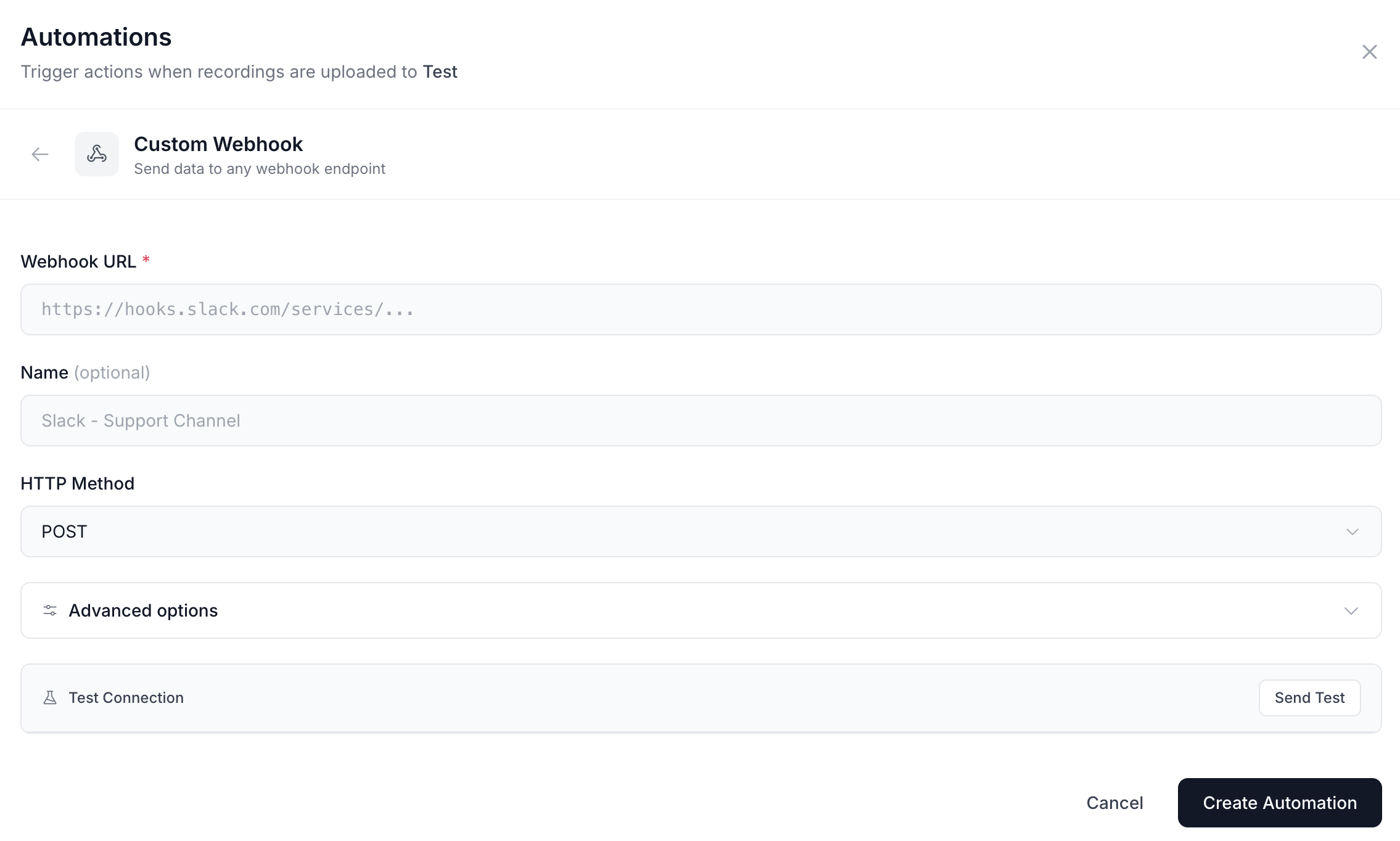
#### Configure webhook endpoint
**Webhook URL (required):** Enter the destination endpoint:
```
https://your-app.com/webhooks/screendesk
```
{% hint style="warning" %}
**HTTPS Required**
Webhook URLs must use HTTPS (not HTTP). This ensures data is encrypted in transit.
{% endhint %}
**HTTP Method:** Choose the request method:
* **POST** (default) — Standard for webhooks
* **PUT** — For update-style endpoints
* **PATCH** — For partial updates
* **DELETE** — For deletion workflows
Most webhooks use POST.
{% endstep %}
{% step %}
#### Add authentication headers
Click **Add Headers** to configure authentication.
Headers are sent as JSON:
```json
{
"Authorization": "Bearer your-api-token-here",
"Content-Type": "application/json"
}
```
**Common authentication patterns:**
**Bearer Token:**
```json
{
"Authorization": "Bearer eyJhbGciOiJIUzI1NiIs..."
}
```
**API Key:**
```json
{
"X-API-Key": "your-api-key-here"
}
```
**Basic Auth:**
```json
{
"Authorization": "Basic dXNlcm5hbWU6cGFzc3dvcmQ="
}
```
To generate Basic auth, base64 encode `username:password`.
**Webhook Secret (for verification):**
```json
{
"X-Webhook-Secret": "shared-secret-value"
}
```
{% endstep %}
{% step %}
#### Configure payload (optional)
By default, Screendesk sends a complete payload with all recording data.
**Default payload structure:**
```json
{
"event": "recording.added_to_folder",
"timestamp": "2026-02-06T15:30:00Z",
"recording": {
"id": "rec_abc123",
"title": "Checkout page crash",
"url": "https://app.screendesk.io/r/abc123",
"video_url": "https://cdn.screendesk.io/videos/abc123.mp4",
"thumbnail_url": "https://cdn.screendesk.io/thumbs/abc123.jpg",
"customer_email": "user@example.com",
"duration": 45,
"browser": "Chrome 121.0",
"os": "macOS 14.3",
"console_errors": [...],
"network_errors": [...],
"created_at": "2026-02-06T15:30:00Z"
},
"folder": {
"id": "fld_xyz789",
"name": "Bug Reports"
},
"account": {
"id": "acc_123",
"name": "Acme Corp"
}
}
```
**Custom payload:**
Enable **Custom Payload** to define your own structure using template variables:
```json
{
"type": "bug_report",
"bug": {
"title": "{{recording.title}}",
"reporter": "{{recording.customer_email}}",
"video_link": "{{recording.url}}",
"errors": "{{recording.console_errors}}"
},
"source": "screendesk",
"folder": "{{folder.name}}",
"timestamp": "{{recording.created_at}}"
}
```
View all template variables →
{% endstep %}
{% step %}
#### Test the webhook
Click **Send Test Webhook** to verify your configuration:
1. Screendesk sends a test request to your endpoint
2. Check that your endpoint receives the request
3. Review the response in the test results modal
4. Verify authentication works
5. Confirm payload format is correct
**Test results show:**
* ✅ **Success** — HTTP 2xx status code received
* ⚠️ **Warning** — Non-2xx status with response body
* ❌ **Failed** — Timeout, connection error, or 4xx/5xx status
View the full request and response in the test results.
{% endstep %}
{% step %}
#### Save and activate
Once testing succeeds:
1. Click **Save** to create the automation
2. The automation is enabled by default
3. View it in the folder's Automations tab
The webhook will now fire for every recording added to this folder.
{% endstep %}
{% endstepper %}
***
### Integration Examples
#### Zapier
Create workflows with 5000+ apps:
{% stepper %}
{% step %}
#### Create a Zap
1. Go to [zapier.com](https://zapier.com) and click **Create Zap**
2. For the trigger, search for **Webhooks by Zapier**
3. Choose **Catch Hook** as the trigger event
4. Copy the provided webhook URL
{% endstep %}
{% step %}
#### Configure in Screendesk
1. Create a webhook automation in your folder
2. Paste the Zapier webhook URL
3. Leave HTTP method as **POST**
4. No headers needed
5. Use default payload (Zapier will parse it)
{% endstep %}
{% step %}
#### Test and continue
1. Click **Send Test Webhook** in Screendesk
2. Return to Zapier and click **Test trigger**
3. Zapier should detect the sample data
4. Continue building your Zap with the recording data
{% endstep %}
{% endstepper %}
***
#### Slack (via Webhook)
Post to Slack without OAuth:
**Webhook URL:** Get an incoming webhook URL from Slack:
1. Go to [api.slack.com/apps](https://api.slack.com/apps)
2. Create an app or select existing
3. Enable **Incoming Webhooks**
4. Add webhook to channel
5. Copy the webhook URL
**Custom Payload:**
```json
{
"text": "🎥 New recording in {{folder.name}}",
"blocks": [
{
"type": "section",
"text": {
"type": "mrkdwn",
"text": "*{{recording.title}}*\nFrom: {{recording.customer_email}}\nDuration: {{recording.duration}}s"
}
},
{
"type": "actions",
"elements": [
{
"type": "button",
"text": {"type": "plain_text", "text": "View Recording"},
"url": "{{recording.url}}",
"style": "primary"
}
]
}
]
}
```
{% hint style="info" %}
**Native Slack Integration**
For a simpler setup with more features, use the native Slack integration instead. It provides OAuth authentication, channel selection, and richer formatting options.
{% endhint %}
***
#### PagerDuty
Trigger incidents from critical recordings:
**Webhook URL:**
```
https://events.pagerduty.com/v2/enqueue
```
**Headers:**
```json
{
"Content-Type": "application/json"
}
```
**Custom Payload:**
```json
{
"routing_key": "YOUR_INTEGRATION_KEY_HERE",
"event_action": "trigger",
"payload": {
"summary": "Critical: {{recording.title}}",
"severity": "critical",
"source": "Screendesk",
"custom_details": {
"recording_url": "{{recording.url}}",
"customer": "{{recording.customer_email}}",
"console_errors": "{{recording.console_errors}}",
"browser": "{{recording.browser}}"
}
},
"links": [
{
"href": "{{recording.url}}",
"text": "View Recording"
}
]
}
```
Get your integration key from PagerDuty → Services → Integrations → Events API V2.
***
#### Discord
Post to Discord channels:
**Webhook URL:** Get from Discord:
1. Open channel settings
2. Go to Integrations → Webhooks
3. Create webhook
4. Copy URL
**Custom Payload:**
```json
{
"content": "🎥 **New Recording**",
"embeds": [
{
"title": "{{recording.title}}",
"description": "From: {{recording.customer_email}}\nDuration: {{recording.duration}} seconds",
"url": "{{recording.url}}",
"color": 15258703,
"fields": [
{
"name": "Browser",
"value": "{{recording.browser}}",
"inline": true
},
{
"name": "OS",
"value": "{{recording.os}}",
"inline": true
}
]
}
]
}
```
***
#### Microsoft Teams
Post to Teams channels:
**Webhook URL:** Get from Teams:
1. Open channel
2. Click ⋯ (More options)
3. Connectors → Incoming Webhook
4. Configure and copy URL
**Custom Payload:**
```json
{
"@type": "MessageCard",
"@context": "https://schema.org/extensions",
"summary": "New Recording",
"themeColor": "E91E63",
"title": "🎥 {{recording.title}}",
"sections": [
{
"facts": [
{"name": "Customer", "value": "{{recording.customer_email}}"},
{"name": "Duration", "value": "{{recording.duration}}s"},
{"name": "Browser", "value": "{{recording.browser}}"}
]
}
],
"potentialAction": [
{
"@type": "OpenUri",
"name": "View Recording",
"targets": [
{"os": "default", "uri": "{{recording.url}}"}
]
}
]
}
```
***
### Webhook Security
#### Verify webhook signatures
Screendesk signs all webhooks with HMAC-SHA256. Verify requests are legitimate:
**Signature header:**
```
X-Screendesk-Signature: sha256=abc123...
```
**Verification (Node.js):**
```javascript
const crypto = require('crypto');
function verifyWebhook(payload, signature, secret) {
const expectedSignature = crypto
.createHmac('sha256', secret)
.update(JSON.stringify(payload))
.digest('hex');
const expected = `sha256=${expectedSignature}`;
return crypto.timingSafeEqual(
Buffer.from(signature),
Buffer.from(expected)
);
}
// Usage
const isValid = verifyWebhook(
req.body,
req.headers['x-screendesk-signature'],
'your-webhook-secret'
);
```
**Verification (Python):**
```python
import hmac
import hashlib
def verify_webhook(payload, signature, secret):
expected = hmac.new(
secret.encode(),
payload.encode(),
hashlib.sha256
).hexdigest()
expected_signature = f"sha256={expected}"
return hmac.compare_digest(signature, expected_signature)
```
{% hint style="warning" %}
**Always Verify Signatures**
Without verification, anyone who knows your webhook URL can send fake requests. Always verify the `X-Screendesk-Signature` header in production.
{% endhint %}
***
### Retry Policy
Failed webhooks are automatically retried with exponential backoff:
| Attempt | Delay | Total Time |
| --------- | ---------- | ---------- |
| Initial | — | 0s |
| 1st retry | 1 minute | 1m |
| 2nd retry | 5 minutes | 6m |
| 3rd retry | 30 minutes | 36m |
| 4th retry | 2 hours | 2h 36m |
| 5th retry | 12 hours | 14h 36m |
After 5 failed attempts, the webhook is marked as permanently failed.
**Success criteria:**
* HTTP status code 2xx (200-299)
* Response received within 30 seconds
**Your endpoint should:**
* Respond with 2xx as quickly as possible
* Process webhooks asynchronously if needed
* Be idempotent (handle duplicate deliveries)
* Return within 30 seconds
***
### Troubleshooting
#### Connection errors
**Symptom:** "Failed to connect" or timeout errors
**Solutions:**
* Verify URL is correct and publicly accessible
* Ensure endpoint uses HTTPS (not HTTP)
* Check firewall allows Screendesk IPs
* Confirm endpoint responds within 30 seconds
* Test endpoint with curl:
```bash
curl -X POST https://your-endpoint.com/webhook \
-H "Content-Type: application/json" \
-d '{"test": true}'
```
***
#### Authentication errors
**Symptom:** 401 Unauthorized or 403 Forbidden
**Solutions:**
* Verify API keys or tokens are correct
* Check header names match exactly (case-sensitive)
* Ensure tokens haven't expired
* Confirm permissions allow webhook access
* Test with a tool like Postman first
***
#### Invalid payload
**Symptom:** 400 Bad Request with validation errors
**Solutions:**
* Validate JSON syntax in custom payload
* Check template variables are spelled correctly
* Ensure required fields are present
* Test payload structure with the endpoint's documentation
* Use default payload first, then customize
***
#### Timeout errors
**Symptom:** "Request timed out after 30 seconds"
**Solutions:**
* Optimize endpoint to respond faster
* Return 2xx immediately, process asynchronously
* Reduce database queries or external API calls
* Cache data when possible
* Check for infinite loops or blocking operations
***
#### View execution logs
Check webhook delivery history:
1. Open folder **Settings → Automations**
2. Click the webhook automation
3. View **Execution Log** tab
Logs show:
* Timestamp
* HTTP status code
* Request payload sent
* Response body received
* Error messages
* Retry attempts
***
### Best Practices
#### Respond quickly
Return 2xx status as fast as possible:
{% columns %}
{% column %}
**❌ Don't do this:**
```javascript
app.post('/webhook', (req, res) => {
// Process synchronously (slow)
processRecording(req.body);
sendNotifications(req.body);
updateDatabase(req.body);
res.status(200).send('OK');
});
```
{% endcolumn %}
{% column %}
**✅ Do this:**
```javascript
app.post('/webhook', (req, res) => {
// Respond immediately
res.status(200).send('OK');
// Process asynchronously
queue.add('process-webhook', req.body);
});
```
{% endcolumn %}
{% endcolumns %}
***
#### Make endpoints idempotent
Handle duplicate deliveries gracefully:
```javascript
app.post('/webhook', async (req, res) => {
const recordingId = req.body.recording.id;
// Check if already processed
const exists = await db.webhooks.findOne({ recordingId });
if (exists) {
return res.status(200).send('Already processed');
}
// Process and store
await processWebhook(req.body);
await db.webhooks.insert({ recordingId, processedAt: new Date() });
res.status(200).send('OK');
});
```
***
#### Log webhook requests
Keep logs for debugging:
* Log all incoming webhook requests
* Store request body and headers
* Track processing status
* Keep logs for at least 30 days
* Alert on high failure rates
***
#### Monitor and alert
Set up monitoring for:
* Webhook failure rate > 5%
* Response time > 10 seconds
* Missing webhooks (check counts)
* Authentication failures
* Endpoint downtime
Use your logging platform or APM tool to track these metrics.
***
#### Test thoroughly
Before going live:
* Test with the **Send Test Webhook** button
* Verify all data fields are present
* Check template variables populate correctly
* Confirm authentication works
* Test with your full processing pipeline
* Verify retries work as expected
---
# Agent Instructions
This documentation is published with GitBook. GitBook is the documentation platform designed so that both humans and AI agents can read, navigate, and reason over technical content effectively. Learn more at gitbook.com.
## Querying This Documentation
If you need additional information that is not directly available in this page, you can query the documentation by asking a question.
Perform an HTTP GET request on the following URL with the `ask` and `goal` query parameters:
```
GET https://docs.screendesk.io/organization-and-workflows/automations/webhook.md?ask=&goal=
```
`ask` is the immediate question: it should be specific, self-contained, and written in natural language.
`goal` is what the user is ultimately trying to achieve, the reason they need the answer. Sharing it helps GitBook give you a better, more relevant answer. A goal is most helpful when it describes the outcome the user wants rather than restating the question. For example, with `ask=how do I create an API token`, a goal like `automate deployments from our CI pipeline` lets GitBook tailor the answer to that use case.
The response will contain a direct answer to the question and relevant excerpts and sources from the documentation.
Use this mechanism when the answer is not explicitly present in the current page, you need clarification or additional context, or you want to retrieve related documentation sections.