> For the complete documentation index, see [llms.txt](https://docs.screendesk.io/llms.txt). Markdown versions of documentation pages are available by appending `.md` to page URLs; this page is available as [Markdown](https://docs.screendesk.io/organization-and-workflows/folders.md).
# Folders
Create public or private folders to organize recordings and captures.
Folders let you group related recordings and bug reports so your team can find, triage, and manage work faster. Every workspace starts without folders — you create them as your needs grow.
***
### Folder types
Screendesk has two kinds of folders, each designed for a different content type.
**Capture folders** hold bug reports collected through the capture widget.
**Recording folders** hold video recordings. When you create a recording folder you choose one of four content types:
* **Received** — recordings sent in by customers
* **Sent** — recordings your team sends out
* **Live** — recordings from live screen-sharing sessions
* **Library** — reusable videos your team keeps on hand
A folder's type and content type are set at creation and cannot be changed later.
***
### Creating a folder
{% stepper %}
{% step %}
#### Navigate to the folder list
For capture folders, go to **Bug Reports** in the sidebar. For recording folders, go to the relevant recording section (**Received**, **Sent**, **Live**, or **Library**).
{% endstep %}
{% step %}
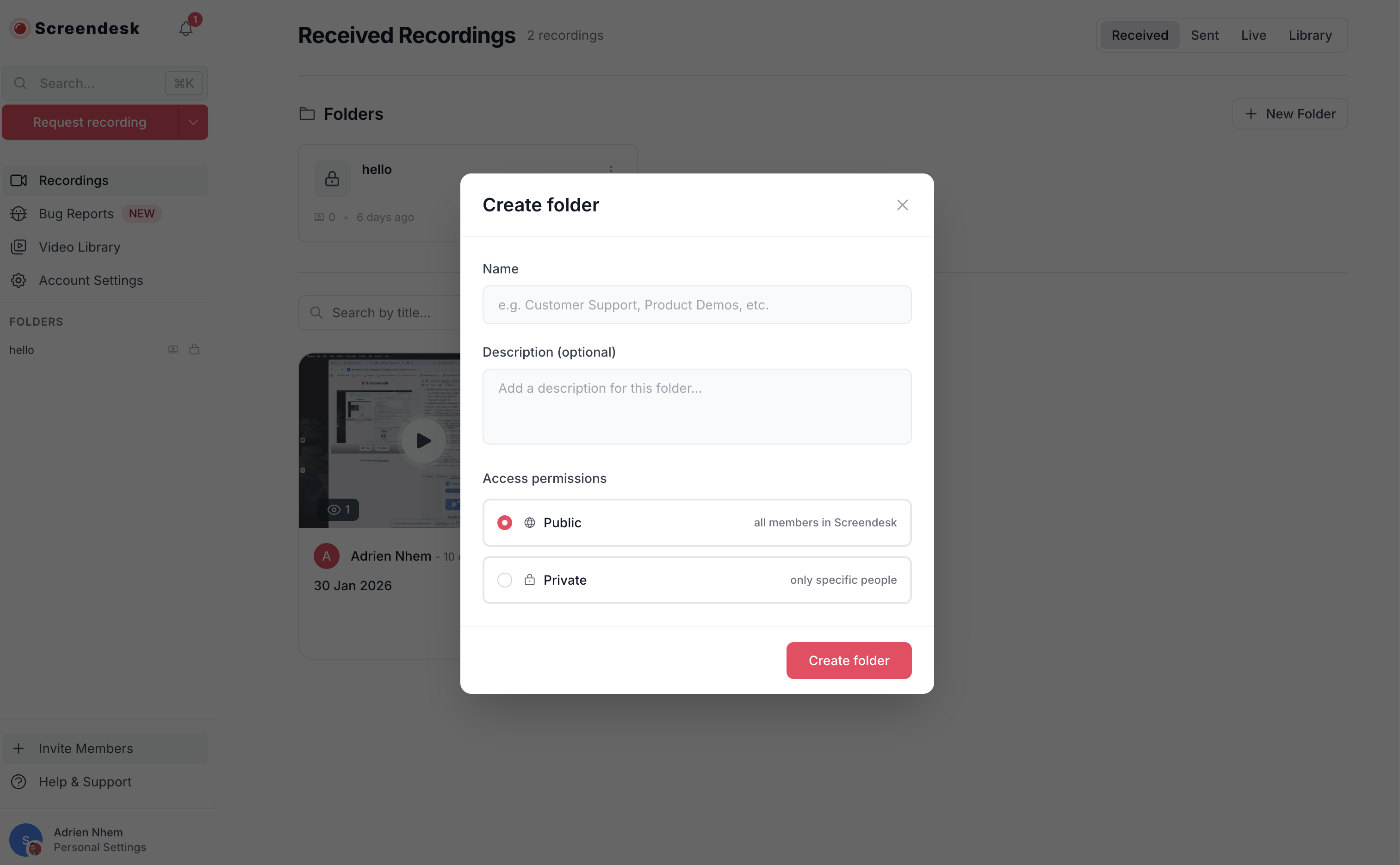
#### Click the **New Folder** button
A modal appears asking for:
* **Name** (required, up to 100 characters) — must be unique among active folders of the same type
* **Description** (optional)
* **Access level** — Public (default) or Private
{% endstep %}
{% step %}
#### Save
The folder appears in the list immediately.
{% endstep %}
{% endstepper %}
{% hint style="info" %}
Folder names are case-insensitive. You cannot have both "Urgent" and "urgent" as active capture folders.
{% endhint %}
***
### Editing and renaming a folder
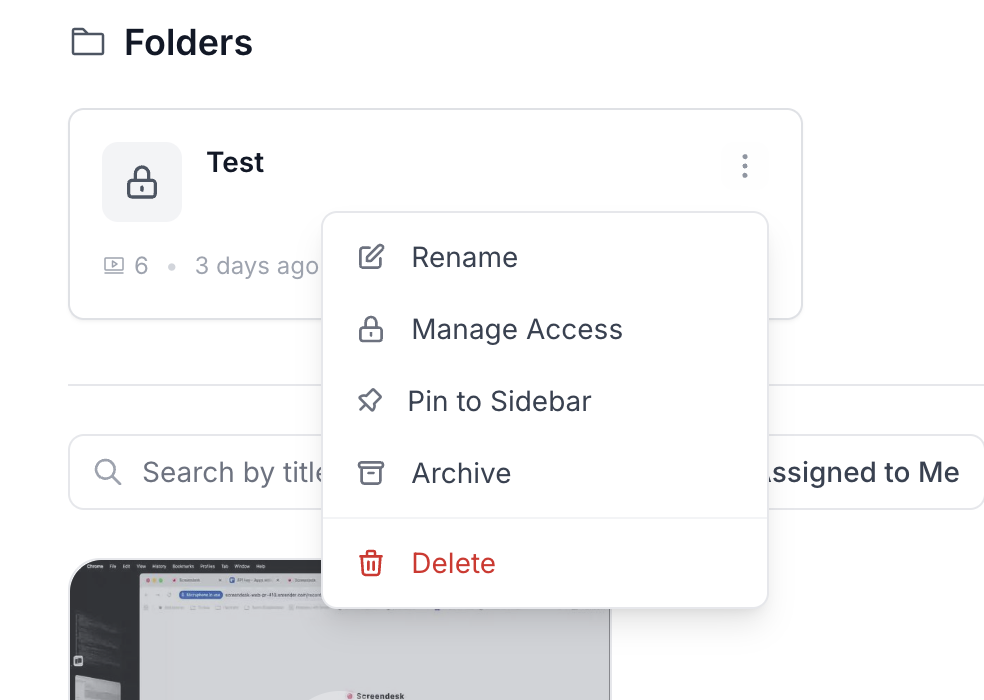
Open the folder or find it in the folder list, click the **⋯** menu, and choose **Rename**. You can update the name and description. The folder type and content type cannot be changed.
***
### Moving items into a folder
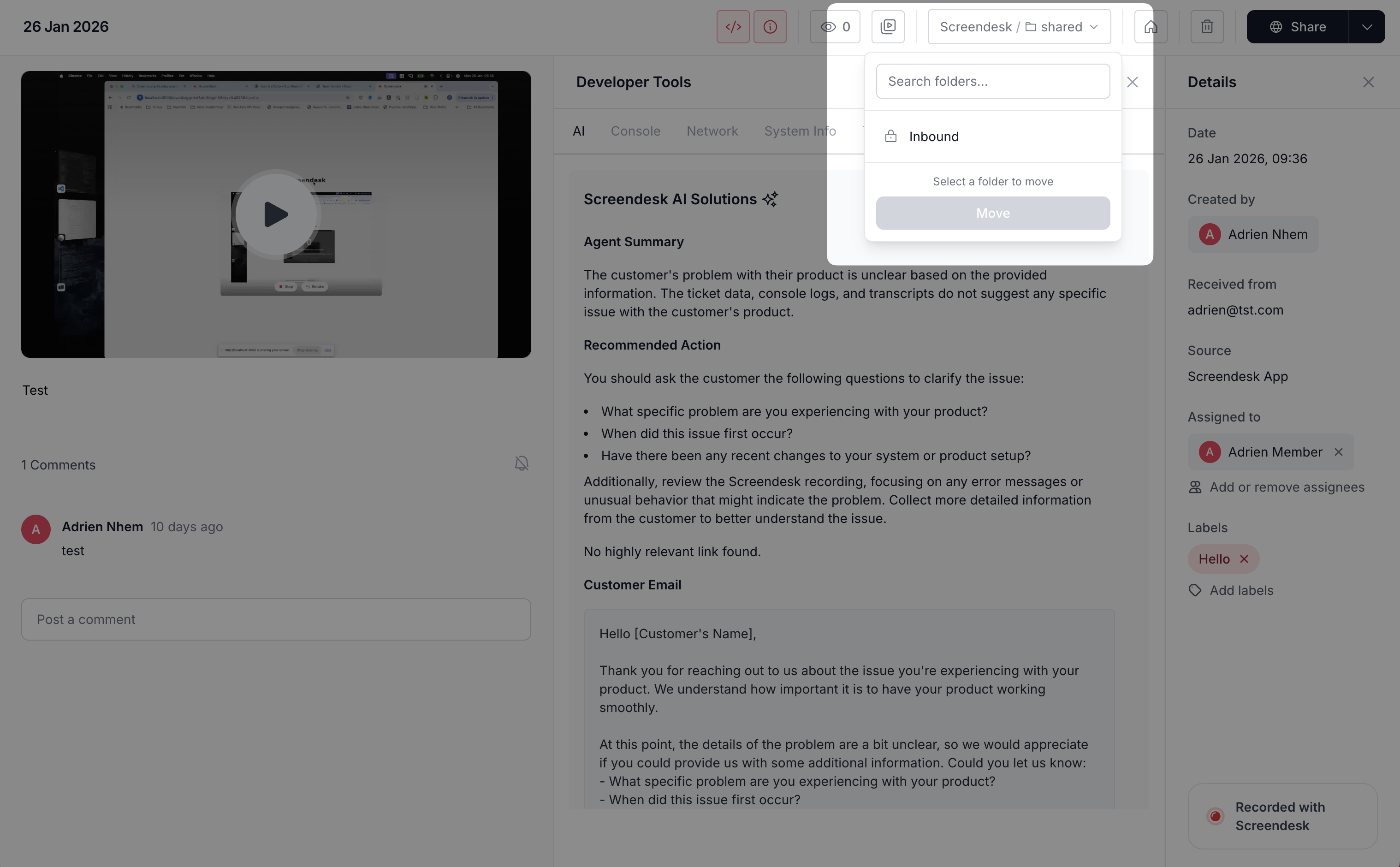
Open a recording or bug report, click **Move to Folder**, and pick the destination. For recordings, only folders matching the recording's content type appear in the list.
You can also move multiple recordings at once using the bulk-select checkbox, then clicking **Move to Folder**.
To remove an item from a folder, open the move dialog and choose **Remove from folder**. The item returns to the unfoldered list.
***
### Pinning folders
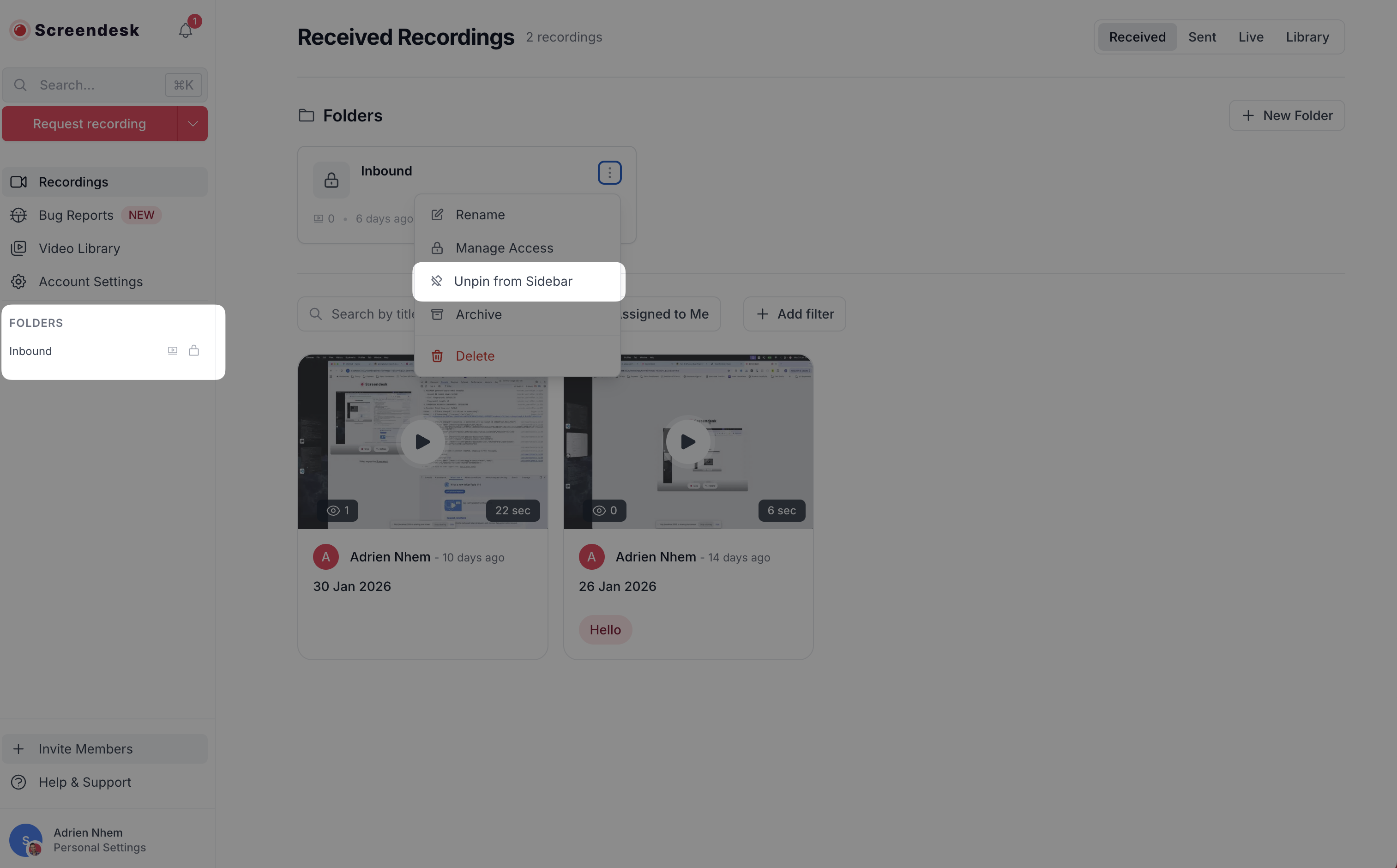
Pin the folders you use most so they appear in the sidebar for one-click access.
* **Pin** — open the folder's **⋯** menu and choose **Pin**. The folder appears under **Folders** in the sidebar.
* **Unpin** — right-click (or use the **⋯** menu) on a pinned folder in the sidebar and choose **Unpin**.
* **Reorder** — drag and drop pinned folders in the sidebar to arrange them in the order you prefer.
Pinned folders are personal — each team member manages their own list.
***
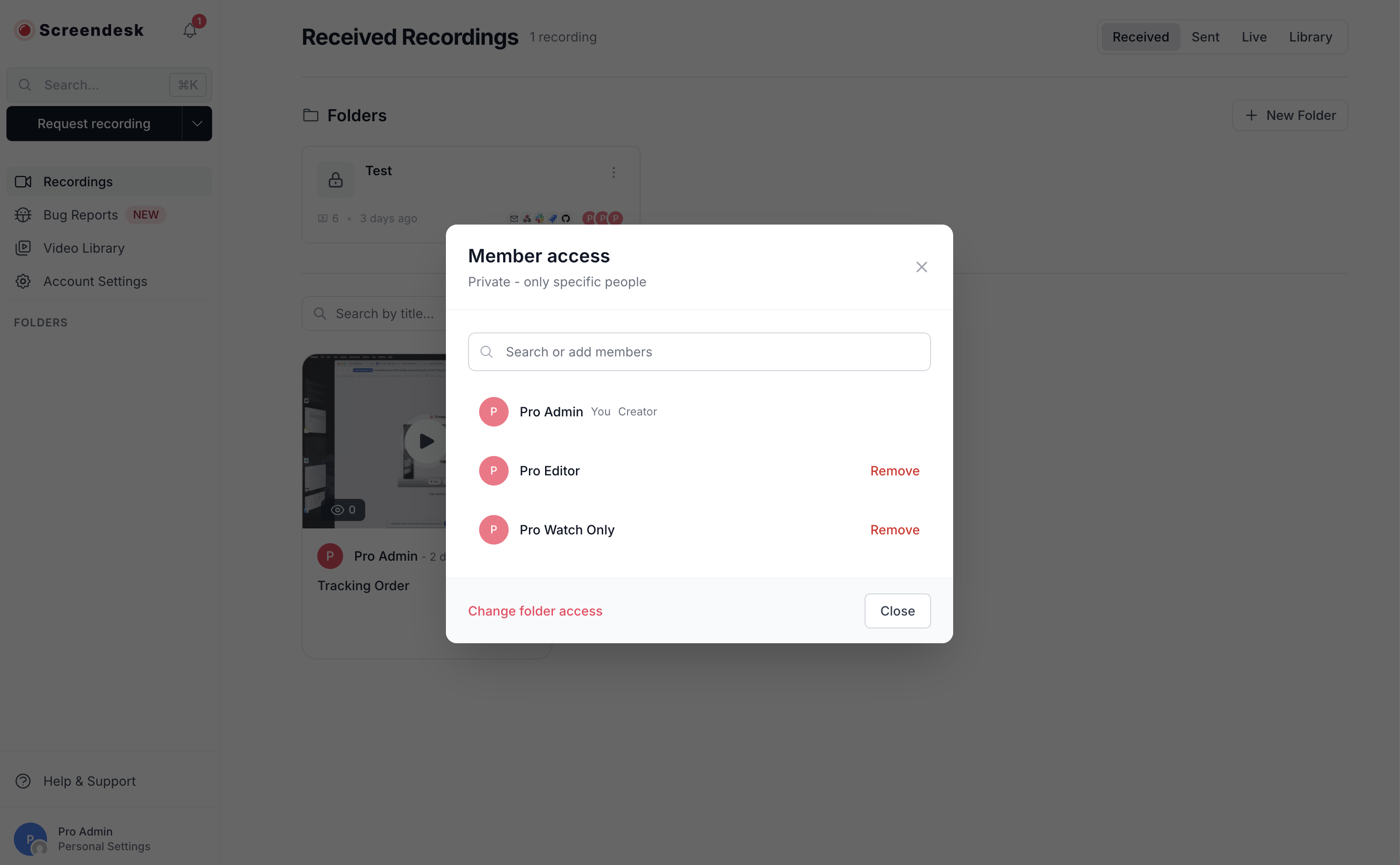
### Private folders
By default, folders are **public** — every workspace member can see them. If you need to restrict access, set a folder to **Private**. Private folders are only visible to:
* The folder creator
* Members explicitly added to the folder
* Admins and Editors (who always see all folders)
{% stepper %}
{% step %}
#### Set access level
When creating a folder, choose **Private**. Or, on an existing folder, click the **⋯** menu → **Manage Access** and switch to **Private**.
{% endstep %}
{% step %}
#### Add members
In the same Manage Access panel, search for workspace members by name or email and add them. The creator is added automatically and cannot be removed.
{% endstep %}
{% endstepper %}
When a private folder is switched back to public, the member list is cleared and the folder becomes visible to everyone again.
{% hint style="warning" %}
Private folders require the **Plus**, **Pro**, or **Enterprise** plan.
{% endhint %}
***
### Archiving and deleting folders
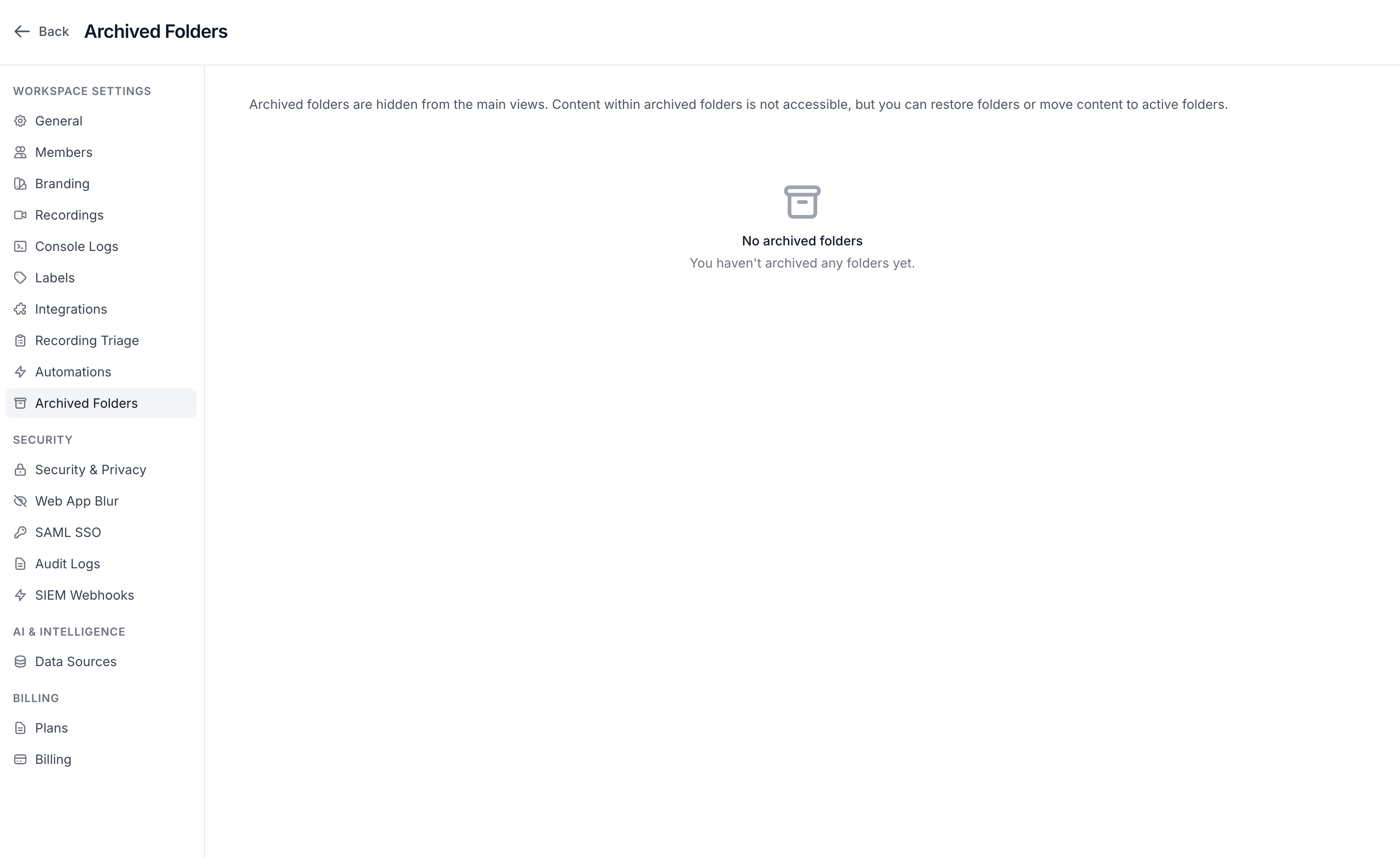
**Archiving** removes a folder from the active list but keeps it and its contents intact. Click the **⋯** menu → **Archive**. Archived folders can be viewed on the **Archived Folders** page and restored at any time.
**Deleting** permanently removes the folder **and all its contents** (recordings or bug reports inside it). Click the **⋯** menu → **Delete** and confirm. This action cannot be undone.
{% hint style="danger" %}
Deleting a folder deletes everything inside it. If you only want to hide a folder, use **Archive** instead.
{% endhint %}
***
### Automations
Each folder can have automations that trigger when new items land in it — for example, posting to Slack or creating a Jira ticket. See [Automations](/organization-and-workflows/automations.md) for setup details.
***
### Permissions
| Action | Owner | Admin | Editor | Member | Watch Only |
| ----------------------- | ----------------- | ----- | ------ | -------- | ---------- |
| Create folders | ✅ | ✅ | ✅ | — | — |
| Rename / edit | ✅ | ✅ | ✅ | — | — |
| Archive / restore | ✅ | ✅ | ✅ | — | — |
| Delete folders | ✅ | ✅ | ✅ | — | — |
| View public folders | ✅ | ✅ | ✅ | ✅ | ✅ |
| View private folders | Creator + members | ✅ | ✅ | If added | — |
| Manage access & members | ✅ | ✅ | ✅ | — | — |
***
### Good to know
* Capture folders and recording folders are **completely separate**. A capture folder cannot hold recordings and vice versa.
* Each recording folder is locked to one content type (Received, Sent, Live, or Library). You cannot move a recording into a folder of a different content type.
* Folder item counts update automatically. The count shown on a folder card reflects the current number of items inside.
* Archiving a folder appends a timestamp to the name, freeing up the original name for a new folder.
* When a member is removed from a private folder they had pinned, the pin is automatically removed.
* All folder operations (create, edit, archive, delete) are recorded in the audit log when audit logs are enabled.
---
# Agent Instructions
This documentation is published with GitBook. GitBook is the documentation platform designed so that both humans and AI agents can read, navigate, and reason over technical content effectively. Learn more at gitbook.com.
## Querying This Documentation
If you need additional information that is not directly available in this page, you can query the documentation by asking a question.
Perform an HTTP GET request on the following URL with the `ask` and `goal` query parameters:
```
GET https://docs.screendesk.io/organization-and-workflows/folders.md?ask=&goal=
```
`ask` is the immediate question: it should be specific, self-contained, and written in natural language.
`goal` is what the user is ultimately trying to achieve, the reason they need the answer. Sharing it helps GitBook give you a better, more relevant answer. A goal is most helpful when it describes the outcome the user wants rather than restating the question. For example, with `ask=how do I create an API token`, a goal like `automate deployments from our CI pipeline` lets GitBook tailor the answer to that use case.
The response will contain a direct answer to the question and relevant excerpts and sources from the documentation.
Use this mechanism when the answer is not explicitly present in the current page, you need clarification or additional context, or you want to retrieve related documentation sections.