> For the complete documentation index, see [llms.txt](https://docs.screendesk.io/llms.txt). Markdown versions of documentation pages are available by appending `.md` to page URLs; this page is available as [Markdown](https://docs.screendesk.io/organization-and-workflows/labels.md).
# Labels
Tag recordings and assign owners for faster filtering and clean handoffs.
Labels let you tag recordings and bug reports with custom categories so your team can triage, filter, and find items faster. Each workspace defines its own set of labels, and bug report labels and recording labels are managed separately.
***
### Enabling labels
Labels are disabled by default. An Admin or Editor must turn them on before the team can use them.
{% stepper %}
{% step %}
#### Open the Labels settings
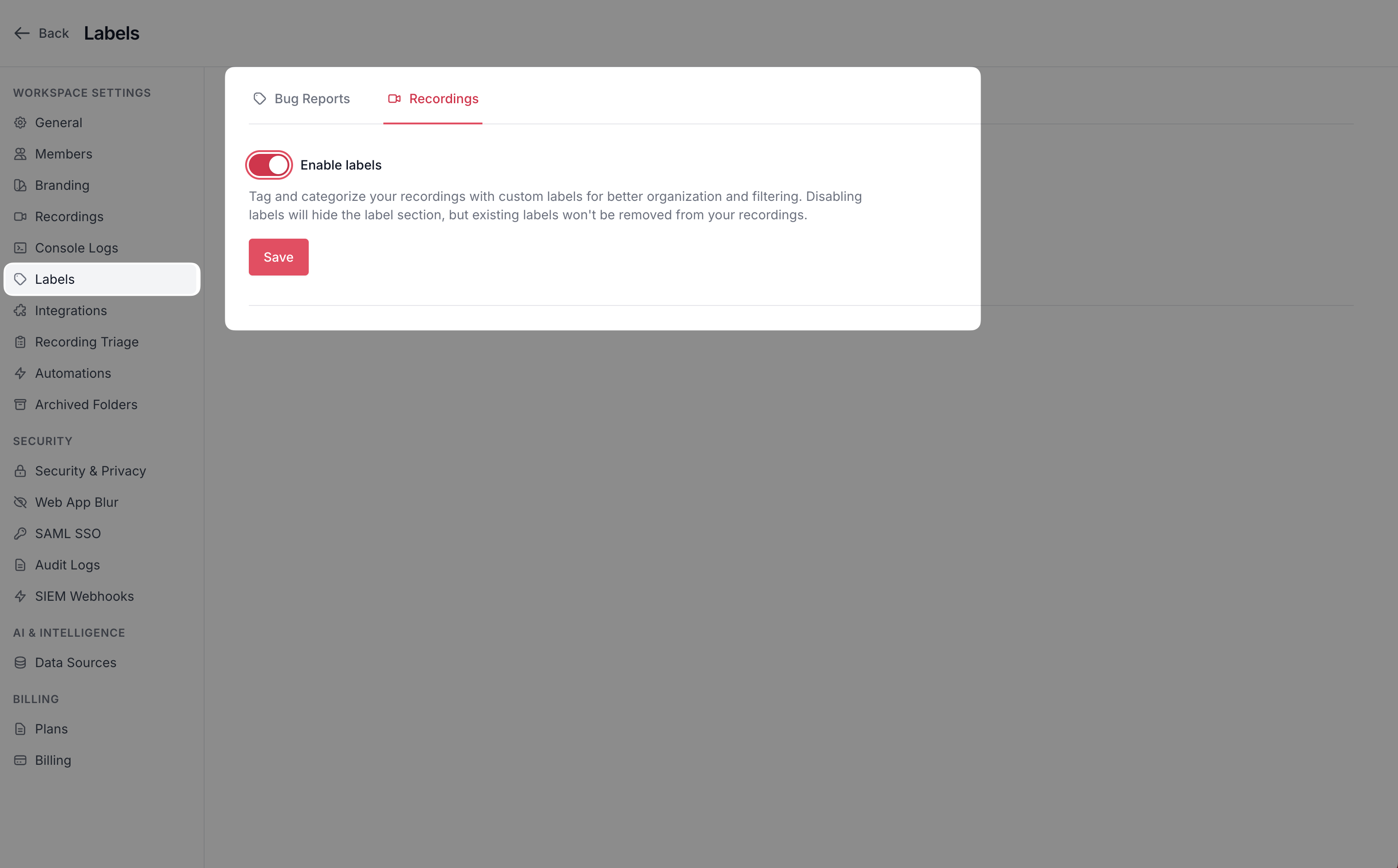
Navigate to **Settings → Labels**. You will see two tabs: **Bug Reports** and **Recordings**.
{% endstep %}
{% step %}
#### Toggle the feature on
Select the tab for the type you want to enable and flip the **Enable labels** toggle, then click **Save**.
{% endstep %}
{% endstepper %}
{% hint style="info" %}
Disabling labels hides the label UI throughout the workspace, but existing label assignments are preserved. Re-enabling the toggle brings everything back.
{% endhint %}
***
### Creating labels
Once labels are enabled, Admins and Editors can create them in two places:
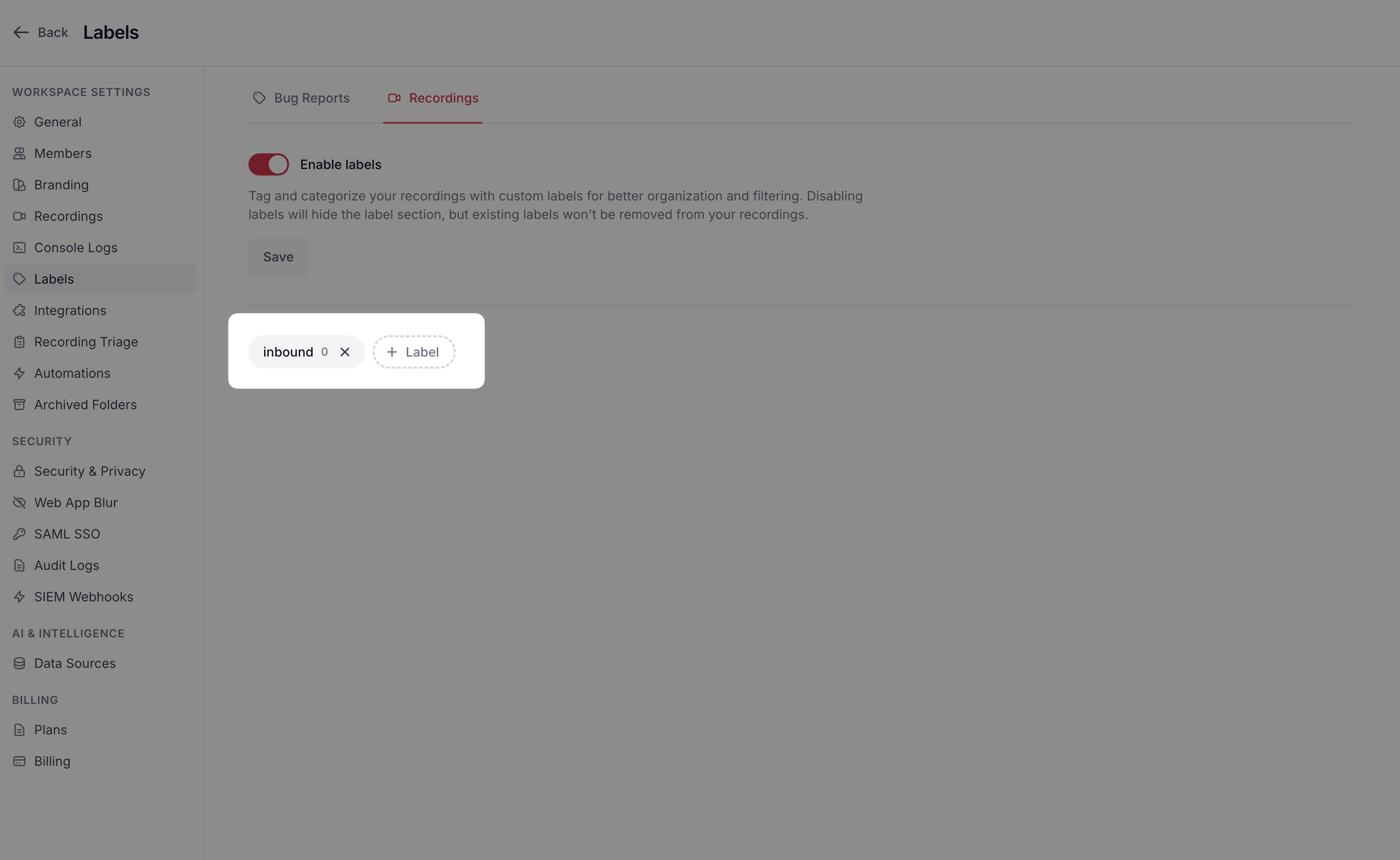
**From Settings** — On the **Settings → Labels** page, click the **+ Label** button next to the existing labels, type a name (up to 50 characters), and press Enter.
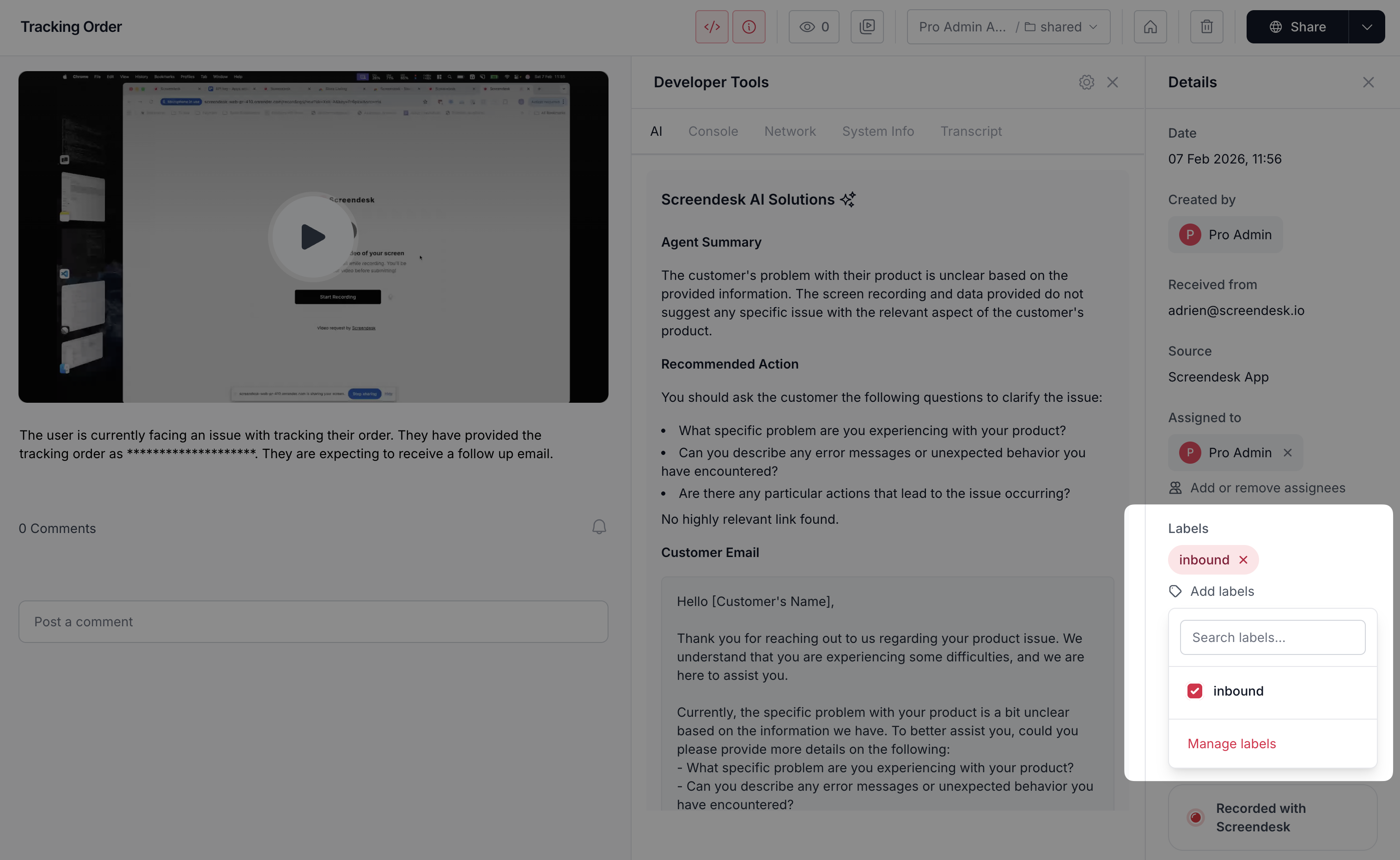
**On the fly** — When applying labels to a recording, type a name that doesn't exist yet in the search field and click **Create "\[name]"**. The label is created and applied in one step. This option is only available to Admins and Editors.
{% hint style="warning" %}
Label names must be unique within each type. You can have a "Bug" label for bug reports and a separate "Bug" label for recordings, but not two "Bug" labels for the same type.
{% endhint %}
***
### Applying labels
Open any recording or bug report and look for the **Add Label** / **Add labels** button. Click it to open a dropdown with all available labels for that type. Check one or more labels to apply them; uncheck to remove.
The dropdown includes a search field to quickly find labels by name.
| Role | Can apply / remove labels | Can create / delete labels |
| ---------- | ------------------------- | -------------------------- |
| Owner | Yes | Yes |
| Admin | Yes | Yes |
| Editor | Yes | Yes |
| Member | Yes (own items only) | No |
| Watch Only | No | No |
***
### Filtering by labels
Both the **Recordings** list and the **Bug Reports** list include a **Labels** filter.
1. Click the filter bar and choose **Labels**.
2. Select one or more labels from the list.
3. Click **Apply**.
The list updates to show only items that match the selected labels. Active label filters are visible as chips that you can remove individually or clear all at once.
{% hint style="info" %}
**Tip for managers:** Combine the labels filter with other filters (date range, assignee, type) to quickly surface what matters — for example, all "Escalated" recordings from the past week.
{% endhint %}
***
### Deleting labels
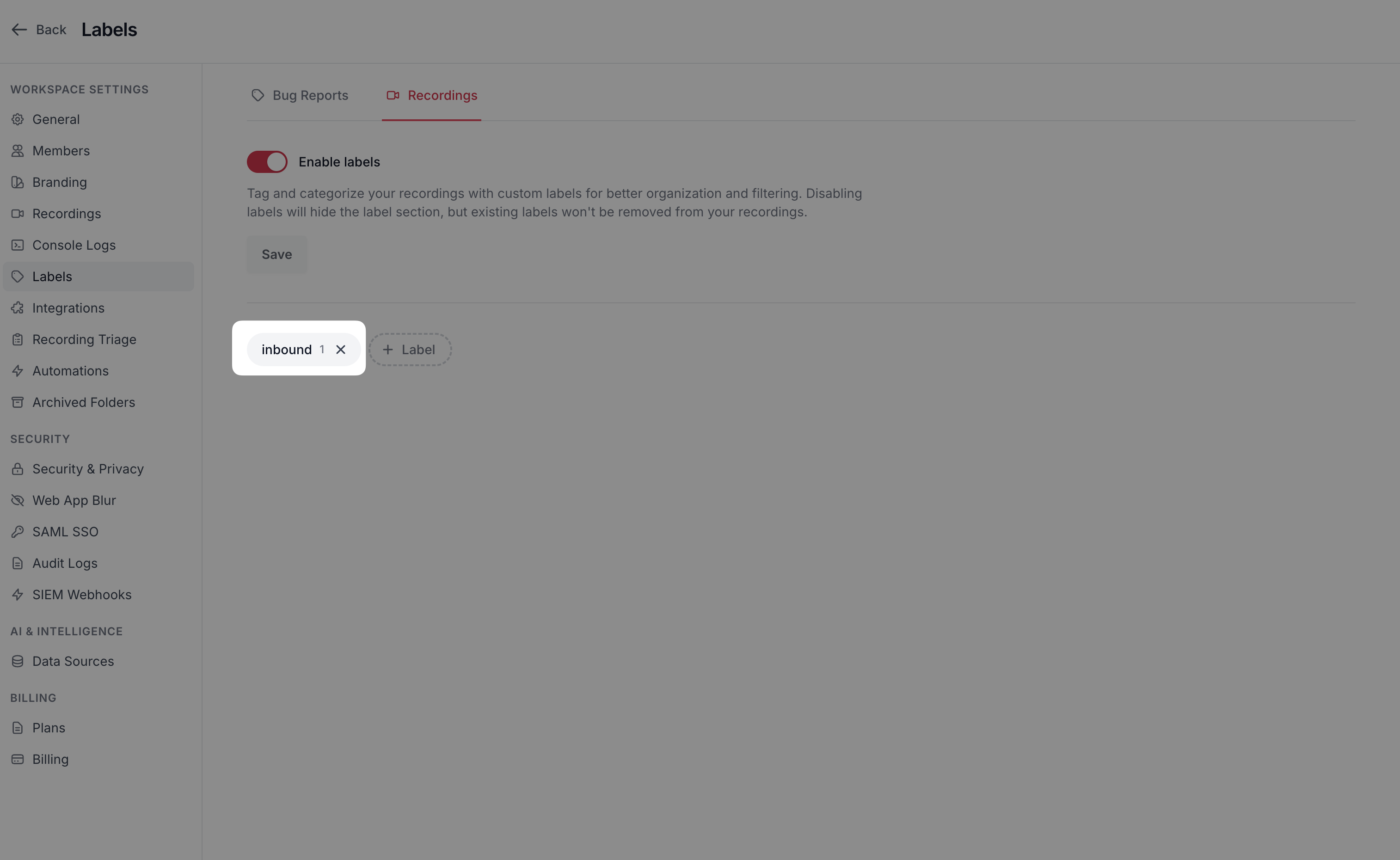
On the **Settings → Labels** page, each label shows a usage count (how many items it is applied to). Click the **×** button next to a label to delete it. You will be asked to confirm — deleting a label removes it from all associated recordings or bug reports.
***
### Good to know
* Bug report labels and recording labels are **completely separate**. Creating a label under the Bug Reports tab does not make it available for recordings, and vice versa.
* All label creation, updates, and deletions are recorded in the audit log when audit logs are enabled for your workspace.
* Labels are available on all plans.
---
# Agent Instructions
This documentation is published with GitBook. GitBook is the documentation platform designed so that both humans and AI agents can read, navigate, and reason over technical content effectively. Learn more at gitbook.com.
## Querying This Documentation
If you need additional information that is not directly available in this page, you can query the documentation by asking a question.
Perform an HTTP GET request on the following URL with the `ask` and `goal` query parameters:
```
GET https://docs.screendesk.io/organization-and-workflows/labels.md?ask=&goal=
```
`ask` is the immediate question: it should be specific, self-contained, and written in natural language.
`goal` is what the user is ultimately trying to achieve, the reason they need the answer. Sharing it helps GitBook give you a better, more relevant answer. A goal is most helpful when it describes the outcome the user wants rather than restating the question. For example, with `ask=how do I create an API token`, a goal like `automate deployments from our CI pipeline` lets GitBook tailor the answer to that use case.
The response will contain a direct answer to the question and relevant excerpts and sources from the documentation.
Use this mechanism when the answer is not explicitly present in the current page, you need clarification or additional context, or you want to retrieve related documentation sections.