> For the complete documentation index, see [llms.txt](https://docs.screendesk.io/llms.txt). Markdown versions of documentation pages are available by appending `.md` to page URLs; this page is available as [Markdown](https://docs.screendesk.io/organization-and-workflows/recording-triage.md).
# Recording triage
Auto-route new recordings into the right folder using priority-based rules.
Recording Triage automatically sorts incoming recordings into folders the moment they arrive. You define rules based on properties like source, customer email, or country, and Screendesk handles the rest — no manual sorting required.
This is especially useful for teams that receive recordings from multiple integrations (Zendesk, Intercom, Freshdesk, HubSpot) or serve customers across different regions.
{% hint style="info" %}
Recording Triage is available on the **Pro** plan and above. If you're on a lower plan, you'll see an upgrade prompt when visiting the triage settings page.
{% endhint %}
***
### How it works
When a new recording is received, Screendesk evaluates your triage rules automatically:
1. The system checks your rules from top to bottom, in priority order.
2. Each rule's conditions are tested against the recording. All conditions in a rule must match (AND logic).
3. The **first rule that matches** wins — the recording is placed into that rule's target folder.
4. If no rule matches, the recording stays unassigned and appears in your general recordings list.
Triage runs once, at the moment the recording is created. Changing or adding rules later does not retroactively re-sort existing recordings.
{% hint style="warning" %}
Recording Triage only applies to **Received** recordings. Sent, Live, and Library recordings are not evaluated by triage rules.
{% endhint %}
***
### Setting up triage rules
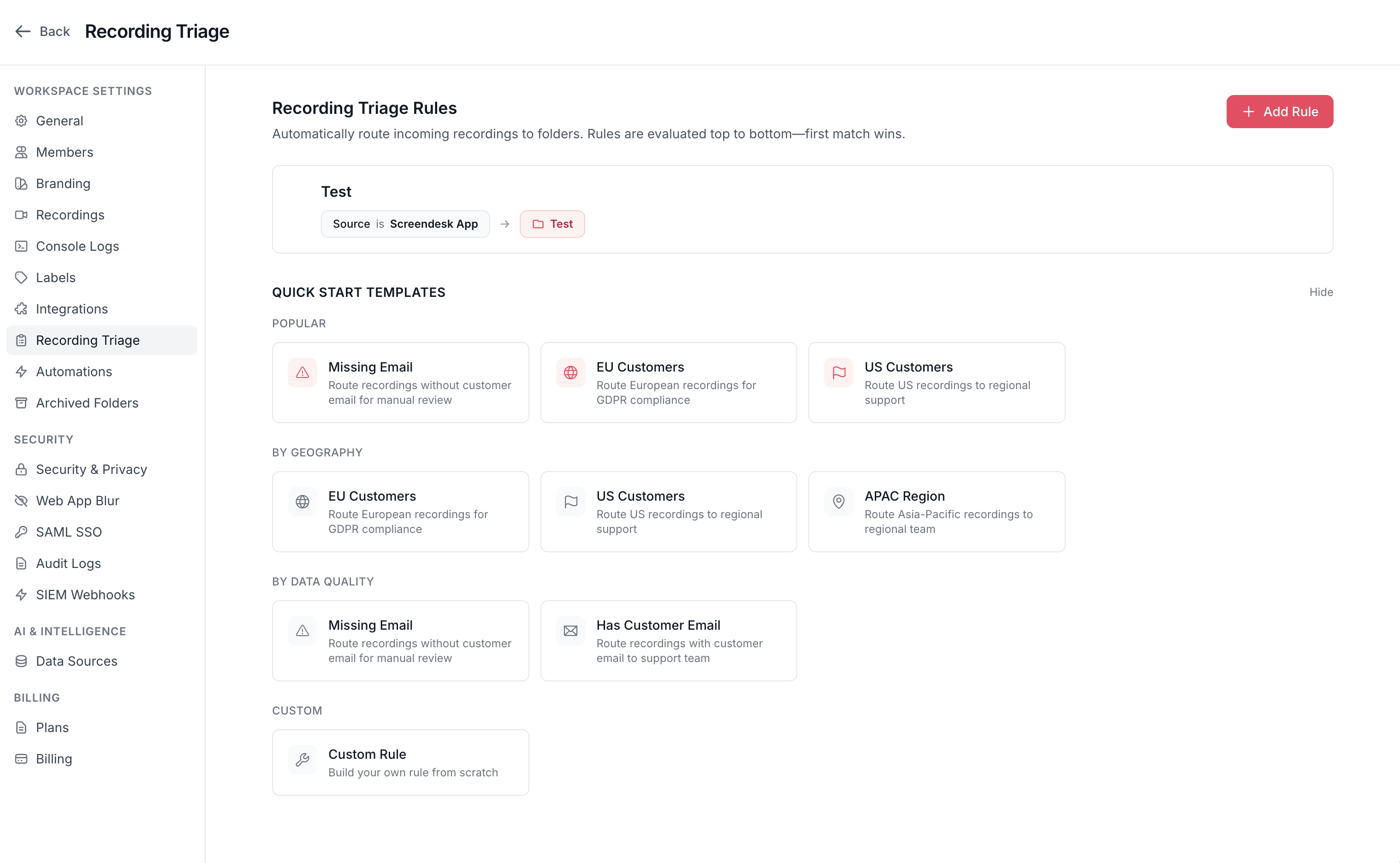
You'll find Recording Triage under **Settings → Recording Triage** in your workspace.
{% stepper %}
{% step %}
#### Open Recording Triage settings
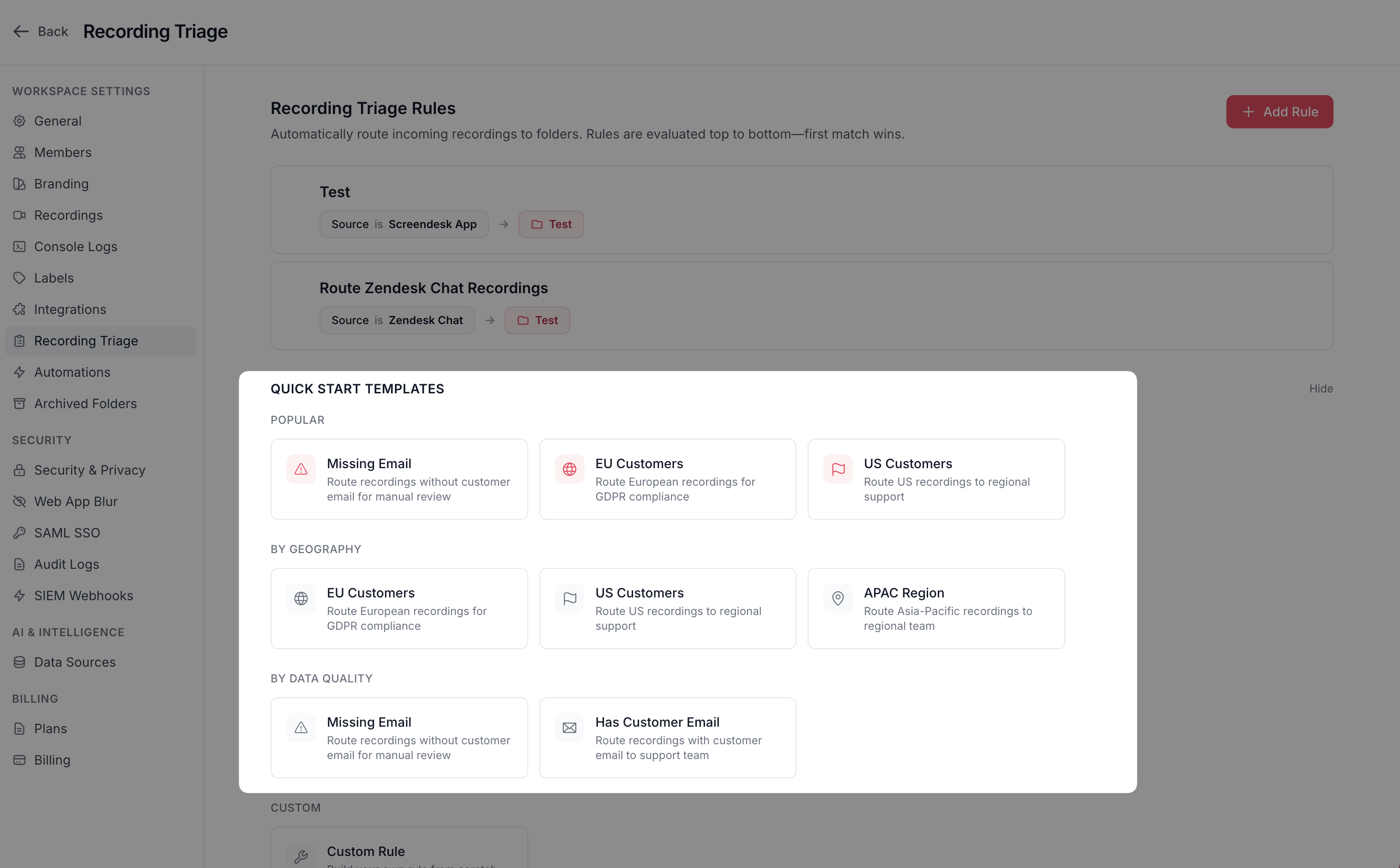
Navigate to **Settings → Recording Triage**. You'll see your existing rules (if any) and a library of quick-start templates at the bottom.
{% endstep %}
{% step %}
#### Click Add Rule (or pick a template)
You can start from scratch by clicking the **Add Rule** button, or select one of the quick-start templates to pre-fill your rule with common conditions. Templates are available for:
* **By Source** — route recordings from a specific integration (Zendesk, Intercom, Freshdesk, HubSpot)
* **By Geography** — route recordings based on customer country (EU, US, APAC)
* **By Data Quality** — route recordings based on whether customer email is present or missing
* **Custom** — build entirely from scratch
{% hint style="info" %}
Source templates only appear if you have the corresponding integration installed. For example, you'll only see the Zendesk template if Zendesk is connected.
{% endhint %}
{% endstep %}
{% step %}
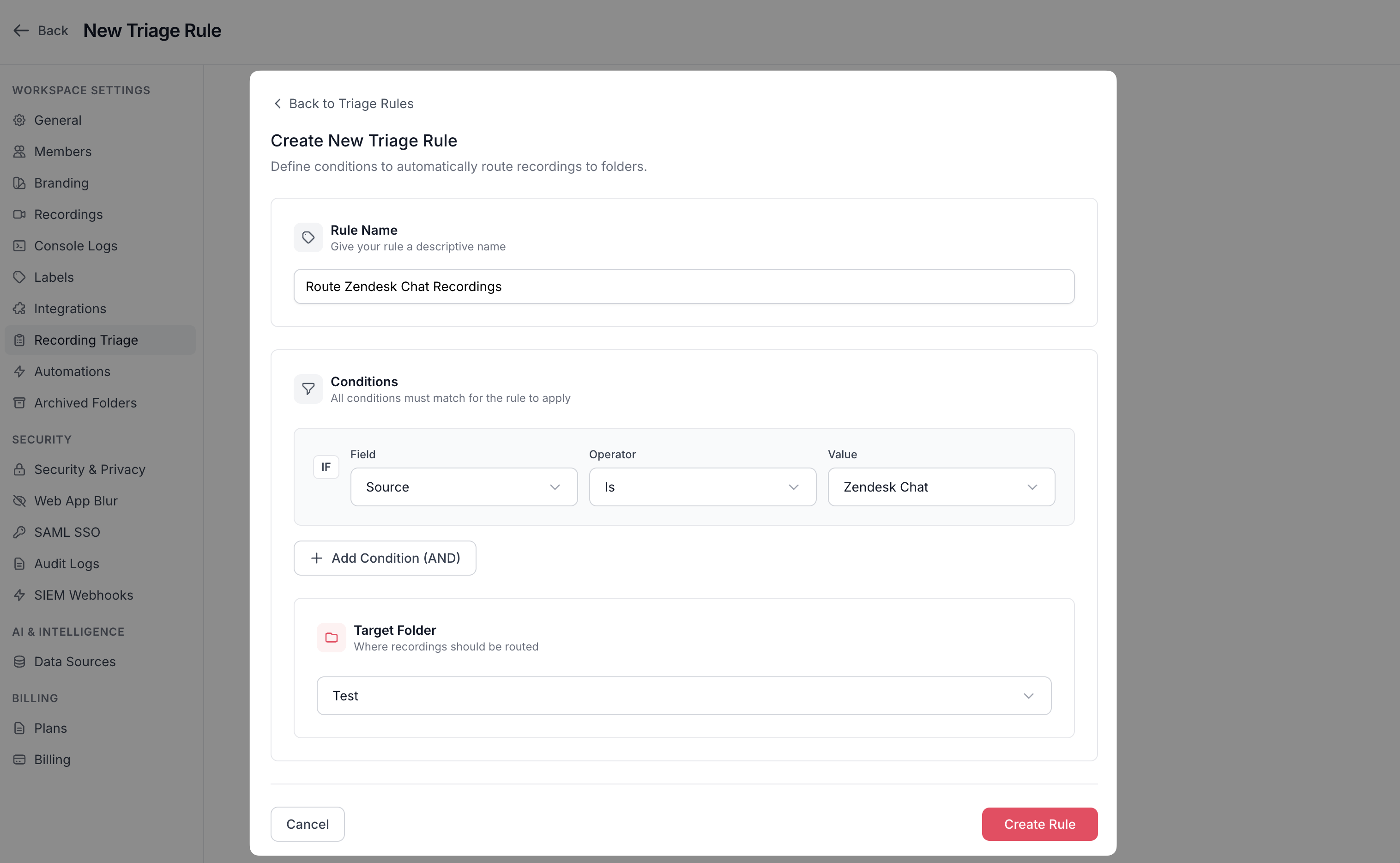
#### Name your rule
Give the rule a descriptive name that makes it easy to identify at a glance — for example, "EU Customers" or "Zendesk Support Tickets".
{% endstep %}
{% step %}
#### Add conditions
Each condition consists of three parts: a **field**, an **operator**, and a **value**. You can add multiple conditions to a single rule — all conditions must match for the rule to fire.
Click **Add Condition (AND)** to add more conditions.
{% endstep %}
{% step %}
#### Choose a target folder
Select the folder where matching recordings should be routed. Only **Received** recording folders are available as targets. If you haven't created one yet, you'll need to create a folder first (see Folders).
{% endstep %}
{% step %}
#### Save
Click **Create Rule** and your rule is immediately active. New incoming recordings will be evaluated against it right away.
{% endstep %}
{% endstepper %}
***
### Condition fields and operators
Each condition tests a specific property of the incoming recording. Here's what you can filter on:
#### Source
Match recordings based on which integration they came from.
| Operator | Meaning | Example |
| --------- | ------------------------------ | --------------------------------------- |
| Is | Exact match on one source | Source **is** Zendesk |
| Is Not | Excludes one source | Source **is not** Intercom |
| Is One Of | Matches any of several sources | Source **is one of** Zendesk, Freshdesk |
#### Customer Email
Route recordings based on the customer's email address.
| Operator | Meaning | Example |
| ------------ | ------------------------- | -------------------------------- |
| Is Empty | No email on the recording | Missing contact info |
| Is Not Empty | Email is present | Has contact info |
| Contains | Email includes a string | Email **contains** "@enterprise" |
| Ends With | Email ends with a string | Email **ends with** "@acme.com" |
#### Country
Route recordings based on the customer's country.
| Operator | Meaning | Example |
| --------- | -------------------------------- | -------------------------------- |
| Is | Exact country match | Country **is** US |
| Is Not | Excludes a country | Country **is not** US |
| Is One Of | Matches any of several countries | Country **is one of** DE, FR, IT |
{% hint style="info" %}
For "Is One Of" with countries, enter country codes separated by commas (e.g., DE, FR, IT, ES).
{% endhint %}
***
### Managing rules
#### Reordering rules
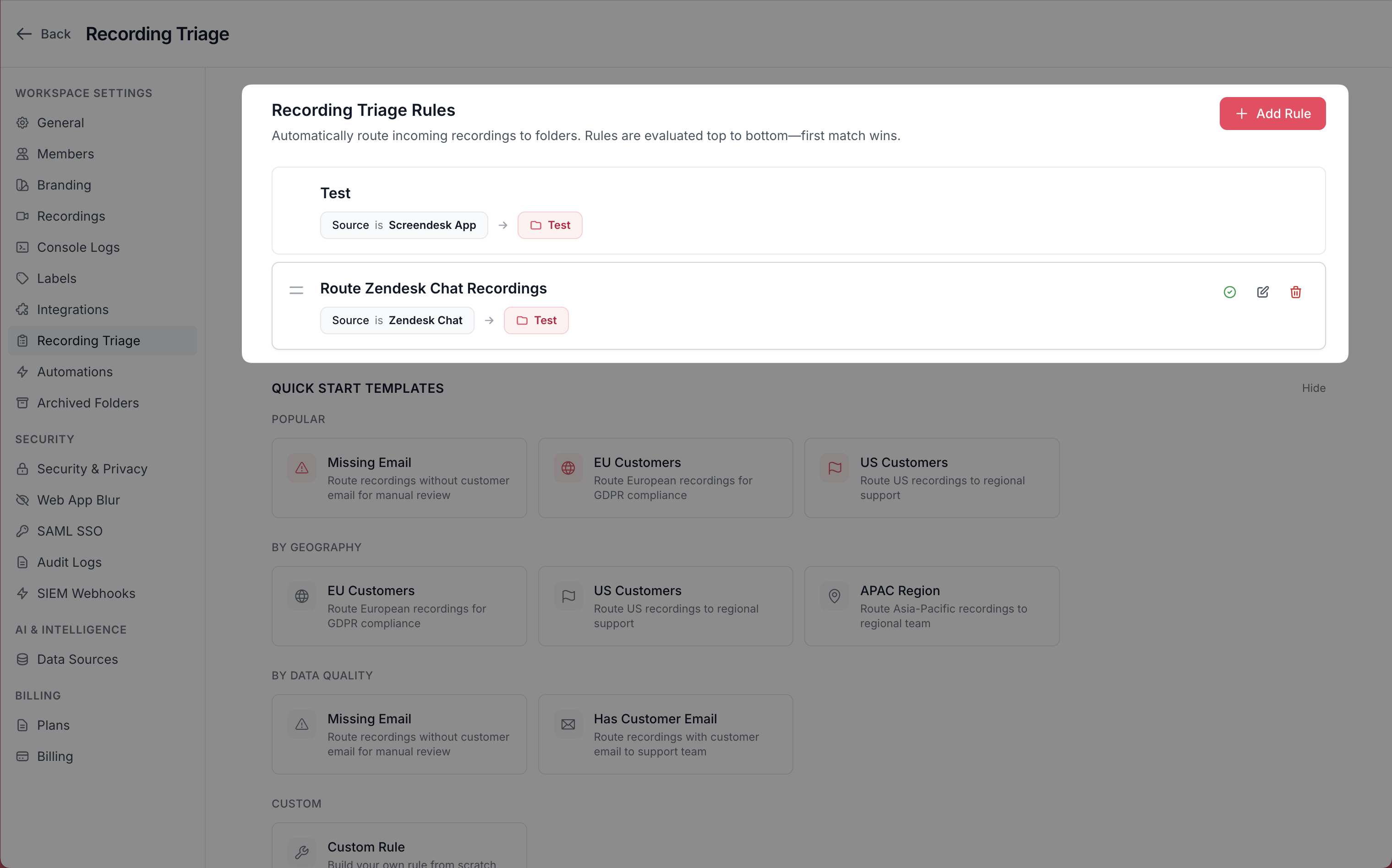
Rules are evaluated top to bottom — the order matters. To change priority:
* **Drag and drop** — hover over a rule to reveal the drag handle on the left, then drag it to a new position.
The rule at the top has the highest priority. If two rules could both match a recording, only the first one in the list will apply.
#### Pausing and resuming rules
You don't need to delete a rule to stop it from running. Hover over the rule and click the **pause** icon (green checkmark) to disable it. The rule will show a "Paused" badge and will be skipped during evaluation.
To re-enable, click the same icon again (it appears as a grey pause icon when the rule is disabled).
#### Editing a rule
Hover over any rule and click the **pencil** icon to open the edit form. You can change the rule name, conditions, or target folder. Click **Update Rule** to save.
#### Deleting a rule
Hover over the rule and click the **trash** icon. You'll be asked to confirm before the rule is permanently removed. Deleting a rule does not affect recordings that were already triaged by it.
***
### Quick-start templates
Templates give you a head start by pre-filling conditions for common use cases. When you click a template, it opens the rule creation form with conditions already set — you just need to choose a target folder and save.
**Popular templates:**
| Template | What it does |
| ---------------------- | ---------------------------------------------------------------------------------------- |
| Zendesk Support | Routes all recordings from Zendesk |
| Intercom Conversations | Routes all recordings from Intercom |
| HubSpot Tickets | Routes all recordings from HubSpot |
| Freshdesk Cases | Routes all recordings from Freshdesk |
| EU Customers | Routes recordings from European countries (DE, FR, IT, ES, NL, and more) |
| US Customers | Routes recordings from the United States |
| APAC Region | Routes recordings from Asia-Pacific countries (JP, CN, AU, SG, and more) |
| Missing Email | Routes recordings where the customer email is missing — useful for a manual review queue |
| Has Customer Email | Routes recordings that have contact information |
***
### Example setups
Here are a few common ways teams use Recording Triage:
Route by integration
If your team uses Zendesk for support and Intercom for sales, create two rules:
1. **Rule 1:** Source **is** Zendesk → "Support Recordings" folder
2. **Rule 2:** Source **is one of** Intercom → "Sales Recordings" folder
Each integration's recordings land in the right folder automatically.
Route by region for compliance
If your EU team needs to handle European customer data separately for GDPR compliance:
1. **Rule 1:** Country **is one of** DE, FR, IT, ES, NL, BE, AT, SE, DK, FI, NO, PL, IE, PT, GR → "EU Customers" folder
2. **Rule 2:** Country **is** US → "US Customers" folder
Recordings from other regions stay unassigned for manual sorting.
Flag recordings missing contact info
Create a rule to catch recordings without a customer email address so your team can follow up:
1. **Rule 1:** Customer Email **is empty** → "Needs Review" folder
This ensures no recording slips through without proper customer identification.
***
### Good to know
* Triage rules are evaluated **once** when a recording arrives. Updating or adding rules does not affect recordings that were already processed.
* If a recording already has a folder assignment (for example, it was sent directly to a folder via an integration), triage is skipped — it won't override existing assignments.
* All conditions within a single rule use **AND** logic. A recording must satisfy every condition for the rule to match. There is no OR logic between conditions within the same rule. To create OR-style behavior, use separate rules.
* Target folders must be **Received** recording folders. You cannot route to Sent, Live, or Library folders.
* There is no limit to the number of rules you can create, but keep your list focused — simpler setups are easier to maintain and debug.
* Triage runs silently in the background. There are no notifications or alerts when a recording is triaged — it simply appears in the target folder.
***
### Permissions
| Action | Owner | Admin | Editor | Member | Watch Only |
| -------------------- | ----- | ----- | ------ | ------ | ---------- |
| View triage rules | ✅ | ✅ | ✅ | — | — |
| Create rules | ✅ | ✅ | ✅ | — | — |
| Edit rules | ✅ | ✅ | ✅ | — | — |
| Delete rules | ✅ | ✅ | ✅ | — | — |
| Enable / pause rules | ✅ | ✅ | ✅ | — | — |
| Reorder rules | ✅ | ✅ | ✅ | — | — |
***
### Frequently asked questions
Can I apply triage rules to recordings that already exist?
No. Triage only runs when a new recording is created. Existing recordings are not re-evaluated when you add or change rules. You can manually move existing recordings into folders using the **Move to Folder** option.
What happens if I delete a folder that's used in a triage rule?
The triage rule will still exist, but it won't be able to route recordings to the deleted folder. It's a good practice to update or remove rules that reference deleted folders.
Can I use OR logic between conditions?
Not within a single rule — all conditions use AND logic. To achieve OR behavior, create separate rules. For example, instead of one rule for "Source is Zendesk OR Source is Freshdesk," create two rules that each route to the same folder.
Why isn't my rule matching any recordings?
Check the following: the rule is not paused (no "Paused" badge), the conditions match the properties of incoming recordings, the rule is high enough in the priority list that another rule isn't matching first, and the recording type is "Received."
---
# Agent Instructions
This documentation is published with GitBook. GitBook is the documentation platform designed so that both humans and AI agents can read, navigate, and reason over technical content effectively. Learn more at gitbook.com.
## Querying This Documentation
If you need additional information that is not directly available in this page, you can query the documentation by asking a question.
Perform an HTTP GET request on the following URL with the `ask` and `goal` query parameters:
```
GET https://docs.screendesk.io/organization-and-workflows/recording-triage.md?ask=&goal=
```
`ask` is the immediate question: it should be specific, self-contained, and written in natural language.
`goal` is what the user is ultimately trying to achieve, the reason they need the answer. Sharing it helps GitBook give you a better, more relevant answer. A goal is most helpful when it describes the outcome the user wants rather than restating the question. For example, with `ask=how do I create an API token`, a goal like `automate deployments from our CI pipeline` lets GitBook tailor the answer to that use case.
The response will contain a direct answer to the question and relevant excerpts and sources from the documentation.
Use this mechanism when the answer is not explicitly present in the current page, you need clarification or additional context, or you want to retrieve related documentation sections.