> For the complete documentation index, see [llms.txt](https://docs.screendesk.io/llms.txt). Markdown versions of documentation pages are available by appending `.md` to page URLs; this page is available as [Markdown](https://docs.screendesk.io/other-integrations/slack.md).
# Slack
Get Slack notifications when new Screendesk recordings are submitted.
The Slack integration sends a notification to a Slack channel every time a new recording is available in your Screendesk workspace. This helps your support team react to customer issues the moment they come in, without leaving Slack.
{% hint style="info" %}
This page covers the **Slack integration** found under **Settings → Integrations**. It sends notifications for new recordings to a single Slack channel. If you're looking for folder-based automations that post to Slack when captures or recordings are added to specific folders, see Folder Automations.
{% endhint %}
### How it works
When a customer sends a recording through any source (your website widget, Chrome extension, helpdesk integration, or a shared link), Screendesk posts a message to your connected Slack channel. The message includes:
* The **customer's email address** (or "Anonymous User" if no email was provided)
* The **recording source** (e.g. Chrome Extension, Widget, Zendesk, etc.)
* A **direct link** to the recording in Screendesk
Your team can click the link to jump straight to the recording and start reviewing the issue.
{% hint style="info" %}
Slack notifications are sent approximately one minute after the recording is received. This short delay ensures the recording has finished processing before the notification is delivered.
{% endhint %}
### Availability
The Slack integration is available on **all plans** — Free, Plus, Pro, and Enterprise.
### Connecting Slack
Only **workspace admins** can connect or disconnect Slack. If you are not an admin, the Connect button will appear disabled.
{% stepper %}
{% step %}
#### Open the Integrations page
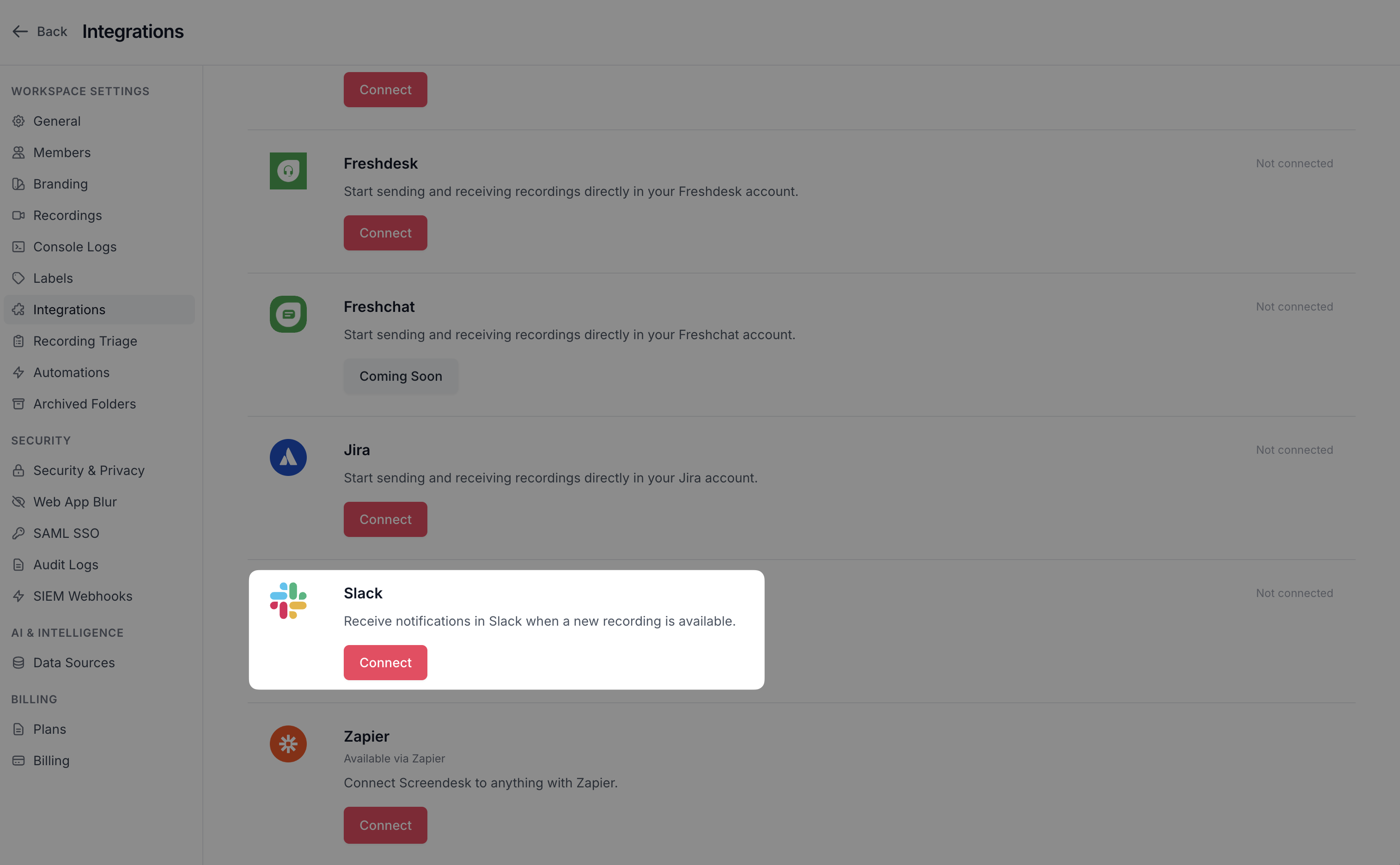
Navigate to **Settings → Integrations** in your Screendesk dashboard. Scroll down to the **Slack** card.
{% endstep %}
{% step %}
#### Start the connection
Click the **Connect** button. You will be redirected to Slack's authorization page.
{% endstep %}
{% step %}
#### Authorize Screendesk
On the Slack authorization page, select the **workspace** you want to connect and the **channel** where notifications should be posted. Click **Allow** to grant Screendesk permission.
{% endstep %}
{% step %}
#### Confirm the connection
You are redirected back to Screendesk. The Slack card now shows **Connected** and displays the name of the channel you selected (e.g. `#support`).
{% endstep %}
{% endstepper %}
Once connected, Screendesk will post new recording notifications to the selected channel automatically — no further configuration is needed.
### What the Slack message looks like
Each notification is a compact Slack message with two sections:
1. **A summary line** — shows who sent the recording and the source, for example: **** sent a recording from **Chrome Extension**
2. **A clickable link** — takes you directly to the recording in Screendesk
The message uses Slack's rich formatting so it's easy to scan in a busy channel.
### Disconnecting Slack
{% stepper %}
{% step %}
#### Open the Integrations page
Go to **Settings → Integrations** and find the Slack card.
{% endstep %}
{% step %}
#### Disconnect
Click the **Disconnect** link. A confirmation dialog will ask "Are you sure?" — confirm to proceed.
{% endstep %}
{% endstepper %}
Disconnecting removes the integration immediately. Screendesk will stop posting to Slack and clears all stored connection details. You can reconnect at any time by following the setup steps again.
{% hint style="warning" %}
If someone uninstalls the Screendesk app directly from your Slack workspace (via **Slack → Apps → Manage**), the integration is automatically disconnected on the Screendesk side as well. No action is needed in Screendesk.
{% endhint %}
### Permissions required
Screendesk requests the following Slack permissions during setup:
| Permission | Why it's needed |
| ---------------------------------------------------- | -------------------------------------------------------- |
| **Send messages** (`chat:write`) | Post recording notifications to your channel |
| **Incoming webhook** | Deliver messages to the specific channel you chose |
| **Customize messages** (`chat:write.customize`) | Format notifications with the Screendesk name and icon |
| **Unfurl links** (`links:read`, `links.embed:write`) | Show a preview when Screendesk links are shared in Slack |
Screendesk does not read your Slack messages, access private channels you haven't selected, or modify your workspace in any way.
### Which recordings trigger a notification?
Slack notifications are sent for **incoming recordings** — recordings that your customers submit to your workspace. Recordings created internally by your team (for example, screen recordings made by an agent to share with a customer) do not trigger Slack notifications.
### Good to know
* **One channel per workspace.** The integration posts all notifications to the single channel you selected during setup. To change the channel, disconnect and reconnect the integration.
* **Admin-only control.** Only workspace admins can connect or disconnect Slack. Regular agents and watch-only users cannot modify the integration.
* **Works alongside other notifications.** Slack notifications are independent of email and in-app notifications. Enabling Slack does not affect your other notification settings.
* **No message customization.** The Slack notification format is fixed. If you need customizable messages, channel-per-folder routing, or screenshot attachments, use Folder Automations with a Slack automation instead.
### Troubleshooting
I connected Slack but I'm not receiving notifications
Check the following:
* Confirm the integration shows **Connected** on the Settings → Integrations page.
* Make sure the channel you selected during setup still exists and hasn't been archived.
* Verify the Screendesk bot hasn't been removed from the channel. In Slack, open the channel and look for the Screendesk app in the member list.
* Remember that internally-created recordings (not sent by customers) do not trigger Slack notifications.
* Notifications are delayed by about one minute, so wait briefly after a test recording.
The Connect button is disabled
Only workspace admins can connect the Slack integration. Ask an admin on your team to set it up for you. You can check your role under **Settings → Members**.
I want to change the Slack channel
The channel is set during the initial OAuth authorization. To change it, disconnect the integration and reconnect — you'll be able to pick a different channel during the new authorization flow.
The integration was disconnected unexpectedly
This can happen if someone uninstalls the Screendesk app from your Slack workspace settings. When the app is removed from Slack, Screendesk automatically clears the connection. An admin can reconnect at any time.
---
# Agent Instructions
This documentation is published with GitBook. GitBook is the documentation platform designed so that both humans and AI agents can read, navigate, and reason over technical content effectively. Learn more at gitbook.com.
## Querying This Documentation
If you need additional information that is not directly available in this page, you can query the documentation by asking a question.
Perform an HTTP GET request on the following URL with the `ask` and `goal` query parameters:
```
GET https://docs.screendesk.io/other-integrations/slack.md?ask=&goal=
```
`ask` is the immediate question: it should be specific, self-contained, and written in natural language.
`goal` is what the user is ultimately trying to achieve, the reason they need the answer. Sharing it helps GitBook give you a better, more relevant answer. A goal is most helpful when it describes the outcome the user wants rather than restating the question. For example, with `ask=how do I create an API token`, a goal like `automate deployments from our CI pipeline` lets GitBook tailor the answer to that use case.
The response will contain a direct answer to the question and relevant excerpts and sources from the documentation.
Use this mechanism when the answer is not explicitly present in the current page, you need clarification or additional context, or you want to retrieve related documentation sections.