> For the complete documentation index, see [llms.txt](https://docs.screendesk.io/llms.txt). Markdown versions of documentation pages are available by appending `.md` to page URLs; this page is available as [Markdown](https://docs.screendesk.io/other-integrations/zapier.md).
# Zapier
Connect Screendesk to 5,000+ apps in Zapier using an API token, and automate workflows from new incoming recordings.
The Zapier integration lets you connect Screendesk to over 5,000 apps — including your CRM, project management tools, spreadsheets, and more. When new recordings arrive in Screendesk, Zapier can automatically create tickets, update spreadsheets, send alerts, or trigger any other workflow you configure.
{% hint style="info" %}
This page covers the **Zapier integration** found under **Settings → Integrations**, which connects to Zapier's marketplace and uses the Screendesk API. If you're looking to send webhook data to Zapier from specific folders, see Folder Automations.
{% endhint %}
### How it works
Screendesk has a published app on the [Zapier marketplace](https://zapier.com/apps/screendesk/integrations). You create **Zaps** (automated workflows) in Zapier that pull recording data from Screendesk using its API. From there, Zapier can route that data into any of the thousands of apps it supports.
For example, you could set up a Zap that:
* Creates a **Jira ticket** every time a new recording arrives
* Logs recording details into a **Google Sheet** for reporting
* Sends a **Microsoft Teams** message to your engineering channel
* Adds a task to **Asana** or **Trello** for follow-up
### Availability
The Zapier integration card is visible on **all plans** — Free, Plus, Pro, and Enterprise.
The Zapier app uses the Screendesk API under the hood, which requires an **API token**. API token creation is available on the **Enterprise plan**. Contact your Screendesk account team if you need API access enabled.
### Setting up Zapier
{% stepper %}
{% step %}
#### Open the Integrations page
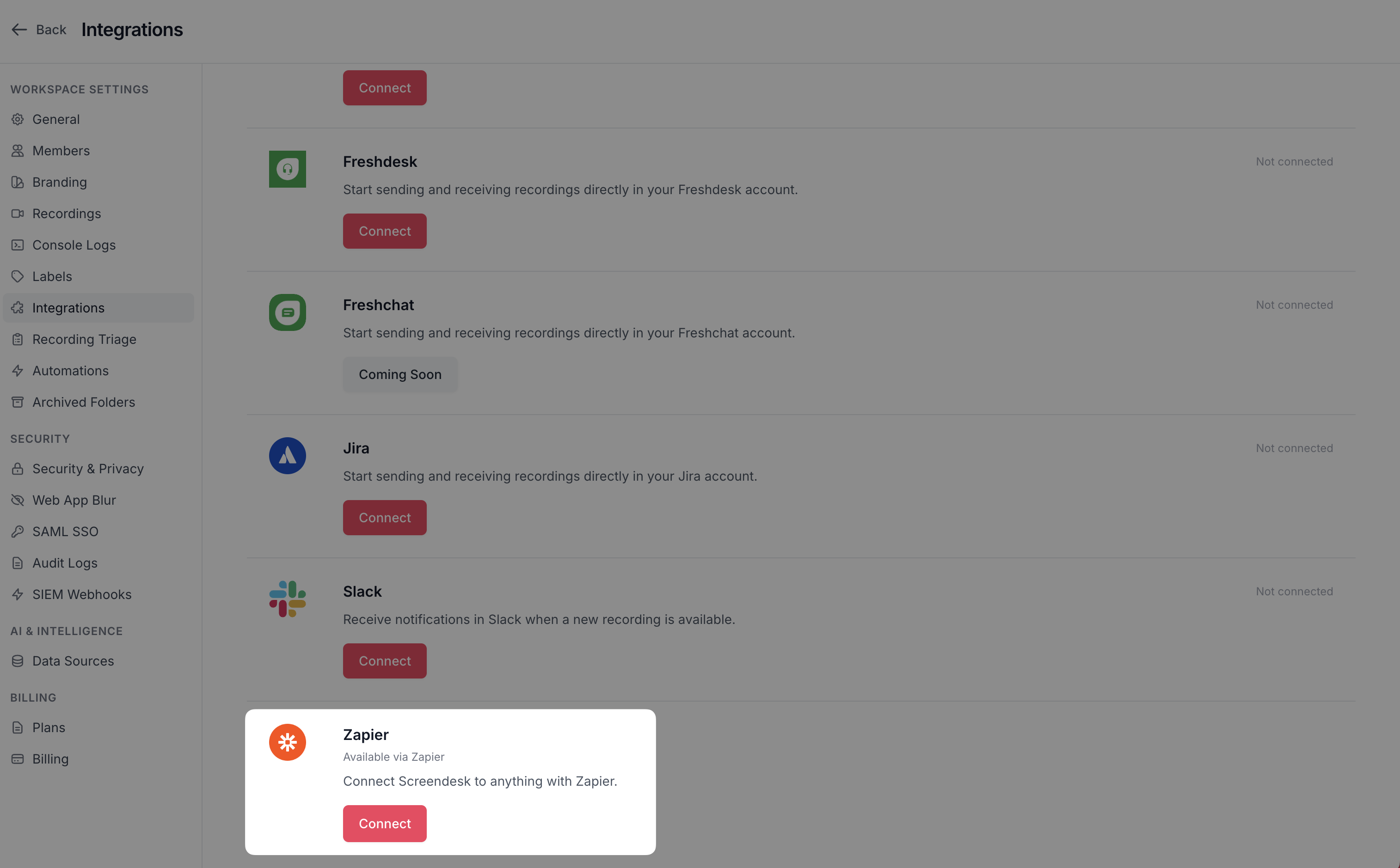
Navigate to **Settings → Integrations** in your Screendesk dashboard. Scroll down to the **Zapier** card.
{% endstep %}
{% step %}
#### Go to the Zapier marketplace
Click the **Connect** button. This opens the [Screendesk page on Zapier](https://zapier.com/apps/screendesk/integrations) in a new browser tab.
{% endstep %}
{% step %}
#### Create a Zap
In Zapier, click **Create Zap** or choose one of the pre-built templates. Select **Screendesk** as your trigger app and choose the trigger event (e.g. "New Recording").
{% endstep %}
{% step %}
#### Authenticate with your API token
Zapier will ask you to connect your Screendesk account. You'll need an API token:
1. In Screendesk, go to **Profile → API**
2. Click **Create API Token** and give it a name (e.g. "Zapier")
3. Copy the token
4. Paste it into Zapier when prompted
For more details on managing tokens, see API Tokens.
{% endstep %}
{% step %}
#### Choose an action
Select the destination app (e.g. Jira, Google Sheets, Slack) and configure what should happen when a new recording arrives. Map the Screendesk recording fields to the fields in your destination app.
{% endstep %}
{% step %}
#### Test and enable
Use Zapier's built-in test feature to verify the connection works, then turn on your Zap. New recordings will now flow through automatically.
{% endstep %}
{% endstepper %}
### Recording data available in Zapier
When Zapier pulls recording data from Screendesk, the following fields are available for mapping into your workflows:
| Field | API key | Description |
| ----------------- | ------------------- | --------------------------------------------------------------------------------- |
| Recording ID | `id` | Unique internal identifier |
| UUID | `uuid` | Unique public identifier used in URLs |
| URL | `url` | Direct link to the recording in Screendesk |
| Customer email | `customer_email` | The email address of the person who submitted the recording |
| Description | `description` | Any description or notes attached to the recording |
| Duration | `duration` | Length of the recording in seconds |
| Recording type | `recording_type` | Whether the recording was incoming, outgoing, etc. |
| Recording source | `recording_source` | How the recording was submitted (e.g. Chrome Extension, Widget) |
| Vendor | `vendor` | The browser used (e.g. Chrome, Firefox) |
| Platform | `platform` | The platform (e.g. web, desktop) |
| IP address | `ip_address` | The IP address of the person who recorded |
| Timezone | `timezone` | The timezone of the recorder |
| Network type | `network_type` | Connection type (e.g. wifi, cellular) |
| ISP | `isp` | Internet service provider |
| Console logs | `console_logs` | Browser console output captured during the recording |
| User email | `user_email` | Email of the Screendesk team member (only present if a team member is associated) |
| User name | `user_name` | Name of the Screendesk team member (only present if a team member is associated) |
| Created at | `created_at` | When the recording was created |
| Updated at | `updated_at` | When the recording was last updated |
| Impressions count | `impressions_count` | Number of times the recording has been viewed |
{% hint style="info" %}
Only **incoming recordings** (recordings submitted by customers) are returned through the Zapier integration. Internally-created recordings are not included.
{% endhint %}
### Good to know
* **No admin setup required in Screendesk.** The Zapier card on the Integrations page simply links to the Zapier marketplace. There is no OAuth connection or configuration to manage within Screendesk itself.
* **API token required.** The Screendesk app on Zapier authenticates using an API token. You'll need to create one under **Profile → API**. See API Tokens for details.
* **Enterprise plan for API access.** API token creation requires the Enterprise plan. If your plan doesn't include API access, contact your Screendesk account team.
* **Watch-only users cannot use API tokens.** If your role is watch-only, you won't be able to create tokens or authenticate with Zapier.
* **Pagination.** Zapier retrieves recordings in batches of 100 at a time, ordered from newest to oldest. This is handled automatically by Zapier — you don't need to configure anything.
* **Works alongside other integrations.** Setting up Zapier does not affect your other Screendesk integrations (Slack, Zendesk, etc.). They all operate independently.
### Example Zaps for support teams
Here are some popular workflows that support teams set up with Zapier:
Log new recordings to a Google Sheet
Track every incoming customer recording in a spreadsheet for reporting or auditing. Map fields like customer email, recording source, URL, and timestamp into columns. Great for managers who want visibility into recording volume and trends.
Create a Jira or Linear issue for each recording
Automatically turn customer recordings into engineering tickets. Include the recording URL and customer email in the issue description so developers have everything they need.
Send a notification to Microsoft Teams or Discord
If your team doesn't use Slack, route recording alerts to Teams or Discord instead. Include the customer email and a link to the recording.
Add a row to Airtable or Notion
Build a customer feedback database that grows automatically. Each new recording becomes a row with metadata fields filled in.
### Troubleshooting
Zapier says my API token is invalid
Double-check that you copied the full token from **Profile → API** in Screendesk. Tokens must be entered exactly — make sure there are no extra spaces before or after the token. Also verify the token hasn't been revoked.
I don't see the option to create an API token
API token creation is available on the **Enterprise plan** only. If you're on a different plan, contact your Screendesk account team to discuss upgrading. Also note that watch-only users cannot create tokens regardless of plan.
My Zap isn't triggering for new recordings
Verify the following:
* Your Zap is **turned on** in Zapier.
* The API token you used hasn't been revoked (check **Profile → API** in Screendesk).
* You're testing with an **incoming recording** (sent by a customer). Internal recordings are not included.
* Check Zapier's task history for any error messages.
I want to connect Zapier to a specific folder
The Zapier integration under Settings → Integrations works at the workspace level and returns all incoming recordings. If you need folder-specific triggers, use Folder Automations with a Zapier webhook recipe instead. That approach lets you configure a webhook per folder that sends data directly to a Zapier "Catch Hook" trigger.
---
# Agent Instructions
This documentation is published with GitBook. GitBook is the documentation platform designed so that both humans and AI agents can read, navigate, and reason over technical content effectively. Learn more at gitbook.com.
## Querying This Documentation
If you need additional information that is not directly available in this page, you can query the documentation by asking a question.
Perform an HTTP GET request on the following URL with the `ask` and `goal` query parameters:
```
GET https://docs.screendesk.io/other-integrations/zapier.md?ask=&goal=
```
`ask` is the immediate question: it should be specific, self-contained, and written in natural language.
`goal` is what the user is ultimately trying to achieve, the reason they need the answer. Sharing it helps GitBook give you a better, more relevant answer. A goal is most helpful when it describes the outcome the user wants rather than restating the question. For example, with `ask=how do I create an API token`, a goal like `automate deployments from our CI pipeline` lets GitBook tailor the answer to that use case.
The response will contain a direct answer to the question and relevant excerpts and sources from the documentation.
Use this mechanism when the answer is not explicitly present in the current page, you need clarification or additional context, or you want to retrieve related documentation sections.