> For the complete documentation index, see [llms.txt](https://docs.screendesk.io/llms.txt). Markdown versions of documentation pages are available by appending `.md` to page URLs; this page is available as [Markdown](https://docs.screendesk.io/request-screen-recording/branding-and-customization/customize-recorder.md).
# Customize recorder
Customize the screen recorder UI with your logo and brand colors.
Screendesk provides several options to customize the screen recorder experience for your customers. These settings allow you to collect necessary information, match your brand identity, and control the recording workflow.
### Require Customer Email
Force customers to provide their email address when submitting a screen recording. This ensures you can follow up with customers even if the recording is submitted anonymously.
**How to Enable**
{% stepper %}
{% step %}
#### Navigate to Recorder Settings
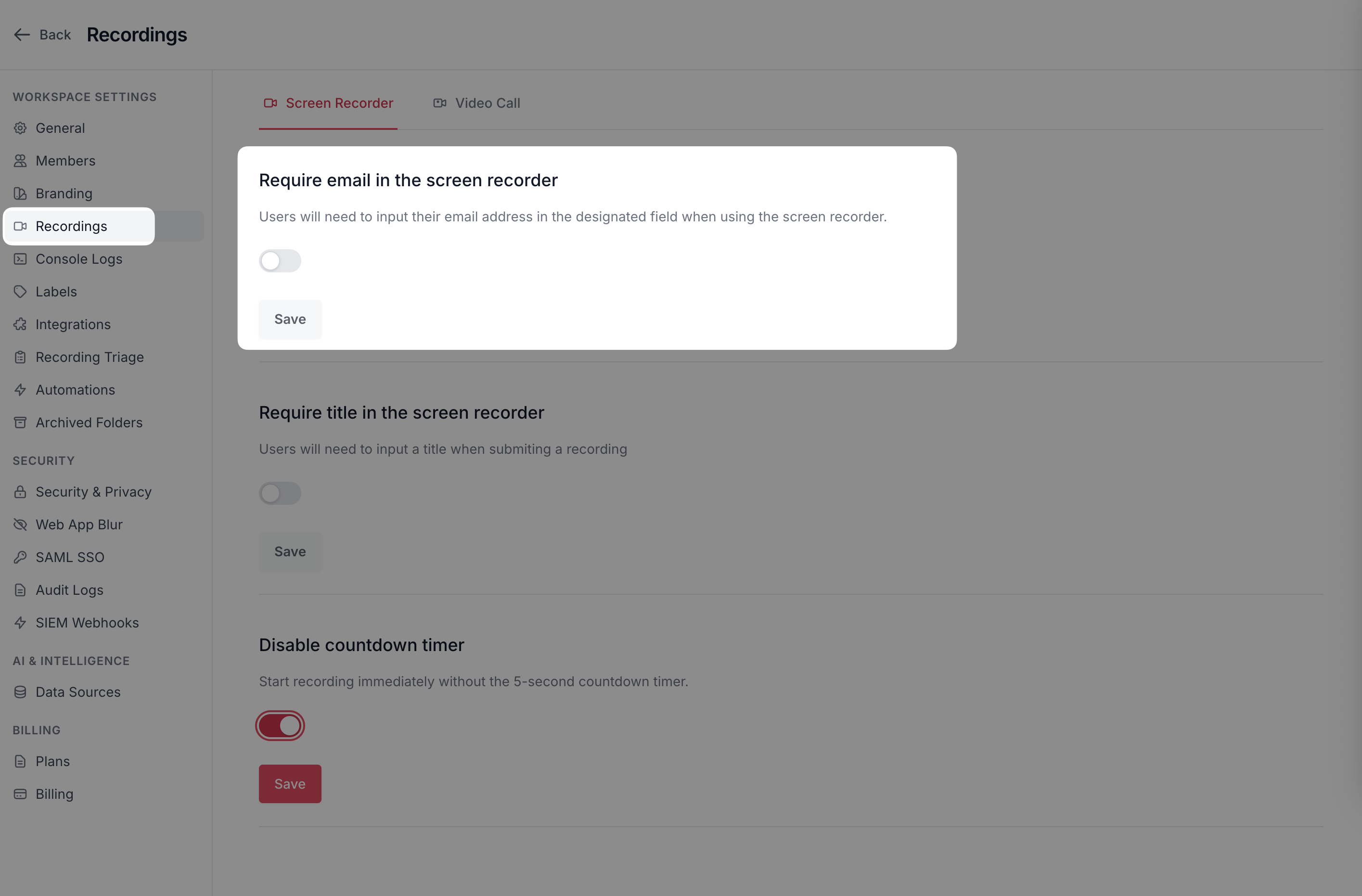
Go to **Settings** > **Recording** in your Screendesk workspace.
{% endstep %}
{% step %}
#### Enable Required Email
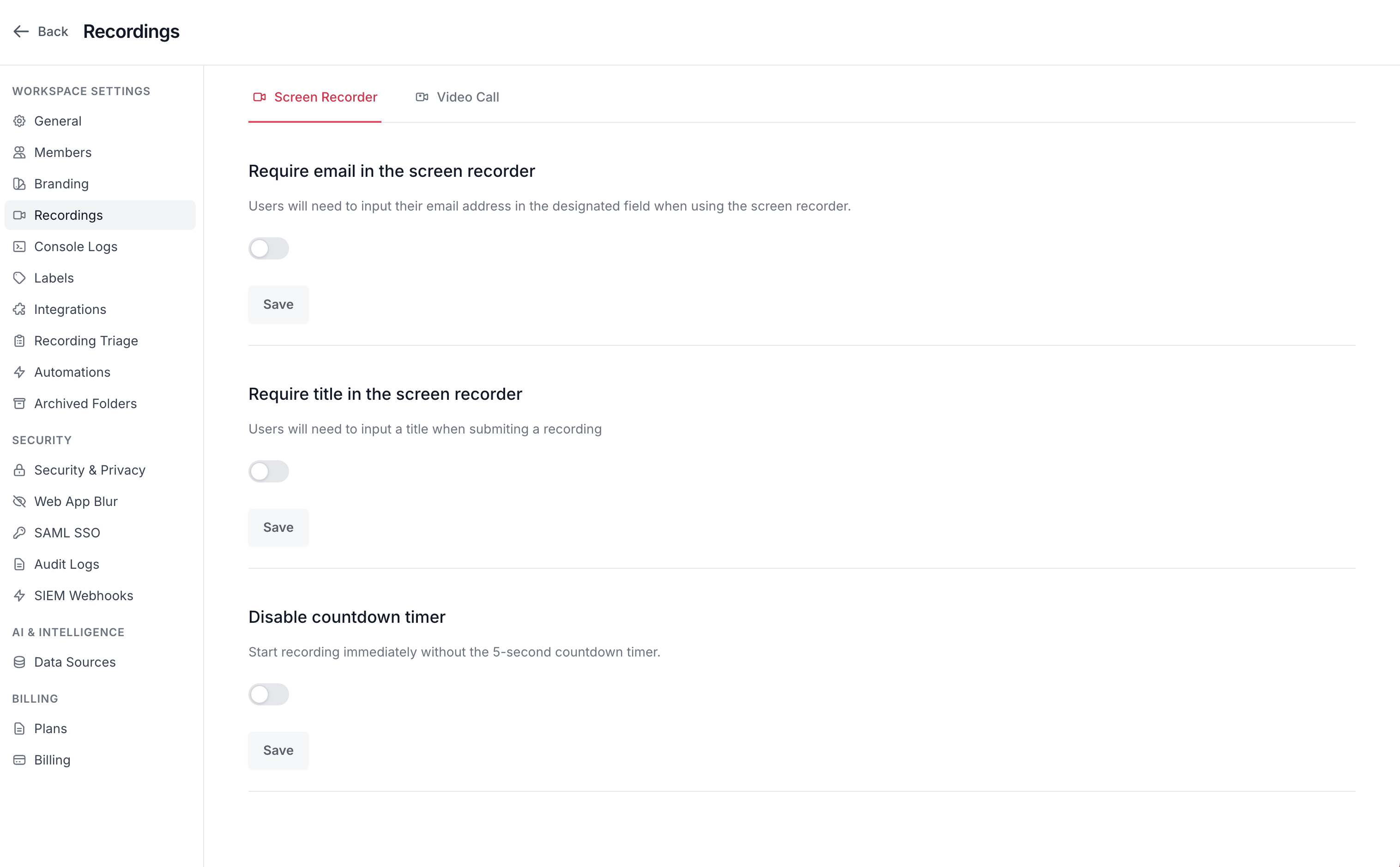
Find the **"Require email in the screen recorder"** toggle and turn it ON.
{% hint style="info" %}
This setting applies to all embedded recorders and integration widgets. It does not affect Chrome extension users (who are always identified).
{% endhint %}
{% endstep %}
{% step %}
#### Test the Change
Open your embedded recorder or integration widget to verify that the email field now shows as required (marked with an asterisk \*).
{% endstep %}
{% endstepper %}
### Require Recording Title
Require customers to provide a title or subject for their recording. This helps organize recordings and makes it easier for support agents to prioritize and search.
**How to Enable**
{% stepper %}
{% step %}
#### Navigate to Recorder Settings
Go to **Settings** > **Recording** in your Screendesk workspace.
{% endstep %}
{% step %}
#### Enable Required Title
Find the **"Require title in the screen recorder"** toggle and turn it ON.
{% endstep %}
{% step %}
#### Verify Changes
Test your embedded recorder to confirm the title field is now marked as required.
{% endstep %}
{% endstepper %}
### Customize Recorder Colors
Match the screen recorder interface to your brand's color palette.
**Recorder Background Color**
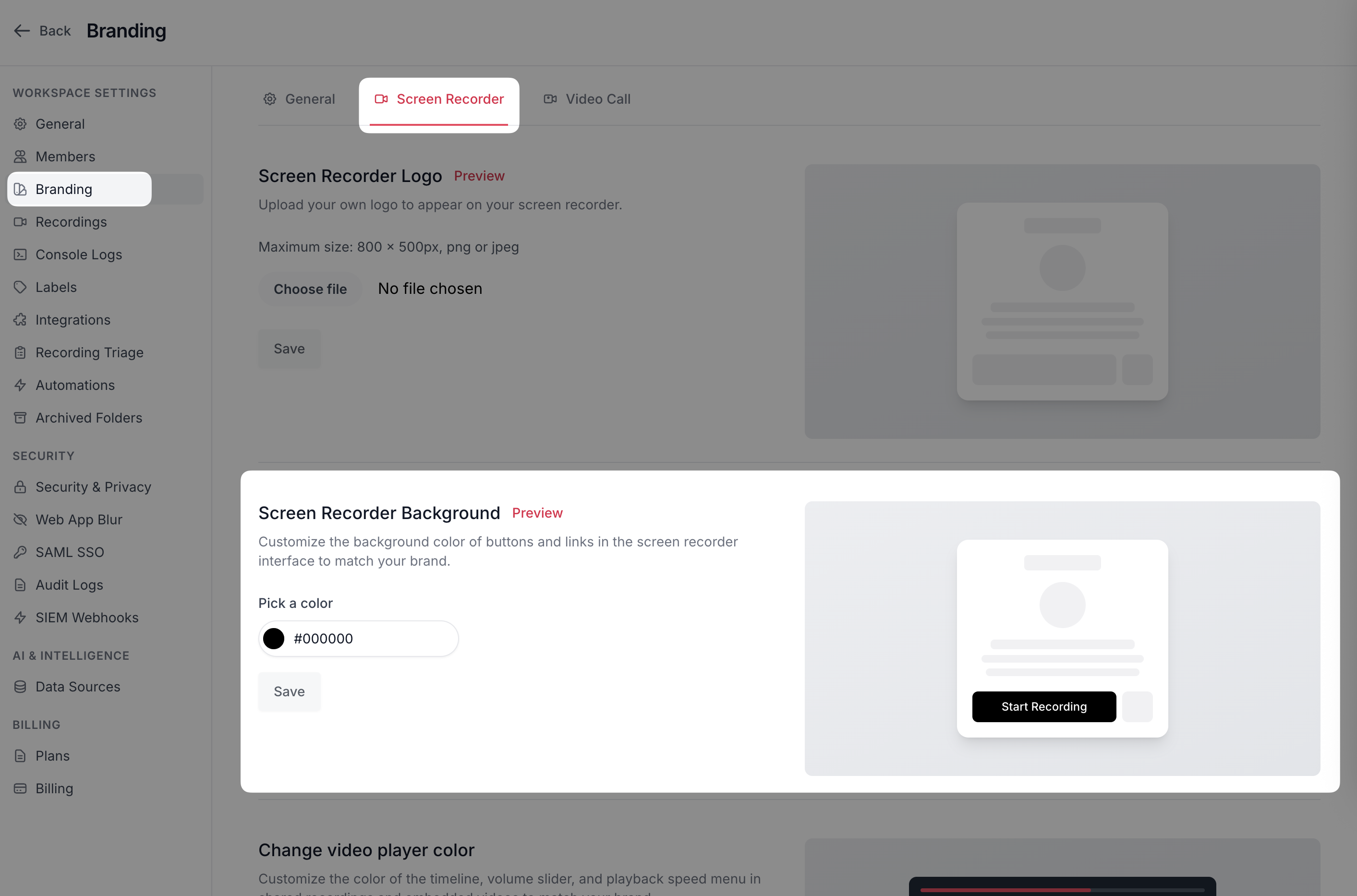
This sets the background color of the recorder interface before and after recording.
{% stepper %}
{% step %}
#### Open color settings
Go to **Settings** > **Branding** > **Screen Recorder**.
{% endstep %}
{% step %}
#### Update the background color
Find **Recorder Background Color** and click the color picker.
Choose a color or enter a hex code.
Default: `#000000` (black).
{% endstep %}
{% step %}
#### Save
Click **Save**.
{% endstep %}
{% endstepper %}
**Player Custom Color**
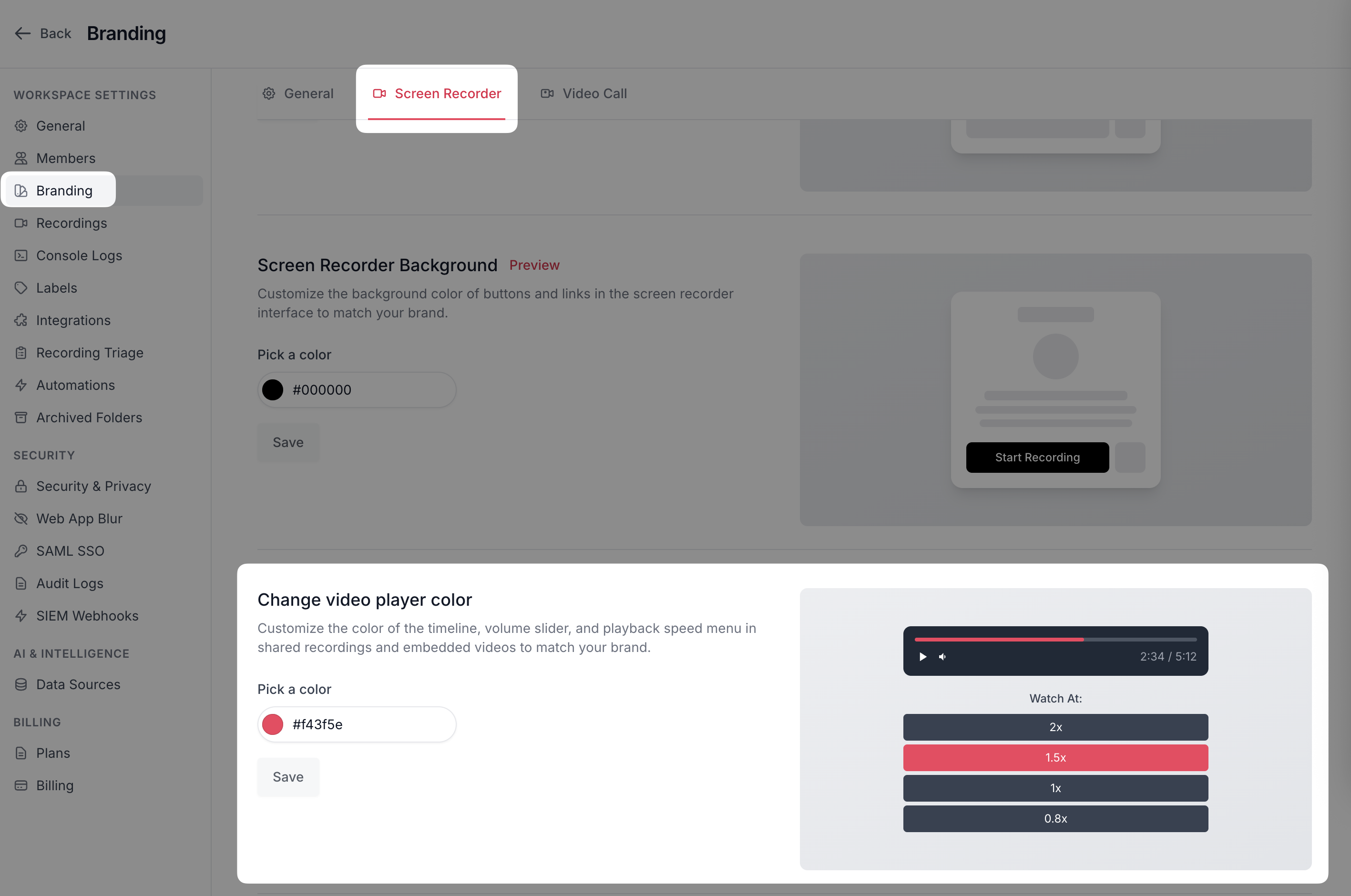
This sets the accent color used throughout the video player interface.
{% stepper %}
{% step %}
#### Open player settings
Go to **Settings** > **Branding** > **Screen Recorder**.
{% endstep %}
{% step %}
#### Pick an accent color
Find **Custom Color** (or **Accent Color**) and click the color picker.
Choose a color or enter a hex code.
Default: `#f43f5e` (rose).
{% endstep %}
{% step %}
#### Save
Click **Save**.
{% endstep %}
{% endstepper %}
### Troubleshooting
Changes don't appear in the recorder
**Problem**: You updated settings but don't see changes.
**Solutions**:
1. **Clear browser cache**: Ctrl+Shift+Del (Windows) or Cmd+Shift+Del (Mac)
2. **Hard refresh**: Ctrl+F5 (Windows) or Cmd+Shift+R (Mac)
3. **Try incognito/private mode**: Rules out caching issues
4. **Wait a few minutes**: Changes may take time to propagate
5. **Check the right recorder**: Ensure you're testing the correct embedded instance
Email validation isn't working
**Problem**: Customers can submit recordings without valid emails even though the field is required.
**Check**:
1. Is the toggle actually ON in Settings > Recorder?
2. Are you testing the embedded recorder or Chrome extension? (Extension users are always authenticated)
3. Clear cache and try again
4. Check browser console for JavaScript errors
**Still not working?** Contact Screendesk support with:
* Screenshot of your settings
* Example recording link showing the issue
* Browser and version used for testing
Custom colors look wrong
**Problem**: Colors don't match what you selected or look different than expected.
**Common causes**:
1. **Contrast adjustment**: System auto-adjusts colors for readability
2. **Browser rendering**: Different browsers may display colors slightly differently
3. **Monitor calibration**: Your display settings affect how colors appear
4. **Hex code typo**: Double-check the hex code you entered
**Solutions**:
* Use a color picker tool to verify your hex codes
* Test on multiple devices and browsers
* Check accessibility contrast ratios (use WebAIM contrast checker)
* Consider slightly different shades if auto-adjustment is too aggressive
---
# Agent Instructions
This documentation is published with GitBook. GitBook is the documentation platform designed so that both humans and AI agents can read, navigate, and reason over technical content effectively. Learn more at gitbook.com.
## Querying This Documentation
If you need additional information that is not directly available in this page, you can query the documentation by asking a question.
Perform an HTTP GET request on the following URL with the `ask` and `goal` query parameters:
```
GET https://docs.screendesk.io/request-screen-recording/branding-and-customization/customize-recorder.md?ask=&goal=
```
`ask` is the immediate question: it should be specific, self-contained, and written in natural language.
`goal` is what the user is ultimately trying to achieve, the reason they need the answer. Sharing it helps GitBook give you a better, more relevant answer. A goal is most helpful when it describes the outcome the user wants rather than restating the question. For example, with `ask=how do I create an API token`, a goal like `automate deployments from our CI pipeline` lets GitBook tailor the answer to that use case.
The response will contain a direct answer to the question and relevant excerpts and sources from the documentation.
Use this mechanism when the answer is not explicitly present in the current page, you need clarification or additional context, or you want to retrieve related documentation sections.