> For the complete documentation index, see [llms.txt](https://docs.screendesk.io/llms.txt). Markdown versions of documentation pages are available by appending `.md` to page URLs; this page is available as [Markdown](https://docs.screendesk.io/request-screen-recording/branding-and-customization/recorder-flow.md).
# Recorder flow
Show a guided multi-step introduction to customers before the screen recorder opens.
Recorder Flow lets you show a short guided intro before the recorder opens.
Use it to explain what to record, reduce confusion, and improve submission quality.
{% hint style="info" %}
**Plan availability:** Plus and above.
{% endhint %}
***
### How it works for customers
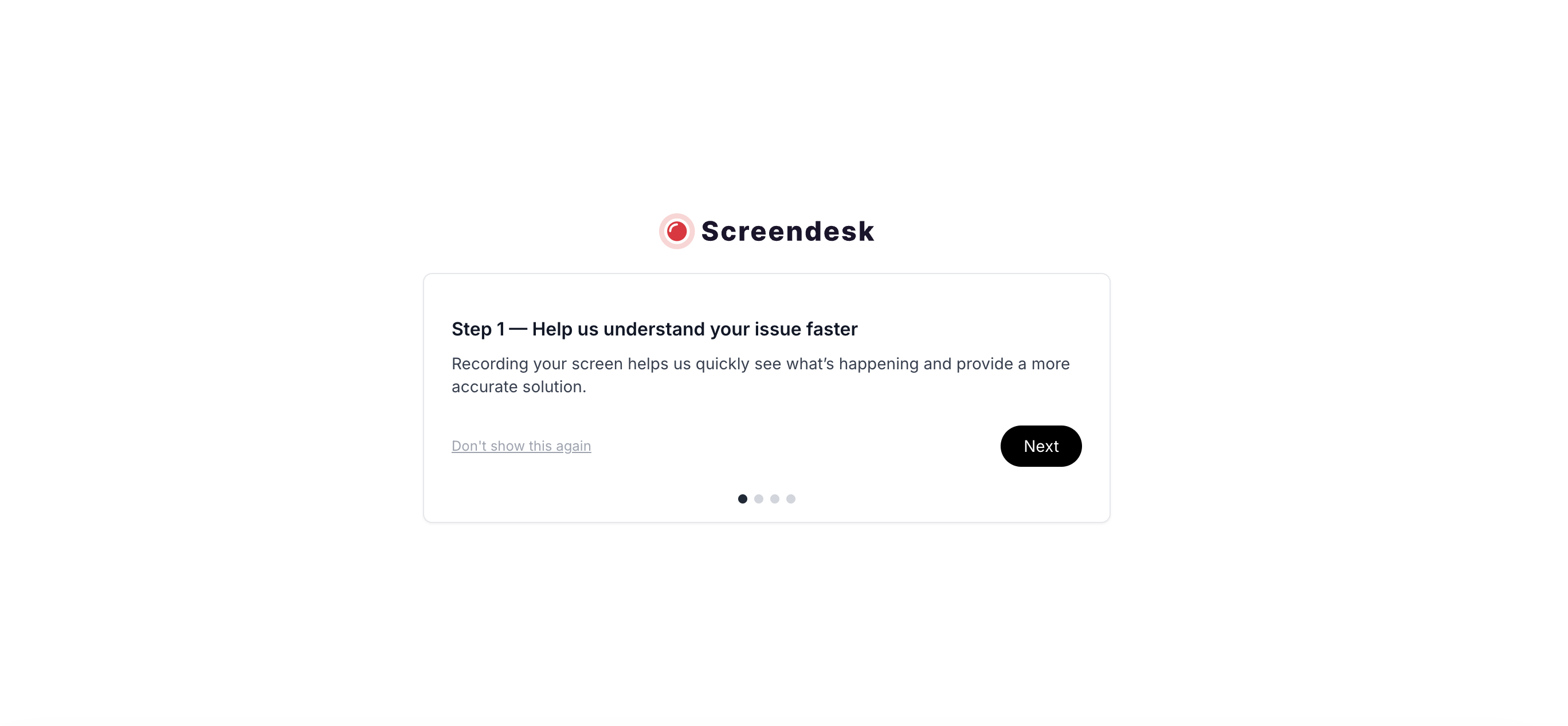
When Recorder Flow is enabled, customers see a modal before the recorder loads.
Recorder Flow shown before the recorder starts.
The modal shows one step at a time.
Each step can contain:
* **Title**
* **Body text**
* **Optional image**
Customers move through the flow with **Next** and **Back**.
Dot indicators show how many steps remain.
On the last step, **Get Started** closes the flow and opens the recorder.
Each step also includes **Don't show this again**.
If the customer checks it, Screendesk skips the flow on future visits from the same browser.
***
### Set up Recorder Flow
{% stepper %}
{% step %}
#### Go to Recorder settings
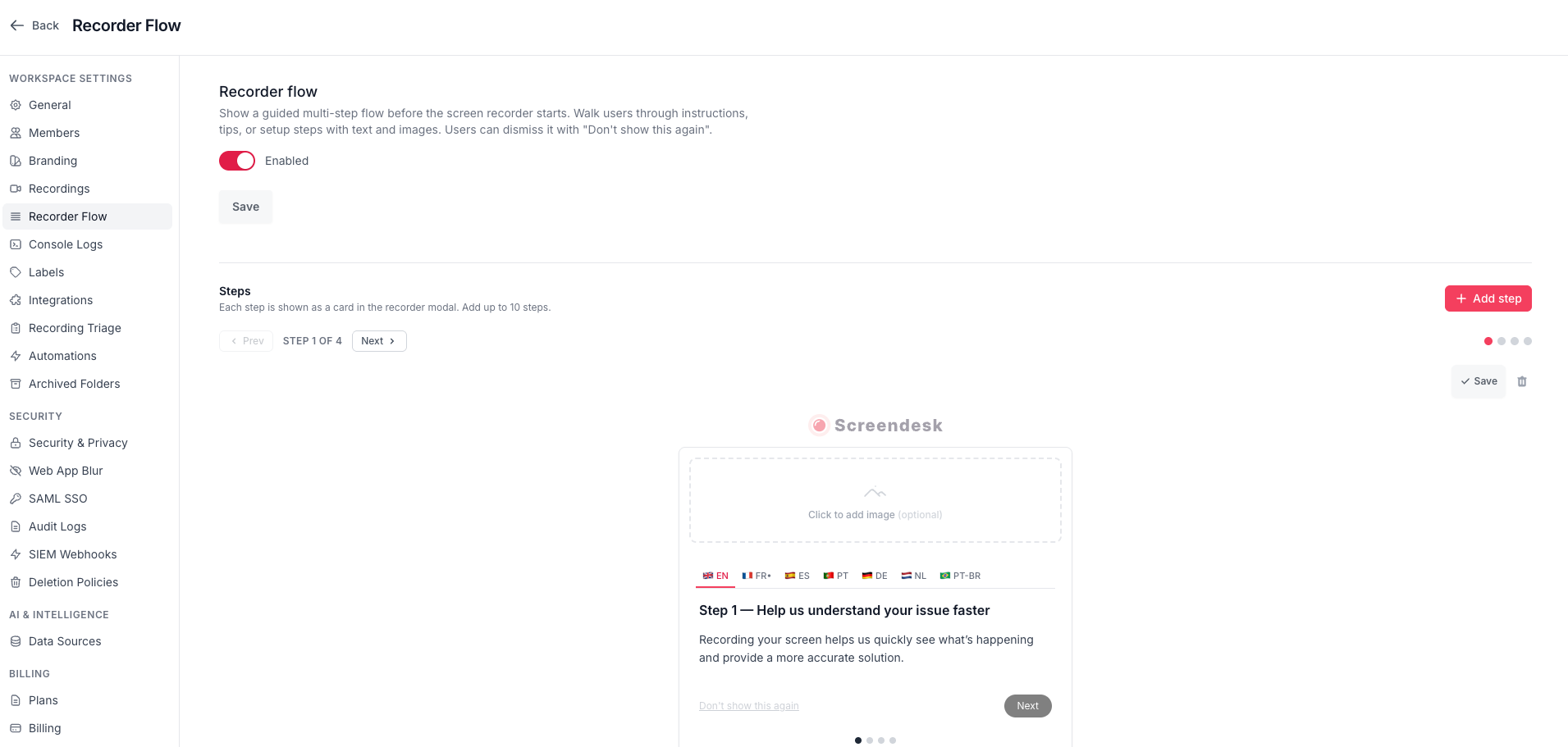
Open **Settings** → **Recorder** in your Screendesk workspace.
{% endstep %}
{% step %}
#### Open Recorder Flow
Scroll to the **Recorder Flow** section.
{% endstep %}
{% step %}
#### Enable the flow
Turn on **Recorder Flow**.
Click **Save**.
{% endstep %}
{% step %}
#### Add your steps
Click **Add step**.
For each step, set:
* **Title** — short heading shown at the top
* **Body** — the main instruction text
* **Image** — optional screenshot or illustration
Markdown is supported in the body for basic formatting.
Each step supports text, translations, an optional image, and step navigation.
{% endstep %}
{% step %}
#### Save each step
Each step has its own **Save** button.
Changes to one step do not update the others.
{% endstep %}
{% endstepper %}
You can add up to **10 steps**.
***
### What to include in each step
Good steps are short and specific.
Focus on one action per step.
Useful examples:
* explain why you need the recording
* tell the customer what screen to open
* ask them to reproduce the issue
* remind them to enable microphone audio if helpful
* show what success or failure looks like
{% hint style="success" %}
Three to five steps is usually enough.
{% endhint %}
***
### Images and formatting
Images are optional, but they help a lot.
Use them to point to the right screen, button, or workflow.
Supported image formats:
* PNG
* JPEG
* GIF
* WebP
Maximum file size: **5 MB**.
Use body text for short instructions, not long paragraphs.
***
### Translations
You can localize each step for different languages.
Locale tabs appear at the top of the step editor.
Switch to a locale and enter the translated title and body.
If a translation is empty, Screendesk falls back to English.
Supported languages:
* 🇬🇧 English
* 🇫🇷 French
* 🇪🇸 Spanish
* 🇵🇹 Portuguese
* 🇩🇪 German
* 🇳🇱 Dutch
* 🇧🇷 Brazilian Portuguese
See also [Internationalization](/request-screen-recording/branding-and-customization/internationalization.md).
***
### Order of steps
Customers see steps in the same order they appear in the editor.
Review the full sequence before enabling the flow for customers.
If your workspace supports reordering, move steps into the right sequence before saving.
***
### How Recorder Flow works with Privacy opt-in
If both features are enabled, Screendesk shows them in this order:
1. Privacy opt-in
2. Recorder Flow
3. Recorder
Use **Privacy opt-in** when you need an **Accept** or **Decline** decision before recording starts.
Use **Recorder Flow** when you want to guide the customer with instructions before recording starts.
See [Privacy opt-in](/security/privacy-opt-in.md).
***
### Disable Recorder Flow
Turn off **Recorder Flow** in **Settings** → **Recorder**.
Click **Save**.
Customers will go straight to the recorder.
Your existing steps stay saved, so you can enable the flow again later.
***
### Best practices
**Keep it short.**
Customers want to start recording quickly.
**Use screenshots.**
One image often explains faster than a paragraph.
**Write for action.**
Say exactly what the customer should do next.
**Test in a private window.**
This avoids cached preferences such as **Don't show this again**.
**Keep the experience consistent.**
Make sure your recorder branding is configured so the flow matches your workspace.
See [Customize recorder](/request-screen-recording/branding-and-customization/customize-recorder.md).
***
### Troubleshooting
The flow does not appear
Check these first:
* **Recorder Flow** is enabled
* at least one step is saved
* you are testing the browser-based recorder
* the customer did not previously check **Don't show this again**
Try again in a private or incognito window.
A translation is missing
If a locale field is blank, Screendesk shows the English version.
Add the translated title and body for that locale, then save the step.
An image does not display correctly
Check the file type and size.
Use PNG, JPEG, GIF, or WebP, and keep the file under 5 MB.
The flow appears for some users but not others
The **Don't show this again** preference is stored in the browser.
Users on a different browser or device may still see the flow.
***
### FAQ
Can I show different flows to different customers?
Not currently.
The same Recorder Flow is shown to everyone using that recorder configuration.
Can customers skip the flow?
Yes.
They can click **Don't show this again** to skip it on future visits from the same browser.
Does the preference sync across devices?
No.
The preference is stored locally in the browser.
If the customer switches device or clears browser data, the flow can appear again.
Does Recorder Flow apply to Chrome extension users?
No.
Recorder Flow applies to the browser-based recorder experience.
Can I use Recorder Flow instead of Privacy opt-in?
No.
Recorder Flow is informational.
It does not provide an **Accept** or **Decline** consent gate.
***
### Related pages
* [Customize recorder](/request-screen-recording/branding-and-customization/customize-recorder.md)
* [Disable countdown](/request-screen-recording/branding-and-customization/disable-countdown.md)
* [Internationalization](/request-screen-recording/branding-and-customization/internationalization.md)
* [Privacy opt-in](/security/privacy-opt-in.md)
---
# Agent Instructions
This documentation is published with GitBook. GitBook is the documentation platform designed so that both humans and AI agents can read, navigate, and reason over technical content effectively. Learn more at gitbook.com.
## Querying This Documentation
If you need additional information that is not directly available in this page, you can query the documentation by asking a question.
Perform an HTTP GET request on the following URL with the `ask` and `goal` query parameters:
```
GET https://docs.screendesk.io/request-screen-recording/branding-and-customization/recorder-flow.md?ask=&goal=
```
`ask` is the immediate question: it should be specific, self-contained, and written in natural language.
`goal` is what the user is ultimately trying to achieve, the reason they need the answer. Sharing it helps GitBook give you a better, more relevant answer. A goal is most helpful when it describes the outcome the user wants rather than restating the question. For example, with `ask=how do I create an API token`, a goal like `automate deployments from our CI pipeline` lets GitBook tailor the answer to that use case.
The response will contain a direct answer to the question and relevant excerpts and sources from the documentation.
Use this mechanism when the answer is not explicitly present in the current page, you need clarification or additional context, or you want to retrieve related documentation sections.