> For the complete documentation index, see [llms.txt](https://docs.screendesk.io/llms.txt). Markdown versions of documentation pages are available by appending `.md` to page URLs; this page is available as [Markdown](https://docs.screendesk.io/security/saml-sso.md).
# SAML SSO
Configure SAML SSO with Google, Okta, or a custom identity provider.
SAML single sign-on lets your team log in to Screendesk using your company's identity provider (IdP) instead of managing separate passwords. Once configured, users authenticate through providers like Google Workspace, Microsoft Entra ID (Azure AD), or Okta, and are automatically signed in to Screendesk.
{% hint style="info" %}
**Plan Availability:** Enterprise only
{% endhint %}
***
### How It Works
Screendesk acts as a SAML **Service Provider** (SP). When a user tries to log in, Screendesk redirects them to your identity provider, which verifies their credentials and sends a signed SAML response back. Screendesk validates the response and signs the user in.
The login flow works like this:
1. The user visits the Screendesk SAML login page and enters their email address.
2. Screendesk looks up the workspace associated with that email domain.
3. The browser redirects to your identity provider's sign-on page.
4. The user authenticates with your IdP (password, MFA, etc.).
5. The IdP sends a signed SAML response back to Screendesk.
6. Screendesk validates the response, matches or creates the user account, and signs them in.
***
### Prerequisites
Before configuring SAML SSO you will need:
* An active Screendesk **Enterprise** plan
* **Admin access** to your Screendesk workspace
* **Admin access** to your identity provider (Google Workspace, Azure AD, or Okta)
* The email domain your team uses (e.g., `yourcompany.com`)
***
### Screendesk Service Provider Details
When configuring your identity provider, you will need the following values from Screendesk. These are displayed in **Account Settings → Security → SAML SSO** and can be copied with a single click.
| Field | Value |
| -------------------------------------------- | ------------------------------------------------------------ |
| **ACS URL** (Assertion Consumer Service URL) | `https://app.screendesk.io/saml_callback` |
| **Audience URI** (SP Entity ID) | `urn:screendesk.io:saml` |
| **Relay State** | Unique per workspace — copy from your SAML SSO settings page |
***
### Configuring Your Identity Provider
The information you enter in Screendesk comes from your identity provider. You need four values:
| Field | Description |
| ---------------------- | ------------------------------------------------------------------------------------------------------------------ |
| **SSO Domain** | The email domain used for login (e.g., `yourcompany.com`). Screendesk uses this to route users to the correct IdP. |
| **IDP Entity ID** | The unique identifier your IdP uses to identify itself (sometimes called Issuer). |
| **Single Sign On URL** | The URL where Screendesk sends SAML authentication requests. |
| **IDP Certificate** | The X.509 certificate your IdP uses to sign SAML responses. Paste the full PEM-formatted certificate. |
For step-by-step instructions specific to your identity provider, see the setup guides:
* Google Workspace
* Microsoft Entra ID (Azure AD)
* Okta
***
### Entering IdP Details in Screendesk
{% stepper %}
{% step %}
#### Open SAML SSO settings
Go to **Account Settings → Security → SAML SSO** and click **Edit SAML SSO Settings**.
{% endstep %}
{% step %}
#### Enter your identity provider details
Fill in the four fields — SSO Domain, IDP Entity ID, Single Sign On URL, and IDP Certificate — using the values from your identity provider.
{% endstep %}
{% step %}
#### Save your configuration
Click **Save Changes**. Your SAML SSO integration is now active.
{% endstep %}
{% endstepper %}
***
### SAML Attribute Mapping
Screendesk reads user information from the SAML response to identify and provision users. No custom attribute mapping is required — Screendesk automatically tries common attribute names used by major identity providers.
| User Field | Attributes Checked (in priority order) |
| ---------------- | ---------------------------------------------- |
| **Email** | `NameID`, `email`, `emailaddress`, `mail` |
| **First name** | `first_name`, `givenname`, `givenName` |
| **Last name** | `last_name`, `surname`, `sn` |
| **Display name** | `displayname`, `name`, or extracted from email |
{% hint style="info" %}
The `NameID` in the SAML response should be set to the user's email address. This is the primary identifier Screendesk uses to match users.
{% endhint %}
***
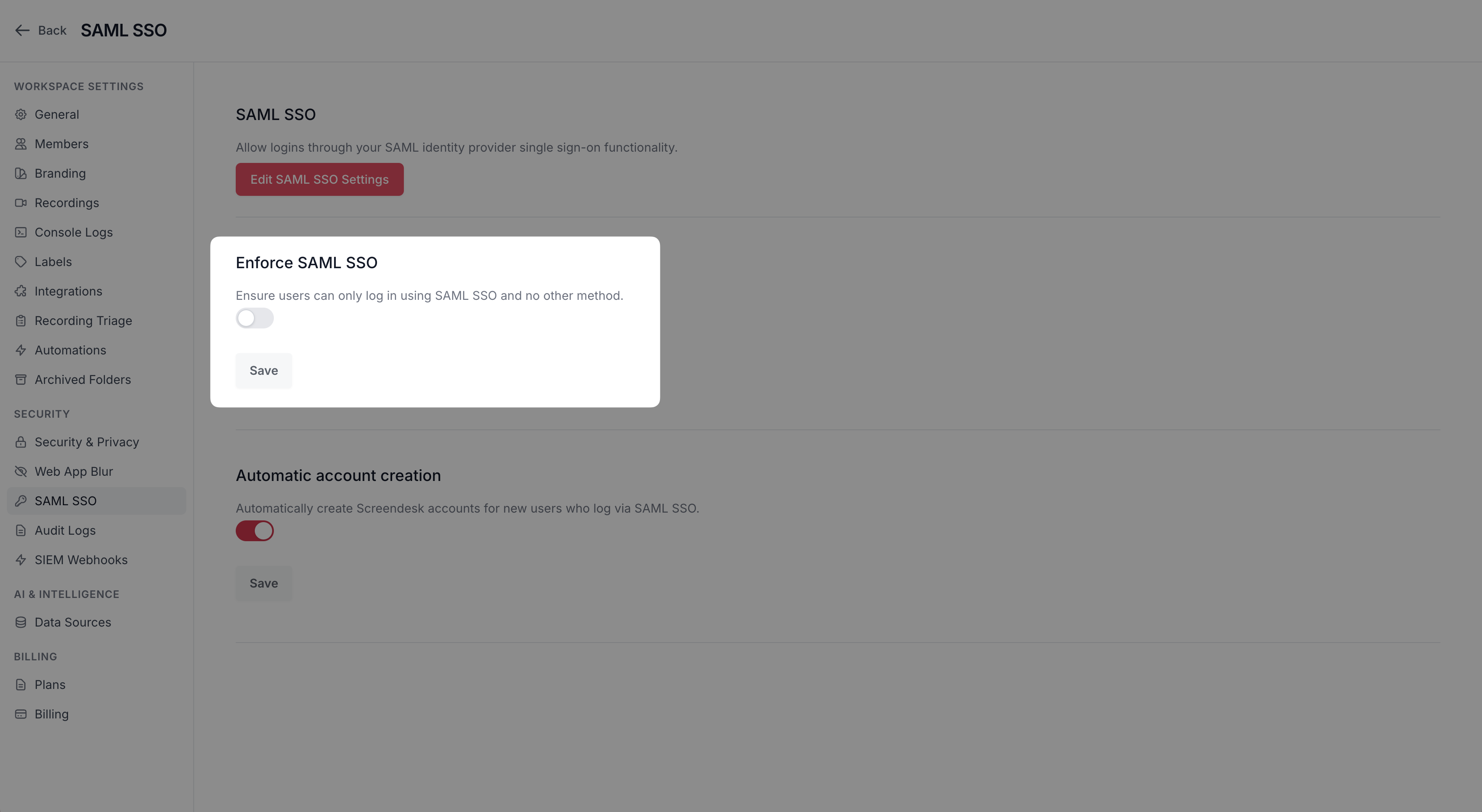
### Enforce SSO
Once SAML is configured, you can require all users to sign in through your identity provider by enabling **Enforce SSO** in **Account Settings → Security → SAML SSO**.
When enabled:
* Team members can only log in via SAML — password-based login is blocked.
* Password reset requests are also blocked for users in the workspace.
* The **workspace owner** can always log in with a password, regardless of this setting. This is a safety mechanism to prevent lockout if the IdP becomes unavailable.
{% hint style="warning" %}
Before enforcing SSO, make sure at least one admin can log in successfully via SAML. The workspace owner retains password access as a fallback, but all other users will be locked out of password-based login immediately.
{% endhint %}
***
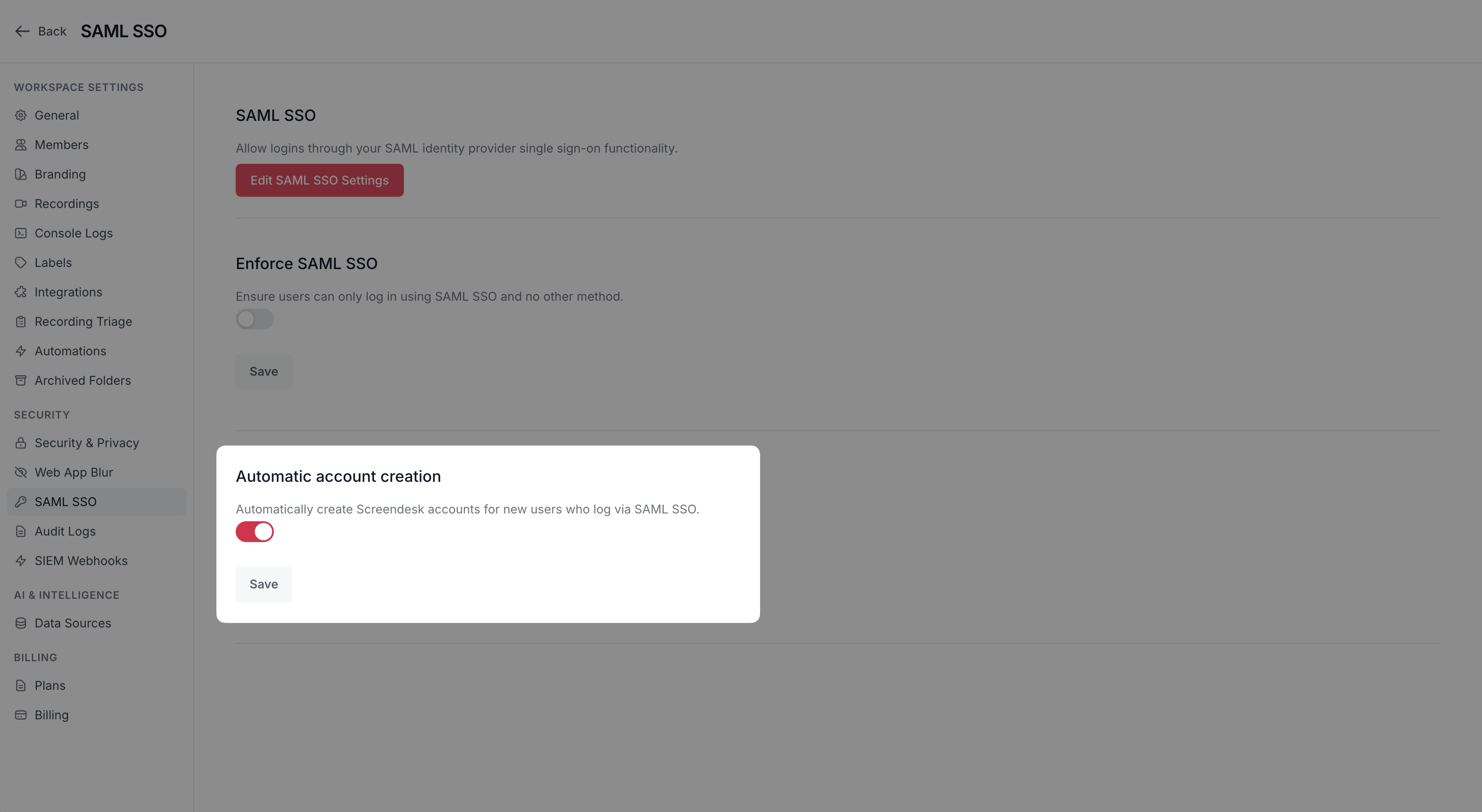
### Automatic Account Creation
When **Automatic account creation** is enabled (it is on by default), Screendesk will create a new user account the first time someone signs in via SAML if no matching account exists.
Automatically created users are assigned the **Member** role with no admin or editor privileges. An admin can promote them after their first login.
When this setting is disabled, users must be manually provisioned in Screendesk (or via SCIM) before they can log in via SAML. Unprovisioned users who attempt SAML login will see a message asking them to contact their IT administrator.
***
### SCIM Directory Sync
For organizations that want to automate user provisioning and deprovisioning, Screendesk supports SCIM 2.0. With SCIM, your identity provider can automatically:
* Create user accounts when someone is assigned the Screendesk app
* Update user details (name, email, role) when they change in your directory
* Deactivate accounts when someone is removed from the app
SCIM uses a unique **Bearer token** for authentication. You can find this token in your SAML SSO settings. Point your IdP's SCIM connector at:
```
https://app.screendesk.io/api/v2/scim/Users
```
{% hint style="info" %}
SCIM-provisioned users bypass email validation, so your directory is the source of truth for user data.
{% endhint %}
***
### Testing Your Configuration
After saving your SAML settings:
1. Open a private or incognito browser window.
2. Go to the Screendesk login page and click **Sign in with SAML SSO**.
3. Enter an email address that matches your SSO Domain.
4. You should be redirected to your identity provider's login page.
5. After authenticating, you should be signed in to Screendesk.
{% hint style="danger" %}
If SAML login fails, double-check that the **ACS URL** and **Audience URI** in your IdP match the values shown in your Screendesk SAML settings exactly. Certificate mismatches are the most common cause of validation errors.
{% endhint %}
***
### Frequently Asked Questions
What happens to existing users when I enable SAML?
Nothing changes immediately. Existing users can continue to log in with their password until you enable **Enforce SSO**. When they first log in via SAML, their account is linked to the IdP.
Can I use SAML with multiple email domains?
Each Screendesk workspace supports one SSO domain. If your organization uses multiple domains, contact for assistance.
What happens if our identity provider is down?
The workspace owner can always log in with their password, even when SSO is enforced. Other users will not be able to log in until the IdP is available again.
Are SAML logins recorded in audit logs?
Yes. Every SAML login creates an audit log entry with the authentication method recorded as "saml."
Does Screendesk support IdP-initiated SSO?
Screendesk supports SP-initiated SSO, where the login flow starts from the Screendesk login page. You can also start the flow from your IdP's app launcher if your IdP is configured to send the SAML response to the Screendesk ACS URL.
Can I use SAML and password login at the same time?
Yes, unless **Enforce SSO** is enabled. When Enforce SSO is off, users can choose either login method.
---
# Agent Instructions
This documentation is published with GitBook. GitBook is the documentation platform designed so that both humans and AI agents can read, navigate, and reason over technical content effectively. Learn more at gitbook.com.
## Querying This Documentation
If you need additional information that is not directly available in this page, you can query the documentation by asking a question.
Perform an HTTP GET request on the following URL with the `ask` and `goal` query parameters:
```
GET https://docs.screendesk.io/security/saml-sso.md?ask=&goal=
```
`ask` is the immediate question: it should be specific, self-contained, and written in natural language.
`goal` is what the user is ultimately trying to achieve, the reason they need the answer. Sharing it helps GitBook give you a better, more relevant answer. A goal is most helpful when it describes the outcome the user wants rather than restating the question. For example, with `ask=how do I create an API token`, a goal like `automate deployments from our CI pipeline` lets GitBook tailor the answer to that use case.
The response will contain a direct answer to the question and relevant excerpts and sources from the documentation.
Use this mechanism when the answer is not explicitly present in the current page, you need clarification or additional context, or you want to retrieve related documentation sections.