> For the complete documentation index, see [llms.txt](https://docs.screendesk.io/llms.txt). Markdown versions of documentation pages are available by appending `.md` to page URLs; this page is available as [Markdown](https://docs.screendesk.io/send-screen-recording/add-a-call-to-action.md).
# Add a call-to-action
Add a clickable button on your video to drive viewers to the next step.
A call-to-action (CTA) is a clickable button that appears directly on your video during playback. Use it to guide customers to a relevant page — a knowledge base article, a signup form, a product page, or any URL you choose.
{% hint style="info" %}
Call-to-action buttons are available on **Pro** plans and during your trial period.
{% endhint %}
### Adding a Call-to-Action
Each recording supports one call-to-action button. You can add or edit it at any time after the recording is saved.
{% stepper %}
{% step %}
#### Open the recording
Navigate to the recording you want to add a CTA to and open it in the detail view.
{% endstep %}
{% step %}
#### Open the CTA editor
Click the **CTA icon** in the recording toolbar (below or alongside the video player). This opens the CTA editing modal.
{% endstep %}
{% step %}
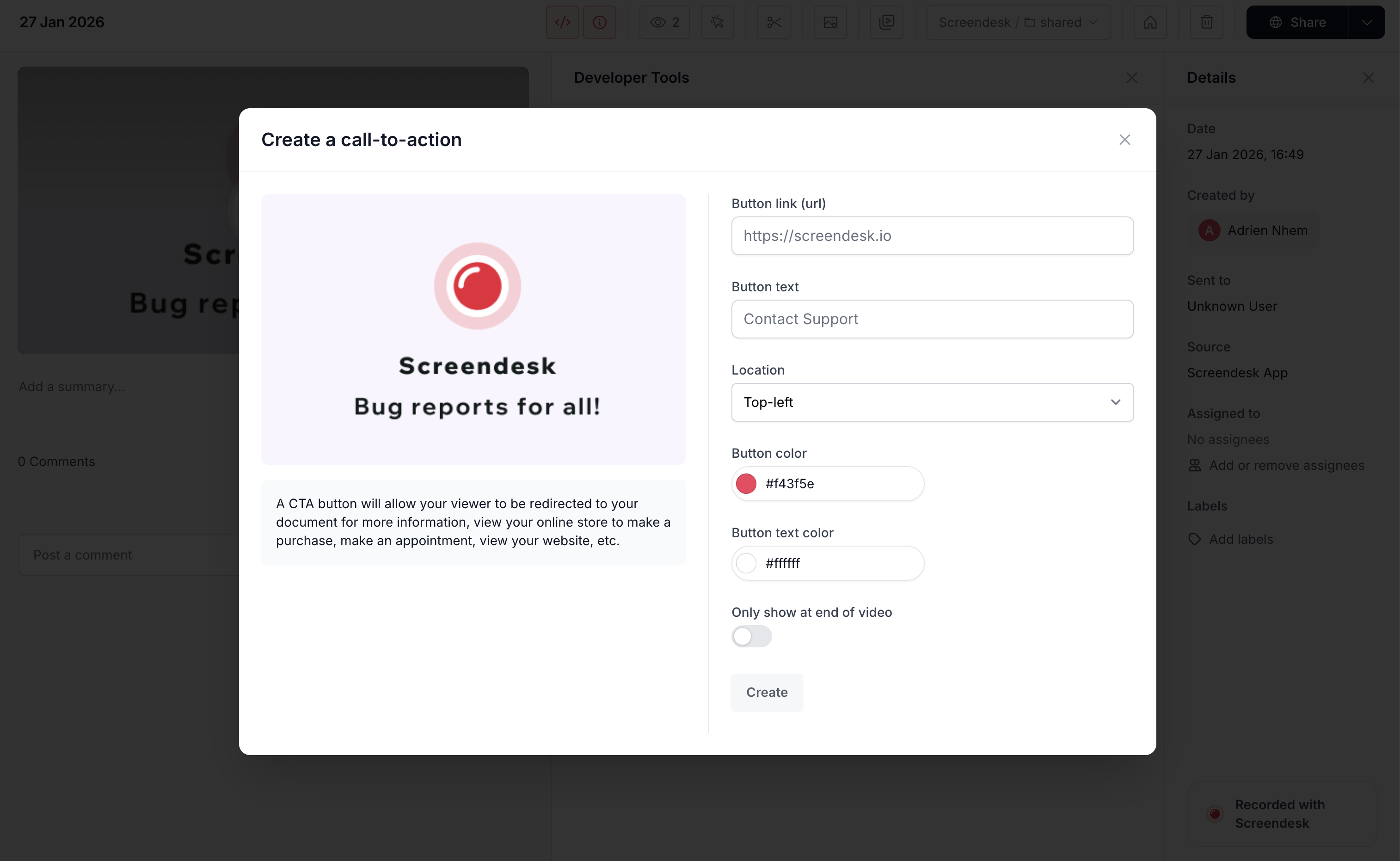
#### Configure the button
Fill in the CTA settings:
* **Button link (URL)** — The destination URL that opens when a viewer clicks the button. Must be a full URL (e.g., `https://help.example.com/article`).
* **Button text** — The label displayed on the button (e.g., "Learn More", "Sign Up", "View Article").
* **Location** — Where the button appears on the video. Choose from four positions:
* Top-left
* Top-right
* Bottom-left
* Bottom-right
* **Button color** — The background color of the button. Use the color picker to match your brand.
* **Button text color** — The color of the text on the button.
* **Only show at end of video** — When enabled, the button appears only after the video finishes playing. When disabled, the button is visible throughout playback.
{% endstep %}
{% step %}
#### Preview and save
As you edit the settings, a **live preview** appears on the video thumbnail so you can see exactly how the button will look and where it will be positioned. Click **Save** when you're satisfied.
{% endstep %}
{% endstepper %}
The CTA is applied immediately. Any viewer who watches the video — whether through a direct link, an embed, or from a helpdesk — will see the button.
### Editing or Removing a CTA
To edit an existing CTA, open the same CTA editor and update any field. Your changes are saved and reflected in real time — the video player updates without requiring a page reload.
To remove a CTA, open the CTA editor and click **Delete**. The button is removed from the video immediately.
### How CTAs Appear to Viewers
When a viewer plays the video:
* If **"Only show at end of video"** is turned off, the button appears as soon as playback starts and remains visible throughout the video.
* If **"Only show at end of video"** is turned on, the button appears only when the video reaches the end.
The button is positioned in the corner you selected, with a small offset from the edge for readability. Clicking the button opens the destination URL in a **new browser tab**.
CTAs work identically on the recording share page and in embedded videos.
### Use Cases for Support Teams
{% columns %}
{% column %}
#### Deflect to Self-Service
Add a CTA linking to a knowledge base article after explaining a solution. Customers can follow up on their own.
**Example:** "Read the full guide" → links to your help center article.
{% endcolumn %}
{% column %}
#### Drive Action
Point customers to a specific page where they need to take action — update settings, fill out a form, or complete a step.
**Example:** "Update your settings" → links to the relevant settings page.
{% endcolumn %}
{% endcolumns %}
{% hint style="success" %}
**Tip for managers:** CTAs give your team a way to close the loop on every video. Instead of just explaining a solution, you can guide customers directly to where they need to go next.
{% endhint %}
---
# Agent Instructions
This documentation is published with GitBook. GitBook is the documentation platform designed so that both humans and AI agents can read, navigate, and reason over technical content effectively. Learn more at gitbook.com.
## Querying This Documentation
If you need additional information that is not directly available in this page, you can query the documentation by asking a question.
Perform an HTTP GET request on the following URL with the `ask` and `goal` query parameters:
```
GET https://docs.screendesk.io/send-screen-recording/add-a-call-to-action.md?ask=&goal=
```
`ask` is the immediate question: it should be specific, self-contained, and written in natural language.
`goal` is what the user is ultimately trying to achieve, the reason they need the answer. Sharing it helps GitBook give you a better, more relevant answer. A goal is most helpful when it describes the outcome the user wants rather than restating the question. For example, with `ask=how do I create an API token`, a goal like `automate deployments from our CI pipeline` lets GitBook tailor the answer to that use case.
The response will contain a direct answer to the question and relevant excerpts and sources from the documentation.
Use this mechanism when the answer is not explicitly present in the current page, you need clarification or additional context, or you want to retrieve related documentation sections.