> For the complete documentation index, see [llms.txt](https://docs.screendesk.io/llms.txt). Markdown versions of documentation pages are available by appending `.md` to page URLs; this page is available as [Markdown](https://docs.screendesk.io/send-screen-recording/add-a-custom-thumbnail.md).
# Add a custom thumbnail
Upload a custom thumbnail for a recording, or set a default thumbnail for your workspace.
Thumbnails are the first thing viewers see before pressing play. By default, Screendesk auto-generates a thumbnail from your video, but you can upload a custom image to make your recordings look more polished and professional — especially when sharing with customers.
{% hint style="info" %}
Custom thumbnails are available on **Plus** plans and above, and during your trial period.
{% endhint %}
### How Thumbnails Work
Screendesk uses a priority system to determine which thumbnail to display:
1. **Custom thumbnail on the recording** — If you upload a thumbnail directly to a recording, it always takes priority.
2. **Account default thumbnail** — If no recording-level thumbnail is set, the account-wide default thumbnail is used (if one has been uploaded).
3. **Auto-generated thumbnail** — If neither custom option is set, Screendesk automatically generates a thumbnail from the video file.
This means you can set a branded default for all recordings and still override it on individual videos when needed.
### Setting a Custom Thumbnail on a Recording
{% stepper %}
{% step %}
#### Open the recording
Navigate to the recording you want to customize and open the detail view.
{% endstep %}
{% step %}
#### Open the thumbnail editor
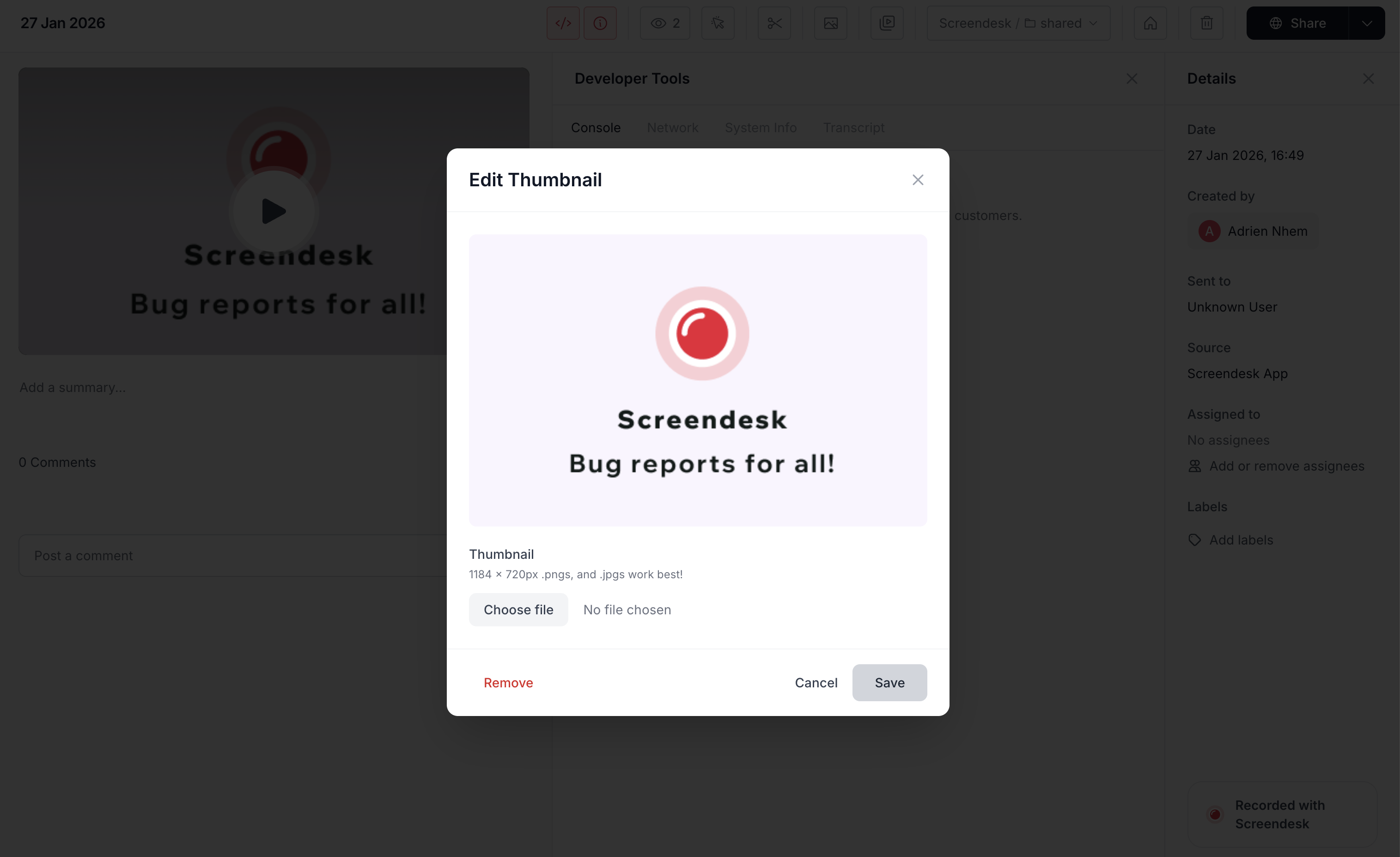
Click the **thumbnail icon** in the recording toolbar to open the thumbnail editing modal.
{% endstep %}
{% step %}
#### Upload your image
Click the file input to select an image from your computer. Accepted formats are **PNG** and **JPEG**. For best results, use an image sized **1184 × 720 pixels**.
A preview of your selected image appears in the modal so you can confirm it looks right before saving.
{% endstep %}
{% step %}
#### Save
Click **Save** to apply the custom thumbnail. The video player and all shared links update immediately — no need to refresh.
{% endstep %}
{% endstepper %}
### Removing a Custom Thumbnail
To remove a recording-level custom thumbnail and revert to the account default (or auto-generated thumbnail):
1. Open the recording and click the **thumbnail icon** in the toolbar.
2. Click **Remove** to delete the custom thumbnail.
3. The recording falls back to the next available thumbnail in the priority order.
### Setting an Account Default Thumbnail
Admins can upload a default thumbnail that applies to all recordings across the workspace. This is useful for maintaining consistent branding without having to upload a thumbnail on each recording.
{% stepper %}
{% step %}
#### Navigate to settings
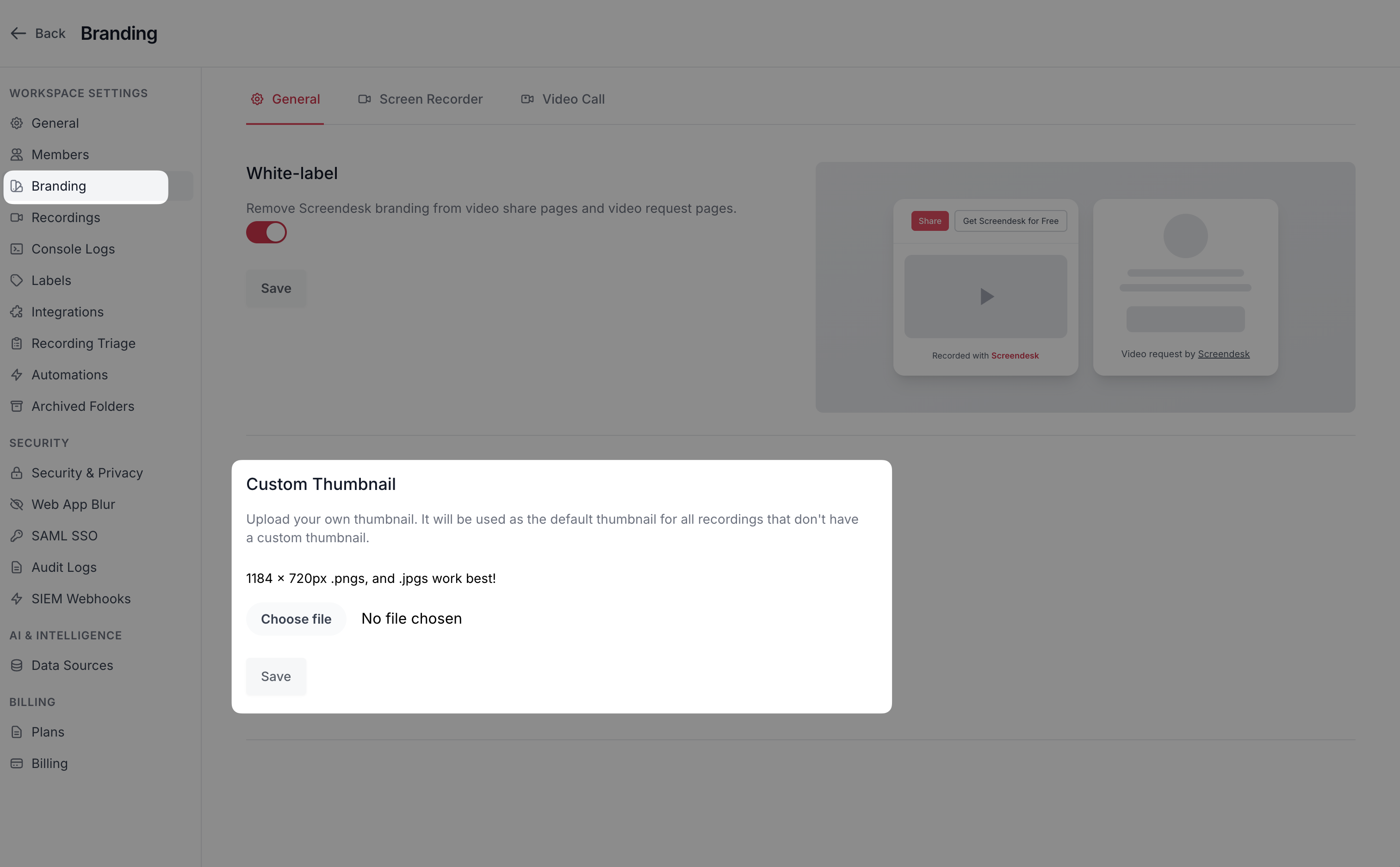
Go to **Settings → Branding** in the dashboard.
{% endstep %}
{% step %}
#### Find the Custom Thumbnail section
Scroll down to the **Custom Thumbnail** section.
{% endstep %}
{% step %}
#### Upload your default image
Click the file input to upload your branded thumbnail. Use a **1184 × 720 pixel** PNG or JPEG image. A preview of the uploaded image appears after selection.
{% endstep %}
{% step %}
#### Save
Submit the form to apply the default thumbnail. This image is used for all recordings that don't have their own custom thumbnail.
{% endstep %}
{% endstepper %}
To remove the account default, click **Remove Thumbnail** in the same settings section.
### Where Thumbnails Appear
Custom thumbnails are displayed anywhere your video is shown:
* **Video player** — The thumbnail appears as the poster image before the viewer presses play.
* **Dashboard recording cards** — Thumbnails are shown in the recording grid on the dashboard, making it easier to visually identify recordings.
* **Embedded videos** — When you embed a recording on a website, the custom thumbnail is used as the poster image.
* **Helpdesk integrations** — When a recording link is posted to Zendesk, Intercom, Freshdesk, HelpScout, HubSpot, or Jira, the thumbnail is included in the link preview.
### Best Practices
{% hint style="success" %}
**For managers:** Setting an account default thumbnail with your company logo and branding ensures every video your team sends looks professional — even if individual agents don't upload their own thumbnails.
{% endhint %}
* **Use 1184 × 720 pixels** for the sharpest results. PNG and JPEG formats work best.
* **Include your brand** in the account default — your logo, brand colors, or a consistent template.
* **Use descriptive thumbnails** on individual recordings to help customers understand what the video covers before pressing play.
* **Keep text large and readable** since thumbnails are sometimes displayed at smaller sizes in helpdesk sidebars and recording grids.
---
# Agent Instructions
This documentation is published with GitBook. GitBook is the documentation platform designed so that both humans and AI agents can read, navigate, and reason over technical content effectively. Learn more at gitbook.com.
## Querying This Documentation
If you need additional information that is not directly available in this page, you can query the documentation by asking a question.
Perform an HTTP GET request on the following URL with the `ask` and `goal` query parameters:
```
GET https://docs.screendesk.io/send-screen-recording/add-a-custom-thumbnail.md?ask=&goal=
```
`ask` is the immediate question: it should be specific, self-contained, and written in natural language.
`goal` is what the user is ultimately trying to achieve, the reason they need the answer. Sharing it helps GitBook give you a better, more relevant answer. A goal is most helpful when it describes the outcome the user wants rather than restating the question. For example, with `ask=how do I create an API token`, a goal like `automate deployments from our CI pipeline` lets GitBook tailor the answer to that use case.
The response will contain a direct answer to the question and relevant excerpts and sources from the documentation.
Use this mechanism when the answer is not explicitly present in the current page, you need clarification or additional context, or you want to retrieve related documentation sections.