> For the complete documentation index, see [llms.txt](https://docs.screendesk.io/llms.txt). Markdown versions of documentation pages are available by appending `.md` to page URLs; this page is available as [Markdown](https://docs.screendesk.io/video-calls/participant-insights.md).
# Participant insights
View technical details for each guest after a live video call to troubleshoot connection and compatibility issues.
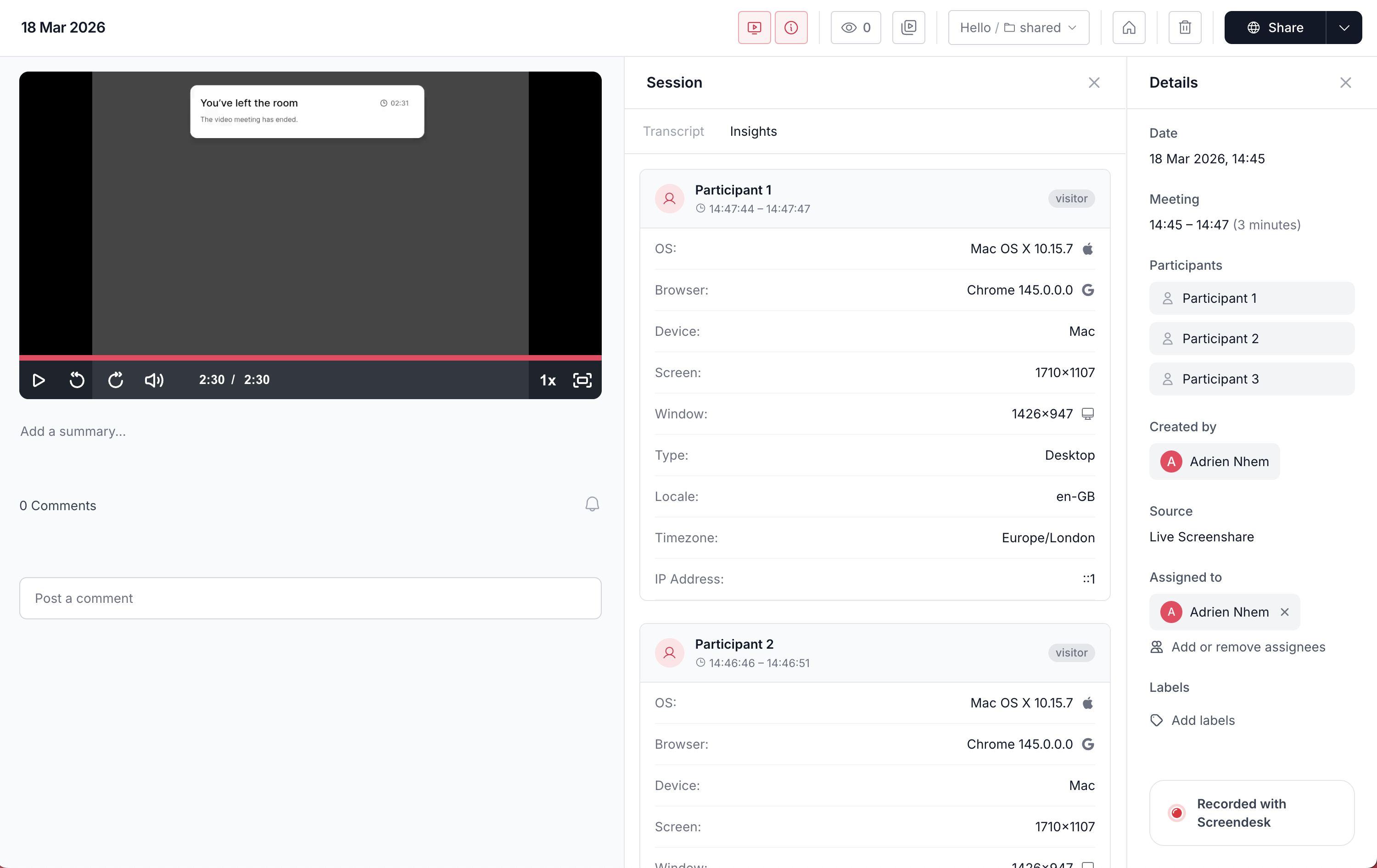
After a live video call, Screendesk automatically fetches technical details about each guest who joined the session. This data appears in the **Insights** tab on the recording page and helps you understand the context of a support call — especially when troubleshooting connection or compatibility issues.
### Plan availability
Participant insights are available on **Pro** and **Enterprise** plans.
***
### What's captured
For each guest participant, Screendesk collects:
| Field | Description |
| --------------------- | ------------------------------------------------ |
| **Display name** | The name the participant used in the call |
| **Join / leave time** | When they entered and left the room |
| **Operating system** | OS name and version, with a platform icon |
| **Browser** | Browser name, with a browser icon |
| **Device** | Device model if available |
| **Device type** | Desktop, mobile, or tablet |
| **Screen resolution** | The guest's screen dimensions |
| **Window size** | The size of their browser window during the call |
| **Timezone** | The guest's timezone |
| **Locale** | The guest's browser locale (e.g., en-US, fr-FR) |
| **IP address** | The IP address the guest connected from |
| **ISP** | Internet service provider |
| **Location** | City, region, and country |
| **VPN** | Whether the guest appears to be using a VPN |
{% hint style="info" %}
Host and recorder participants are excluded from the Insights tab. Only guest participants are shown.
{% endhint %}
***
### Viewing insights
{% stepper %}
{% step %}
#### Open a live recording
Go to **Live** in the left sidebar and click on any completed call recording.
{% endstep %}
{% step %}
#### Click the Insights tab
The Insights tab appears next to the Details and Transcript tabs in the recording sidebar.
{% endstep %}
{% step %}
#### Review participant cards
Each guest appears as a card. Expand the card to see all available details. Fields that weren't captured (for example, if a guest joined from a browser that doesn't report device type) are omitted.
{% endstep %}
{% endstepper %}
***
### When data becomes available
Participant insights are fetched automatically after the call ends. This usually takes a few minutes. If you open the Insights tab immediately after a call, the data may not yet be available — refresh the page after a short wait.
---
# Agent Instructions
This documentation is published with GitBook. GitBook is the documentation platform designed so that both humans and AI agents can read, navigate, and reason over technical content effectively. Learn more at gitbook.com.
## Querying This Documentation
If you need additional information that is not directly available in this page, you can query the documentation by asking a question.
Perform an HTTP GET request on the following URL with the `ask` and `goal` query parameters:
```
GET https://docs.screendesk.io/video-calls/participant-insights.md?ask=&goal=
```
`ask` is the immediate question: it should be specific, self-contained, and written in natural language.
`goal` is what the user is ultimately trying to achieve, the reason they need the answer. Sharing it helps GitBook give you a better, more relevant answer. A goal is most helpful when it describes the outcome the user wants rather than restating the question. For example, with `ask=how do I create an API token`, a goal like `automate deployments from our CI pipeline` lets GitBook tailor the answer to that use case.
The response will contain a direct answer to the question and relevant excerpts and sources from the documentation.
Use this mechanism when the answer is not explicitly present in the current page, you need clarification or additional context, or you want to retrieve related documentation sections.