> For the complete documentation index, see [llms.txt](https://docs.screendesk.io/llms.txt). Markdown versions of documentation pages are available by appending `.md` to page URLs; this page is available as [Markdown](https://docs.screendesk.io/video-calls/start-a-video-call.md).
# Start a video call
Start a live video call from your helpdesk to troubleshoot with customers in real time.
Live video calls let support agents connect with customers in real time through video conferencing. This feature is ideal when you need to see what the customer is experiencing as it happens, troubleshoot complex issues together, or provide hands-on guidance through a process.
{% hint style="info" %}
If your workspace is on the Free or Plus plan, you will see an upgrade prompt when attempting to create a live session. Contact your workspace administrator to upgrade your plan.
{% endhint %}
### Schedule a call for later
Use [Screendesk scheduling](/scheduling.md) when a customer needs to choose a future time. Create an individual or team booking link, or use a Zendesk request queue where an agent claims the proposed meeting.
See [Create booking links](/scheduling/create-booking-links.md) for calendar setup, availability, and sharing a scheduling link from Zendesk.
### How live video calls work
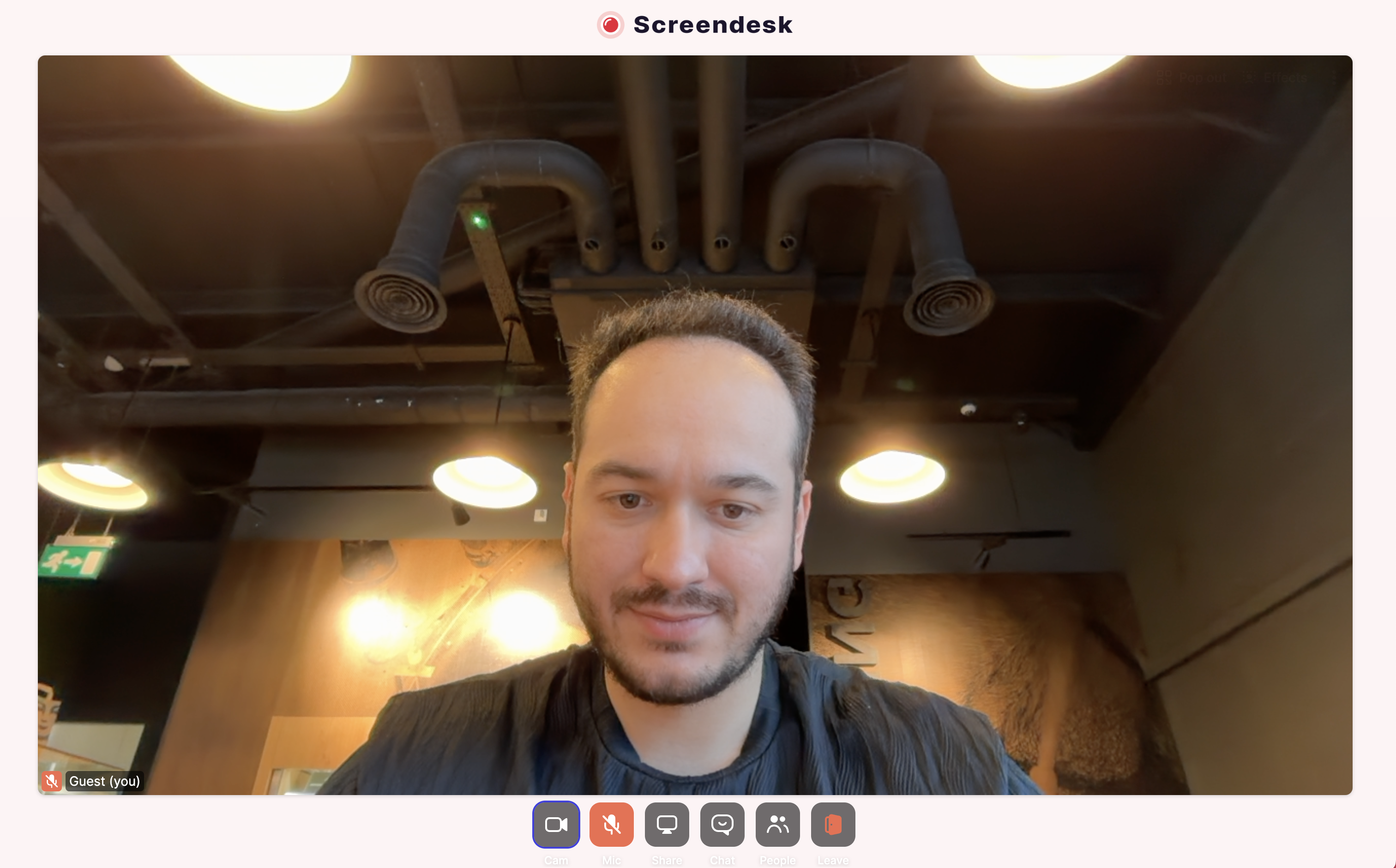
When you start a live video call, Screendesk creates a unique video room hosted by Whereby. You receive a host link with full controls, and your customer receives a guest link to join. The session happens in the browser—no downloads or accounts required for either party.
**Key capabilities:**
* **Screen sharing** — Customers can share their screen so you can see exactly what they're seeing
* **Video and audio** — Optional webcam and microphone for face-to-face communication
* **Multi-participant** — Support multiple participants in the same session
* **Recording** — Optionally record the entire session for documentation or training (Pro and Enterprise only)
* **Integrated with helpdesk** — Create sessions directly from Zendesk, Intercom, HubSpot tickets
### Starting a live video call
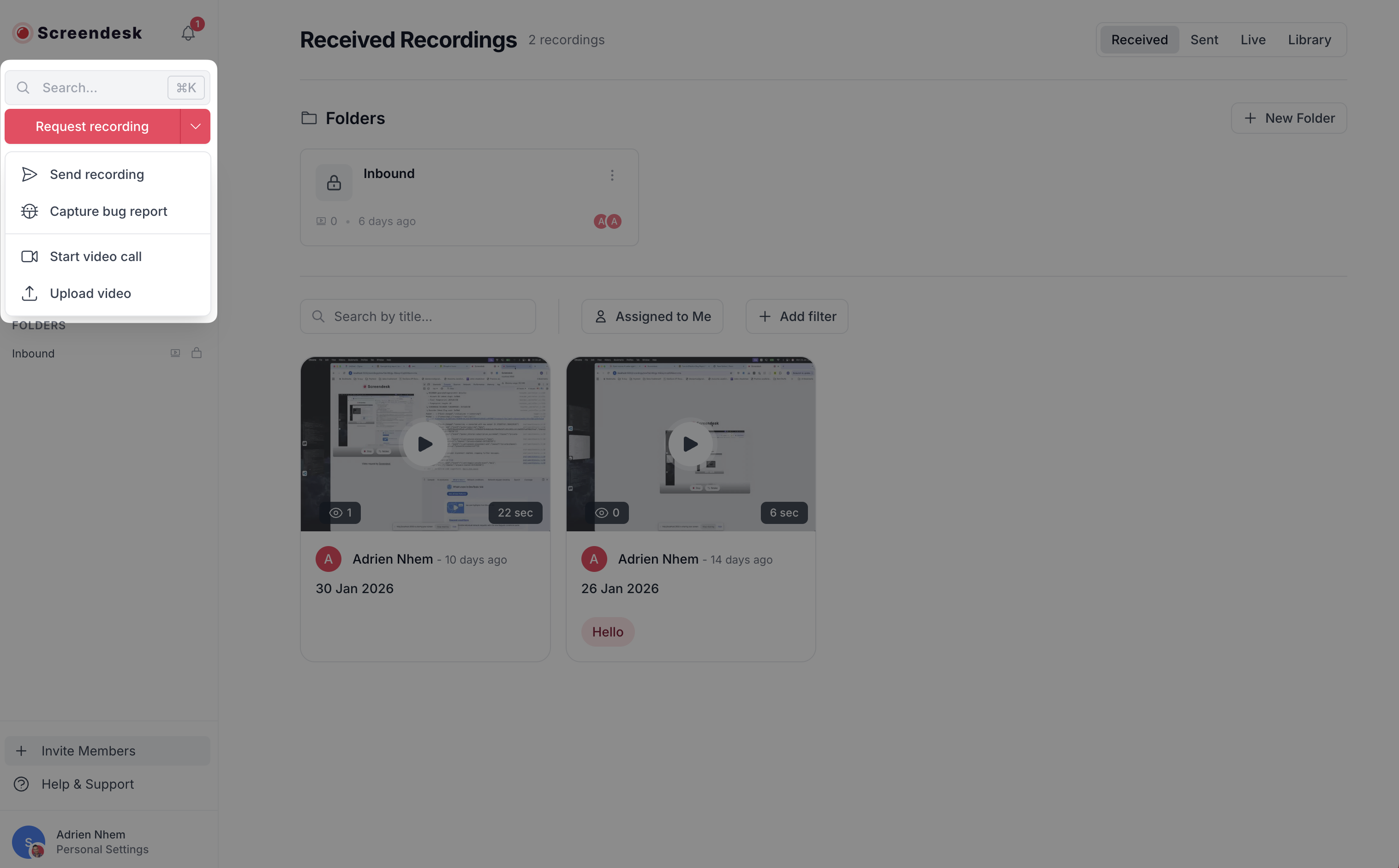
The fastest way to start a live video call is from within your helpdesk tool.
{% stepper %}
{% step %}
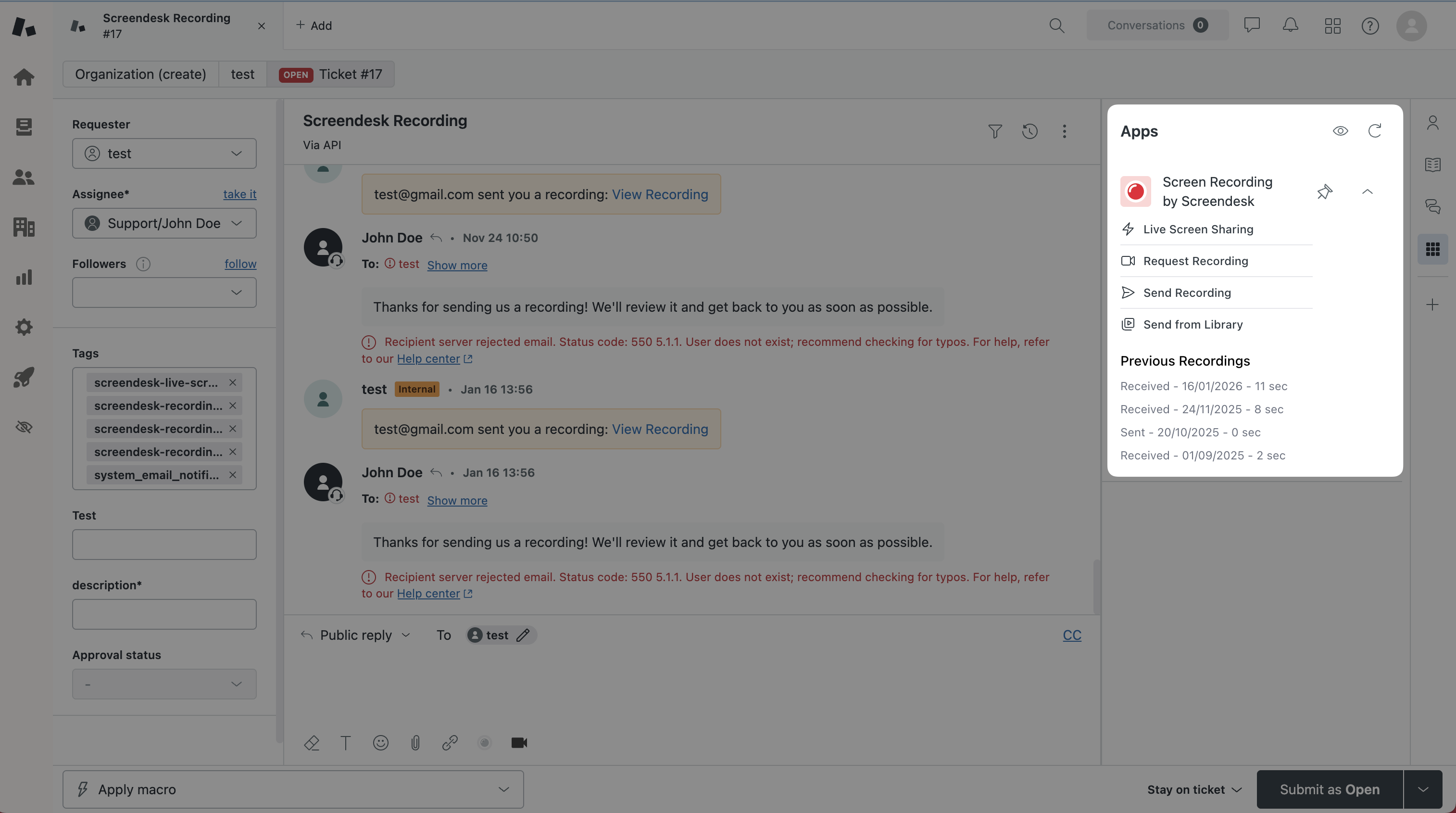
#### Open the Screendesk sidebar
Navigate to the ticket or conversation in your helpdesk (Zendesk, Intercom, or HubSpot). The Screendesk sidebar loads automatically.
{% endstep %}
{% step %}
#### Click "Live Screen Sharing"
In the sidebar, click the **Live Screen Sharing** button. Screendesk creates a unique video room for this session.
{% endstep %}
{% step %}
#### Share the link with your customer
The join link is automatically inserted into the conversation. Your customer clicks the link to join the video room instantly. You receive a separate host link with full meeting controls.
{% endstep %}
{% step %}
#### Join the session
Click your host link to enter the video room. You'll have access to recording controls, participant management, and screen sharing settings.
{% endstep %}
{% endstepper %}
### What customers experience
When a customer clicks the join link you send them:
1. **No installation required** — The video room opens directly in their browser (Chrome, Firefox, Safari, Edge all supported)
2. **Permission prompts** — Browser asks for camera/microphone permissions (they can skip these if they only want to share their screen)
3. **Join the room** — They enter the video call and can immediately see and hear you
4. **Share their screen** — Using the in-call controls, they can share their entire screen, a specific window, or a browser tab
5. **Real-time collaboration** — You both see the same screen in real time with minimal latency
{% hint style="success" %}
**Privacy note:** Customers don't need to create an account or provide personal information to join a video call. The room link expires after 30 days automatically.
{% endhint %}
### During the call
As the host, you have full control over the session:
| Control | Description |
| ------------------------ | ----------------------------------------------------- |
| **Start/stop recording** | Begin or end the recording (if enabled by your admin) |
| **Mute audio** | Turn your microphone on or off |
| **Turn off camera** | Show or hide your webcam video |
| **Share your screen** | Demonstrate solutions on your own screen |
| **End call** | Close the session for everyone |
### When to use live video calls
Live video calls are most effective in these scenarios:
#### Complex troubleshooting
When a customer describes an issue that's difficult to reproduce or understand through text and screenshots alone, a live session lets you see exactly what's happening in real time.
**Example:** A customer reports that "the submit button doesn't work," but recordings show the button working normally. In a live call, you discover they're clicking a different element that looks like a button but isn't interactive.
#### Guided walkthroughs
When you need to walk a customer through a multi-step process and want to ensure they complete each step correctly.
**Example:** Helping a new user configure advanced settings, import data, or integrate with third-party tools. You can watch them complete each step and provide immediate feedback.
#### Training sessions
When onboarding new customers or teaching them how to use advanced features of your product.
**Example:** Conducting a live product demo for an Enterprise customer, showing them how to set up workflows, configure permissions, and use advanced features.
#### Urgent issues
When a high-priority customer has a business-critical issue that needs immediate resolution.
**Example:** A customer's production system is down. A live call lets you quickly diagnose the issue, guide them through fixes, and verify the resolution immediately.
### Live calls vs. screen recordings
Not sure whether to use a live call or request a screen recording? Here's a quick comparison:
| Feature | Live video call | Screen recording |
| ------------------- | ----------------------------------------- | ------------------------------------------- |
| **Timing** | Real-time, synchronous | Asynchronous |
| **Best for** | Complex issues, urgent problems, training | Simple bugs, issue reporting, documentation |
| **Customer effort** | Requires scheduling, presence | Record and send at convenience |
| **Agent control** | Can guide customer in real time | Watch after recording is submitted |
| **Recording** | Optional, saved automatically | Always saved |
| **Privacy** | More intrusive (requires live presence) | Less intrusive (record when ready) |
| **Latency** | Minimal (live stream) | None (pre-recorded) |
{% hint style="info" %}
For a detailed comparison and decision guide, see Live screensharing VS co-browsing.
{% endhint %}
Technical requirements
#### For support agents (hosts)
* Modern web browser (Chrome, Firefox, Safari, Edge)
* Stable internet connection (minimum 2 Mbps upload speed)
* Working microphone and webcam (optional but recommended)
* Host link access (automatically provided when you create a session)
#### For customers (guests)
* Modern web browser (Chrome, Firefox, Safari, Edge)
* Stable internet connection (minimum 1 Mbps download speed)
* Microphone and webcam (optional)
* Ability to share screen (browser must support screen sharing API)
#### Browser support
Whereby rooms (which power Screendesk live video calls) are supported on:
* **Chrome** 72+ (recommended)
* **Firefox** 68+
* **Safari** 12.1+
* **Edge** 79+ (Chromium-based)
Mobile browsers have limited support. Desktop browsers provide the best experience.
### Privacy and security
#### Data handling
* Video streams are end-to-end encrypted using WebRTC
* Room links expire automatically after 30 days
* Only participants with the room link can join
* Recordings (if enabled) are stored in your Screendesk workspace according to your data retention settings
#### Customer consent
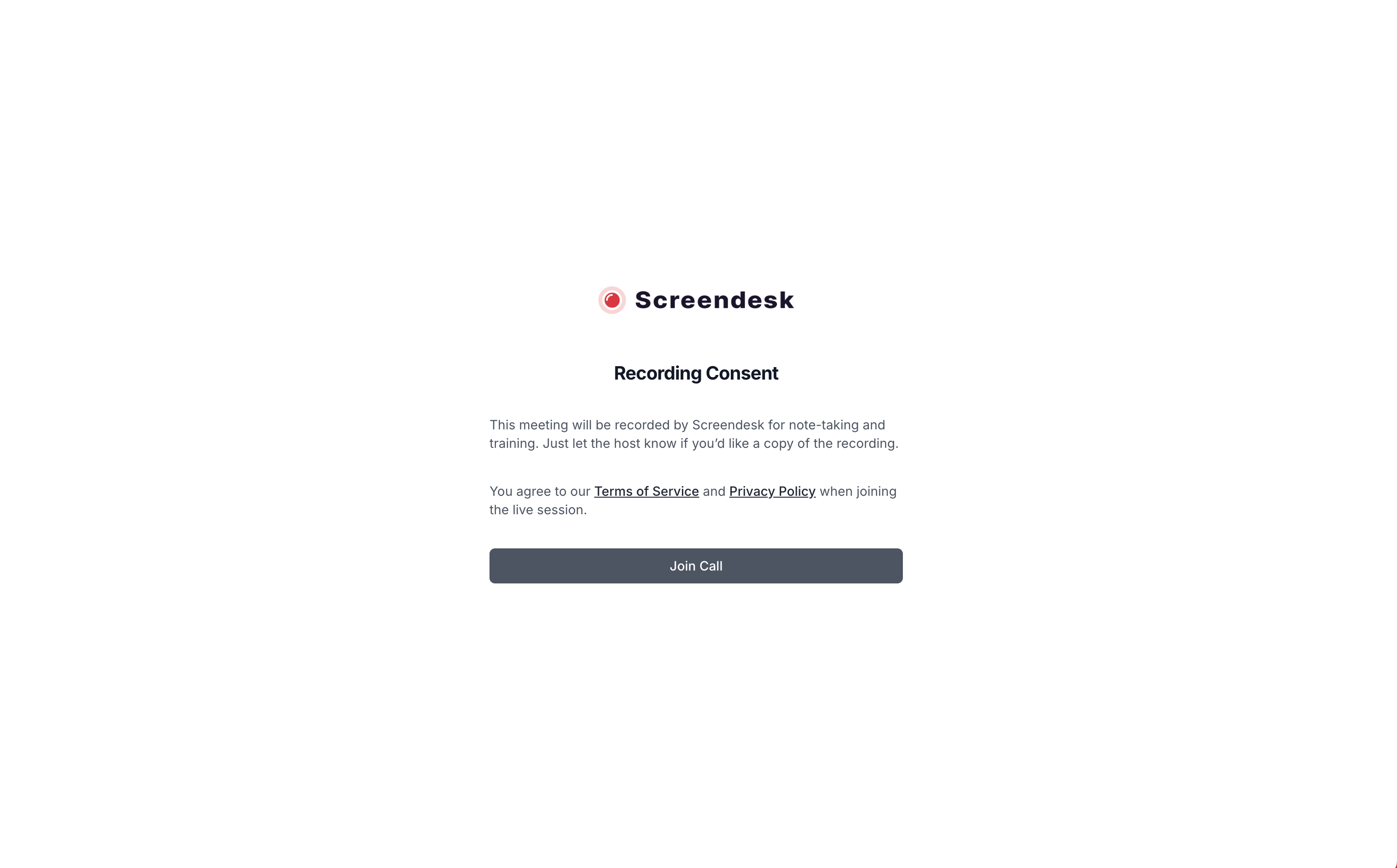
When recording is enabled, participants see a clear indicator that the session is being recorded. Your workspace administrator can configure whether recording starts automatically or requires manual action.
{% hint style="warning" %}
**Important:** Check your local regulations regarding recording consent. Some jurisdictions require explicit verbal or written consent before recording conversations. Your workspace administrator should configure recording settings in compliance with applicable laws.
{% endhint %}
Troubleshooting
#### Customer can't join the room
**Possible causes:**
* Room link expired (rooms expire after 30 days)
* Browser doesn't support video calls
* Corporate firewall blocking WebRTC traffic
**Solutions:**
* Create a new room and send a fresh link
* Ask customer to try a different browser (recommend Chrome)
* Ask customer to check with their IT department about WebRTC access
#### Poor video or audio quality
**Possible causes:**
* Slow internet connection
* Network congestion
* Too many browser tabs open
**Solutions:**
* Ask both parties to close unnecessary browser tabs and applications
* Turn off video and use audio only
* If both parties are on slow connections, consider requesting a screen recording instead
#### Screen sharing not working
**Possible causes:**
* Browser permissions denied
* macOS screen recording permission not granted
* Browser doesn't support screen sharing API
**Solutions:**
* Check browser permissions and re-grant screen sharing access
* On macOS: System Preferences → Security & Privacy → Screen Recording → Enable for browser
* Update browser to the latest version
* Try a different browser
#### Recording didn't save
**Possible causes:**
* Recording was never started during the call
* Session was too short (less than a few seconds)
* Recording is still being processed
**Solutions:**
* Check if the recording was started during the call (look for the recording indicator)
* Wait a few minutes—recordings can take time to process after the call ends
---
# Agent Instructions
This documentation is published with GitBook. GitBook is the documentation platform designed so that both humans and AI agents can read, navigate, and reason over technical content effectively. Learn more at gitbook.com.
## Querying This Documentation
If you need additional information that is not directly available in this page, you can query the documentation dynamically by asking a question.
Perform an HTTP GET request on the following URL with the `ask` and `goal` query parameters:
```
GET https://docs.screendesk.io/video-calls/start-a-video-call.md?ask=&goal=
```
`ask` is the immediate question: it should be specific, self-contained, and written in natural language.
`goal` is what the user is ultimately trying to achieve, the reason they need the answer. Sharing it helps GitBook give you a better, more relevant answer. A goal is most helpful when it describes the outcome the user wants rather than restating the question. For example, with `ask=how do I create an API token`, a goal like `build a script that syncs our docs to a CMS` lets GitBook tailor the answer to that use case.
The response will contain a direct answer to the question and relevant excerpts and sources from the documentation.
Use this mechanism when the answer is not explicitly present in the current page, you need clarification or additional context, or you want to retrieve related documentation sections.