> For the complete documentation index, see [llms.txt](https://docs.screendesk.io/llms.txt). Markdown versions of documentation pages are available by appending `.md` to page URLs; this page is available as [Markdown](https://docs.screendesk.io/video-calls/triggers-to-record-a-video-call.md).
# Triggers to record a video call
Record live screensharing sessions, choose when recording starts, and find replays in your dashboard.
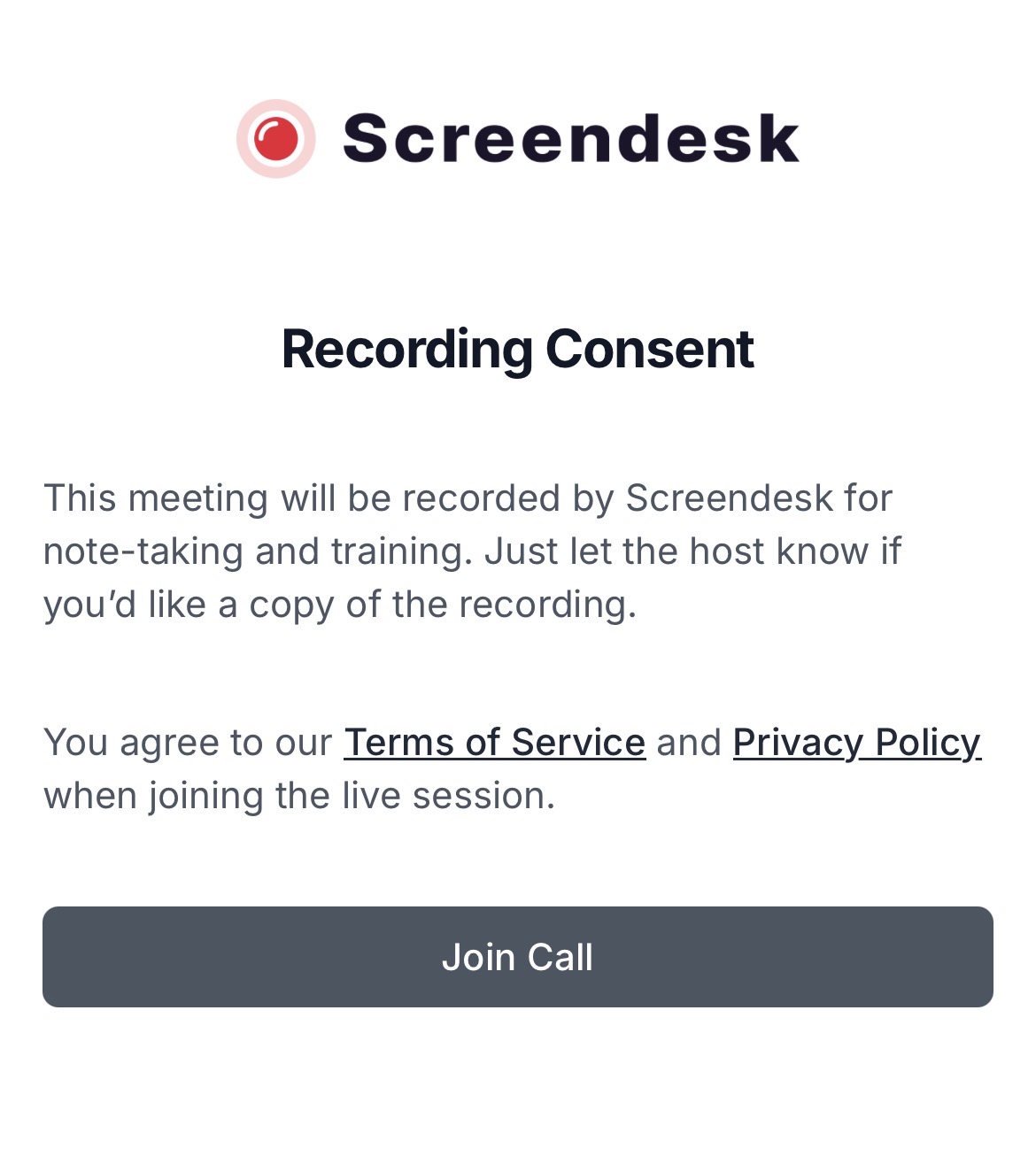
Before the recording starts, participants will be asked to provide consent with the following message:
Screendesk can automatically record your live video call sessions, capturing both video and audio. Recordings are processed and stored in your workspace, where they can be reviewed, shared, and used for training or documentation purposes.
{% hint style="info" %}
**Plan availability:** Live session recording is available on **Pro** and **Enterprise** plans. Trial accounts also have access during the trial period.
Your workspace administrator controls whether recording is enabled and how recordings are triggered. If you don't see recording options in your live sessions, ask your admin to enable this feature in **Account Settings → Live Screensharing**.
{% endhint %}
### How recording works
When recording is enabled for your workspace, Screendesk captures the entire video call—including screen shares, participant video, and audio—and saves it as an MP4 file. After the call ends, the recording is automatically processed and added to your workspace.
#### What gets recorded
* **Screen sharing** — Any screens shared by participants during the call
* **Participant video** — Webcam feeds from all participants (if cameras are enabled)
* **Audio** — All audio from the call, including voices and system sounds
* **Timestamp** — The date and time the call started and ended
#### What doesn't get recorded
* **Chat messages** — Text chat within the video room is not captured
* **Private moments** — Recording only captures what happens while recording is active
* **Individual participant tracking** — The recording shows the active speaker view, not separate streams per participant
### Recording trigger options
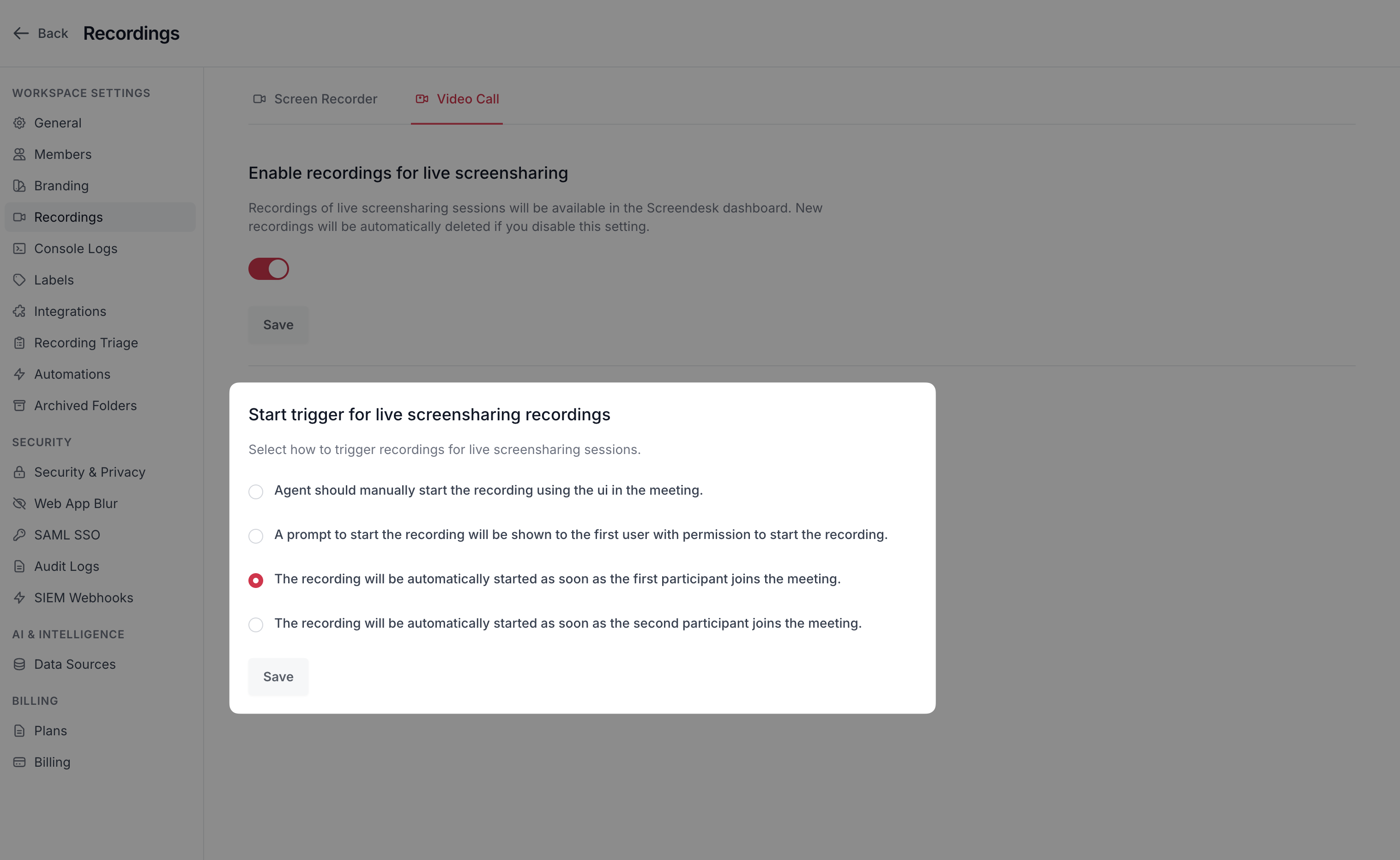
Your workspace administrator configures how recordings start. There are four options:
#### Manual start (recommended for privacy)
The host must manually click the "Start Recording" button during the call. This gives you full control over when recording begins and ends.
**When to use:**
* You want maximum privacy control
* You need to explain recording consent to the customer first
* Not every session needs to be recorded
**How it works:**
1. Join the video call as the host
2. Wait for the customer to join
3. Inform the customer that you'll be recording
4. Click the "Start Recording" button in the video room controls
5. A recording indicator appears for all participants
6. Click "Stop Recording" when finished, or the recording stops automatically when the call ends
#### Prompt on first participant
When the first participant with permission joins the call, they see a prompt asking if they want to start recording.
**When to use:**
* You want recordings for most sessions but want to confirm each time
* You want a reminder to start recording without it being automatic
**How it works:**
1. The first host to join sees a dialog: "Start recording this session?"
2. Click "Start" to begin recording immediately
3. Click "Cancel" to skip recording for this session
4. The recording can still be started manually later if needed
#### Automatic on first participant
Recording starts automatically as soon as the first participant joins the room.
**When to use:**
* You need to record every session for compliance or quality assurance
* You don't want to risk forgetting to start recording
* You've already informed customers in advance that sessions will be recorded
**How it works:**
1. The host joins the video room
2. Recording starts automatically
3. A recording indicator appears immediately
4. The customer sees the recording indicator when they join
{% hint style="warning" %}
**Legal notice:** In many jurisdictions, you must inform participants before recording begins. Automatic recording may not comply with consent laws in your region. Consult with your legal team before enabling automatic recording.
{% endhint %}
#### Automatic on second participant
Recording starts automatically when the second participant joins (i.e., when the customer joins after the host).
**When to use:**
* You want to avoid recording empty rooms
* You want automatic recording but only when both parties are present
**How it works:**
1. The host joins the video room (no recording yet)
2. The customer joins
3. Recording starts automatically as soon as the second person enters
4. Both participants see the recording indicator
### Managing recordings after the call
Once the call ends, the recording is processed and uploaded to your Screendesk workspace automatically.
#### Where recordings appear
Recordings from live video calls are stored in your workspace with the following properties:
* **Source type:** Live Recordings (`source: lsc`)
* **Linked to ticket:** If the session was started from a helpdesk integration, the recording is automatically linked to that ticket or conversation
* **Customer email:** If available from the helpdesk integration, the customer's email is attached to the recording
* **Default folder:** Live recordings can be auto-routed to specific folders using Recording Triage rules
#### Processing time
After the call ends, the recording is uploaded to cloud storage and processed. This typically takes:
* **Short calls (< 5 minutes):** 1-2 minutes
* **Medium calls (5-20 minutes):** 2-5 minutes
* **Long calls (> 20 minutes):** 5-15 minutes
Processing includes:
* Uploading the MP4 file from the video room to your Screendesk storage
* Generating HLS streaming segments for videos longer than 1 minute
* Extracting video metadata (duration, resolution, file size)
* Creating thumbnail preview images
{% hint style="info" %}
Very short recordings (less than a few seconds) may not be saved. If a participant immediately leaves after joining, the recording may not process successfully.
{% endhint %}
### Viewing and sharing live recordings
Live recordings work just like other recordings in your workspace:
* View them from the **Recordings** page
* Filter by source type "Live Recordings"
* Share them via link with customers or team members
* Add them to folders for organization
* Apply labels and assign team members
* Include them in helpdesk ticket responses
#### Access control
By default, live recordings follow your workspace's recording visibility settings. Your administrator can configure whether live recordings are:
* **Anyone with link** (default) — Anyone who has the link can view the recording
* **Workspace members only** — Only team members in your workspace can view
This setting is separate from the recording visibility for customer-submitted recordings.
### Recording indicators for participants
When recording is active, all participants see a clear indicator. This ensures transparency and complies with consent requirements.
**What participants see:**
* A red recording indicator icon in the video room interface
* The word "Recording" or a red dot in the video controls
* In some video room interfaces, a persistent banner message
**When the indicator appears:**
* Immediately when recording starts (manual or automatic)
* Remains visible throughout the entire recording
* Disappears when recording stops
### Recording storage and retention
Recordings are stored according to your workspace's storage location setting:
* **America** — Stored in AWS S3 (US East region)
* **Europe** — Stored in AWS S3 (EU region)
#### Data retention
Live recordings follow your workspace's data retention policy:
* If automatic deletion is enabled, recordings are deleted after the configured period
* Administrators can configure separate retention periods for live recordings vs. received recordings
* Deleted recordings cannot be recovered
To configure retention settings, go to **Account Settings → Security → Data Retention**.
### Disabling or enabling recording
Only workspace administrators can change recording settings.
To enable or disable live session recording:
{% stepper %}
{% step %}
#### Navigate to settings
Go to **Account Settings → Live Screensharing** (requires Admin role).
{% endstep %}
{% step %}
#### Toggle recording
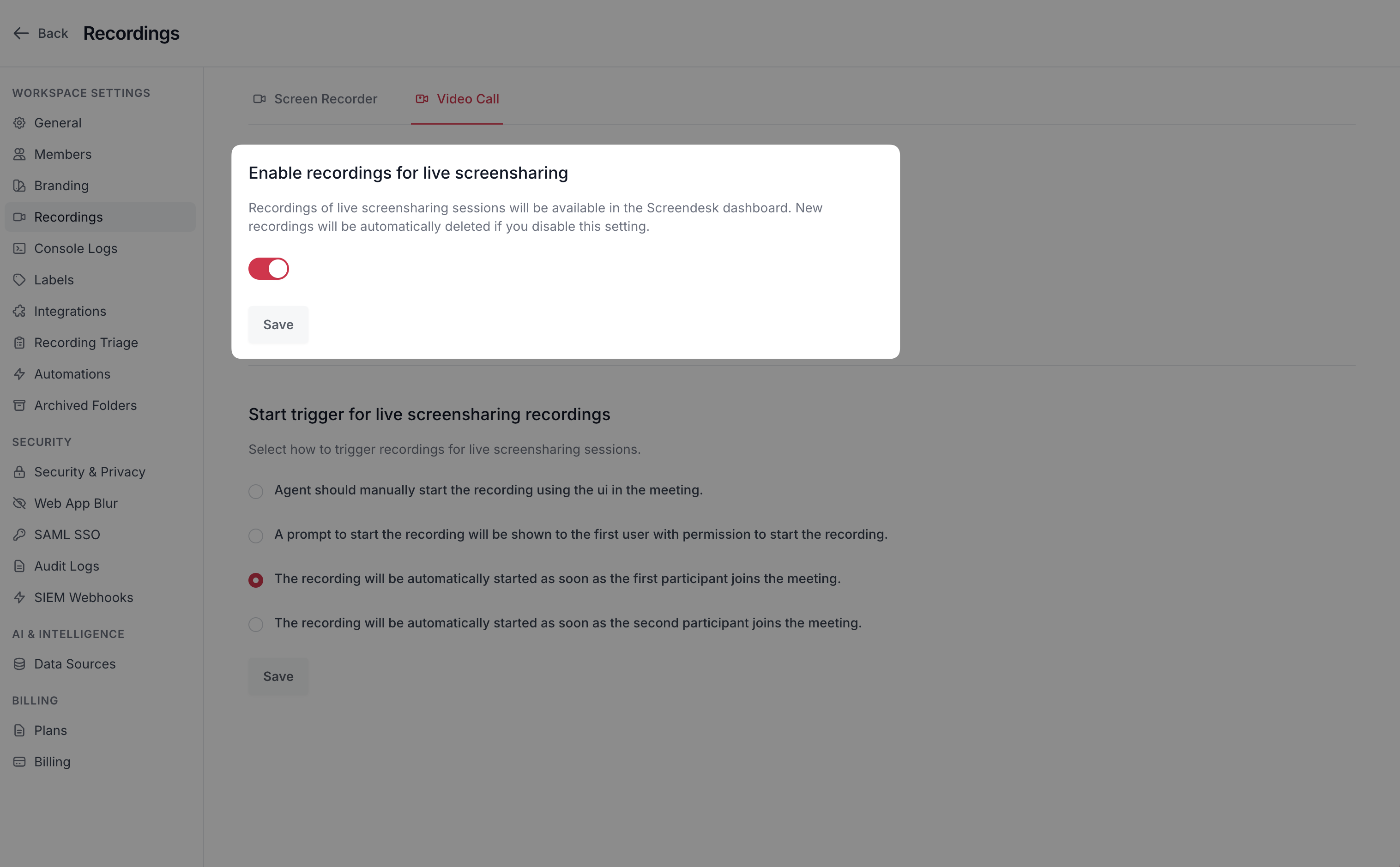
Find the **Enable recordings for live screensharing** toggle. Turn it on or off.
* **On** — Live sessions will be recorded according to the start trigger setting
* **Off** — No recordings will be created for live sessions
{% endstep %}
{% step %}
#### Choose start trigger
Select one of the four recording start triggers:
* Manual (host starts)
* Prompt (asks host on join)
* Automatic (starts on first participant)
* Automatic on second participant (starts when customer joins)
{% endstep %}
{% step %}
#### Save changes
Click **Save** to apply the new settings. Changes take effect immediately for all new live sessions.
{% endstep %}
{% endstepper %}
{% hint style="warning" %}
If you disable recording after it was previously enabled, any recordings that were already created will remain in your workspace. Only new sessions will be unrecorded. To delete existing recordings, you must manually delete them from the **Recordings** page.
{% endhint %}
### Recording consent best practices
To ensure compliance with recording consent laws and build customer trust:
#### Before the call
* **Set expectations in your email or chat message:** "This call may be recorded for quality assurance."
* **Include recording policy in your help center:** Explain when and why you record sessions.
* **Use manual recording trigger:** This gives you time to ask for consent verbally before starting.
#### During the call
* **Ask for verbal consent:** "I'd like to record this session for documentation purposes. Is that okay with you?"
* **Explain the purpose:** "The recording will help us document the solution and improve our support process."
* **Point out the recording indicator:** "You'll see a recording indicator appear in a moment."
#### After the call
* **Inform the customer where they can access the recording:** Provide a link if the recording will be shared.
* **Explain retention:** Let them know how long the recording will be kept.
{% hint style="info" %}
**Regulatory compliance:** Recording consent laws vary by country and region. Some jurisdictions require "all-party consent" (everyone must agree), while others only require "one-party consent" (only one participant needs to agree). Consult with your legal team to ensure your recording practices comply with local laws.
{% endhint %}
Troubleshooting
#### Recording didn't appear after the call
**Possible causes:**
* Recording was never started during the session
* The call was too short (less than a few seconds)
* Recording is still being processed (wait a few minutes)
* A technical error occurred during upload
**Solutions:**
1. Check the **Recordings** page and filter by "Live Recordings"
2. Wait 5-10 minutes for processing to complete
3. Check with your administrator that recording is enabled
4. If the recording still doesn't appear after 15 minutes, contact Screendesk support
#### Recording quality is poor
**Possible causes:**
* Participants had slow internet connections during the call
* Significant network packet loss
* Low-resolution screen sharing
**Solutions:**
* Ensure all participants have stable internet (minimum 2 Mbps)
* Close unnecessary applications during calls
* Ask participants to share at a higher resolution
* Consider shorter sessions if bandwidth is limited
#### Can't find the "Start Recording" button
**Possible causes:**
* Recording is disabled by your workspace administrator
* Your plan doesn't include live recording
* You're not the host (only hosts can control recording)
**Solutions:**
* Check with your administrator that recording is enabled
* Verify your workspace is on Pro or Enterprise plan
* Ensure you're joining via the host link, not the guest link
#### Recording stopped unexpectedly
**Possible causes:**
* Host left the call
* Network connection was lost
* Maximum recording duration was reached
**Solutions:**
* The partial recording up to the disconnection point should still be saved
* Check the **Recordings** page to see if a partial recording was created
* If the host needs to leave mid-call, another participant with host permissions should join first
---
# Agent Instructions
This documentation is published with GitBook. GitBook is the documentation platform designed so that both humans and AI agents can read, navigate, and reason over technical content effectively. Learn more at gitbook.com.
## Querying This Documentation
If you need additional information that is not directly available in this page, you can query the documentation by asking a question.
Perform an HTTP GET request on the following URL with the `ask` and `goal` query parameters:
```
GET https://docs.screendesk.io/video-calls/triggers-to-record-a-video-call.md?ask=&goal=
```
`ask` is the immediate question: it should be specific, self-contained, and written in natural language.
`goal` is what the user is ultimately trying to achieve, the reason they need the answer. Sharing it helps GitBook give you a better, more relevant answer. A goal is most helpful when it describes the outcome the user wants rather than restating the question. For example, with `ask=how do I create an API token`, a goal like `automate deployments from our CI pipeline` lets GitBook tailor the answer to that use case.
The response will contain a direct answer to the question and relevant excerpts and sources from the documentation.
Use this mechanism when the answer is not explicitly present in the current page, you need clarification or additional context, or you want to retrieve related documentation sections.