> For the complete documentation index, see [llms.txt](https://docs.screendesk.io/llms.txt). Markdown versions of documentation pages are available by appending `.md` to page URLs; this page is available as [Markdown](https://docs.screendesk.io/video-library/adding-video-to-the-library.md).
# Adding video to the library
Add and remove recordings in the Video Library, and control who can manage shared videos.
The Video Library is a shared collection of reusable recordings that your entire team can access and send to customers directly from the dashboard or from within your helpdesk tool. Any recording in Screendesk can be added to the library, making it easy to build a catalog of how-to videos, troubleshooting walkthroughs, or product demos.
### Who can manage the library
Only **Admins** and **Editors** can add or remove videos from the library. Members can browse and use library videos, but cannot change which recordings appear there.
{% hint style="info" %}
Videos that were uploaded directly (using the **Upload Video** button) are automatically added to the library. The add and remove actions described below apply to recordings created through screen recording, helpdesk integrations, or the Chrome extension.
{% endhint %}
### Add a recording to the library
You can add a recording to the library from two places: the dashboard and the individual recording page.
{% tabs %}
{% tab title="From the dashboard" %}
{% stepper %}
{% step %}
#### Find the recording
Navigate to your dashboard and locate the recording you want to add. You can use the **Received**, **Sent**, or **Live** filter tabs to narrow down your list, or search by title.
{% endstep %}
{% step %}
#### Open the recording menu
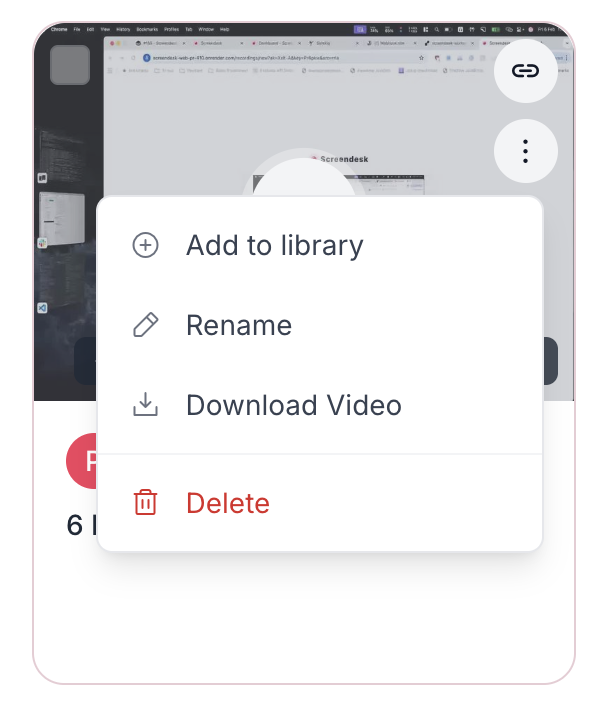
Hover over the recording card and click the **three-dot menu** icon that appears in the top-right area of the card.
{% endstep %}
{% step %}
#### Select "Add to library"
Click **Add to library** from the dropdown menu. The recording will be moved to the library immediately, and a confirmation message will appear: *"Video was successfully added to library."*
{% endstep %}
{% endstepper %}
{% endtab %}
{% tab title="From the recording page" %}
{% stepper %}
{% step %}
#### Open the recording
Click on any recording to open its detail page.
{% endstep %}
{% step %}
#### Click the library icon
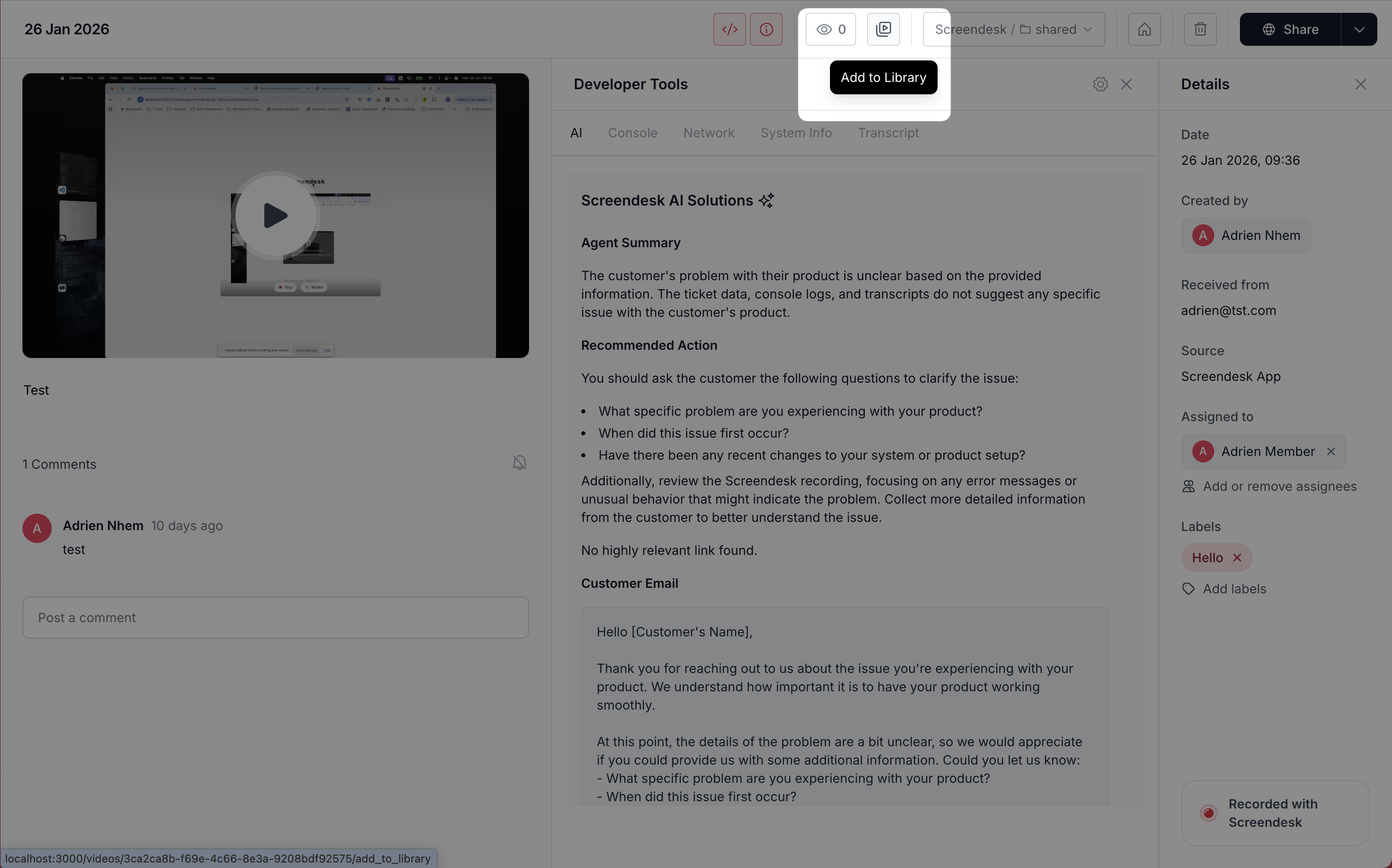
In the header area of the recording page, click the **Add to Library** button (a video icon with a gray border). A tooltip reading "Add to Library" will appear when you hover over it.
{% endstep %}
{% step %}
#### Confirm the change
The button style will change to a rose-colored background, indicating the recording is now in the library. A confirmation message will appear: *"Video was successfully added to library."*
{% endstep %}
{% endstepper %}
{% endtab %}
{% endtabs %}
{% hint style="warning" %}
When a recording is added to the library, it is automatically removed from any folder it was previously in. Library videos are managed separately from folder-based organization.
{% endhint %}
### Remove a recording from the library
{% tabs %}
{% tab title="From the library view" %}
{% stepper %}
{% step %}
#### Go to the Library tab
On the dashboard, click the **Library** filter tab to see all library recordings.
{% endstep %}
{% step %}
#### Open the recording menu
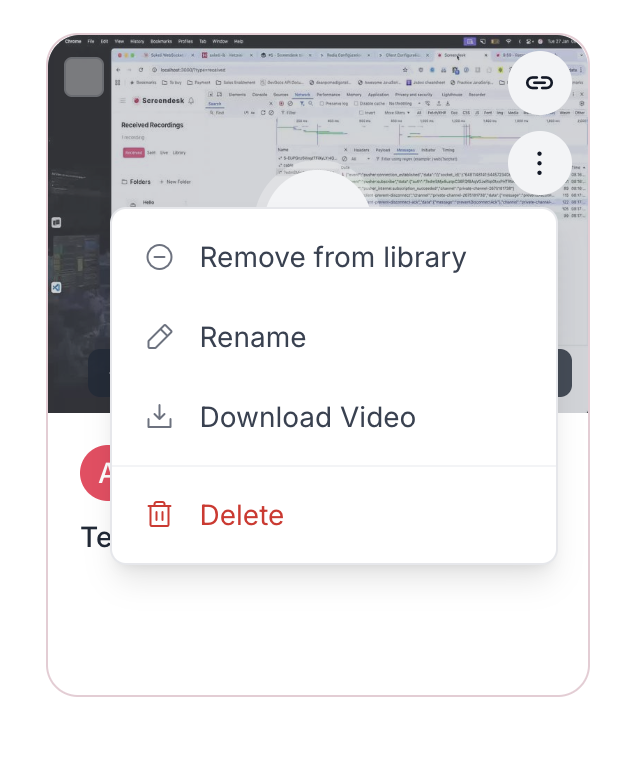
Hover over the recording card and click the **three-dot menu** icon.
{% endstep %}
{% step %}
#### Select "Remove from library"
Click **Remove from library**. The recording will be removed from the library view, and a confirmation message will appear: *"Video was successfully removed from library."*
{% endstep %}
{% endstepper %}
{% endtab %}
{% tab title="From the recording page" %}
Open the recording and click the **Remove from Library** button in the header (displayed with a rose-colored background when the recording is currently in the library). The button will revert to a gray style, confirming the recording has been removed.
{% endtab %}
{% endtabs %}
### Browse the library
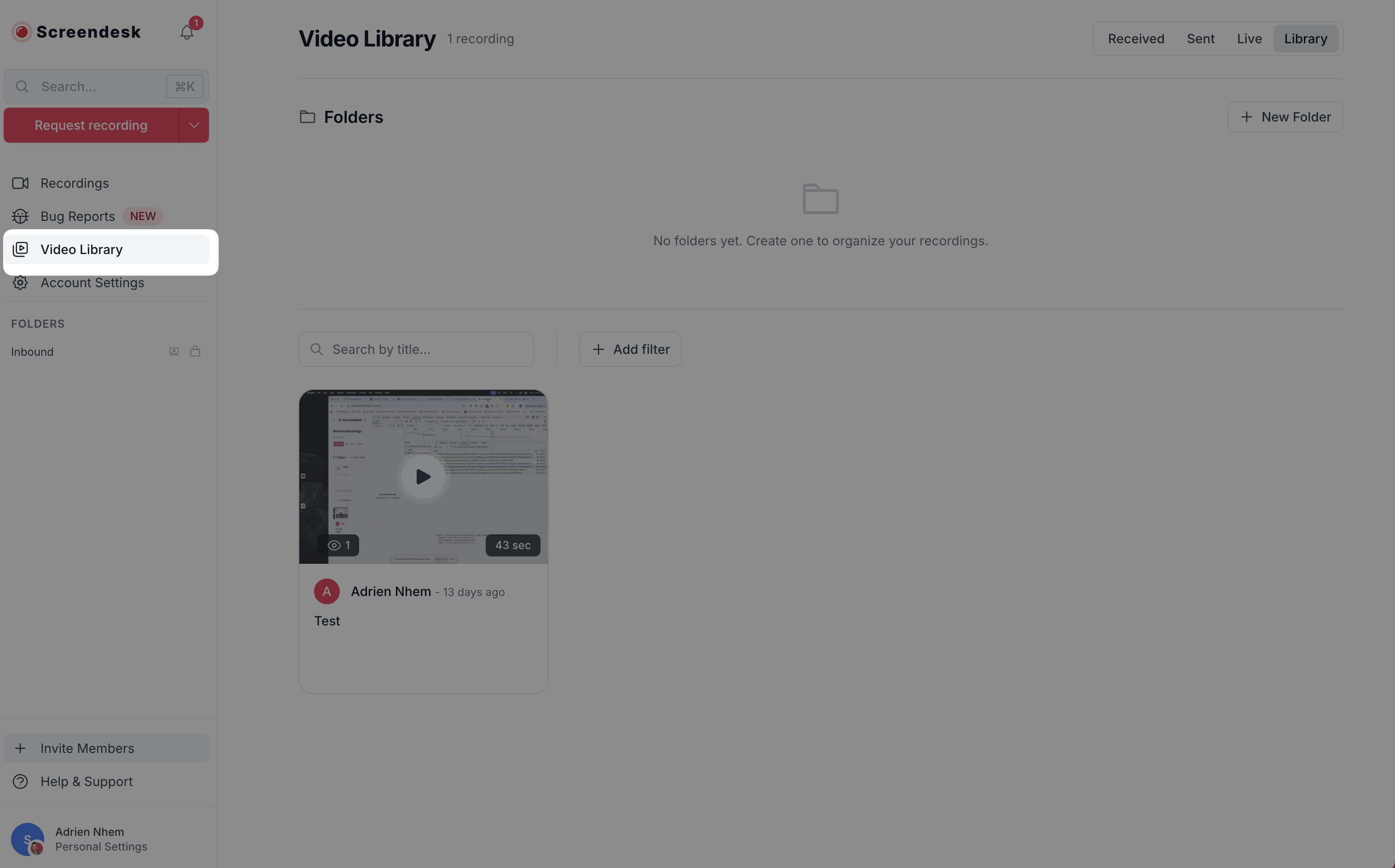
To view all library videos, click the **Library** tab on the dashboard filter bar. The filter tabs — **Received**, **Sent**, **Live**, and **Library** — appear at the top of your recordings list.
The library view displays each recording as a card showing the video thumbnail, duration, view count, title, and creation date. You can further refine what you see using:
* **Search** — filter by recording title
* **Labels** — filter by any labels assigned to the recording
* **Date range** — filter by when the recording was created
* **Users** — filter by who created the recording
### What happens after adding to the library
Once a recording is in the library, your team can:
* **Send it from the helpdesk sidebar** — Agents using Zendesk, Intercom, or Freshdesk can search the library and share videos directly within a conversation. See Access videos from helpdesk for details.
* **Search it by title or tags** — The library is searchable from both the dashboard and helpdesk integrations. In the helpdesk sidebar, agents can type `#tagname` to filter by tags.
* **Share it via link** — Each library video has a shareable URL that can be copied and sent anywhere.
{% hint style="info" %}
The library count is displayed next to the page heading when viewing the Library tab (e.g., *"12 recordings"*), so you always know how many reusable videos your team has available.
{% endhint %}
---
# Agent Instructions
This documentation is published with GitBook. GitBook is the documentation platform designed so that both humans and AI agents can read, navigate, and reason over technical content effectively. Learn more at gitbook.com.
## Querying This Documentation
If you need additional information that is not directly available in this page, you can query the documentation by asking a question.
Perform an HTTP GET request on the following URL with the `ask` and `goal` query parameters:
```
GET https://docs.screendesk.io/video-library/adding-video-to-the-library.md?ask=&goal=
```
`ask` is the immediate question: it should be specific, self-contained, and written in natural language.
`goal` is what the user is ultimately trying to achieve, the reason they need the answer. Sharing it helps GitBook give you a better, more relevant answer. A goal is most helpful when it describes the outcome the user wants rather than restating the question. For example, with `ask=how do I create an API token`, a goal like `automate deployments from our CI pipeline` lets GitBook tailor the answer to that use case.
The response will contain a direct answer to the question and relevant excerpts and sources from the documentation.
Use this mechanism when the answer is not explicitly present in the current page, you need clarification or additional context, or you want to retrieve related documentation sections.