> For the complete documentation index, see [llms.txt](https://docs.screendesk.io/llms.txt). Markdown versions of documentation pages are available by appending `.md` to page URLs; this page is available as [Markdown](https://docs.screendesk.io/video-library/share-videos-from-helpdesk.md).
# Share videos from helpdesk
Use Screendesk in your helpdesk to request recordings, send videos, share from the library, and start live sessions.
### Supported helpdesk platforms
Screendesk provides in-app integrations for the following platforms:
| Platform | Integration type | Key capabilities |
| ---------------- | ------------------------ | ------------------------------------------------------------------------- |
| **Zendesk** | Ticket sidebar | Request recording, send recording, send from library, live screen sharing |
| **Intercom** | Conversation sidebar | Request recording, send recording, send from library, live screen sharing |
| **Freshdesk** | Portal embed + API | Request recording from customers via portal form |
| **Freshservice** | Ticket integration | Request and receive recordings linked to tickets |
| **HubSpot** | Sidebar widget | Request recording, search library, link recordings to contacts |
| **HelpScout** | Conversation integration | Send and receive recordings linked to conversations |
{% hint style="info" %}
Your workspace administrator sets up the helpdesk integration. If you don't see Screendesk in your helpdesk tool, ask your admin to enable it from the Screendesk **Integrations** settings page.
{% endhint %}
### Using the helpdesk sidebar
Zendesk, Intercom, and HubSpot display a Screendesk sidebar panel directly within the ticket or conversation view. The sidebar gives you quick access to the following actions.
#### Send a video from the library
Use this to share a pre-made video — such as a how-to guide or FAQ walkthrough — without recording a new one.
{% stepper %}
{% step %}
#### Click "Send from Library"
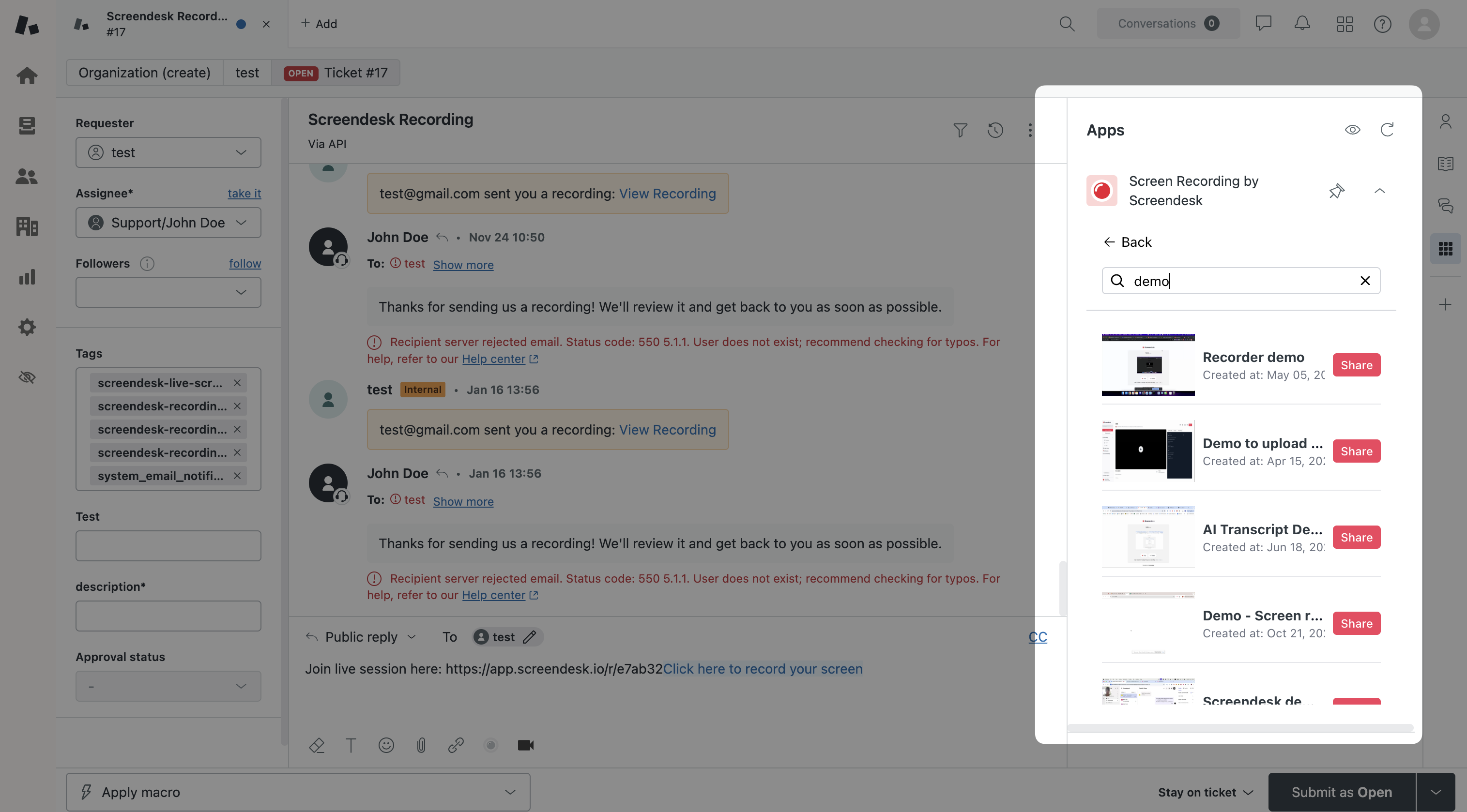
In the Screendesk sidebar, click **Send from Library** (shown with a library icon). The sidebar expands to display the library search view.
{% endstep %}
{% step %}
#### Search for the right video
Type a video title in the search bar to find a specific recording. You can also search by tag using the `#tagname` syntax (e.g., `#onboarding` or `#billing`).
The search results show a list of matching library videos with their thumbnail, title, and creation date.
{% endstep %}
{% step %}
#### Share the video
Click **Share** next to the video you want to send. The video link is inserted into the conversation.
In Intercom, you also have the option to add a personalized message before sharing. A text area labeled "Personalize your message" lets you add context before sending.
{% endstep %}
{% endstepper %}
---
# Agent Instructions
This documentation is published with GitBook. GitBook is the documentation platform designed so that both humans and AI agents can read, navigate, and reason over technical content effectively. Learn more at gitbook.com.
## Querying This Documentation
If you need additional information that is not directly available in this page, you can query the documentation by asking a question.
Perform an HTTP GET request on the following URL with the `ask` and `goal` query parameters:
```
GET https://docs.screendesk.io/video-library/share-videos-from-helpdesk.md?ask=&goal=
```
`ask` is the immediate question: it should be specific, self-contained, and written in natural language.
`goal` is what the user is ultimately trying to achieve, the reason they need the answer. Sharing it helps GitBook give you a better, more relevant answer. A goal is most helpful when it describes the outcome the user wants rather than restating the question. For example, with `ask=how do I create an API token`, a goal like `automate deployments from our CI pipeline` lets GitBook tailor the answer to that use case.
The response will contain a direct answer to the question and relevant excerpts and sources from the documentation.
Use this mechanism when the answer is not explicitly present in the current page, you need clarification or additional context, or you want to retrieve related documentation sections.