> For the complete documentation index, see [llms.txt](https://docs.screendesk.io/llms.txt). Markdown versions of documentation pages are available by appending `.md` to page URLs; this page is available as [Markdown](https://docs.screendesk.io/video-library/upload-videos-to-workspace.md).
# Upload videos to workspace
Upload pre-recorded videos to your workspace and auto-add them to the Video Library for easy sharing.
Screendesk lets you upload pre-recorded video files directly to your workspace. Uploaded videos are automatically added to your Video Library, making them immediately available for your team to share with customers through helpdesk integrations or via link.
This is useful for building a library of product walkthroughs, training content, onboarding guides, or canned video responses that agents can send repeatedly.
### Requirements
Before uploading, make sure the following conditions are met:
| Requirement | Details |
| --------------- | ------------------------------------------------------------------------------------------ |
| **Role** | You must be an **Admin** or **Editor**. Members and watch-only users cannot upload videos. |
| **File format** | MP4, WebM, or QuickTime (MOV) |
| **File size** | Up to **50 MB** per file |
{% hint style="info" %}
The Upload Video button is only visible to Admins and Editors. If you don't see it on your dashboard, check your role with your workspace administrator.
{% endhint %}
### How to upload a video
{% stepper %}
{% step %}
#### Open the upload modal
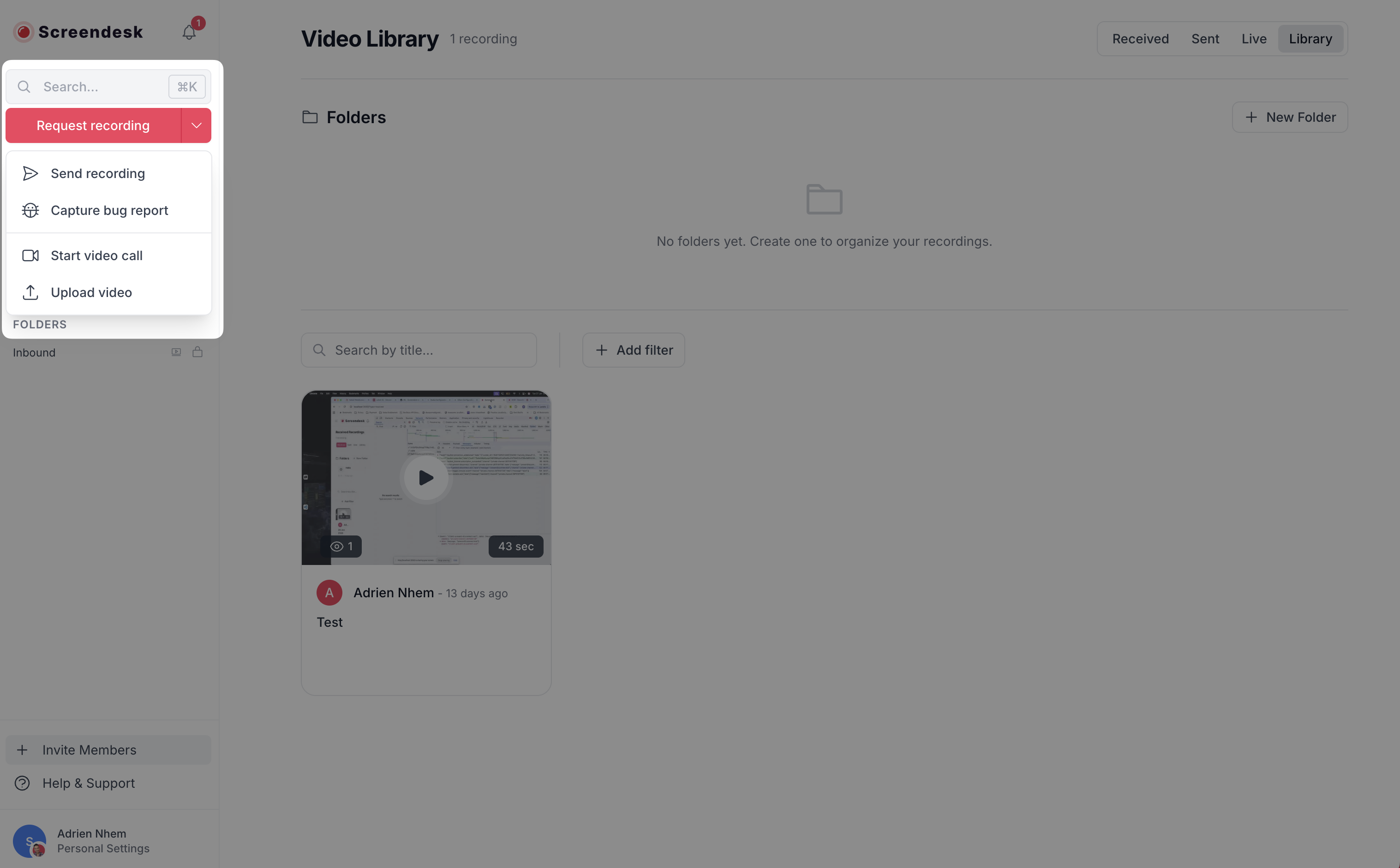
Click the **Upload Video** button at the top of your dashboard. A modal window titled "Upload Videos" will appear.
{% endstep %}
{% step %}
#### Select your files
You have two options:
* **Click "Choose files"** to open a file picker and select one or more video files from your computer.
* **Drag and drop** video files directly into the dashed upload area.
You can select multiple files at once. MP4, WebM, and QuickTime (MOV) files up to 50 MB each are accepted.
{% endstep %}
{% step %}
#### Monitor the upload progress
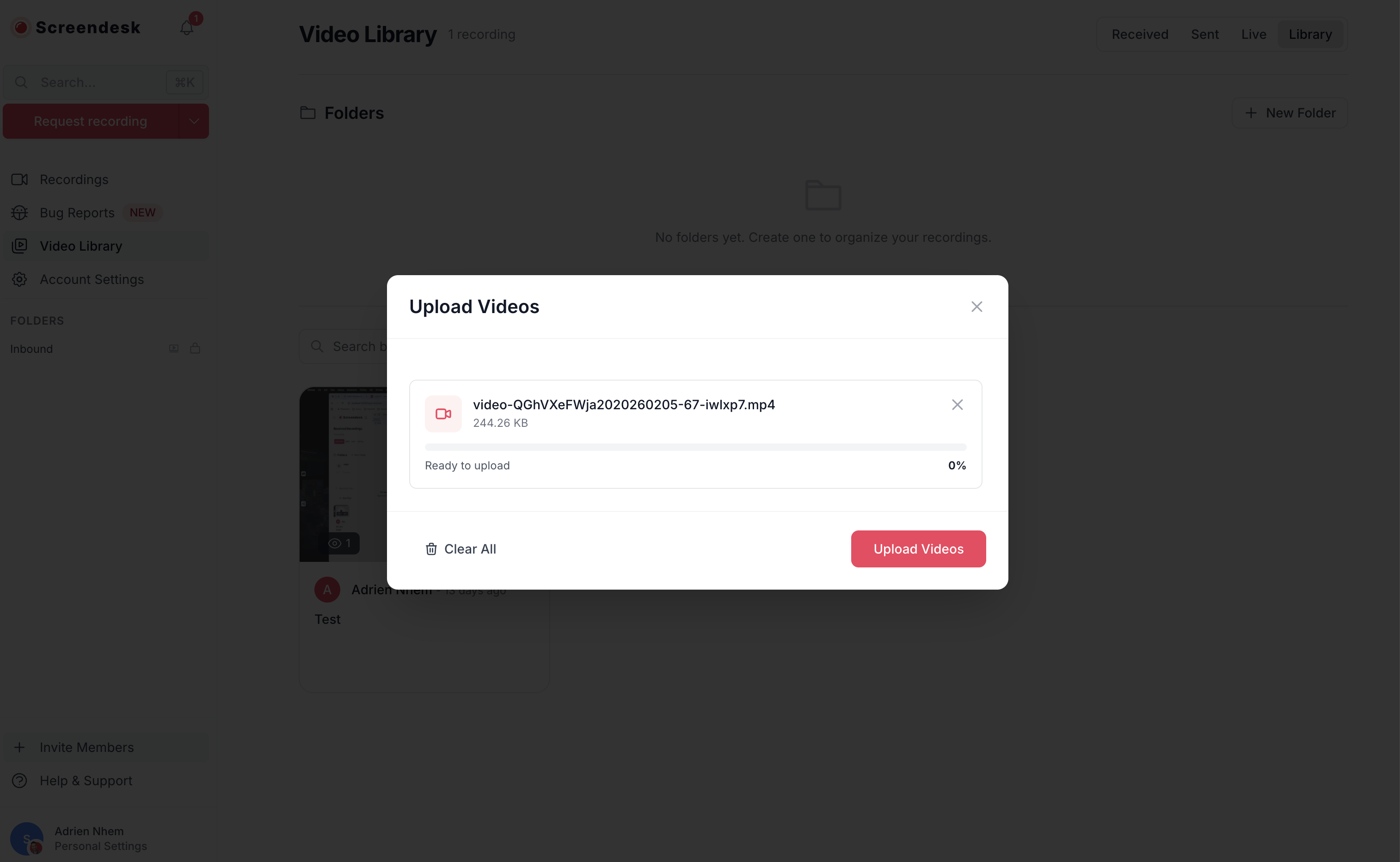
Each file displays a progress bar showing the upload status in real time. You will see the file name, size, and a percentage indicator as the upload proceeds.
* **Rose-colored bar** — upload in progress
* **Green bar** — upload complete
* **Red bar** — upload failed
If you need to start over, click **Clear All** to remove all selected files from the queue.
{% endstep %}
{% step %}
#### Complete the upload
Click the **Upload Videos** button to start uploading. Once all files finish uploading, you will see a "Upload complete!" confirmation, and the modal will close. Your videos will appear in the **Library** tab on the dashboard.
{% endstep %}
{% endstepper %}
### What happens after upload
Once a video is uploaded, Screendesk processes it automatically in the background. Here's what takes place:
| Step | What happens | Timing |
| ------------------------ | ---------------------------------------------------------------------------------------------------------------------------------- | ------------------------------ |
| **Storage** | The video file is stored securely on AWS S3, in either the US or EU region depending on your workspace's storage location setting. | Immediate |
| **Duration extraction** | The video duration is detected and displayed on the recording card. | Starts after a 30-second delay |
| **Transcription** | If your plan includes transcription, the audio is automatically transcribed and a text summary is generated. | A few minutes |
| **Thumbnail generation** | A preview thumbnail image is created from the video. | A few minutes |
| **GIF preview** | An animated GIF preview is generated for use in embeds and sharing. | A few minutes |
| **Video conversion** | The video is converted to an optimized MP4 format for faster playback. | A few minutes |
{% hint style="info" %}
You don't need to wait for processing to finish. The video appears in your library immediately after upload and can be shared right away. Processing happens in the background.
{% endhint %}
### Uploaded videos in the library
All uploaded videos are automatically marked as library videos. This means:
* They appear under the **Library** filter tab on the dashboard.
* They are available in the **Send from Library** option inside helpdesk integrations (Zendesk, Intercom, Freshdesk).
* They can be searched by title from both the dashboard and helpdesk sidebars.
Unlike recordings captured through the browser or helpdesk integrations, uploaded videos cannot be toggled in and out of the library — they always remain in the library.
### Managing uploaded videos
From the dashboard's Library view, you can manage your uploaded videos using the **three-dot menu** on each recording card:
* **Rename** — change the video title to something your team can easily find.
* **Download Video** — download the processed or original file.
* **Delete** — permanently remove the video from your workspace.
You can also open any uploaded video to view its detail page, where you can edit the title and description, view the transcript (if available), and copy the share link.
{% hint style="warning" %}
Deleting a video is permanent and cannot be undone. Make sure the video is no longer needed before removing it.
{% endhint %}
### Sharing uploaded videos
Each uploaded video has a unique shareable link. You can copy it by hovering over a recording card and clicking the **link icon** that appears, or by using the **Share** options on the recording detail page.
Share options include:
* **Copy link** — a direct URL to the video player page.
* **Embed code** — an iframe snippet for embedding the video on a website.
* **GIF** — a link to the animated GIF preview (once generated).
* **Download** — a direct download link for the video file.
---
# Agent Instructions
This documentation is published with GitBook. GitBook is the documentation platform designed so that both humans and AI agents can read, navigate, and reason over technical content effectively. Learn more at gitbook.com.
## Querying This Documentation
If you need additional information that is not directly available in this page, you can query the documentation by asking a question.
Perform an HTTP GET request on the following URL with the `ask` and `goal` query parameters:
```
GET https://docs.screendesk.io/video-library/upload-videos-to-workspace.md?ask=&goal=
```
`ask` is the immediate question: it should be specific, self-contained, and written in natural language.
`goal` is what the user is ultimately trying to achieve, the reason they need the answer. Sharing it helps GitBook give you a better, more relevant answer. A goal is most helpful when it describes the outcome the user wants rather than restating the question. For example, with `ask=how do I create an API token`, a goal like `automate deployments from our CI pipeline` lets GitBook tailor the answer to that use case.
The response will contain a direct answer to the question and relevant excerpts and sources from the documentation.
Use this mechanism when the answer is not explicitly present in the current page, you need clarification or additional context, or you want to retrieve related documentation sections.